







- Are you ready to do hosting migrations risk-free?
- Pre-immigration checklist
- How to Transfer cPanel Hosting to cPanel — Recommended Method (WHM Transfer & pkgacct)
- How to Transfer DirectAdmin to cPanel — Practical and Reliable Methods
- Database, Email, and DNS Migration — Technical Tips and Sample Commands
- Security and post-migration tips
- Test and Rollback
- Selecting a data center location and recommended configuration based on application
- Reasons to use our immigration services
- Final checks before DNS switch
- Summary and best practices
- Frequently Asked Questions
Are you ready to do hosting migrations risk-free?
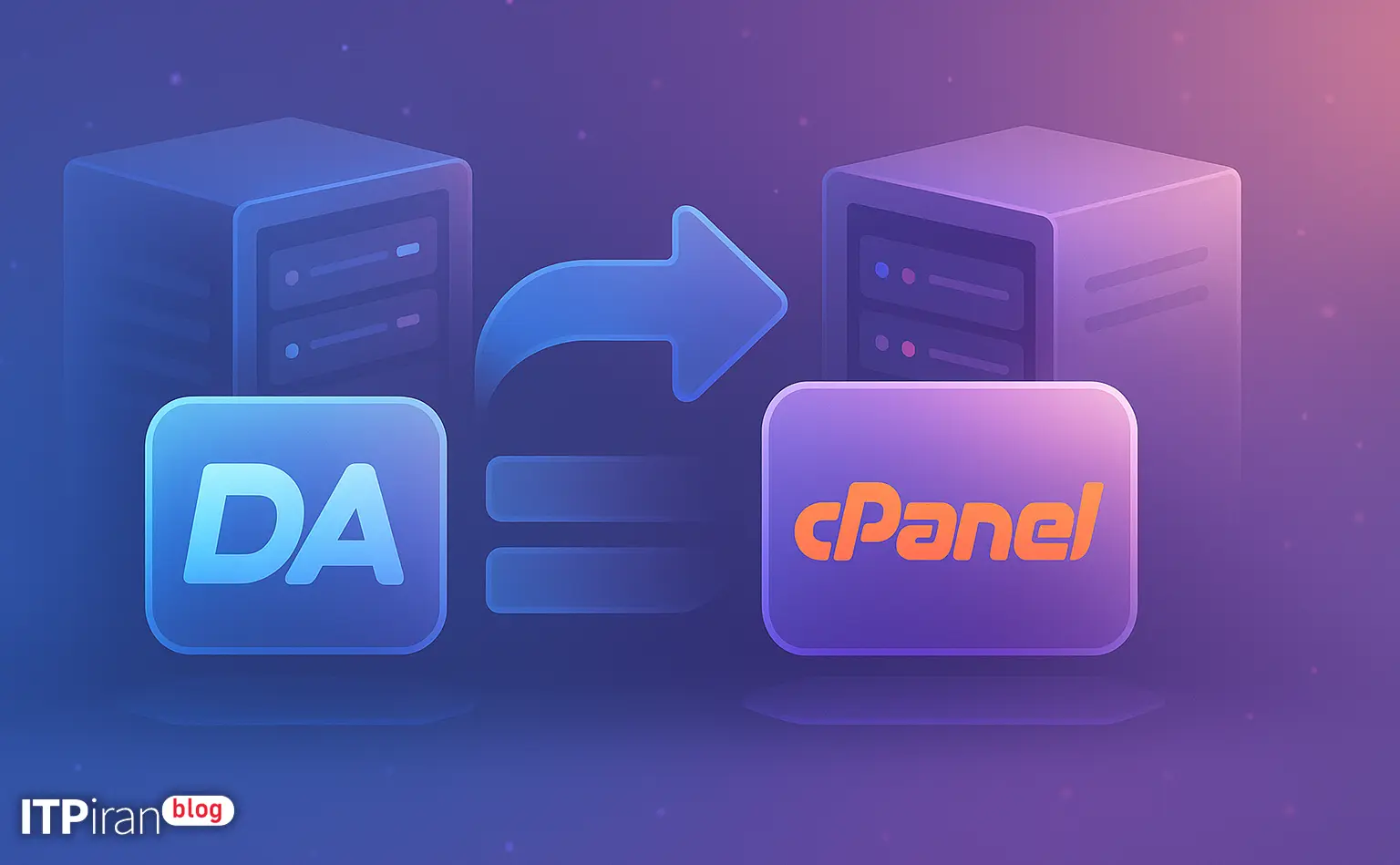
This practical and technical guide covers methods of transferring from cPanel to cPanel And from DirectAdmin to cPanel It is explained step by step. This article is useful for site administrators, programmers, DevOps, and network administrators and includes useful tools and commands such as WHM Transfer, pkgacct, rsync/SCP-1811, imapsync and mysqldump It is.
Pre-immigration checklist
Essentials before starting migration:
Make a full backup (files, database, email, web server configurations).
Reduce the TTL of DNS records to 300 seconds at least 24–48 hours in advance.
Provide root-level SSH access or WHM access to the source and destination servers.
Make sure there is enough space on the destination server and a compatible PHP/Apache/Nginx version.
Define a schedule for the maintenance window.
Set up SSH keys between servers for secure, password-free transfers.
How to Transfer cPanel Hosting to cPanel — Recommended Method (WHM Transfer & pkgacct)
1. Prepare the destination server (WHM)
Log in to the destination server's WHM and make sure that PHP versions and web server (Apache/LiteSpeed) installed and configured. Check SSH port and PHP-FPM settings.
In WHM to Security → Host Access Control And go to CSF/Firewall settings and allow the source server IP to connect.
2. Using the Transfer Tool in WHM
In WHM, the destination is Transfers → Transfer Tool Go to and enter the IP address or hostname of the source server, the root username, the SSH port, and the authentication type (password or SSH key).
Select the account(s) and enable the email forwarding, DNS, and add-ons options, then Start Transfer Click and check the logs.
3. Alternative method: pkgacct and restorepkg (manual transfer)
If you don't have access to the Transfer Tool or need more control, you can use the cPanel backup package:
/scripts/pkgacct usernameThe generated file will be saved in the /home directory (e.g. /home/cpmove-username.tar.gz). Then transfer the file to the destination server with scp:
scp /home/cpmove-username.tar.gz root@DEST_IP:/home/And on the destination server, retrieve the package:
/scripts/restorepkg /home/cpmove-username.tar.gz4. After the transfer
Perform a file, permissions, and database check. In the destination WHM DNS ZoneControl the records.
Enable AutoSSL or install SSL certificates. To test websites before changing public DNS, you can use the hosts file on the local system:
echo "DEST_IP example.com" >> /etc/hostsHow to Transfer DirectAdmin to cPanel — Practical and Reliable Methods
Migrating from DirectAdmin to cPanel usually requires more manual steps; the two main methods are explained below.
Method 1 — User Backups and Content Transfer (Suitable for a Limited Number)
The main steps include backing up files, database, email, then creating an account in cPanel and restoring.
Back up files on the DirectAdmin server:
cd /home/username
tar -czf /root/username-files.tar.gz public_html domains mail
Transfer to cPanel server:
scp /root/username-files.tar.gz root@CPANEL_IP:/root/Database migration with dump and import:
mysqldump -u root -p database_name > /root/database_name.sql
scp /root/database_name.sql root@CPANEL_IP:/root/
mysql -u root -p database_name < /root/database_name.sql
Email transfer is best done with a tool like IMAP. imapsync It is done:
imapsync --host1 old.example.com --user1 [email protected] --password1 'oldpass' --host2 new.example.com --user2 [email protected] --password2 'newpass' --ssl1 --ssl2In the destination server's WHM, create an account with the same username and domain and extract the archives to /home/username:
tar -xzf /root/username-files.tar.gz -C /home/username
chown -R username:username /home/username
Method 2 — Using migration scripts and tools (for large numbers of accounts)
For larger collections, custom scripts can be created that perform production backups via rsync Transfer and then restore in cPanel.
rsync -azP -e "ssh -p 22" /home/ username@CPANEL_IP:/home/When rsyncing, pay attention to the user/UID and groups and use the option if needed. --numeric-ids Use it.
Emails with imapsync and databases with mysqldump/restore To be transferred.
Database, Email, and DNS Migration — Technical Tips and Sample Commands
Database
Example dump and restore command:
mysqldump -u root -p --databases db1 db2 --single-transaction --quick --lock-tables=false > /root/all_dbs.sql
mysql -u root -p < /root/all_dbs.sql
Note: Check the database collation/charset and if necessary, set options like innodb_file_per_table Activate.
imapsync example with dates preserved:
imapsync --host1 old.mail.server --user1 [email protected] --password1 'oldpass' --host2 new.mail.server --user2 [email protected] --password2 'newpass' --ssl1 --ssl2 --syncinternaldatesIn cPanel, check the Exim, IMAP/POP, quotas, and maildir delivery settings.
DNS and records
Export or copy the zone files from DirectAdmin and import them into WHM → DNS Functions → Edit DNS Zone.
If you are using corporate DNS, add the records in the corporate control panel or set up a new nameserver.
Security and post-migration tips
After the migration, change the root and user passwords and remove temporary packages.
Check the logs: /var/log/messages, /var/log/exim_mainlog and /var/log/secure.
Enable the firewall (CSF or firewalld) and fail2ban Set up to prevent brute-force attacks.
Enable email settings including SPF, DKIM, and DMARC to improve deliverability, and set up PTR (reverse DNS) for email sender IPs to reduce the risk of spam.
Test and Rollback
Test all services with a local hosts file before switching DNS. Monitor logs and email deliverability for 24–72 hours after switching DNS.
A rollback plan involves keeping original backups for a specified period (e.g., 7 days) to allow for quick restores if needed.
Selecting a data center location and recommended configuration based on application
General guide to location selection and configuration:
Website/WordPress: Datacenter close to the target user, SSD/NVMe, PHP-FPM, OPcache, and CDN activation.
Trade/Finance: Location close to exchange/broker servers, trading-specific VPS with dedicated resources and Anti-DDoS.
Gaming: Location close to players, dedicated gaming VPS server with BGP network and low ping.
AI/Rendering: On-site graphics server (GPU) with high bandwidth and NVMe for datasets.
Email/SMTP: Server with PTR set, static IP and strong security settings.
Reasons to use our immigration services
Our services include the following to make migration easier:
Access to 85+ global locations To select the nearest data center.
Server types include trading VPS, gaming VPS, high-performance cloud server, and graphics server (GPU).
Security services such as Anti-DDoS, managed firewall, CDN, and BGP settings.
Managed support in cPanel⇄cPanel and DirectAdmin→cPanel migrations with the aim of reducing downtime.
GitLab hosting, managed database, and backup and snapshot solutions to ensure fast restore.
Final checks before DNS switch
Reduce TTL and wait for propagation.
Testing pages, forms, payment gateways, and email sending.
Check error logs, site accessibility, and response time.
Ensuring compatibility of PHP versions and essential modules such as ionCube, mbstring, gd.
Summary and best practices
Summary of key points:
For cPanel→cPanel from WHM Transfer Tool or pkgacct/restorepkg Use.
For DirectAdmin→cPanel combination of rsync, mysqldump and imapsync It is a reliable solution.
Always test before switching DNS, reduce TTL, and keep full backups.
Don't forget about email security and settings (SPF/DKIM/DMARC and PTR).
Choosing the right location and using Anti-DDoS and CDN can improve stability and performance.