









Introduction
The command line interface is a non-graphical way to interact with your computer. Instead of clicking buttons with a mouse, you type commands as text and receive text-based feedback. The command line, also known as a shell, allows you to automate many of the tasks you do on your computer every day and is an essential tool for software developers.
While the command line interface on macOS has many of the same functions you'll find on Linux and other Unix-like systems, it doesn't come with a package manager. A package manager is a set of software tools that work to automate the installation, configuration, and upgrade of software. Package managers keep the software you install in a central location and can maintain all of the software packages on your system in commonly used formats.
What is Homebrew?
Homebrew is a package manager for macOS that allows you to install free and open source software using your terminal. You will use Homebrew to install developer tools like Python, Ruby, Node.js, etc.
In this tutorial, you will install and use Homebrew on your Mac. You will install system tools and desktop applications from the command line interface.
Homebrew installation prerequisites
You'll need a macOS Catalina-capable computer with administrative access and an internet connection. Although older versions of macOS may work, they are not officially supported.
Step 1 – Using the macOS Terminal
To access the command line interface on your Mac, you'll use the Terminal app provided by macOS. Like any other app, you can find it by going to the Finder, navigating to the Applications folder, and then to the Utilities folder. From here, double-click the Terminal app to open it. You can also use Spotlight by holding down the COMMAND key and pressing SPACE to find Terminal by typing it into the box that appears.
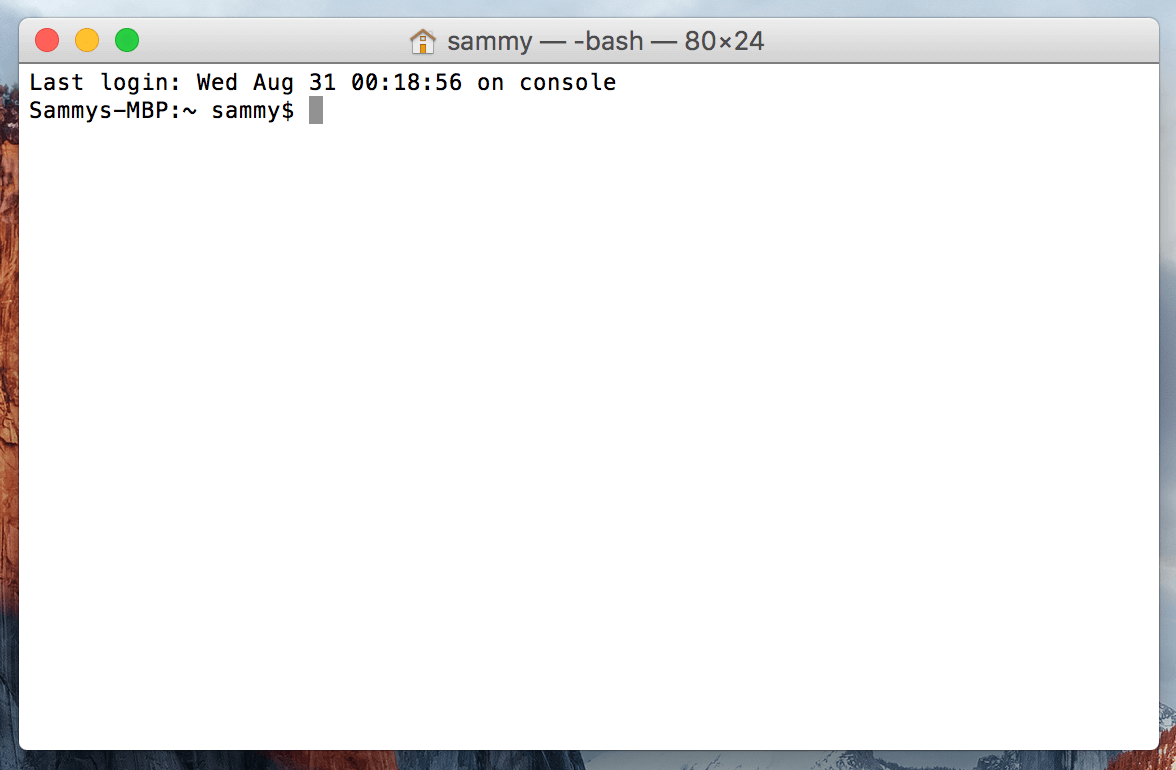
For a more comfortable use of the command line, take a look at [An Introduction to the Linux Terminal] (https://www.digitalocean.com/community/tutorials/an-introduction-to-the-linux-terminal). The command line interface on macOS is very similar, and the concepts in that tutorial are directly applicable.
Now that the terminal is running, let's install a few additional tools that Homebrew requires.
Step 2 – Install Xcode Command Line Tools
Xcode is an integrated development environment (IDE) that consists of software development tools for macOS. You don't need Xcode to use Homebrew, but some of the software and components you'll want to install rely on the Xcode Command Line Tools package.
To download and install these components, run the following command in the terminal:
xcode-select --installYou will be prompted to start the installation and then again asked to accept the software license. The tools will then be downloaded and installed automatically.
You can now install Homebrew.
Step 3 – Installing and Setting Up Homebrew
To install Homebrew, you download an installation script and then run the script.
First, download the script to your local machine by typing the following command in a terminal window:
curl -fsSL -o install.sh https://raw.githubusercontent.com/Homebrew/install/HEAD/install.shThis command is from curl It uses Homebrew's Git repository on GitHub to download the Homebrew installation script.
Let's take a look at the commands related to curl:
- -f or --fail tells the terminal window not to provide any HTML document output on server errors.
- -s or --silent will silence it so that the progress meter does not show, and combined with the -S or --show-error flag, will ensure that curl displays an error message if it fails.
- -L or --location tells curl to handle redirects. If the server reports that the requested page has moved to a different location, it will automatically re-execute the request using the new location.
- The -o switch specifies a local filename for the file. The -o switch saves the contents to the file you specify instead of displaying them on the screen.
Before you run a script you downloaded from the Internet, you should review its contents to understand what the script does. Use the less command to examine the installation script to understand what it does:
less install.shOnce you are comfortable with the contents of the script, run the script with the bash command:
/bin/bash install.shThe installation script will explain what it will do and ask you to confirm that you want to do it. This will give you a chance to see exactly what Homebrew is going to do to your system before you allow it to do it. It will also ensure that you have the necessary prerequisites before you proceed.
You will be prompted to enter your password during the process. However, your keystrokes will not be displayed in the Terminal window when you type your password. This is a security measure and is something you will often see when prompted for a password on the command line. Even though you don't see them, your keystrokes are being recorded by the system, so press the RETURN key after you enter your password.
Whenever you are asked to confirm the installation, y Press for “Yes.”.
Once the installation process is complete, you'll want to add the Homebrew directory to the front of your PATH environment variable to store your executables. This ensures that Homebrew installations are invoked through the tools that macOS includes.
The file you change depends on the shell you're using. ZSH is the default shell in macOS Mojave and later. The Bash shell is a popular shell that older versions of macOS used as the default, and if you've upgraded your operating system, you may still be using Bash.
Run the following command to determine your shell:
echo $0You will see bash or zsh.
If you are using ZSH, you open the ~/.zshrc file in your editor:
nano ~/.zshrcIf you are using the Bash shell, you will use the ~/.bash_profile file:
nano ~/.bash_profileOnce the file opens in the terminal window, add the following lines to the end of the file:
# Add Homebrew's executable directory to the front of the PATH
export PATH=/usr/local/bin:$PATH
The first line is a comment that will help you remember what it does if you open this file in the future.
To save your changes, hold down the CTRL key and the letter O and press RETURN when prompted. Then exit the editor by holding down the CTRL key and pressing X.
To activate these changes, close and reopen your Terminal application. Also, use the source command to load the file you changed.
If you modified .zshrc, run this command:
source ~/.zshrcIf you changed .bash_profile, run this command:
source ~/.bash_profileOnce you do this, the changes you made to the PATH environment variable will take effect. They will be set correctly when you log in again in the future, as your shell configuration file will be automatically executed when you open the Terminal application.
Now let's check that Homebrew is set up correctly. Run this command:
brew doctorIf no update is needed at this time, you will see this in your terminal:
Output
Your system is ready to brew.
Otherwise, you may get a warning to run another command, such as brew update, to ensure your Homebrew installation is up to date. Follow the on-screen instructions to modify your environment before moving on.
Step 4 – Installing, upgrading, and removing packages
Now that Homebrew is installed, use it to download a package. The tree command allows you to see a graphical directory tree and is available through Homebrew.
Install the tree with the brew install command:
brew install treeHomebrew updates its package list and then downloads and installs the tree command:
Output
Updating Homebrew...
==> Downloading https://homebrew.bintray.com/bottles/tree-1.8.0.catalina.bottle.tar.gz
######################################################################## 100.0%
==> Pouring tree-1.8.0.catalina.bottle.tar.gz
🍺 /usr/local/Cellar/tree/1.8.0: 8 files, 117.2KB
Homebrew installs files to /usr/local by default, so they won't interfere with future macOS updates. Verify that the tree is installed by displaying the location of the command with which command:
which treeThe output shows that the tree is located in /usr/local/bin:
Output
/usr/local/bin/tree
To view the version, run the tree command:
tree --versionThe version is printed on the screen, indicating that it is installed:
Output
tree v1.8.0 (c) 1996 - 2018 by Steve Baker, Thomas Moore, Francesc Rocher, Florian Sesser, Kyosuke Tokoro
Sometimes, you want to upgrade an existing package. Use the brew upgrade command followed by the package name:
brew upgrade treeYou can run brew upgrade without any additional arguments to upgrade all programs and packages that Homebrew manages.
When you install a new version, Homebrew keeps the old version around. After a while, you may want to reclaim disk space by removing these old versions. To remove all old versions of your Homebrew-managed software, run Brew cleanup.
To remove a package you no longer use, use brew uninstall. To remove the tree command, run this command:
brew uninstall treeThe output shows that the package has been removed:
Output
Uninstalling /usr/local/Cellar/tree/1.8.0... (8 files, 117.2KB)
You can also use Homebrew to install desktop applications.
Step 5 – Install Desktop Apps
You're not limited to using Homebrew for command-line tools. Homebrew Cask allows you to install desktop applications. This feature is built into Homebrew, so there's nothing extra to install.
Test it out using Homebrew to install Visual Studio Code. Run the following command in your terminal:
brew install visual-studio-codeThe program will be installed:
Output
==> Downloading https://update.code.visualstudio.com/1.58.2/darwin/stable
==> Downloading from https://az764295.vo.msecnd.net/stable/c3f126316369cd610563c75b1b1725e0679adfb3/VSCode-darwin.zip
######################################################################## 100.0%
==> Installing Cask visual-studio-code
==> Moving App 'Visual Studio Code.app' to '/Applications/Visual Studio Code.app'
==> Linking Binary 'code' to '/usr/local/bin/code'
🍺 visual-studio-code was successfully installed!
You'll find the app in your Applications folder, just as if you had installed it manually.
To remove it, use brew uninstall:
brew uninstall visual-studio-codeHomebrew removes installed software:
Output
==> Uninstalling Cask visual-studio-code
==> Backing App 'Visual Studio Code.app' up to '/usr/local/Caskroom/visual-studio-code/1.58.2/Visual Studio Code.app'
==> Removing App '/Applications/Visual Studio Code.app'
==> Unlinking Binary '/usr/local/bin/code'
==> Purging files for version 1.58.2 of Cask visual-studio-code
If the uninstallation fails, it will first create a backup, but after the program is completely uninstalled, the backup will also be deleted.
Step 6 – Uninstall Homebrew
If you no longer need Homebrew, you can use its uninstall script.
Download the uninstall script with curl:
curl -fsSL -o uninstall.sh https://raw.githubusercontent.com/Homebrew/install/master/uninstall.shAs always, review the contents of the script with the less command to verify its contents:
less uninstall.shOnce you have verified the script, run the script with --help to see the different options you can use:
bash uninstall.sh --helpOptions displayed on the screen:
Output
Homebrew Uninstaller
Usage: uninstall.sh [options]
-p, --path=PATH Sets Homebrew prefix. Defaults to /usr/local.
--skip-cache-and-logs
Skips removal of HOMEBREW_CACHE and HOMEBREW_LOGS.
-f, --force Uninstall without prompting.
-q, --quiet Suppress all output.
-d, --dry-run Simulate uninstall but don't remove anything.
-h, --help Display this message.
Use -d to see what the script does:
bash uninstall.sh -dThe script lists everything it removes:
Output
Warning: This script would remove:
/Users/brianhogan/Library/Caches/Homebrew/
/Users/brianhogan/Library/Logs/Homebrew/
/usr/local/Caskroom/
/usr/local/Cellar/
/usr/local/bin/brew -> /usr/local/bin/brew
==> Removing Homebrew installation...
Would delete:
....
When you're ready to delete everything, run the script without any flags:
bash uninstall.shThis will remove Homebrew and any programs you installed with it.
Result
In this tutorial, you installed and used Homebrew on your Mac. You can now use Homebrew to install command line tools, programming languages, and other tools you need for software development.










2 comments
Hi, when I try to run Tor again using Homebrew in the Mac terminal, I get this error. Please help me:
Dec 06 12:49:48.306 [notice] Tor 0.4.8.13 running on Darwin with Libevent 2.1.12-stable, OpenSSL 3.4.0, Zlib 1.2.11, Liblzma N/A, Libzstd N/A and Unknown N/A as libc.
Dec 06 12:49:48.306 [notice] Tor can't help you if you use it wrong! Learn how to be safe at https://support.torproject.org/faq/staying-anonymous/
Dec 06 12:49:48.306 [notice] Read configuration file “/usr/local/etc/tor/torrc”.
Dec 06 12:49:48.309 [notice] Opening Socks listener on 127.0.0.1:9050
Dec 06 12:49:48.309 [warn] Could not bind to 127.0.0.1:9050: Address already in use. Is Tor already running?
Dec 06 12:49:48.309 [warn] Failed to parse/validate config: Failed to bind one of the listener ports.
Dec 06 12:49:48.309 [err] Reading config failed–see warnings above.
My number: 09033225454
Hello, when I try to run TOR again using HOMEBREW in the Mac terminal, I get this error. Please help me:
DEC 06 12:49:48.306 [NOTICE] TOR 0.4.8.13 RUNNING ON DARWIN WITH LIBEVENT 2.1.12-STABLE, OPENSSL 3.4.0, ZLIB 1.2.11, LIBLZMA N/A, LIBZSTD N/A AND UNKNOWN N/A AS LIBC.
DEC 06 12:49:48.306 [NOTICE] TOR CAN'T HELP YOU IF YOU USE IT WRONG! LEARN HOW TO BE SAFE AT https://SUPPORT.TORPROJECT.ORG/FAQ/STAYING-ANONYMOUS/
DEC 06 12:49:48.306 [NOTICE] READ CONFIGURATION FILE “/USR/LOCAL/ETC/TOR/TORRC”.
DEC 06 12:49:48.309 [NOTICE] OPENING SOCKS LISTENER ON 127.0.0.1:9050
DEC 06 12:49:48.309 [WARN] COULD NOT BIND TO 127.0.0.1:9050: ADDRESS ALREADY IN USE. IS TOR ALREADY RUNNING?
DEC 06 12:49:48.309 [WARN] FAILED TO PARSE/VALIDATE CONFIG: FAILED TO BIND ONE OF THE LISTENER PORTS.
DEC 06 12:49:48.309 [ERR] READING CONFIG FAILED–SEE WARNINGS ABOVE.
This error message is getting annoying and no matter what I do it doesn't work and I have to restart the system.
My number: 09033225454