








How to log in to a Windows server via Remote Desktop

0 Shares
0
0
0
0

How to log in to a Windows server via Remote Desktop

Software Remote Desktop Connection Free on all Version Windows versions (including: Windows XP, Windows Vista, Windows 7, etc.) are located.

  • To connect to the server, you need to access this software through the following steps:
  • Start >> Programs (All Programs) >> Accessories >> Remote Desktop Connection


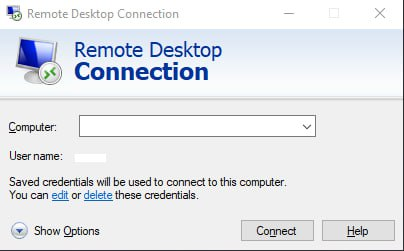
After running the relevant software, in front of the Computer You need to enter your virtual server IP and click on the option Connect Click.
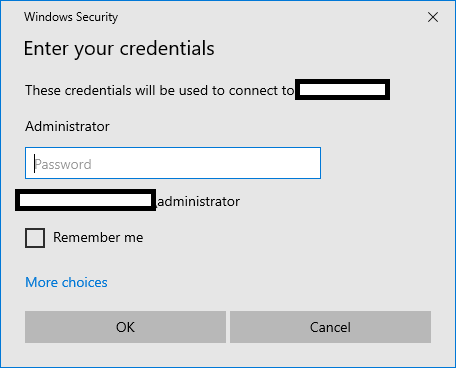
Enter the username and password as mentioned in the server details email and log in to the server.
 How to log in to a Windows server via Remote Desktop
How to log in to a Windows server via Remote Desktop

Options menu

General option: The same home page that appears first and you will access the server by entering your details.

Display option: It shows the size, color, and related specifications of a server screen and can be changed.

Option Local Resources -> Local devices and resources : You can use this option to add peripherals or drives to your server if needed.

To purchase a Windows virtual server, you can: Here Subscribe.

Leave a Reply

Your email address will not be published. Required fields are marked *


You May Also Like
Amazon Elastic Compute Cloud

Amazon EC2 (Elastic Compute Cloud) — Expert Guide for Developers and Engineers

In the era of digital transformation, cloud infrastructure is the main pillar of enterprise technology support. Amazon EC2 or Elastic Compute Cloud is a key pillar of the AWS ecosystem, allowing you to deploy virtual servers with flexibility, scalability, and complete control. In this article, we will provide an in-depth explanation of the service, technical features, instance models, best practices, and purchasing the service.
How To Use Rsync to Sync Local and Remote Directories

Synchronizing directories between the server and the local system rsync

File synchronization is one of the most important operations in data storage, backup, and server management. The rsync tool is a powerful, flexible, and optimized option for this task. This guide will show you how to synchronize local and remote directories (on the server) with rsync, use it for backups, and automate transfers.