







- How can you implement full hosting management and automatic provisioning with aaPanel?
- Overview of aaPanel features
- Installing and setting up aaPanel (step by step)
- Supported databases and their management
- Applications that can be run with aaPanel and how to deploy them
- aaPanel Integration with WHMCS — Automated Module for WHMCS
- Optimization and configuration for various applications
- Operational security and best practices
- Practical tips and daily management in aaPanel
- Summary and service recommendations
How can you implement full hosting management and automatic provisioning with aaPanel?
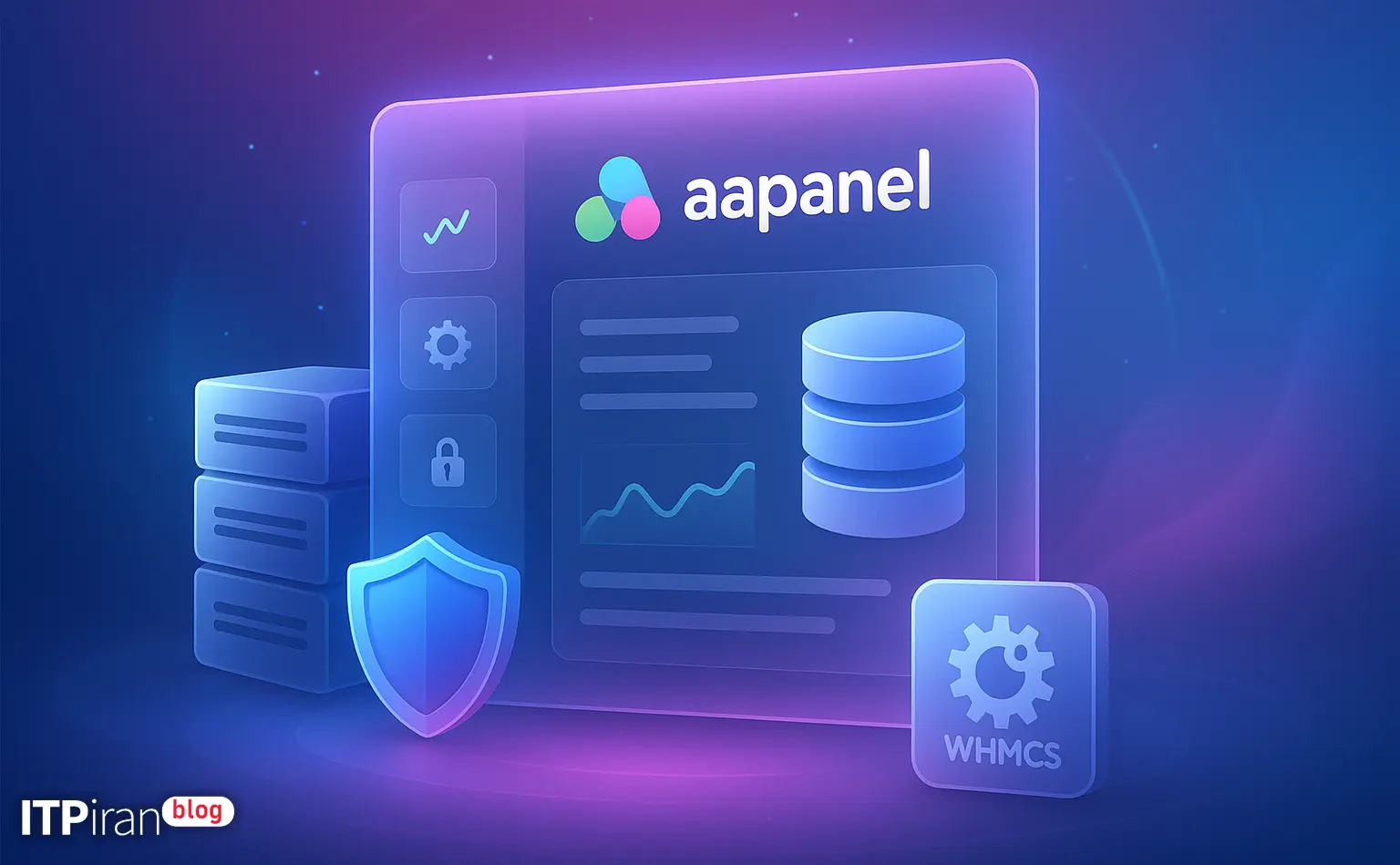
aaPanel is a lightweight, open source, and simple web services management control panel that enables installation, management of web servers, databases, application software, and integration with external tools with a simple graphical interface.
In this article to Launch, Key featuresWe'll cover supported databases, installable applications, security tips, and how to connect to WHMCS using a module/API — along with practical commands and recommended configurations.
Overview of aaPanel features
Key features
- Installing and managing web servers: Nginx, Apache, OpenLiteSpeed, and Nginx+Apache combinations in one click.
- Managing PHP versions: Simultaneous installation of multiple PHP-FPM versions and project switches.
- App Store (One-Click Apps): WordPress, Laravel, Node.js, Django, Tomcat, Nextcloud, etc.
- Databases: Install and manage MySQL/MariaDB, PostgreSQL, MongoDB, Redis, Memcached via the panel.
- File management: File Manager with uploading, editing and setting access levels.
- Automatic SSL: Let's Encrypt one-click and automatic renewal.
- Monitoring and backup: Resource status, snapshots, scheduled backups, and export to external space (S3-compatible).
- Security and firewall: Supports Fail2ban/CSF, IP access control, and PHP-FPM/Apache hardening settings.
- API and plugins: RESTful API to automate routing and integrate with WHMCS or other panels.
Installing and setting up aaPanel (step by step)
Prerequisites
- Operating system: Ubuntu 18.04/20.04/22.04, Debian 9/10/11, CentOS 7/8/Stream.
- Hardware: Minimum 1GB RAM (2GB+ recommended for production environments), 1 vCPU, disk space based on workload.
- Ports: Default port panel 8888, ports 80/443 For web, DB ports if needed.
Quick installation (instructions)
For Ubuntu/Debian:
bash <(curl -sL http://www.aapanel.com/script/install-ubuntu_6.0_en.sh)For CentOS:
bash <(curl -sL http://www.aapanel.com/script/install_6.0_en.sh)After installation, you will be shown the panel address and password. Recommendation: Immediately enable the panel with HTTPS and change the password.
Initial configuration
- Change the default port: Go to the Settings Panel and change the port or define a whitelist IP.
- Enable HTTPS: From the SSL section, select Let's Encrypt (Port 80 must be open).
- System update: apt update && apt upgrade Or yum update.
- Install the required software (Nginx/Apache/PHP/MariaDB) from the App Store panel with one click.
Supported databases and their management
List of databases
aaPanel allows you to install and manage these databases via the App Store or built-in modules:
- MySQL (various versions) / MariaDB
- PostgreSQL
- MongoDB
- Redis (in-memory store)
- Memcached
Practical example: Creating a MySQL database from the CLI and panel
You can create a new DB and user from the panel (Database > Add Database). With CLI:
mysql -u root -p -e "CREATE DATABASE wpdb CHARACTER SET utf8mb4 COLLATE utf8mb4_unicode_ci; \
CREATE USER 'wpuser'@'localhost' IDENTIFIED BY 'StrongPass123!'; \
GRANT ALL PRIVILEGES ON wpdb.* TO 'wpuser'@'localhost'; FLUSH PRIVILEGES;"
Database security settings
- Restrict access: Set the bind-address value to 127.0.0.1 Change unless you need to connect remotely.
- Use a strong password and disable remote root access.
- SNAPSHOT and regular backups: Set up daily/weekly backups and external storage (S3/FTP).
Applications that can be run with aaPanel and how to deploy them
PHP-based websites
- WordPress: From the App Store with proper PHP-FPM installed, MySQL, and SSL enabled.
- Laravel: Install PHP, composer, create virtual host and set up queue (Supervisor).
Short Nginx config example for Laravel:
server {
    listen 80;
    server_name example.com;
    root /www/wwwroot/example/public;
    index index.php;
    location / {
        try_files $uri $uri/ /index.php?$query_string;
    }
    location ~ \.php$ {
        include fastcgi_params;
        fastcgi_pass unix:/tmp/php-cgi-74.sock;
        fastcgi_index index.php;
        fastcgi_param SCRIPT_FILENAME $document_root$fastcgi_script_name;
    }
}
Node.js, Python, and Java apps
- Node.js: Install from the App Store, launch with PM2 or Systemd.
- Python (Django/Flask): Installation with Gunicorn and Nginx reverse proxy.
- Tomcat/Java: Install and manage from the App Store for Java apps.
Example start with PM2:
pm2 start server.js --name myappModern applications and cache/public services
- Redis/Memcached For caching and sessions.
- MongoDB For NoSQL apps and JSON storage.
- Simple CI/CD setup: Webhooks, automated git pull or integration with corporate GitLab-hosting.
aaPanel Integration with WHMCS — Automated Module for WHMCS
General method of integration
aaPanel supports API; to automate provisioning and managing services in WHMCS, you need to follow a few key steps:
- Enable the API in aaPanel (Panel settings > API).
- Create an API key and add the WHMCS server IP if needed.
- Install the WHMCS module: You can use ready-made modules available in the Market or GitHub (Third-party modules).
- In WHMCS, define the “aaPanel Server” service and enter the API information (IP, Port, API Key).
- Define packages (Disk, RAM, CPU) and set up automatic provisioning operations (Create account, Suspend, Terminate, Change package).
Simple API call example (curl)
curl "http://PANEL_IP:8888/api/panel/site?action=CreateSite&siteName=example.com&path=/www/wwwroot/example&ftp=1" \
-H "Authorization: Bearer YOUR_API_KEY"
Tips for WHMCS Developers
- Package mapping: Each WHMCS package must be associated with an aaPanel script or template.
- Naming users and directories: Use specific patterns for tracking and backup.
- Logging and debugging: Use API logs and web server logs to investigate provisioning failures.
Optimization and configuration for various applications
VPS for trading (Low Latency)
- Location close to trading markets: Choosing a data center close to the destination to reduce latency.
- Configuration: Relatively higher CPU, NVMe SSD, low-latency network, limited TCP tuning and Firewall settings.
- Use-case: Installing trading tools, VPN or Socks Proxy, and network monitoring.
VPS for gaming
- Low ping: Choosing a location near gamers.
- Configuration: Dedicated CPU, DDoS protection, high resource allocation for UDP and gaming ports.
- aaPanel is a utility for hosting game server management and backup of configurations.
GPU Cloud for AI and Rendering
- Using GPU Cloud graphics servers For training ML models and rendering.
- Config: Install NVIDIA driver, CUDA, cuDNN, Docker + nvidia-docker.
- Note: aaPanel is more suitable for web services; for GPUs it is usually better to use direct SSH access and install containers, but it is possible to provision web environments with access to the GPU backend.
Operational security and best practices
- Change the default panel port, enable 2FA, and restrict IP.
- Turn off unnecessary modules and update daily.
- Implement Fail2ban, set up CSF or UFW, and strict rules for SSH.
- Use SFTP instead of regular FTP and disable anonymous FTP.
- Isolation of critical services on separate servers (DB on a separate server or managed database service).
- Backup encryption and storage in different geographical locations to comply with DR.
Practical tips and daily management in aaPanel
- Usage monitoring: CPU, RAM, I/O and setting alerts.
- Backup and Restore automation tested.
- Use the App Store to install services and maintain version compatibility.
- CI/CD implementation: connect to Git repo, Git webhook, and run deploy script.
- Documenting packages in WHMCS and coordinating changes between the panel and the sales system.
Summary and service recommendations
aaPanel It is a low-cost, simple, and flexible hosting management solution that enables quick installation, integration with various databases, and deployment of various applications.
For businesses that need automation, aaPanel API And WHMCS modules allow for automated provisioning, subscription management, and hosting services.
If you need stability, low ping, or GPU-heavy processing, using a cloud infrastructure with 85+ global locations, GPU servers, Anti-DDoS, and networking capabilities can elevate your experience to a professional level.