Introduction
In this guide, you will learn how to deploy a containerized application with AWS App Runner. AWS App Runner is a fully managed service that enables developers to quickly deploy containerized web applications and APIs at scale without requiring prior infrastructure experience. Start with source code or a container image. App Runner automatically builds and deploys the web application and load balances traffic with encryption. App Runner also automatically scales up or down to meet your traffic needs.
Prerequisites
- An AWS account
- Please make sure you have configured your AWS CDK correctly.
Step 1 – Create the CDK application
First, make sure you have downloaded and extracted the sample code for this guide referenced on the introduction page (instead of The address of the sample code as a reference, and Replace with the corresponding file name):
wget <EXAMPLE_CODE_URL>
unzip <DOWNLOADED_FILE_NAME>
cd getting-started-containers-app-runner-main
Next, make sure you have CDK v2 installed.
cdk --versionNow we create the CDK skeleton application using TypeScript as our language of choice:
mkdir infra
cd infra
cdk init app --language typescript
This will have the following output:
Applying project template app for typescript
# Welcome to your CDK TypeScript project!
This is a blank project for TypeScript development with CDK.
The `cdk.json` file tells the CDK Toolkit how to execute your app.
## Useful commands
* `npm run build` compile typescript to js
* `npm run watch` watch for changes and compile
* `npm run test` perform the jest unit tests
* `cdk deploy` deploy this stack to your default AWS account/region
* `cdk diff` compare deployed stack with current state
* `cdk synth` emits the synthesized CloudFormation template
Executing npm install...
✅ All done!
Generate the code for the resource stack
Go to the lib/infra-stack.ts file. This is where you write the code for the resource stack you want to create. A resource stack is a collection of cloud infrastructure resources (in this particular case, all AWS resources) that are provisioned in a specific account. The account/region where these resources are provisioned can be configured in the stack.
In this category, you will want to create the following resources:
- App Runner Service: This is how your container runs.
- Output: This displays the URL of your service.
Deploy the container service
To deploy your service, you must first import the correct modules (instead of In the code snippet below, replace your CDK version that you previously retrieved.
npm i @aws-cdk/aws-apprunner-alpha@<CDK_VERSION>-alpha.0Then you edit the lib/infra-stack.ts file to add the dependencies at the top of the file:
import apprunner = require('@aws-cdk/aws-apprunner-alpha'); // Allows working with App Runner resources
import { DockerImageAsset } from 'aws-cdk-lib/aws-ecr-assets'; // Allows building the docker image and uploading to ECR
import * as path from "path"; // Helper for working with file paths
These modules provide access to all the components required to deploy a web application.
Next, you need to specify which container to use by creating an App Runner service. For this tutorial, we will build the container image provided with the sample app into SampleApp and have the CDK handle the container build, upload, and deployment for us. We will also create an empty IAM role to associate with the service for future tutorials. To create the service and IAM role, add the following code:
 // The code that defines your stack goes here
//If you are running on a Mac using the new M1 chip, please change `../SampleApp` to `../../SampleApp`.
const imageAsset = new DockerImageAsset(this, 'ImageAssets', {
directory: path.join(__dirname, '../SampleApp'),
});
const service = new apprunner.Service(this, 'Service', {
source: apprunner.Source.fromAsset({
imageConfiguration: { port: 80 },
asset: imageAsset
})
});
new cdk.CfnOutput(this, "apprunner-url", {
exportName: "apprunner-url",
value: service.serviceUrl,
description: "URL to access service"
});
In the code above, you created a service with App Runner to run a container that CDK builds from a Dockerfile in the SampleApp directory. Before you can use the CDK, you need to bootstrap it – this creates the necessary infrastructure for the CDK to manage the infrastructure in your account:
cdk bootstrapYou should see output similar to:
⏳ Bootstrapping environment aws://0123456789012/<region>...
✅ Environment aws://0123456789012/<region> bootstrapped
After bootstrapping is complete, you run the CDK to deploy all the required infrastructure:
cdk deployYou should see output similar to the following:
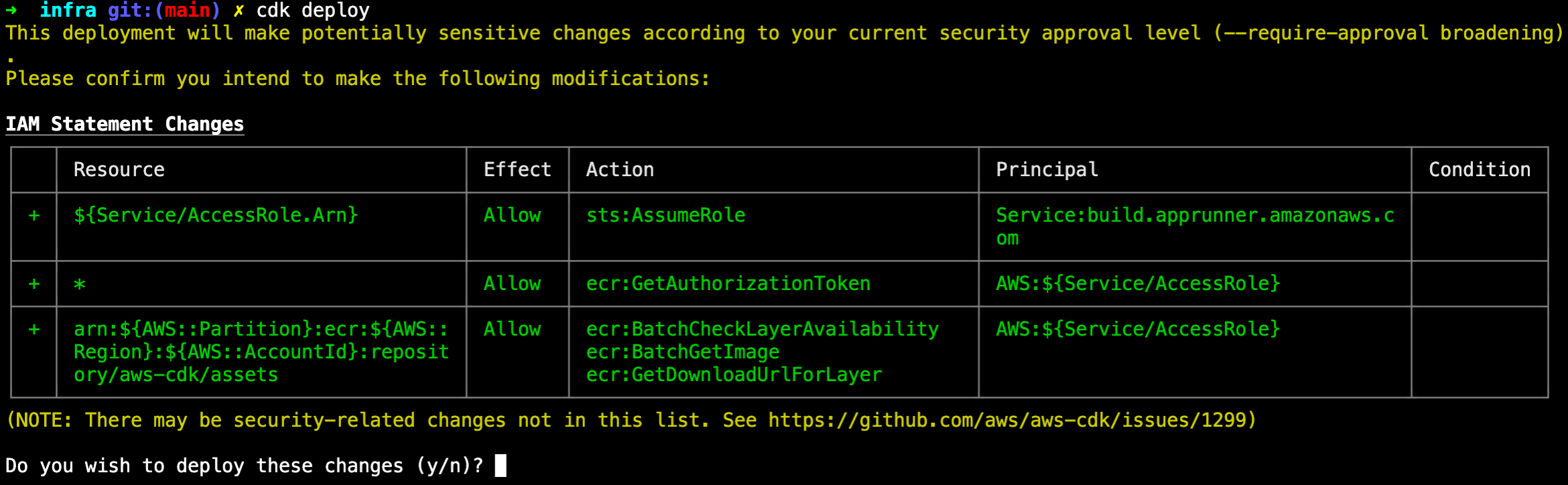
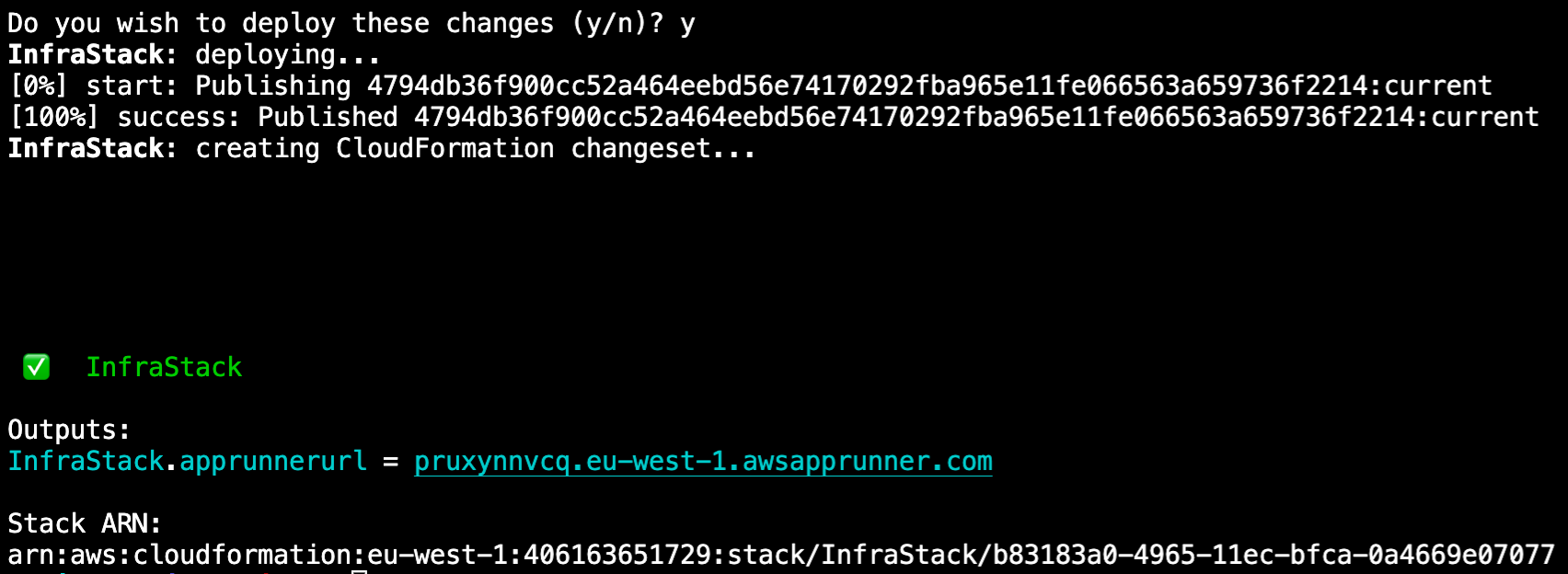
The CDK will prompt you before creating the infrastructure because it will create the infrastructure that will change the security configuration – in this case, by creating IAM roles and security groups. To deploy, press y and then Enter. The CDK will now deploy all the infrastructure you defined. It will take a few minutes to complete. Once it is running, you will see updates like this:

Once completed, you will see the output with a link to the public URL to access your service, as shown below:

Step Two – Clean Up Resources
Eliminate cloud-based infrastructure
AWS CDK makes it easy to remove your infrastructure with just one command. To remove all infrastructure you've created, use the cdk kill command — this will only remove the infrastructure created in this tutorial.
You will see a confirmation:
cdk destroy
Are you sure you want to delete: InfraStack (y/n)?
After pressing y and Enter, CDK will start removing all infrastructure and providing updates. Once completed, you will see the following:
Are you sure you want to delete: InfraStack (y/n)? y
InfraStack: destroying...
✅ InfraStack: destroyed
Result
You have completed the Deploy a Web App Using AWS App Runner tutorial.