
Introduction
TLS, or Transport Layer Security, and its predecessor SSL, which stands for Secure Sockets Layer, are web protocols used to protect and encrypt traffic over a computer network.
With TLS/SSL, servers can securely send traffic between the server and clients without the ability for outside parties to intercept messages. The certificate system also helps users verify the identity of the sites they interact with.
In this guide, you will set up a self-signed SSL certificate for use with an Nginx web server on an Ubuntu server.
Prerequisites
- Before you begin, you must have a non-root user configured with sudo privileges and an enabled firewall.
- You also need to install the Nginx web server.
- If you want to install a full LEMP stack (Linux, Nginx, MySQL, PHP) on your server.
Step 1 – Create a TLS certificate
TLS/SSL works with a combination of a public certificate and a private key. The SSL key is kept secret on the server and encrypts content sent to clients. The SSL certificate is shared publicly with anyone who requests the content. It can be used to decrypt content signed by the associated SSL key.
You can generate a self-signed key pair and certificate with OpenSSL in one command:
sudo openssl req -x509 -nodes -days 365 -newkey rsa:2048 -keyout /etc/ssl/private/nginx-selfsigned.key -out /etc/ssl/certs/nginx-selfsigned.crtHere is a summary of what each part of this command does:
sudo: The sudo command allows members of the sudo group to temporarily elevate their privileges to another user (by default the superuser or root user). This is necessary in this case because we are creating a certificate and key pair in the /etc/ directory that can only be accessed by the root user or other privileged accounts.openssl: This is the main command line tool for creating and managing OpenSSL certificates, keys, and other files.request: This subcommand specifies that we want to use X.509 Certificate Signing Request (CSR) management. “X.509” is a public key infrastructure standard that SSL and TLS adhere to for their key and certificate management. We want to create a new X.509 certificate, so we use this subcommand.- –
x509: This modifies the previous subcommand by saying that we want to create a self-signed certificate instead of creating a certificate signing request, as is usually the case. - –
nodes: This tells OpenSSL to skip the option of securing our certificate with a passphrase. We need Nginx to be able to read the file without user intervention when the server starts. A passphrase prevents this from happening because we have to enter it after every reboot. -days 365: This option determines the length of time the certificate is considered valid. We set it to one year here.-newkey rsa:2048: Specifies that we want to generate a new certificate and a new key at the same time. We didn't create the key needed to sign the certificate in the previous step, so we need to create it along with the certificate. The rsa:2048 part tells it to create an RSA key with a length of 2048 bits.-keyout: This line tells OpenSSL where to place the generated private key file that we are creating.-out: This tells OpenSSL where to place the certificate we are creating.
As mentioned earlier, these options create both a key file and a certificate. After running this command, you will be asked a few questions about your server to properly embed the information into the certificate.
Fill in the commands correctly. The most important line is the one that asks for the shared name (i.e. the server FQDN or your name). You will need to enter the domain name associated with your server or most likely the public IP address of your server.
The entire command will be as follows:
Output
Country Name (2 letter code) [AU]:US
State or Province Name (full name) [Some-State]:New York
Locality Name (eg, city) []:New York City
Organization Name (eg, company) [Internet Widgits Pty Ltd]:Bouncy Castles, Inc.
Organizational Unit Name (eg, section) []:Ministry of Water Slides
Common Name (e.g. server FQDN or YOUR name) []:server_IP_address
Email Address []:admin@your_domain.com
Both files you created will be placed in the appropriate subdirectories of the /etc/ssl directory.
While using OpenSSL, you should also create a strong Diffie-Hellman (DH) group, which uses full forward secrecy when negotiating with clients.
You can do this by typing:
sudo openssl dhparam -out /etc/nginx/dhparam.pem 4096This will take a while, but once it's done, you'll have a strong DH group in /etc/nginx/dhparam.pem that will be used during configuration.
Step 2 – Configure Nginx to use SSL
Now that your key and certificate files have been created in the /etc/ssl directory, you need to modify your Nginx configuration to use them.
First, you will create a configuration fragment with information about the locations of the SSL key and certificate file. Next, you will create a configuration fragment with strong SSL settings that can be used with any future certificates. Finally, you will configure your Nginx server blocks using the two configuration fragments you created so that SSL requests can be handled appropriately.
This method of configuring Nginx allows you to keep server blocks clean and put common configuration sections into reusable modules.
Create a configuration fragment that points to the SSL key and certificate
First, use your favorite text editor to create a new Nginx configuration snippet in the /etc/nginx/snippets folder. The example below uses nano.
To properly identify the purpose of this file, name it self-signed.conf:
sudo nano /etc/nginx/snippets/self-signed.confIn this file, you need to set the ssl_certificate directive to the certificate file and the ssl_certificate_key to the associated key. It will look like this:
ssl_certificate /etc/ssl/certs/nginx-selfsigned.crt;
ssl_certificate_key /etc/ssl/private/nginx-selfsigned.key;
Once you've added those lines, save the file and exit the editor. If you used nano to edit the file, you can do this by pressing CTRL + X, Y, and then ENTER.
Create a configuration fragment with strong encryption settings
Next, you create another piece that defines some SSL settings. This sets up Nginx with a strong SSL cipher suite and enables some advanced features that help keep your server secure.
The parameters you set can be reused in future Nginx configurations, so you can give the file a generic name:
sudo nano /etc/nginx/snippets/ssl-params.confTo set up Nginx SSL securely, we adapt the recommendations from Cipherlist.eu. Cipherlist.eu is a useful and digestible resource for understanding the encryption settings used for popular software.
For your purposes, copy the provided settings exactly, but you'll need to make a few small changes first.
First, add your preferred DNS resolver for upstream requests. We'll use Google (8.8.8.8 and 8.8.4.4) for this guide.
Second, comment out the line that specifies the Strict Transport Security header. Before you uncomment this line, you should take a moment to read about HTTP Strict Transport Security, or HSTS, and specifically about the “preload” functionality. HSTS preload provides additional security, but it can also have widespread negative consequences if accidentally enabled or incorrectly enabled.
Add the following to your ssl-params.conf fragment file:
ssl_protocols TLSv1.3;
ssl_prefer_server_ciphers on;
ssl_dhparam /etc/nginx/dhparam.pem;
ssl_ciphers EECDH+AESGCM:EDH+AESGCM;
ssl_ecdh_curve secp384r1;
ssl_session_timeout 10m;
ssl_session_cache shared:SSL:10m;
ssl_session_tickets off;
ssl_stapling on;
ssl_stapling_verify on;
resolver 8.8.8.8 8.8.4.4 valid=300s;
resolver_timeout 5s;
# Disable strict transport security for now. You can uncomment the following
# line if you understand the implications.
#add_header Strict-Transport-Security "max-age=63072000; includeSubDomains; preload";
add_header X-Frame-Options DENY;
add_header X-Content-Type-Options nosniff;
add_header X-XSS-Protection "1; mode=block";
Since you are using a self-signed certificate, SSL stapling will not be used. Nginx will output a warning and disable stapling for our signed certificate, but then continue to work properly.
When you are finished, save and close the file by pressing CTRL + X and then Y and ENTER.
Configuring Nginx to use SSL
Now that you have your pieces, you can adjust the Nginx configuration to enable SSL.
This guide assumes that you are using a custom server block configuration file in the /etc/nginx/sites-available directory. This guide also follows the conventions of the Nginx prerequisite tutorial and uses /etc/nginx/sites-available/your_domain for this example. Substitute the name of your configuration file if necessary.
Before moving forward, back up your current configuration file:
sudo cp /etc/nginx/sites-available/your_domain /etc/nginx/sites-available/your_domain.bakNow open the configuration file to make the settings:
sudo nano /etc/nginx/sites-available/your_domainInternally, your server block will probably start out similar to the following:
server {
listen 80;
listen [::]:80;
root /var/www/your_domain/html;
index index.html index.htm index.nginx-debian.html;
server_name your_domain www.your_domain;
location / {
try_files $uri $uri/ =404;
}
}
Your file may be in a different order and instead of root and directory directives, you may have some location, proxy_pass or other custom configuration directives. This is fine because you only need to update the listen directives and add the SSL pieces. Then modify this existing server block to serve SSL traffic on port 443 and create a new server block to listen on port 80 and automatically redirect traffic to port 443.
In the existing configuration file, update the two listen statements to use port 443 and ssl, then add the two fragment files you created in the previous steps:
server {
listen 443 ssl;
listen [::]:443 ssl;
include snippets/self-signed.conf;
include snippets/ssl-params.conf;
root /var/www/your_domain/html;
index index.html index.htm index.nginx-debian.html;
server_name your_domain.com www.your_domain.com;
location / {
try_files $uri $uri/ =404;
}
}
Next, add a second server block to the configuration file after the closing brace (}) of the first block:
server {
listen 80;
listen [::]:80;
server_name your_domain.com www.your_domain.com;
return 302 https://$server_name$request_uri;
}
This is a bare bones configuration that listens on port 80 and redirects to HTTPS. When you are finished editing, save and close the file by pressing CTRL + X then Y and ENTER.
Step 3 – Configure the Firewall
If you have enabled the ufw firewall, as recommended by the prerequisite guide, you will need to adjust the settings to allow SSL traffic. Fortunately, Nginx registers a few profiles with ufw upon installation.
You can browse available profiles by typing:
sudo ufw app listA list like the one below will appear:
Output
Available applications:
Nginx Full
Nginx HTTP
Nginx HTTPS
OpenSSH
You can check the current settings by typing sudo ufw status:
sudo ufw statusIt will probably produce the following response, meaning that only HTTP traffic is allowed to the web server:
Output
Status: active
To Action From
-- ------ ----
OpenSSH ALLOW Anywhere
Nginx HTTP ALLOW Anywhere
OpenSSH (v6) ALLOW Anywhere (v6)
Nginx HTTP (v6) ALLOW Anywhere (v6)
To allow HTTPS traffic, you can update the permissions of the "Nginx Full" profile and then remove the additional "Nginx HTTP" permission:
sudo ufw allow 'Nginx Full'
sudo ufw delete allow 'Nginx HTTP'
After running sudo ufw status, you should get the following output:
sudo ufw statusOutput
Status: active
To Action From
-- ------ ----
OpenSSH ALLOW Anywhere
Nginx Full ALLOW Anywhere
OpenSSH (v6) ALLOW Anywhere (v6)
Nginx Full (v6) ALLOW Anywhere (v6)This output confirms that your firewall configuration has been completed successfully and you are ready to enable the changes in Nginx.
Step 4 – Enable the changes in Nginx
Once you have completed your firewall changes and configurations, you can restart Nginx to apply the new changes.
First, check that there are no syntax errors in the files. You can do this by typing sudo nginx -t:
sudo nginx -tIf everything is successful, you will receive a result that looks like this:
Output
nginx: [warn] "ssl_stapling" ignored, issuer certificate not found for certificate "/etc/ssl/certs/nginx-selfsigned.crt"
nginx: the configuration file /etc/nginx/nginx.conf syntax is ok
nginx: configuration file /etc/nginx/nginx.conf test is successful
Note the warning at the beginning. As mentioned earlier, this particular setting will generate a warning because your signed certificate cannot use SSL encryption. This is expected and your server will still be able to encrypt connections properly.
If your output matches our example, your configuration file has no syntax errors. If so, you can safely restart Nginx to apply the changes:
sudo systemctl restart nginxNow that the system has rebooted with the new changes, you can continue testing.
Step 5 – Testing the encryption
Now, you are ready to test your SSL server.
Open your web browser and type https:// followed by your server's domain name or IP address in the address bar:
Depending on your browser, you may receive a warning because the certificate created was not signed by one of your browser's trusted certificate authorities:
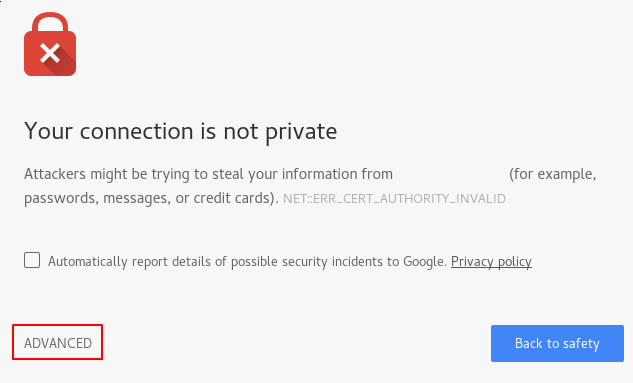
This warning is expected and normal. We are only interested in the encryption aspect of our certificate, not the third-party verification of your host’s credentials. Click “Advanced” and then the link provided to go to your host:
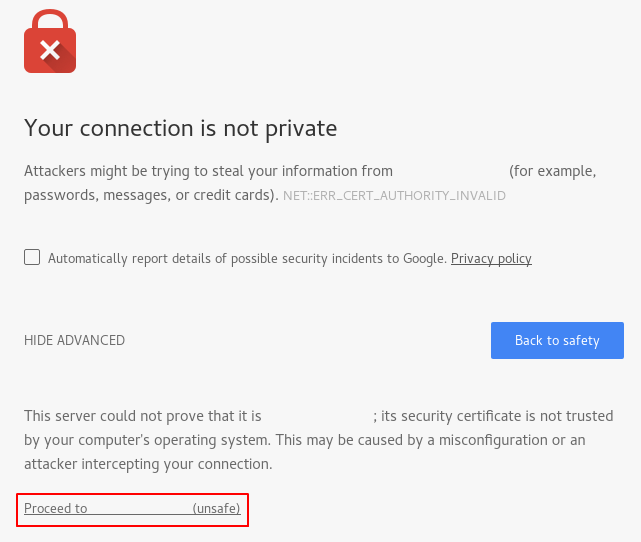
At this point, you should be redirected to your site. In our example, the browser address bar will show a lock with an “x” on it, which means the certificate cannot be verified. It will still encrypt your connection. Note that this icon may look different depending on your browser.
If you have configured Nginx with two server blocks, automatically redirecting HTTP content to HTTPS, you can also check if the redirect is working properly:
If it results in the same icon, it means your redirect worked correctly.
Step 6 – Change to a permanent redirect
If your redirect worked properly and you are sure you want to allow only encrypted traffic, you will need to change the Nginx configuration to make the redirect permanent.
Reopen your server block configuration file:
sudo nano /etc/nginx/sites-available/your_domainFind the 302 redirect and change it to a 301 redirect:
return 301 https://$server_name$request_uri;
Save and close the file by pressing CTRL + X then Y and ENTER.
Check your settings for syntax errors:
sudo nginx -tWhen you are ready, restart Nginx to make the redirect permanent:
sudo systemctl restart nginxAfter a reboot, the changes will take effect and your redirect is now permanent.
Result
You have configured your Nginx server to use strong encryption for client connections. This allows you to serve requests securely and prevent outside parties from reading your traffic. Alternatively, you can use a self-signed SSL certificate that can be obtained from Let's Encrypt, a certificate authority that installs free TLS/SSL certificates and enables encrypted HTTPS on web servers.