Introduction
PuTTYgen is a key generator tool for creating SSH public and private key pairs. It is a component of the open source networking tool PuTTY. This tutorial will guide you on how to create an SSH key using PuTTYgen on your Windows PC using Linux and how to copy this key to connect to your server.
Prerequisites
- A server running Linux.
- Local computer with Windows operating system
Step 1 – Install PuTTYgen on Windows
PuTTY installation is automatically bundled with PuTTYgen. If you don't have PuTTY installed on your PC, just download PuTTYgen (puttygen.exe — select the 32/64-bit version according to your PC, probably 64-bit).
Step 2 – Run PuTTYgen
Double-click the executable file you downloaded. This will open the PuTTY Key Generator window.
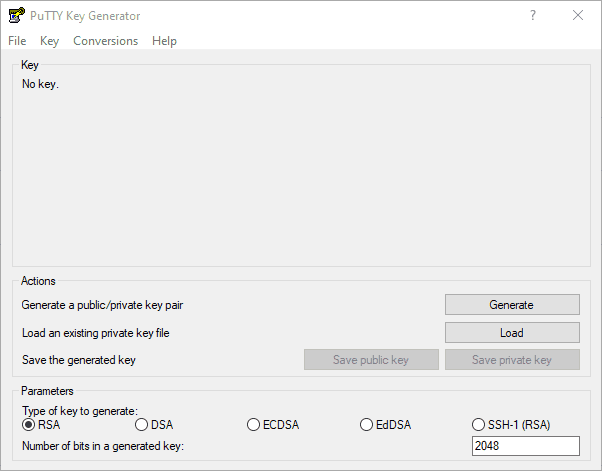
Step 3 – Create SSH key
- 1. Press the “Generate” button.
- 2. Move your mouse over the empty space to randomize your key.
- 3. Change the "Key comment" field to give your key a meaningful name, such as: "home", "office", "home-pc-i7", etc.
- 4. Enter a «key passphrase» to protect your SSH key. Note: This passphrase will be requested each time you try to connect using the created SSH key.
- 5. Save your public/private keys securely to your PC using the “Save public key” and “Save private key” buttons. Remember the location where you saved your key pair.
- 6. Content of the “Public key for pasting into OpenSSH” field
authorized_keysCopy the file.
Step 4 – Copy the public key to your server
Copy key via FTP
- Connect to your server using your favorite FTP client.
- File
authorized_keysEdit (location: /home/holu/.ssh/authorized_keys where “holu” is your username). - Copy the contents of your clipboard (done in the last sub-step of Step 3) to the file
authorized_keysAdd. - Save
- Upload the authorized_keys file. Upload the authorized_keys file.
Step 5 – Use the key with PuTTY
If you are using PuTTY, you can add your key like this:
- Open PuTTY.
- To
Connection»SSH»Auth»CredentialsGo. - On
Browse...Click and open your private SSH key file. The file will probably be named PPK (e.g. .ppk) ends.  After the key is added, to
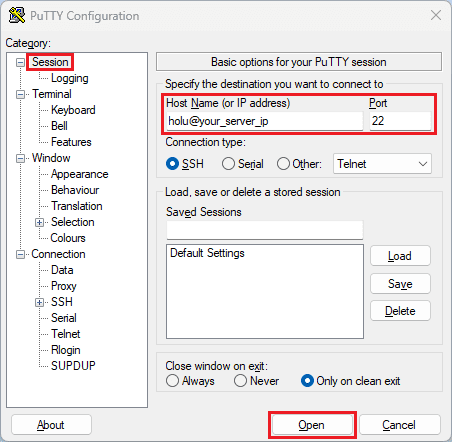
 SessionCome back.- In the text box at the top left, enter the username and IP address of the remote server.
- To connect to your server
OpenSelect.
 After the key is added, to
 Result
 Result
You have created a new SSH key and copied it to your server, so you can now use it to easily and securely connect to your server.