Introduction
In this article, we will explain how to establish an ssh connection to an AWS EC2 instance from PuTTY on Windows.
Prerequisites
- PuTTY Key Generator
- PuTTY program
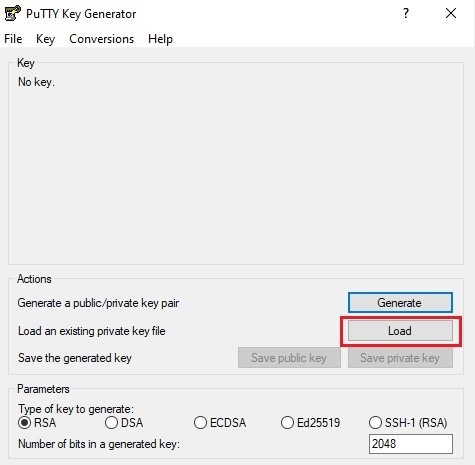
1. First we will create the private key file using PuTTY Key Generator. Open PuTTY Key Generator. Click on Upload
2. Download the .pem file created in the AWS EC2 console

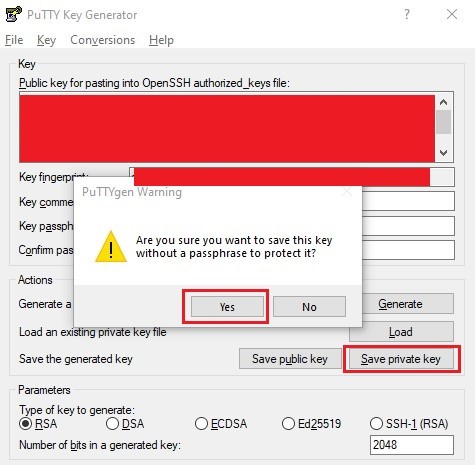
3. Save the private key file as a .pem file. Click Save Private Key.
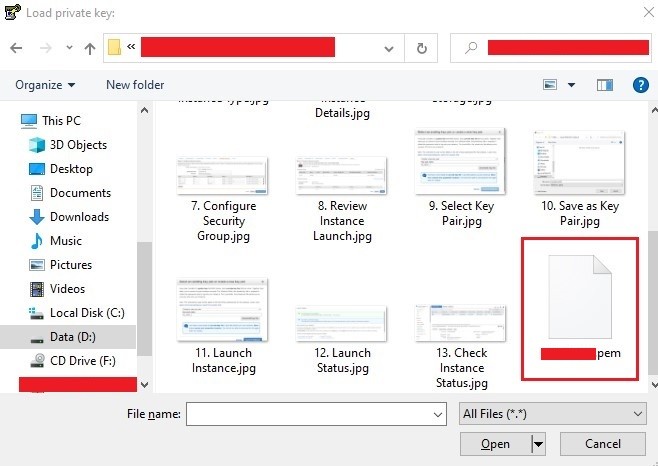
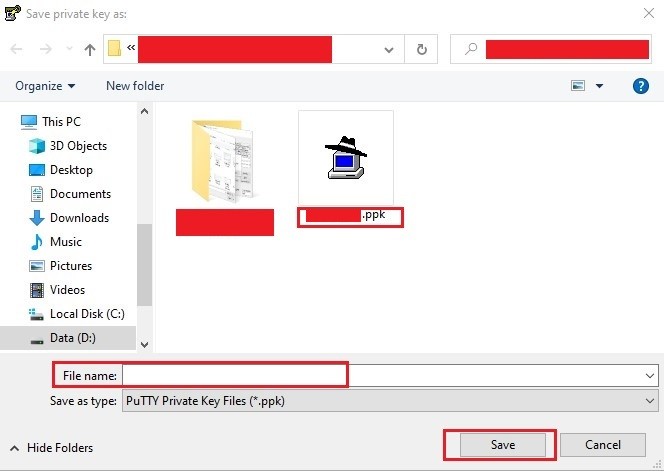
4. Save as private key file with ppk extension
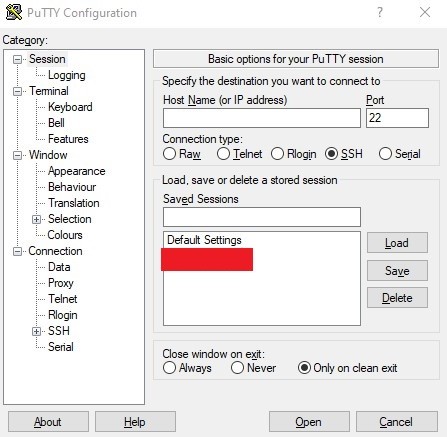
5. Open the PuTTY program
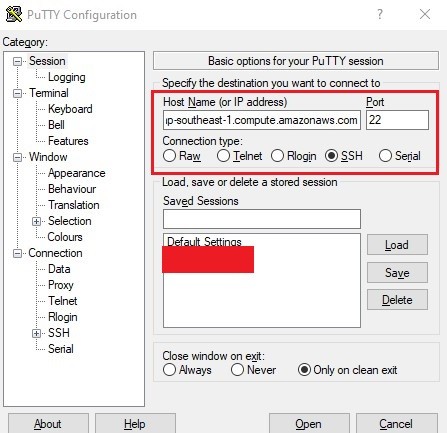
6. Enter the hostname or IP address of the EC2 instance, using port 22 (SSH).
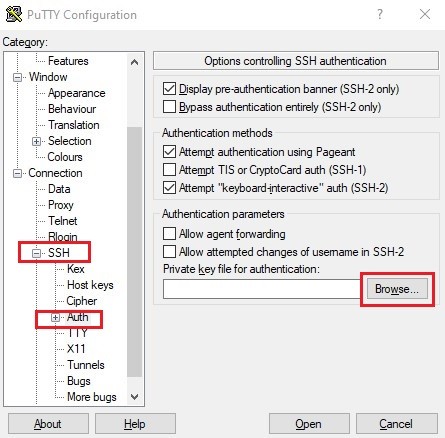
7. Next, we need to add the private key file for the SSH connection. Go to SSH > Auth menu. Browse for the private key file.
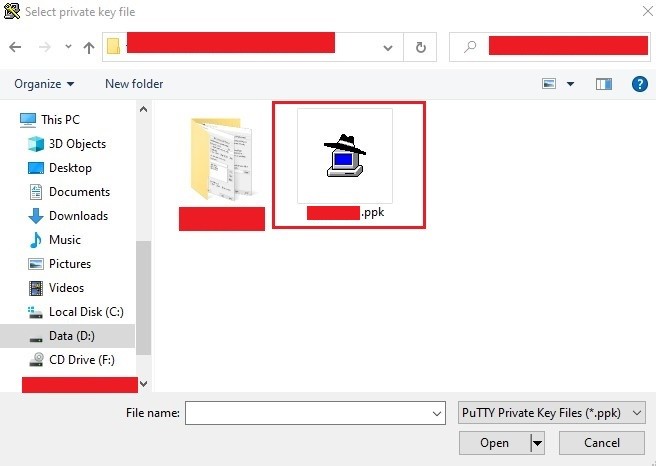
8. Open the private key file created from PuTTY Key Generator
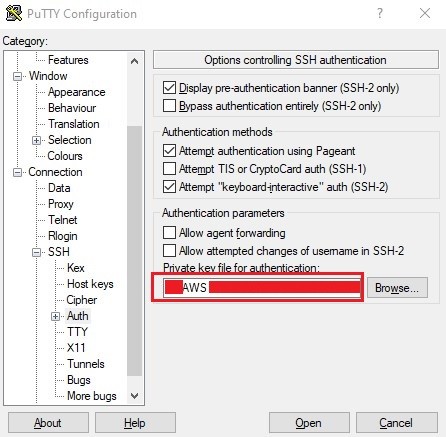
9. Check that the file has been added
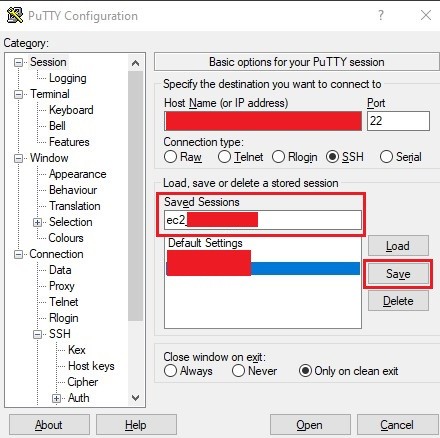
10. Optionally, you can save the SSH session
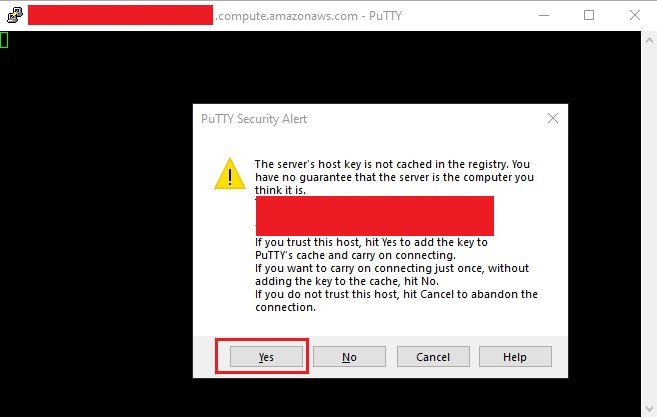
11. Open SSH connection
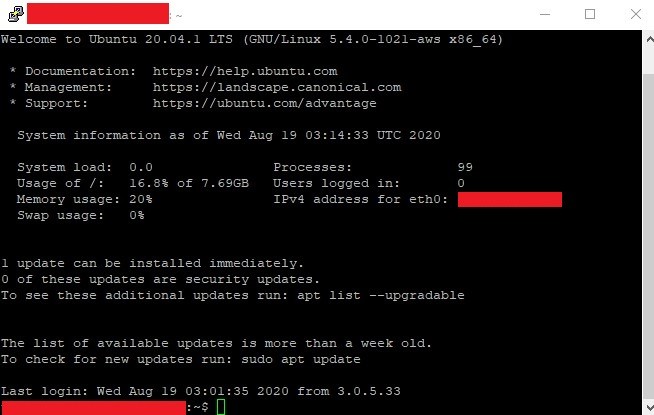
12. Verify that the SSH connection to the EC2 instance is established