Introduction
In this tutorial, you will learn how to install a LEMP stack (Linux, NGINX, MySQL database, PHP) on Ubuntu 24.04 LTS. By the end of this tutorial, you will have a fully functional LEMP stack server.
Prerequisites
- Server with Ubuntu 24.04 LTS
- Access to the root user or a user with sudo permissions
- nano or your favorite text editor installed.
Step 1 – Update the server
Use the following command to update the package repositories to ensure we install the latest version of the software:
sudo apt update
Then use the following command to upgrade the currently installed packages:
sudo apt dist-upgrade -yThe -y flag automatically confirms the operation, so you don't need to type Y to continue.
Step 2 – Install NGINX
NGINX is the web server we will use, we can install it using the following command:
sudo apt install nginx -y
Step 3 – Install MySQL
Now we can install MySQL Server. MySQL is the database we will use, we can install it using the following command:
sudo apt install mysql-server -y
Step 4 – Secure MySQL
Secure the newly installed MySQL server using the following command:
sudo mysql_secure_installation
MySQL will ask you to confirm the password:
VALIDATE PASSWORD COMPONENT can be used to test passwords
and improve security. It checks the strength of password
and allows the users to set only those passwords which are
secure enough. Would you like to setup VALIDATE PASSWORD component?
Press y|Y for Yes, any other key for No:
You can press Y and then ENTER.
Set the password validation policy. There are three levels:
0: LOW Length >= 81: MEDIUM Length >= 8, numeric, mixed case, and special characters2: STRONG Length >= 8, numeric, mixed case, special characters and dictionary file
Select the appropriate number, then press ENTER. I recommend choosing a strong password (number 2).
MySQL will ask you if you want to remove anonymous users:
By default, a MySQL installation has an anonymous user,
allowing anyone to log into MySQL without having to have
a user account created for them. This is intended only for
testing, and to make the installation go a bit smoother.
You should remove them before moving into a production
environment.
Remove anonymous users? (Press y|Y for Yes, any other key for No) :
To continue, press Y and then ENTER.
Next, MySQL will ask you if you want to disallow remote root login:
Normally, root should only be allowed to connect from
'localhost'. This ensures that someone cannot guess at
the root password from the network.
Disallow root login remotely? (Press y|Y for Yes, any other key for No) :
To continue, press Y and then ENTER.
Next, MySQL will ask you if you want to delete and access the test database:
By default, MySQL comes with a database named 'test' that
anyone can access. This is also intended only for testing,
and should be removed before moving into a production
environment.
Remove test database and access to it? (Press y|Y for Yes, any other key for No) :
To continue, press Y and then ENTER.
Now, for the last time, MySQL will ask you if you want to reload the score tables:
Reloading the privilege tables will ensure that all changes made so far will take effect immediately.
Reload privilege tables now? (Press y|Y for Yes, any other key for No) :
To continue, press Y and then ENTER.
All done. You now have a secure MySQL server.
Step 5 – Install PHP
Ubuntu 24.04 should have the latest stable PHP version. You can double check:
apt list | grep '^php[0-9]*-\(fpm\|mysql\)'
Install PHP:
sudo apt install php8.3-fpm php8.3-mysql -y
php8.3-fpm is the FastCGI process manager that allows us to use PHP on NGINX.
php8.3-mysql is an extension that allows PHP to interact with the MySQL server.
At this point you are finished installing the packages.
Step 6 – Configure NGINX for PHP
By default, NGINX does not handle PHP files, so we need to edit the default configuration file.
Use your favorite text editor to edit the default configuration file, I will use nano.
sudo nano /etc/nginx/sites-available/default
In this file, we need to scroll down a bit, inside the server block, after the location/directive, we need to add the following:
 location ~ \.php$ {
include snippets/fastcgi-php.conf;
fastcgi_pass unix:/var/run/php/php8.3-fpm.sock;
}
If you have a different PHP version installed, you can change it here.
This tells NGINX to send all files with the .php extension to the FastCGI process manager we installed earlier.
You can also add index.php to the list here:
index index.html index.htm index.nginx-debian.html index.php;
Save the file, then exit. (CTRL+X,Y, ENTER) for nano.
Run the following command to check if the NGINX configuration is correct:
sudo nginx -t
You should see something like this:
nginx: the configuration file /etc/nginx/nginx.conf syntax is ok
nginx: configuration file /etc/nginx/nginx.conf test is successful
Then restart NGINX using the following command:
sudo service nginx restart
Step 7 – Check if PHP is working or not
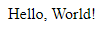
Now, let's check if PHP works with NGINX. We can create a simple "Hello, World" PHP script.
The default root directory for NGINX is /var/www/html.
Let's create a hello.php file in that directory:
sudo nano /var/www/html/hello.php
Inside the file, add the following content:
<?php
echo 'Hello, World!';
Save the file, then exit. (CTRL+X,Y, ENTER) for nano.
Now we can go to http:// in our browser. /hello.php access.
To get the public IP address of your server, use the following command:
hostname -I
If that doesn't work, try using cURL to get the server's public IP address:
curl -4 https://ip.hetzner.com
You should see this:
Conclusion
You have successfully installed a LEMP Stack on Ubuntu 24.04 LTS. You can start deploying your LEMP Stack applications. Good luck!