Introduction
Bluestacks is one of the best emulators that can run Android applications on a computer, everyone is aware of this and we can easily run Android applications on a computer with Windows 7 / 8 / 10 as well as MAC operating system.
Recently, due to the need of one of the users to implement Bluestacks On VPS and the error of not having a graphics card, we decided to prepare a video tutorial to solve this problem, so there will be no need to worry about installing the Android emulator on a virtual server because this problem can be easily fixed.
Program Bluestacks In terms of technical requirements, the basic requirements of App Player include a graphics card and at least 4 GB of RAM. Although, as you can see, these requirements are almost all found on desktop computers, on virtual servers you will probably not have a graphics card, so if you are looking for a solution to install Bluestacks We found it without a graphics card, so follow this simple guide.
Installing BlueStacks without a graphics card is not difficult, you just need to apply some internal settings that do not require complex information, in this tutorial we will provide a step-by-step tutorial for the problem of installing the Android virtualizer. Bluestacks We will provide without graphics card.
Download Bluestacks
- Bluestacks App Player Download from here. .
- Orca app Download from here
Installing ORCA and editing MSI files with Orca
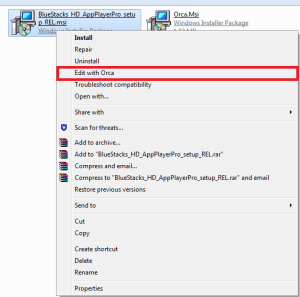
After downloading the Orca program, install it and go to the download path of the Bluestacks App Player program file, right-click on it and select the option Edit with Orca Click
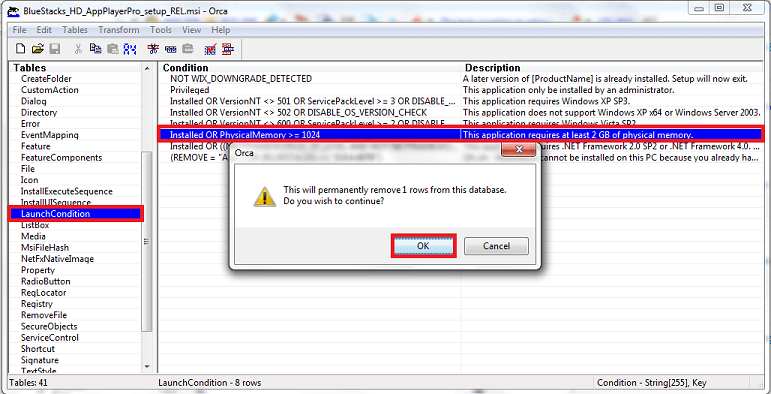
Edit LaunchCondition
To Go to LaunchCondition on the left and click Installed OR PhysicalMemory >=1024” Click and press the DEL key on the keyboard to clear the value and click OK in the displayed window.
Edit InstallExecuteSequence
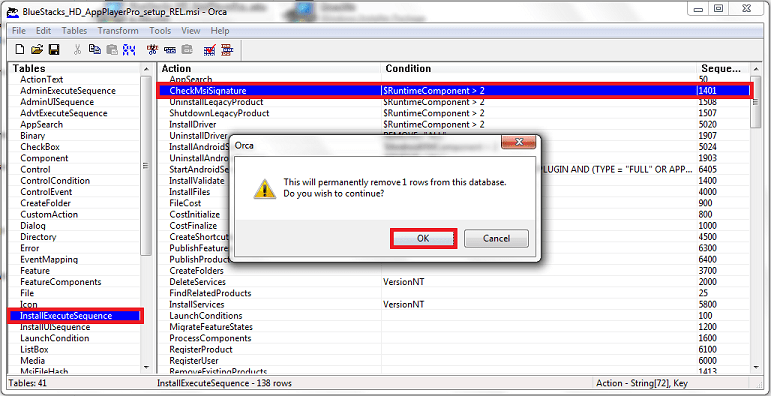
In the window on the left InstallExecuteSequence Go to and click on CheckMsiSignature and press DEL and click OK on the window that appears.
Edit Property and save changes
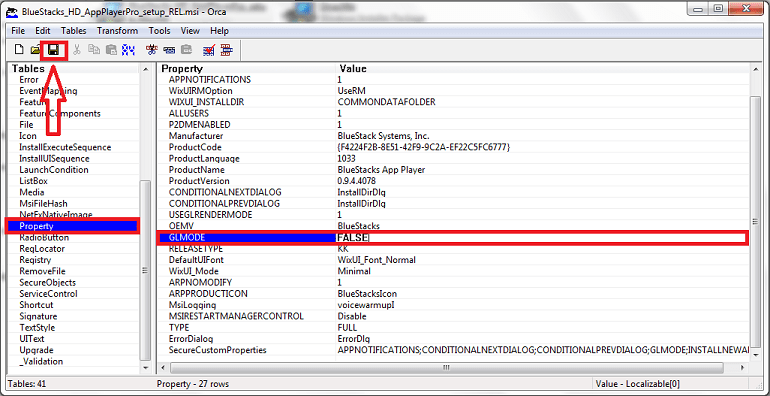
In the window on the left Property Go to and click on the True value opposite GLMODE Click and after deleting, change it to FALSE and press Enter.
After completing the above steps, click Save in the upper left of the window as shown in the image and you're done.
Run Bluestacks without problems on a virtual server without a graphics card.