
Introduction
Optimizing your WordPress installations gives your clients and the people who use your sites the performance, speed, and flexibility they expect from WordPress. Whether you're managing a personal site or a collection of installations for different clients, taking the time to optimize your WordPress installations will increase efficiency and effectiveness.
In this tutorial, you'll explore how to optimize your WordPress installation in a way that's built for scale, including guidance on configuration, speed, and overall performance.
Prerequisites
- A hosted solution offering WordPress on Ubuntu
- Manual installation on the droplet
- A 1-click app solution that offers WordPress on Ubuntu.
Whichever you choose, this tutorial starts with the assumption that you have or are ready to install a fully functional WordPress installation with an administrative user on Ubuntu.
Step 1 – Consider your WP installation
During the installation and creation of your WordPress installation, there are a few variables to consider, including the location of your potential users, the scope of your WordPress site or collection of sites, and the set of maintenance and security preferences that will allow your site to be continuously optimized. Taking the time to dive into each of these before building your site will save you time and come in handy as your WordPress installation grows.
Considering the potential of your site
The first step in optimizing your WordPress site is to have a deep understanding of how your site will be used and grown. Will it be a single site or a network of sites? Will your site be a static or dynamic website? Answering these questions before you launch the installation can inform some of your initial decisions about hosting, storage size, and performance.
For example, if you want to create a personal blog, it is important to store and optimize images and visual content. If you plan to create a forum or e-commerce site with simultaneous visitors and frequent data changes, you will need to consider server resources. Thinking about your intention for installing WordPress from the beginning will guide the usefulness of the security and performance tweaks built into your site and help make for a more efficient overall installation.
Optimize installation preferences
There are a few priorities to consider when installing WordPress that can reduce latency and increase your site's performance.
Hosting and software included
First, choose a hosting provider that offers the latest WordPress, Apache, MySQL, and PHP software with firewall capabilities and SSL certificates. A reliable and modern hosting provider gives you the best start for installing a LAMP stack. With shared hosting, be aware of the server usage and clients on each server to ensure the best performance for your site. Choosing the right hosting provider for your needs will help you avoid downtime and performance errors.
Location and time of delay
When starting a new WordPress installation, be aware of the location of your servers or data centers and choose a location that best suits your site’s needs and the general location of your visitors and users. Latency, the time it takes for data to travel between your site and your users, varies based on location. The WordPress documentation on the site explains how to track visitor location data, as well as the number of visits to your site. Having an idea from the start about where your visitors are coming from can help you determine where to host your site and provide them with a faster browsing experience.
Step 2 – Consider your topic
There is a wide range of themes available that can be used or customized for WordPress. Many themes can be configured with user-friendly drag-and-drop interfaces, integration with custom plugins, and more. When setting up a WordPress site, it is a good idea to initially consider only the essential features that you will use for the life cycle of your site and add more as you grow.
Optimize theme configuration
Starting with a lightweight theme can help your installation load more efficiently. A theme requires fewer database calls, and by ridding your site of unnecessary code, your users will experience fewer lags in site speed and performance.
For each theme you choose, make sure to turn off or disable any features provided with the theme that you don’t need or use. These can be preferences that are provided in the Appearance section of your WordPress dashboard, usually under the Theme Editor or Customizer. Turning off features that you don’t use will reduce the number of requests and calls that happen in the background to look up data.
While there are a number of free and paid options for WordPress themes available online, many use page builders that add extra shortcodes and unused code that will affect your site’s performance. Consider your use cases when deciding whether or not to use a page builder, as they usually involve a lot of extra processes that will affect the speed of your site.
Considering using a plugin
WordPress plugins provide extensive functionality to a WordPress installation through added code, allowing users to customize their installations to suit their specific needs. There are over 56,000 plugins currently available, making them an attractive way to add additional features to a WordPress site.
While plugins can enhance your site’s performance, you should be careful to choose quality plugins that are regularly maintained and updated. Since many plugins not only add code to your site, but also add to your WordPress installation’s database, using too many plugins can cause site speed issues over time.
Step 3 – Optimize for security and performance
Once you’ve installed all the plugins, widgets, and additional features you want to add to your WordPress installation, there are a few more optimization options to try in the WordPress dashboard that can positively impact the speed and performance of your site.
Changing WordPress Settings
First, make sure to change your site’s login URL. Since most WordPress admin login pages end in /wp-admin, this page is often vulnerable to attacks. There are a number of tools available that allow you to change your login URL – make sure it works best for your use case.
Next, consider the Site Health tool, located in the Tools section of your WordPress dashboard:
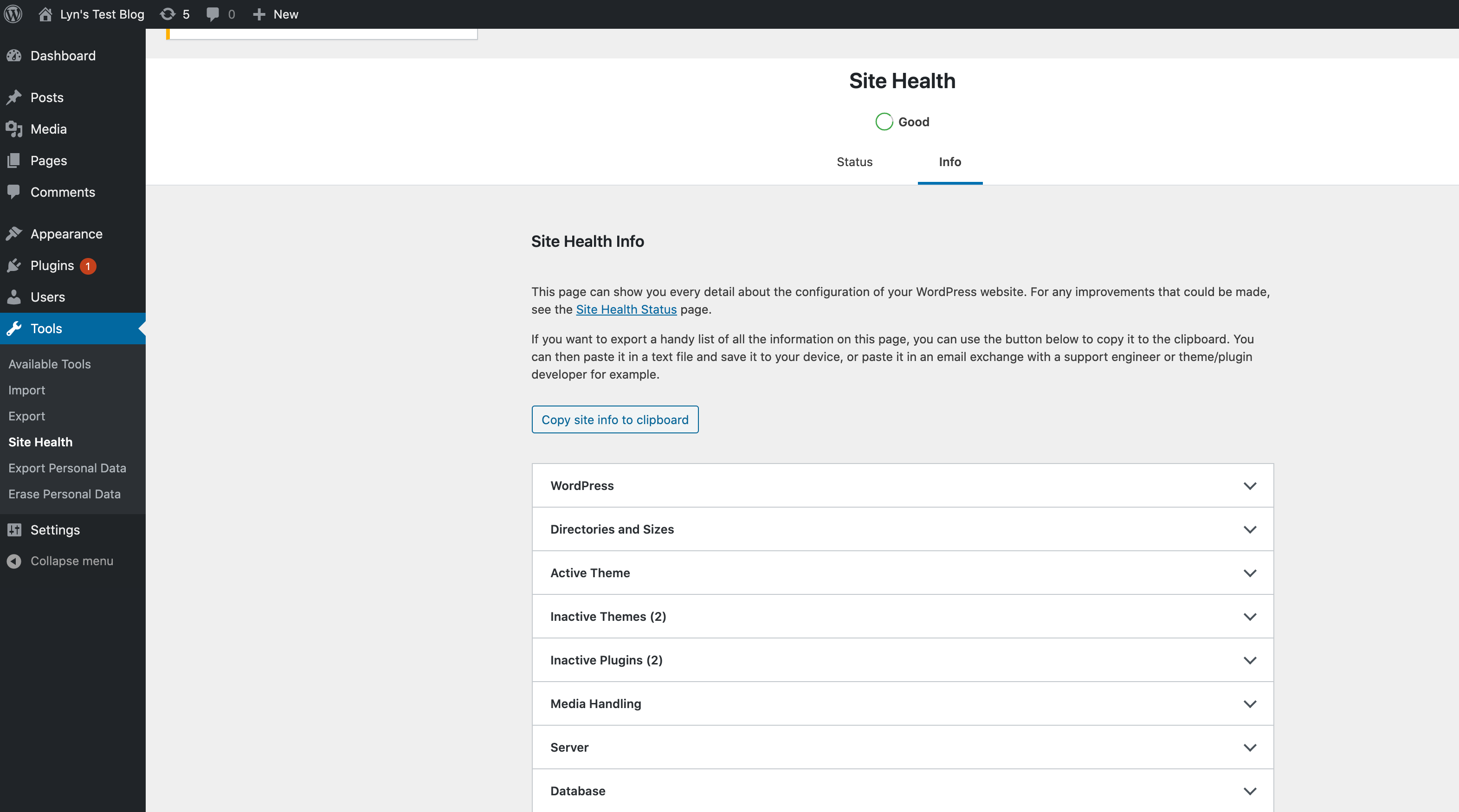
Consider the results shown and follow the instructions in each tab on the status sheet to improve security or performance as noted on the sheets.
Using the built-in configuration provided in the WordPress dashboard ensures that you have covered all the configuration tweaks available for your installation.
Storage for site speed
Caching can also help improve the performance and speed of your WordPress site. Caching, a core feature of the HTTP protocol designed to minimize network traffic while improving the perceived responsiveness of the system overall, can be used to help minimize load times when implemented on your site. WordPress offers a number of caching plugins that help maintain a snapshot of your site to serve static HTML elements, reduce the number of PHP calls, and improve page load speed.
Result
In this tutorial, you explored various techniques you can use to make your WordPress installation on Ubuntu faster and more efficient. Following the suggestions in this tutorial will help ensure that your site's performance is up to par as your users and content grow.