
Introduction
Nginx is one of the most popular web servers in the world, responsible for hosting some of the largest and most visited sites on the internet. It is a lightweight choice that can be used as a web server or reverse proxy.
In this guide, we will discuss installing Nginx on an Ubuntu 20.04 server, setting up a firewall, managing the Nginx process, and setting up server blocks to host more than one domain from a single server.
Prerequisites
- Before starting this guide, you must have a regular, non-root user with sudo privileges configured on your server.
- To buy an Ubuntu server Click Do it.
Step 1 – Install Nginx
Since Nginx is available in the default Ubuntu repositories, it can be installed from these repositories using the apt packaging system.
Since this is our first interaction with the apt packaging system in this session, we will update our local package directory to have access to the latest package lists. After that, we can install nginx:
sudo apt update
sudo apt install nginx
After accepting the procedure, apt will install Nginx and any required dependencies on your server.
Step 2 – Configure the Firewall
Before testing Nginx, the firewall software must be configured to allow access to the service. After installation, Nginx registers itself as a service with ufw, making it easy to allow access to Nginx.
List the application configurations that ufw knows how to work with by typing:
sudo ufw app list
You should get a list of application profiles:
Output
Available applications:
Nginx Full
Nginx HTTP
Nginx HTTPS
OpenSSH
As shown in the output, there are three profiles for Nginx:
- Nginx Full: This profile opens both port 80 (normal, unencrypted web traffic) and port 443 (TLS/SSL encrypted traffic).
- Nginx HTTP: This profile only opens port 80 (normal, unencrypted web traffic)
- Nginx HTTPS: This profile only opens port 443 (TLS/SSL encrypted traffic)
It is recommended that you enable the most restrictive profile that still allows the traffic you have configured. For now, we only need to allow traffic on port 80.
You can enable this by typing:
sudo ufw allow 'Nginx HTTP'
You can confirm this change by typing:
sudo ufw status
The output shows which HTTP traffic is allowed:
Output
Status: active
To Action From
-- ------ ----
OpenSSH ALLOW Anywhere
Nginx HTTP ALLOW Anywhere
OpenSSH (v6) ALLOW Anywhere (v6)
Nginx HTTP (v6) ALLOW Anywhere (v6)
Step 3 – Check your web server
At the end of the installation process, Ubuntu 20.04 will start Nginx. The web server should already be started.
We can do this by typing:
systemctl status nginx
Output
● nginx.service - A high performance web server and a reverse proxy server
Loaded: loaded (/lib/systemd/system/nginx.service; enabled; vendor preset: enabled)
Active: active (running) since Fri 2020-04-20 16:08:19 UTC; 3 days ago
Docs: man:nginx(8)
Main PID: 2369 (nginx)
Tasks: 2 (limit: 1153)
Memory: 3.5M
CGroup: /system.slice/nginx.service
├─2369 nginx: master process /usr/sbin/nginx -g daemon on; master_process on;
└─2380 nginx: worker process
As confirmed in this case, the service has started successfully. However, the best way to test is to actually request a page from Nginx.
You can access the default Nginx landing page by navigating to your server's IP address to verify that the software is running properly. If you don't know your server's IP address, you can find it using the icanhazip.com tool, which will give you your public IP address as it would be received from somewhere else on the internet:
curl -4 icanhazip.com
Once you have your server's IP address, enter it into your browser's address bar:
http://your_server_ipYou should get the default Nginx landing page:
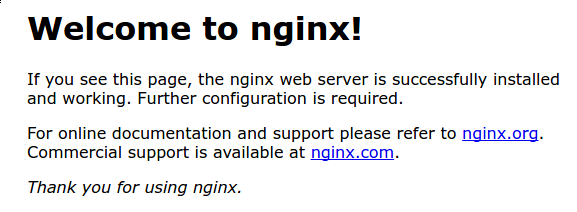
If you are on this page, your server is working properly and ready to be managed.
Step 4 – Manage the Nginx Process
Now that you have your web server set up, let's review some basic administrative commands.
To stop your web server, type:
sudo systemctl stop nginx
To start the web server if it stops, type:
sudo systemctl start nginx
To stop and then restart the service, type:
sudo systemctl restart nginx
If you are only making configuration changes, Nginx can often be reloaded without dropping connections. To do this, type:
sudo systemctl reload nginx
By default, Nginx is configured to start automatically when the server boots. If this is not what you want, you can disable this behavior by typing:
sudo systemctl disable nginx
To re-enable the service to start at boot, you can type:
sudo systemctl enable nginx
You have now learned the basic administrative commands and should be ready to configure your site to host more than one domain.
Step 5 – Set up server blocks (recommended)
When using the Nginx web server, server blocks (similar to virtual hosts in Apache) can be used to encapsulate configuration details and host more than one domain from a single server. We will set up a domain called your_domain, but you should replace it with your own domain name.
Nginx in Ubuntu 20.04 has a server block enabled by default that is configured to serve documents outside of a directory in /var/www/html. While this works fine for a single site, it can get cumbersome if you host multiple sites. Instead of changing /var/www/html, let's create a directory structure in /var/www for our your_domain site, and leave /var/www/html as the default directory to serve in case it doesn't match the client's request. Other sites
Create a directory for your_domain as follows, using the -p flag to create any necessary parent directories:
sudo mkdir -p /var/www/your_domain/html
Next, assign ownership of the directory with the $USER environment variable:
sudo chown -R $USER:$USER /var/www/your_domain/html
If you haven't changed your umask value, which sets the default file permissions, your web root permissions should be correct. To ensure that your permissions are correct and allow the owner to read, write, and execute files while only granting read and execute permissions to groups and others, you can enter the following command:
sudo chmod -R 755 /var/www/your_domain
Next, create a sample index.html page using nano or your favorite editor:
sudo nano /var/www/your_domain/html/index.html
Inside, add the following HTML sample:
<html>
<head>
<title>Welcome to your_domain!</title>
</head>
<body>
<h1>Success! The your_domain server block is working!</h1>
</body>
</html>
Save and close the file by pressing Ctrl+X to exit, then press Y and then Enter when prompted to save.
In order for Nginx to serve this content, you need to create a server block with the correct instructions. Instead of directly modifying the default configuration file, let's create a new file in /etc/nginx/sites-available/your_domain:
sudo nano /etc/nginx/sites-available/your_domain
Paste in the following configuration block, which is similar to the default, but updated for our new directory and domain name:
server {
listen 80;
listen [::]:80;
root /var/www/your_domain/html;
index index.html index.htm index.nginx-debian.html;
server_name your_domain www.your_domain;
location / {
try_files $uri $uri/ =404;
}
}
Note that we have updated the root configuration to our new directory and the server_name to our domain name.
Next, let's enable the file by creating a link from it to the sites-enabled directory, which Nginx will read from when it starts:
sudo ln -s /etc/nginx/sites-available/your_domain /etc/nginx/sites-enabled/
Now two server blocks are enabled and configured to respond to requests based on the listen and server_name directives (you can read more about how Nginx processes these directives here):
- your_domain: It responds to requests for your_domain and www.your_domain.
- Default: It responds to any request on port 80 that does not match the other two blocks.
To avoid the potential hash bucket memory issue that may arise from adding additional server names, it is necessary to set a single value in the /etc/nginx/nginx.conf file. Open the file:
sudo nano /etc/nginx/nginx.conf
Find the server_names_hash_bucket_size command and remove the # symbol to uncomment the line. If you are using nano, you can quickly search for words in the file by pressing CTRL and w.
...
http {
...
server_names_hash_bucket_size 64;
...
}
...
Save and close the file when you are finished.
Next, test to make sure there are no syntax errors in any of your Nginx files:
sudo nginx -t
If there are no problems, restart Nginx for your changes to take effect:
sudo systemctl restart nginx
Nginx should now serve your domain name. You can test this by going to http://your_domain, where you should see something like this:

Step 6 – Familiarize yourself with important Nginx files and directories
Now that you know how to manage the Nginx service itself, you should take a few minutes to familiarize yourself with a few important directories and files.
Content
- /var/www/html: The actual web content, which by default consists of just the Nginx default page you saw earlier, is served outside of the /var/www/html directory. This can be changed by modifying the Nginx configuration files.
Server configuration
- /etc/nginx: Nginx configuration directory. All Nginx configuration files are located here.
- /etc/nginx/nginx.conf: The main Nginx configuration file. This can be modified to make changes to the global Nginx configuration.
- /etc/nginx/sites-available/: A directory where server blocks for each site can be stored. Nginx will not use configuration files in this directory unless they are linked to the sites-enabled directory. Typically, all server block configuration is done in this directory and then enabled by linking to another directory.
- /etc/nginx/sites-enabled/: The directory where the active server blocks for each site are stored. Typically, these are created by linking to the configuration files in the existing site directory.
- /etc/nginx/snippets: This directory contains configuration fragments that can be included elsewhere in the Nginx configuration. Potentially repeatable configuration sections are good candidates for refactoring into fragments.
Server reports
- /var/log/nginx/access.log: Every request to your web server is logged in this log file unless Nginx is configured otherwise.
- /var/log/nginx/error.log: Any Nginx errors are recorded in this log.
Result
Now that you have your web server installed, you have many options for the type of content and technologies you want to use to create a richer experience.