
Introduction
In this guide, you will install different versions of the Java Runtime Environment (JRE) and Java Developer Kit (JDK) using apt. You will install OpenJDK as well as the official Oracle JDK. Then you will choose the version you want to use for your projects. When you are done, you can use the JDK to develop software or use the Java Runtime to run software.
Prerequisites
- An Ubuntu 22.04 server was set up by following the Ubuntu 22.04 Initial Server Setup Guide tutorial, including a non-root sudo user and a firewall.
Step 1 – Install Java
A Java installation has two main components. The JDK provides the essential software tools for developing in Java, such as a compiler and debugger. The JRE is used to actually run Java programs. In addition, there are two main Java installation options to choose from. OpenJDK is an open source Java implementation and is packaged with Ubuntu. The Oracle JDK is the main version of Java and is fully maintained by Oracle, the developers of Java.
Both of these versions are officially recognized by Oracle. Both are developed by Oracle, but OpenJDK has more community contributions due to its open source nature. However, starting with Java 11, the two options are now functionally identical with the details provided by Oracle. The choice between which one to install depends on choosing the right license for your situation. Additionally, OpenJDK has the option to install the JRE separately, while OracleJDK comes packaged with its own JRE.
Option 1 – Install the default JRE/JDK
One option for installing Java is to use the version packaged with Ubuntu. By default, Ubuntu 22.04 includes Open JDK 11, which is an open source variant of the JRE and JDK.
To install the OpenJDK Java version, first update your apt package list:
sudo apt updateNext, check if Java is already installed:
java -versionIf Java is not currently installed, you will receive the following output:
Output
Command 'java' not found, but can be installed with:
sudo apt install default-jre # version 2:1.11-72build1, or
sudo apt install openjdk-11-jre-headless # version 11.0.14+9-0ubuntu2
sudo apt install openjdk-17-jre-headless # version 17.0.2+8-1
sudo apt install openjdk-18-jre-headless # version 18~36ea-1
sudo apt install openjdk-8-jre-headless # version 8u312-b07-0ubuntu1
Run the following command to install JRE from OpenJDK 11:
sudo apt install default-jreJRE allows you to run almost all Java software.
Confirm installation with:
java -versionYou will get output similar to the following:
Output
openjdk version "11.0.14" 2022-01-18
OpenJDK Runtime Environment (build 11.0.14+9-Ubuntu-0ubuntu2)
OpenJDK 64-Bit Server VM (build 11.0.14+9-Ubuntu-0ubuntu2, mixed mode, sharing)
You may need JDK in addition to JRE to compile and run certain Java-based software. To install JDK, run the following command and install JRE as well:
sudo apt install default-jdkVerify that the JDK is installed by checking the version of javac, the Java compiler:
javac -versionYou will see the following output:
Output
javac 11.0.14
Next, you will learn how to install the official Oracle JDK and JRE.
Option 2 – Install Oracle JDK 11
Oracle's license agreement for Java does not allow automatic installation through package managers. To install Oracle JDK, which is the official version distributed by Oracle, you need to create an Oracle account and manually download the JDK to add a new package repository for the version you want to use. You can then use apt to install it with the help of a third-party installation script. Oracle JDK comes with a JRE, so you don't need to install it separately.
The version of Oracle JDK you need to download must match the version of the installer script. To find out which version you need, see the oracle-java11-installer page.
Find the Jammy package as shown in the figure below:
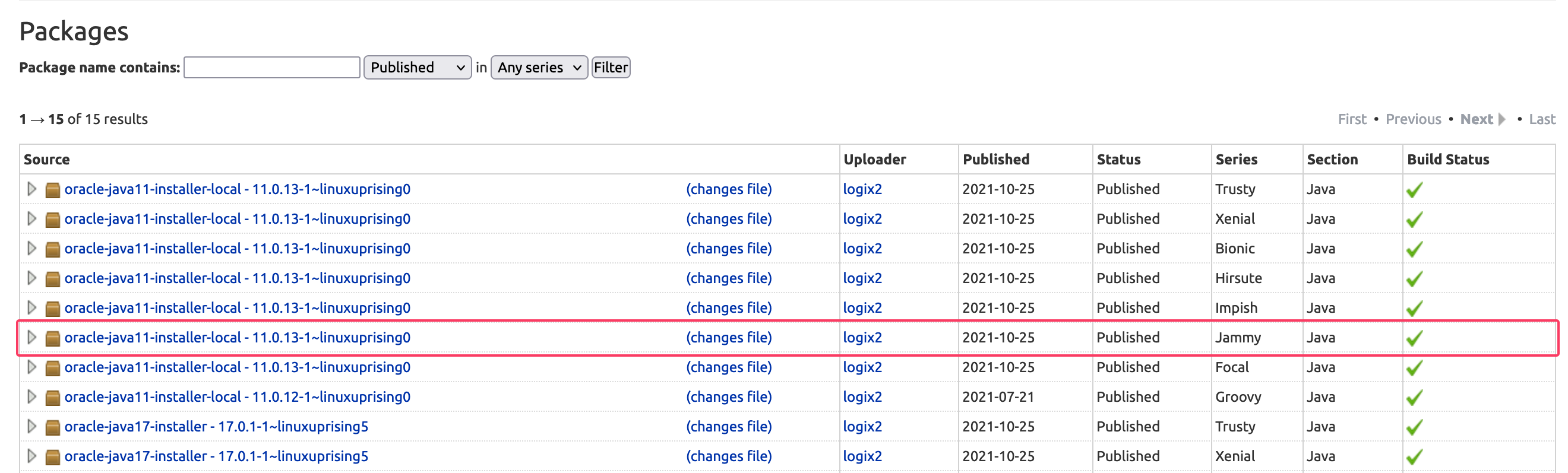
In this image, the script version is 11.0.13. In this case, you will need Oracle JDK 11.0.13. Your version number may be different depending on when you installed the software.
You don't need to download anything from this page. You will soon download the installation script via apt.
Next, visit the Downloads Archive and find the version that matches the version you need.
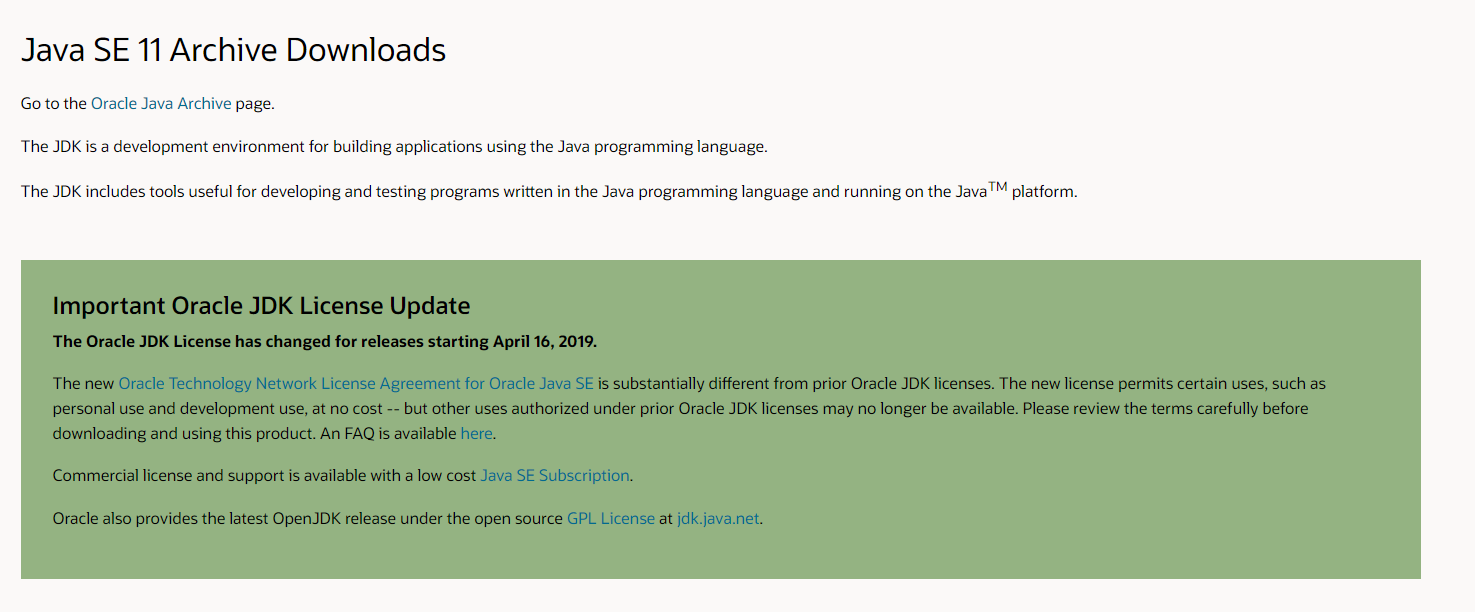
From this list, select the Linux x64 compressed archive tar.gz package:
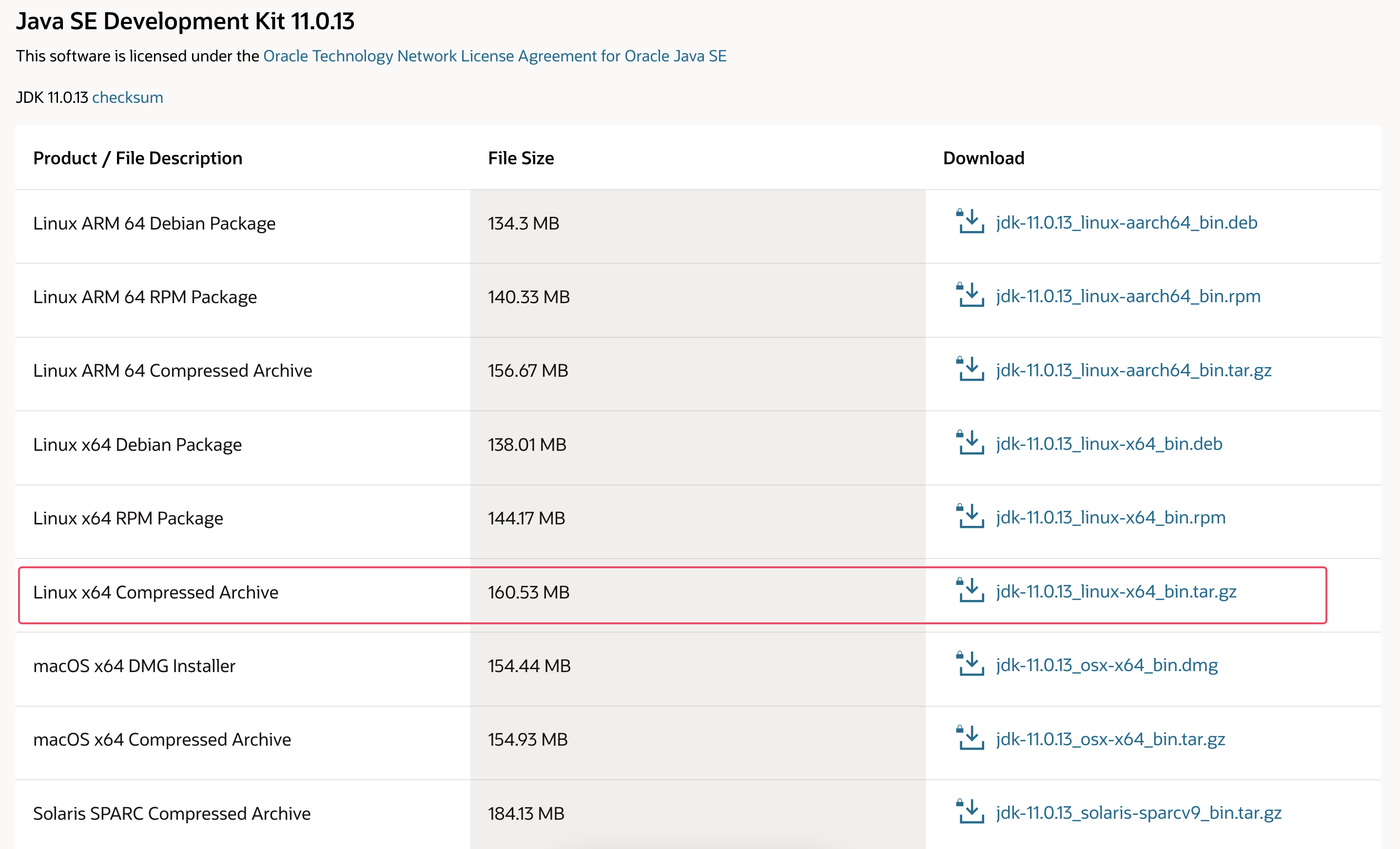
You will be presented with a page asking you to accept the Oracle License Agreement. Select the checkbox to accept the License Agreement and press the Download button. Your download will begin. You may need to log in to your Oracle account again before the download begins.
After you download the file, you need to transfer it to your server. On your local machine, upload the file to your server. On macOS, Linux, or Windows using the Windows Subsystem for Linux, use the scp command to transfer the file to your sammy user's home directory. The following command assumes that you have saved the Oracle JDK file in the Downloads folder on your local machine:
scp Downloads/jdk-11.0.13_linux-x64_bin.tar.gz sammy@your_server_ip:~Once the file upload is complete, return to your server and add the third-party repository that will help you install Oracle Java.
First, enter the signing key used to verify the software you want to install:
sudo gpg --homedir /tmp --no-default-keyring --keyring /usr/share/keyrings/oracle-jdk11-installer.gpg --keyserver keyserver.ubuntu.com --recv-keys EA8CACC073C3DB2AYou will see this output:
Output
gpg: keybox '/usr/share/keyrings/oracle-jdk11-installer.gpg' created
gpg: /tmp/trustdb.gpg: trustdb created
gpg: key EA8CACC073C3DB2A: public key "Launchpad PPA for Linux Uprising" imported
gpg: Total number processed: 1
gpg: imported: 1
Next, add the repository to your package sources list:
echo "deb [arch=amd64 signed-by=/usr/share/keyrings/oracle-jdk11-installer.gpg] https://ppa.launchpadcontent.net/linuxuprising/java/ubuntu jammy main" | sudo tee /etc/apt/sources.list.d/oracle-jdk11-installer.list > /dev/nullUpdate your package list so that new software is available for installation:
sudo apt updateThe installer will look for your Oracle JDK in /var/cache/oracle-jdk11-installer-local. Create this directory and move the Oracle JDK archive there:
sudo mkdir -p /var/cache/oracle-jdk11-installer-local/
sudo cp jdk-11.0.13_linux-x64_bin.tar.gz /var/cache/oracle-jdk11-installer-local/
Finally install the package:
sudo apt install oracle-java11-installer-localThe installer will first ask you to accept the Oracle license agreement. Accept the agreement, then the installer will extract the Java package and install it.
Now you will look at how to choose the version of Java you want to use.
Step 2 – Java Management
You can have multiple Java installations on a server. You can configure which version is the default to use on the command line using the update-alternatives command.
sudo update-alternatives --config javaIf you have installed both versions of Java in this tutorial, the output will be like this:
Output
There are 2 choices for the alternative java (providing /usr/bin/java).
Selection Path Priority Status
------------------------------------------------------------
0 /usr/lib/jvm/java-11-openjdk-amd64/bin/java 1111 auto mode
1 /usr/lib/jvm/java-11-openjdk-amd64/bin/java 1111 manual mode
* 2 /usr/lib/jvm/java-11-oracle/bin/java 1091 manual mode
Press <enter> to keep the current choice[*], or type selection number:
Select the Java version number to use as the default, or press ENTER to leave the current settings in place.
You can do this for other Java commands like the compiler (javac):
sudo update-alternatives --config javacOther commands that this command can be run for include: keytool, javadoc, and jarsigner.
Step 3 – Set the JAVA_HOME environment variable
Many programs written using Java use the JAVA_HOME environment variable to specify the location of the Java installation.
To set this environment variable, first specify the location of your Java installation. Use the update-alternatives command:
sudo update-alternatives --config javaThis command will show each Java installation along with its installation path:
Output
There are 2 choices for the alternative java (providing /usr/bin/java).
Selection Path Priority Status
------------------------------------------------------------
0 /usr/lib/jvm/java-11-openjdk-amd64/bin/java 1111 auto mode
1 /usr/lib/jvm/java-11-openjdk-amd64/bin/java 1111 manual mode
* 2 /usr/lib/jvm/java-11-oracle/bin/java 1091 manual mode
Press <enter> to keep the current choice[*], or type selection number:
In this case, the installation paths are as follows:
- OpenJDK 11 is located at /usr/lib/jvm/java-11-openjdk-amd64/bin/java.
- Oracle Java is located at /usr/lib/jvm/java-11-oracle/jre/bin/java.
Copy the path from your desired installation. Then open /etc/environment using nano or your favorite text editor:
sudo nano /etc/environmentAt the end of this file, add the following line, making sure to replace the highlighted path with your copied path and not include the /bin part of the path:
JAVA_HOME="/usr/lib/jvm/java-11-openjdk-amd64"
By modifying this file, the JAVA_HOME path will be set for all users on your system.
Save the file and exit the editor.
Now reload this file to apply the changes to your current session:
source /etc/environmentCheck that the environment variable is set:
echo $JAVA_HOMEYou will see the path you just set:
Output
/usr/lib/jvm/java-11-openjdk-amd64
Other users must run the source /etc/environment command or log out and log back in to apply these settings.
Result
In this tutorial, you installed multiple versions of Java and learned how to manage them. Now you can install software like Tomcat, Jetty, Glassfish, Cassandra, or Jenkins that run on Java.