Introduction
Go is a programming language born out of frustration at Google. Developers were constantly forced to choose between a language that ran efficiently but took a long time to compile, or a language that was easy to program in but inefficient in production. Go was designed to have all three at once: fast compilation, ease of programming, and efficient production execution.
While Go is a versatile programming language that can be used for many different programming projects, it is particularly well-suited for network/distributed systems applications and is known as the “language of the cloud.” It focuses on helping the modern programmer do more with a robust set of tools, eliminates formatting discussions by making formatting part of the language specification, and also simplifies deployment by compiling into a single binary. Go is easy to learn, with a very small set of keywords, making it a great choice for beginners and experienced developers alike.
This tutorial will guide you through installing Go on your local Windows 10 machine and setting up a programming environment via the command line.
Prerequisites
- You need a Windows 10 device with administrative access that is connected to the internet.
Step 1 – Open and configure PowerShell
You will complete most of the installation and setup in a command-line interface, which is a non-graphical way to interact with your computer. That is, instead of clicking buttons, you type text and receive feedback from your computer in the form of text. The command line, also known as a shell, can help you modify and automate many of the tasks you do on your computer every day and is an essential tool for software developers.
PowerShell is a program from Microsoft that provides a command-line shell interface. Administrative tasks are performed by executing cmdlets, pronounced commands, which are specialized classes of the .NET software framework that can perform operations. Open sourced in August 2016, PowerShell is now available across platforms, for both Windows and Unix-like systems (including Mac and Linux).
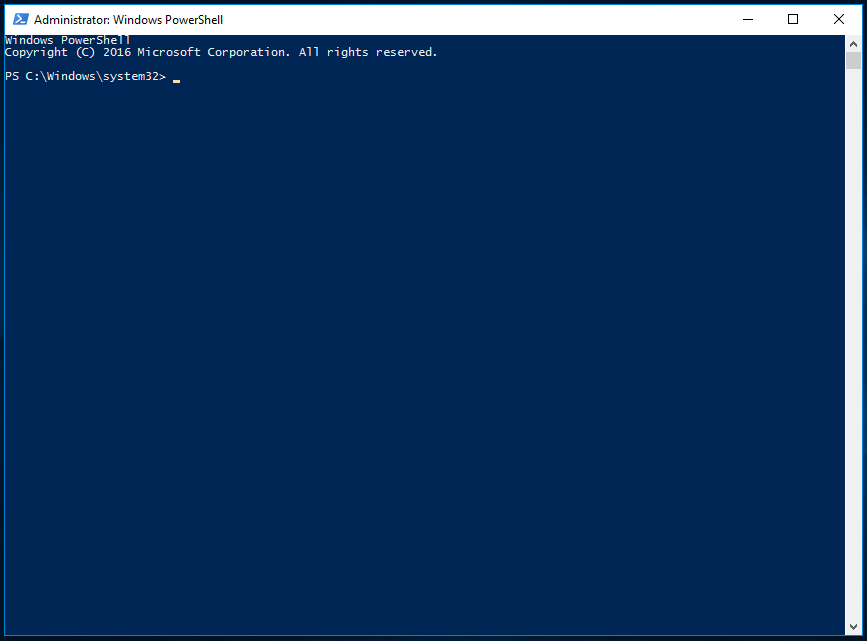
To find Windows PowerShell, you can right-click on the Start menu icon in the lower-left corner of your screen. When the menu appears, click Search and then type PowerShell in the search bar. When you are presented with options, right-click on Windows PowerShell from the Desktop app. For the purposes of this tutorial, select Run as Administrator. When prompted with a dialog box asking if you want to allow this program to make changes to your PC? Click Yes.
Once you do this, you will see a text-based interface that has a string of words like this:
Exit the system folder by typing the following command:
cd ~
You will then be in a root directory like PS C:\Users\sammy.
To continue with the installation process, you must first set permissions via PowerShell. By default, it is configured to run in the most secure mode, there are several levels of permissions that you can set as an administrator:
- Restricted is the default execution policy. In this mode, you cannot run scripts and PowerShell only works as an interactive shell.
- AllSigned enables you to run all scripts and configuration files that are signed by a trusted publisher, meaning you can potentially open your device to the risk of running malicious scripts that happen to be signed by a trusted publisher.
- RemoteSigned allows you to run scripts and configuration files downloaded from the Internet signed by trusted publishers, again opening your device to vulnerabilities if these trusted scripts are truly malicious.
- As soon as you notice that the file was downloaded from the Internet, Unrestricted will execute all scripts and configuration files downloaded from the Internet. In this case, a digital signature is not required, so you can open your device to the risk of executing unsigned and potentially malicious scripts downloaded from the Internet.
In this tutorial, you will use the RemoteSigned execution policy to set permissions for the current user. This allows PowerShell to accept trusted scripts without imposing permissions as much as they would with an unrestricted license. Enter the following in PowerShell:
Set-ExecutionPolicy -Scope CurrentUser
PowerShell will then ask you to provide an execution policy. To use RemoteSigned, enter the following:
RemoteSigned
After pressing ENTER, you will be asked to confirm the change to the execution policy. Type y to apply the changes. You can verify that this has been done by requesting the current permissions on the device:
Get-ExecutionPolicy -List
You should get output that looks something like this:
Output
Scope ExecutionPolicy
----- ---------------
MachinePolicy Undefined
UserPolicy Undefined
Process Undefined
CurrentUser RemoteSigned
LocalMachine Undefined
This verifies that the current user can run trusted scripts downloaded from the internet. You can now proceed to download the files we need to set up the Go development environment.
Step 2 – Install the Chocolatey Package Manager
Package Manager is a set of software tools that work to automate installation processes. This includes initial installation, upgrading and configuring software, and removing software when needed. They keep software installations in a central location and can maintain all software packages on the system in commonly used formats.
Chocolatey is a command-line package manager built for Windows that works like apt-get on Linux. Available in an open source version, Chocolatey helps you quickly install programs and tools. You'll use it to download what you need for your development environment.
Before installing the script, read it to confirm that you are happy with the changes it will make to your machine. To do this, use the .NET scripting framework to download and display the Chocolatey script in a terminal window.
Start by creating a WebClient object called $script that shares Internet connection settings with Internet Explorer:
$script = New-Object Net.WebClient
Take a look at the available options by piping the $script object with | to the Get-Member class:
$script | Get-Member
This will return all the members (properties and methods) of this WebClient object:
 . . .
[secondary_label Snippet of Output]
DownloadFileAsync Method void DownloadFileAsync(uri address, string fileName), void DownloadFileAsync(ur...
DownloadFileTaskAsync Method System.Threading.Tasks.Task DownloadFileTaskAsync(string address, string fileNa...
DownloadString Method string DownloadString(string address), string DownloadString(uri address) #method we will use
DownloadStringAsync Method void DownloadStringAsync(uri address), void DownloadStringAsync(uri address, Sy...
DownloadStringTaskAsync Method System.Threading.Tasks.Task[string] DownloadStringTaskAsync(string address), Sy…
. . .
By looking at the output, you can identify the DownloadString method used to display the script and signature in the PowerShell window. Use this method to inspect the script:
$script.DownloadString("https://chocolatey.org/install.ps1")
After reviewing the script, install Chocolatey by typing the following in PowerShell:
iwr https://chocolatey.org/install.ps1 -UseBasicParsing | iex
The iwr or Invoke-WebRequest cmdlet allows you to extract data from the web. It passes the script to the iex or Invoke-Expression cmdlet, which executes the contents of the script and performs the installation for Chocolatey package management.
Let PowerShell install Chocolatey. Once the installation is complete, you can start installing additional tools with the choco command.
If you need to upgrade Chocolatey at any time in the future, run the following command:
choco upgrade chocolatey
By installing the package manager, you can install the rest of the things you need for the Go programming environment.
Step 3 – Install Nano Text Editor (Optional)
In this step, you are going to install nano, a text editor that uses a command-line interface. You can use nano to write programs directly in PowerShell. This is not a mandatory step, as you can also use a text editor with a graphical user interface, such as Notepad. This tutorial recommends using nano, as it will help you get used to using PowerShell.
Use Chocolatey to install Nano:
choco install -y nano
The -y flag automatically confirms that you want to run the script without asking for confirmation.
Once you have nano installed, you can use the nano command to create new text files. Later in this tutorial, you will use it to write your first Go program.
Step 4 – Install Go
Just like you did with nano in the previous step, you will use Chocolatey to install Go:
choco install -y golang
Note: Since go is a very short word, it has become common to use golang as a term for installing packages and when searching the internet for Go-related articles. The term Golang was born from the Go domain, which is golang.org.
PowerShell will now install Go and generate output in PowerShell during that process. Once the installation is complete, you should see the following output:
Output
Environment Vars (like PATH) have changed. Close/reopen your shell to
see the changes (or in powershell/cmd.exe just type `refreshenv`).
The install of golang was successful.
Software installed as 'msi', install location is likely default.
Chocolatey installed 1/1 packages.
See the log for details (C:\ProgramData\chocolatey\logs\chocolatey.log).
With the installation complete, you now confirm that Go is installed. To see the changes, close and reopen PowerShell as Administrator, then check the version of Go on your local machine:
go version
You will get output similar to the following:
Output
go version go1.12.1 windows/amd643.7.0
After installing Go, you can set up a workspace for your development projects.
Step 5 – Create your Go workspace
Now that you have Chocolatey, nano, and Go installed, you can create your programming workspace.
The Go workspace will contain two directories at its root:
- src: The directory that contains Go source files. A source file is a file that you write using the Go programming language. Source files are used by the Go compiler to create an executable binary file.
- bin: A directory containing executable files built and installed by the Go tool. Executable files are binary files that run on your system and perform tasks. These are usually programs compiled from your source code or other downloaded Go source code.
The src subdirectory may contain multiple version control repositories (such as Git, Mercurial, and Bazaar). When your application imports third-party libraries, you will see directories like github.com or golang.org. If you are using a code repository like github.com, you will also put your projects and source files in that directory. This allows you to import code canonically into your project. A canonical import is an import that points to a fully qualified package, such as github.com/digitalocean/godo.
Here's what a typical workspace might look like:
.
├── bin
│ ├── buffalo # command executable
│ ├── dlv # command executable
│ └── packr # command executable
└── src
└── github.com
└── digitalocean
└── godo
├── .git # Git repository metadata
├── account.go # package source
├── account_test.go # test source
├── ...
├── timestamp.go
├── timestamp_test.go
└── util
├── droplet.go
└── droplet_test.go
The default directory for the Go workspace as of 1.8 is your user home directory with a subdirectory of go or $HOME/go. If you are using a version of Go prior to 1.8, using the $HOME/go location for your workspace is still considered best practice.
Issue the following command to go to the $HOME directory:
cd $HOME
Next, create the directory structure for your Go workspace:
mkdir go/bin, go/src
This ensures that the following directory structure currently exists:
└── $HOME
└── go
├── bin
└── src
Before Go 1.8, a local environment variable called $GOPATH had to be set. While this is no longer required, it is still considered good practice because many third-party tools still depend on setting this variable.
Since you used Chocolatey for the installation, this environment variable should already be set. You can verify this with the following command:
$env:GOPATH
You should see the following output with your username instead of sammy:
Output
C:\Users\sammy\go
When Go compiles and installs the tools, it places them in the $GOPATH/bin folder. For convenience, it is common to add the bin subdirectory of your workspace to your $PATH. You can do this using the setx command in PowerShell:
setx PATH "$($env:path);$GOPATH\bin"
It now allows you to run any program you compile or download via the Go tool anywhere on your system.
Now that you have your workspace root created and your $GOPATH environment variable set, you will create your future projects with the following directory structure. This example assumes you are using github.com as your repository:
$GOPATH/src/github.com/username/project
If you were working on the project https://github.com/digitalocean/godo, you would list it as:
$GOPATH/src/github.com/digitalocean/godo
Structuring your projects in this way will make them accessible with the go get tool. It will also help with readability later on.
You can verify this by using the go get command to fetch the godo library:
go get github.com/digitalocean/godo
Note: If you don't have git installed, Windows will open a dialog box asking if you want to install it. Click Yes to continue and follow the installation instructions.
By listing the directory, you can see that the godo package has been successfully downloaded:
ls $env:GOPATH/src/github.com/digitalocean/godo
You will get output similar to this:
Output
Directory: C:\Users\sammy\go\src\github.com\digitalocean\godo
Mode LastWriteTime Length Name
---- ------------- ------ ----
d----- 4/10/2019 2:59 PM util
-a---- 4/10/2019 2:59 PM 9 .gitignore
-a---- 4/10/2019 2:59 PM 69 .travis.yml
-a---- 4/10/2019 2:59 PM 1592 account.go
-a---- 4/10/2019 2:59 PM 1679 account_test.go
-rw-r--r-- 1 sammy staff 2892 Apr 5 15:56 CHANGELOG.md
-rw-r--r-- 1 sammy staff 1851 Apr 5 15:56 CONTRIBUTING.md
.
.
.
-a---- 4/10/2019 2:59 PM 5076 vpcs.go
-a---- 4/10/2019 2:59 PM 4309 vpcs_test.go
At this point, you have created a Go workspace and configured the necessary environment variables. Next, you will test the workspace with some code.
Step 6 – Create a simple app
Now that you have your Go workspace set up, create a simple «Hello, World!» program. This will ensure that your workspace is configured correctly and also give you a chance to get to know Go better. Since you are creating a Go source file, and not an actual project, you don’t need to be in your workspace to do this.
From your home directory, open a command-line text editor, such as nano, and create a new file:
nano hello.go
Once the text file opens in nano, type your program:
package main
import "fmt"
func main() {
fmt.Println("Hello, World!")
}
Exit nano by pressing CTRL and X. When prompted to save the file, press Y and then ENTER.
This code uses the fmt package and calls the Println function with Hello, World! as an argument. This causes the phrase Hello, World! to print to the terminal when the program runs.
Once you exit nano and return to your shell, run the program:
go run hello.go
The hello.go program you created should cause PowerShell to produce the following output:
Output
Hello, World!
In this step, you used a basic application to verify that your Go workspace is configured correctly.
Result
Congratulations! At this point you have set up a Go programming workspace on your local Windows machine and can start a coding project!