Introduction
Welcome to the tutorial titled How to Install CloudPanel on Debian 10. CloudPanel is a modern server control panel with lightweight components for PHP applications with specific features for all major clouds.
Facilities
- Secure (free SSL/TLS certificate).
- High performance.
- Ready to use within 1 minute.
- Supports all major clouds
- Available in more than ten languages.
Prerequisites
- You need root access to your server to install CloudPanel.
- CloudPanel requires very low system requirements to run.
- You need an empty/fresh server with Debian 10 (Buster) with root access.
- You must have root access or access to a user with sudo privileges.
- CPU: 2vCores
- RAM: 2GB
- Space: 20GB
Technology
CloudPanel technology consists of modern, lightweight components for maximum performance for PHP applications.
- Debian 10
- NGINX 1.18 with PageSpeed module
- MySQL 5.7 (Percona)
- PHP [7.1 to 8.1]
- Redis 5
- ProFTPD 1.3
- Node.js 14
- Yarn 1.22
We use the following terms in this tutorial:
- Username:
root(Any user with root privileges). - Host name:
cloudpanel-416cd680.nip.io(You can adjust it however you like). - Domain:
cloudpanel-416cd680.nip.io(You can adjust it however you like). - Username
CloudPanel: admin.user(You can adjust it however you like).
Step 1 – Configure the hostname
Important: For the hostname, use a subdomain such as hostname.domain.com. If you set your main domain (e.g. domain.com) as the hostname, you will no longer be able to use that domain for the website within the control panel.
hostnamectl set-hostname cloudpanel-416cd680.nip.io
To check the hostname
hostnamectlYou can see the following output:

Now we will update our server using the following command.
sudo apt update && sudo apt -y upgrade
Install Wget and Curl.
sudo apt -y install curl wget
The pre-installation steps are complete and now we will start installing CloudPanel.
Step 2 – Install the latest version of CloudPanel
To start installing CloudPanel, run the following command:
curl -sSL https://installer.cloudpanel.io/ce/v1/install.sh | sudo bash
The output looks like:

Step 3 – Log in to CloudPanel and create a user

Your server is now up and running. You can log in at: https://your-ip-or-URL:8443.
CloudPanel uses a self-signed certificate for SSL, so ignore the warning “Your connection is not private.” When we log in for the first time, we need to create an admin user.
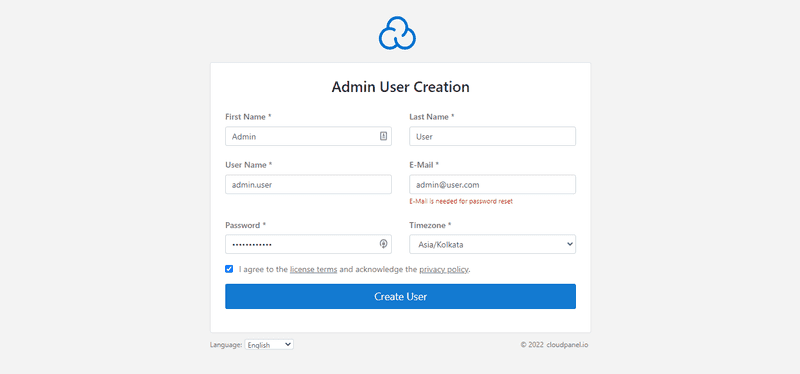
Now enter all the required details like name, username, password, etc. to create an account. Make sure you save this username and password.
Once your account is successfully created, you can log in with your created admin user.
CloudPanel Dashboard
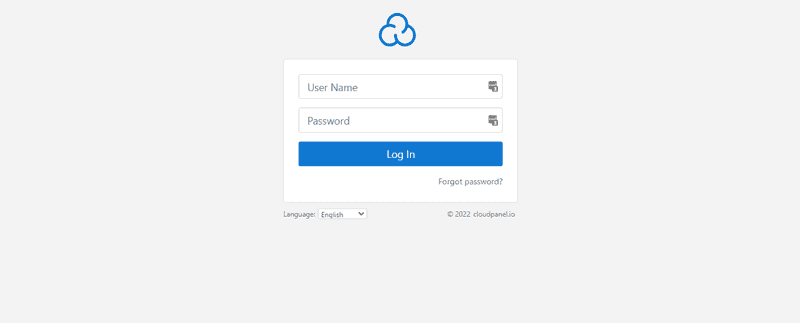
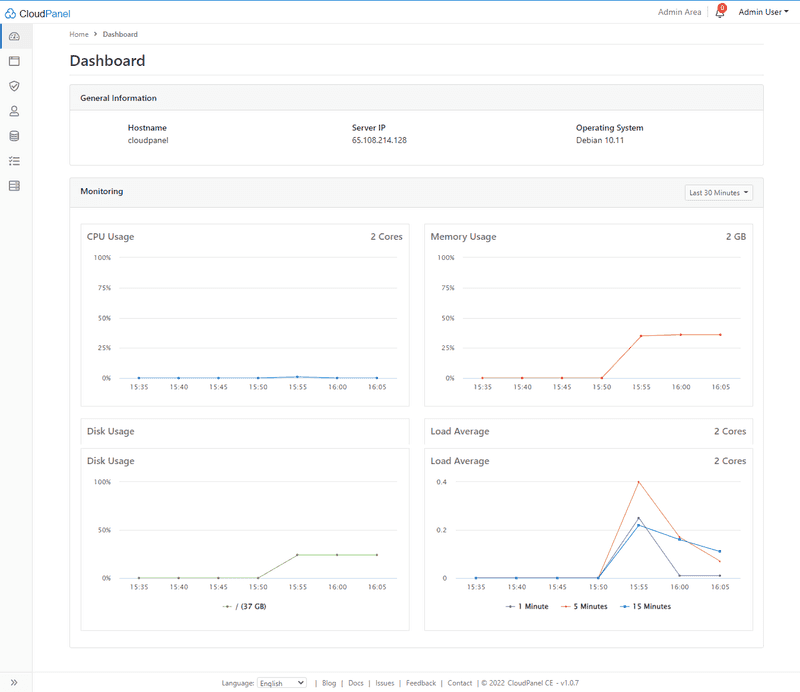
Your setup is now complete! The CloudPanel dashboard looks like this:
Step 4 – Important Settings
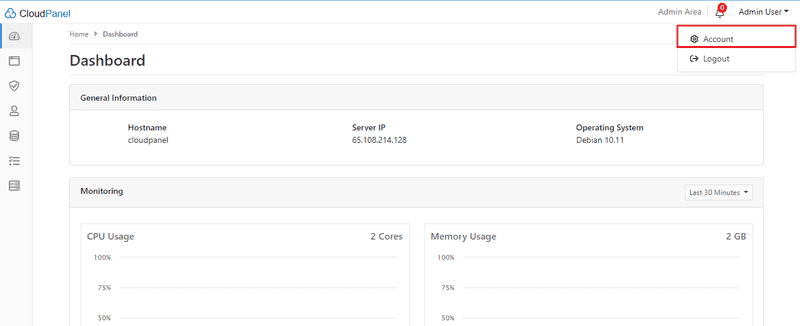
- Secure server with two-factor authentication.
Go to Account under Admin User.
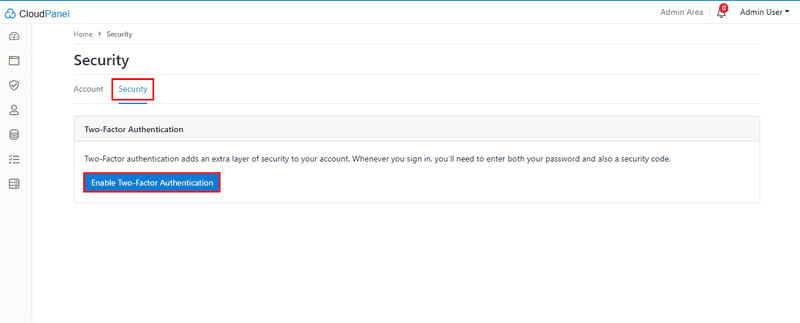
Click on Security and enable two-step authentication.
Scan the QR code using an authenticator app. A six-digit code will be displayed, which you will need to enter below.
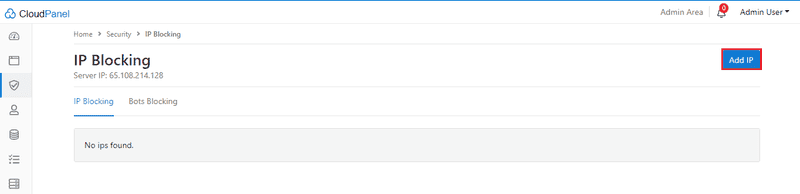
Block unwanted IP addresses.

Go to the Security section in the navigation section.

Add the IP address you want to block.
Step 5 – Add Users
So, the initial setup is complete. Let's add our users.
SSH users:
Go to the users below.

Click to add user, add username/password and save it.

FTP users:
Go to Users under navigation (same step as above). Select FTP Users. Fill in all the username/password and root directory and click Add User.
Step 6 – Add a domain
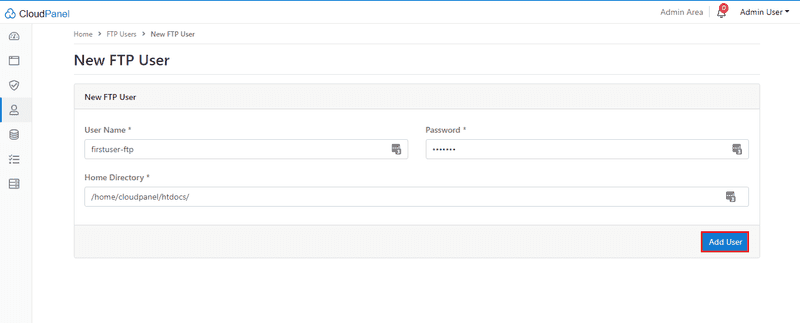
We just created an account. Now let's add the domain. Go to the domains under navigation.

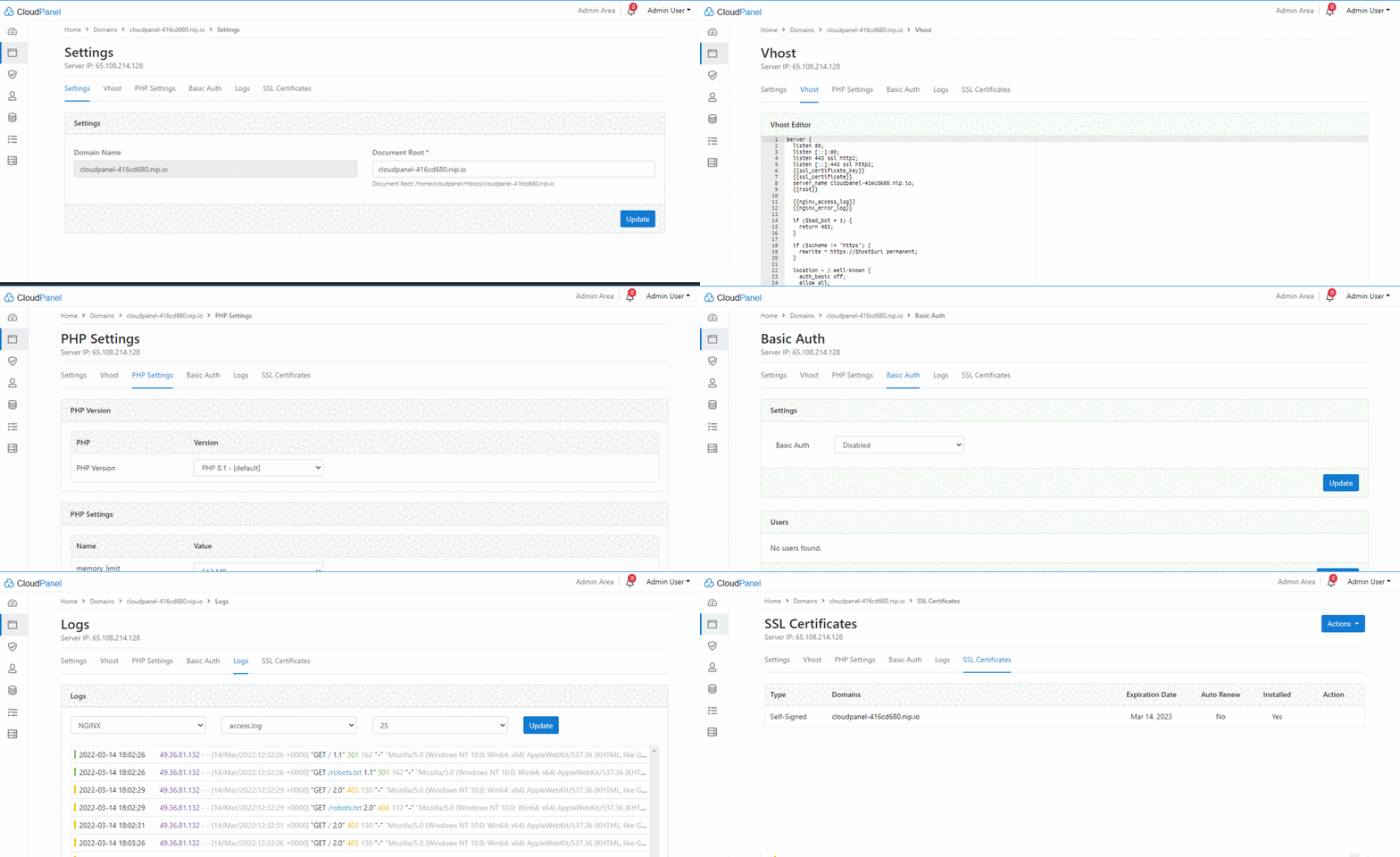
Fill in your domain name, select Vhost Template & PHP Version and click Add Domain.

You can change the domain settings. Just click on the Domain link and you will see the domain settings as follows:
Step 7 – Add a Database
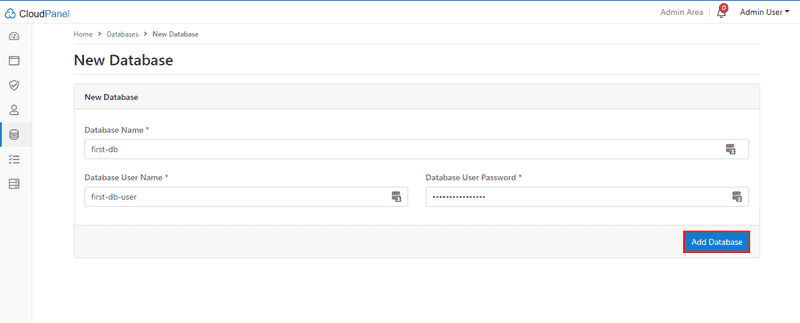
Let's add our first database. To add a new database, click the database icon.

Click Add Databases, fill in the database name, username, password and save.
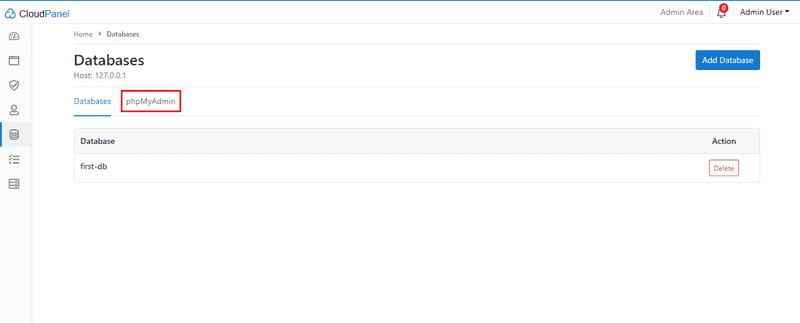
To open PhpMyAdmin in a new tab, click on phpMyAdmin under Databases.
Step 8 – File Manager
CloudPanel does not offer a file manager. You will need to use any FTP tool or File Manager (we recommend FileZilla) to manage your files.
Step 9 – Cron Jobs
Cron Jobs are used to schedule tasks to run on the server, with the help of cron jobs you can schedule tasks to run in the future.
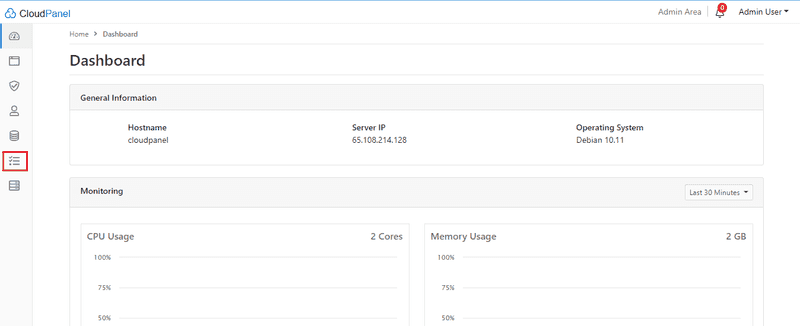
Go to Cron Jobs under navigation.
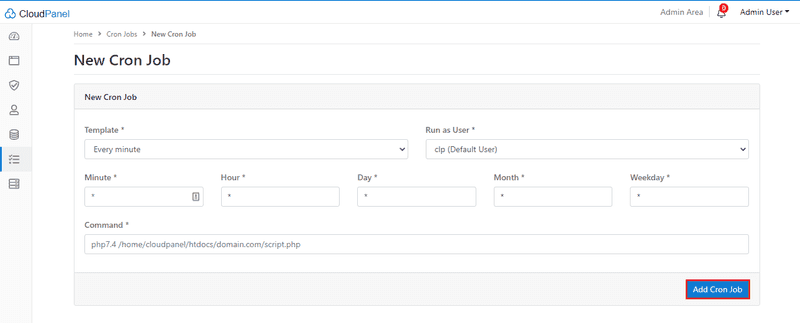
Click to add Cron Job, add cron data and save it.
Step 10 – Services
From here you can check and restart services like SQL, Nginx, PHP, and Redis.
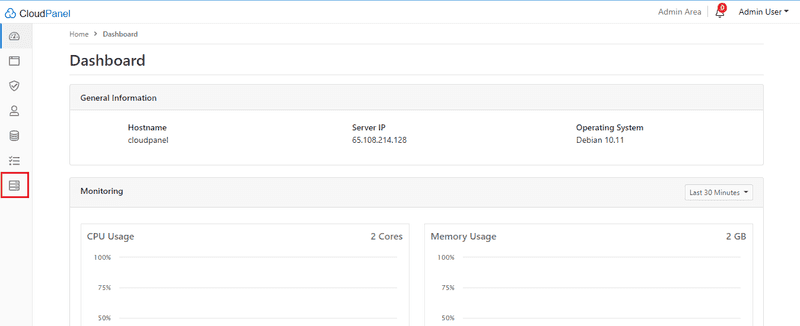
The service page looks like this:
Management area

We learned about users, domains, databases, cron, jobs, and services. Now let's look at the Admin Area of CloudPanel.
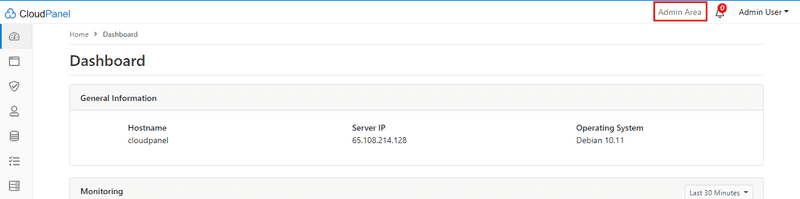
Go to the Admin Area to open it.
You can also add or remove users from here. You can assign admin roles.

From here you can add or remove apps.
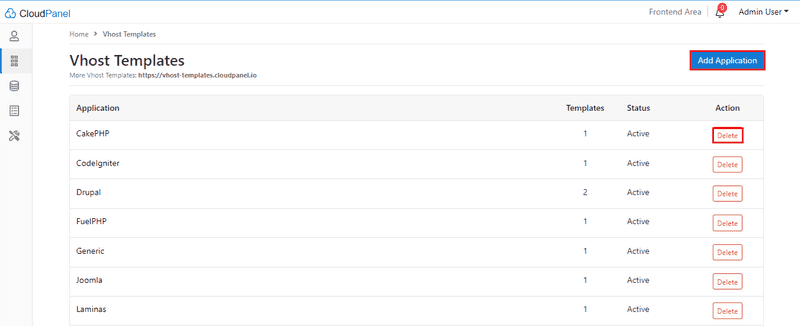
From here you can add or remove database servers.

You can check the reports from here.
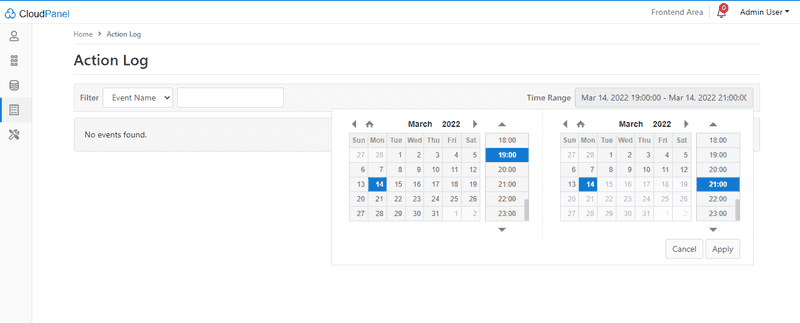
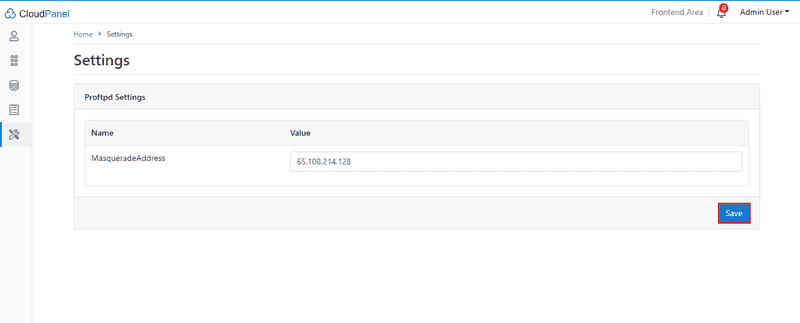
Last but not least, from here, you can change Proftpd settings.
Result
In this tutorial, we learned how to install CloudPanel on Debian 10.