
Introduction
Docker is a program that simplifies the process of managing application processes in containers. Containers allow you to run your applications in resource-isolated processes. They are similar to virtual machines, but containers are more portable, resource-friendly, and less dependent on the host operating system.
For a detailed introduction to the different components of a Docker container, check out The Docker Ecosystem: An Introduction to Common Components.
In this tutorial, you will install and use Docker Community Edition (CE) on Ubuntu 20.04. You will install Docker itself, work with containers and images, and push an image to a Docker repository.
Note
This article will guide you through installing Docker on an Ubuntu server. If you want a one-click way to deploy a Docker application to a live server, take a look at the DigitalOcean application platform.
Prerequisites
To follow this tutorial you will need the following:
- An Ubuntu 20.04 server was set up following the Ubuntu 20.04 server initial setup guide, including a non-root sudo user and a firewall.
- As shown in steps 7 and 8, you will need to have a Docker Hub account if you want to create your own images and push them to Docker Hub.
Step 1 – Install Docker
The Docker installation package available in the official Ubuntu repository may not be the latest version. To ensure that you get the latest version, we will install Docker from the official Docker repository. To do this, we will add a new package source, add the GPG key from Docker to ensure that the downloads are valid, and then install the package.
First, update your list of available packages:
sudo apt update
Next, install a few prerequisite packages that will allow apt to use packages over HTTPS:
sudo apt install apt-transport-https ca-certificates curl software-properties-common
Then add the official Docker repository GPG key to your system:
curl -fsSL https://download.docker.com/linux/ubuntu/gpg | sudo apt-key add -
Add the Docker repository to APT sources:
sudo add-apt-repository "deb [arch=amd64] https://download.docker.com/linux/ubuntu focal stable"
This will also update our package database with Docker packages from the newly added repository.
Make sure you are installing from the Docker repository instead of the default Ubuntu repository:
apt-cache policy docker-ce
You will see output like this, although the Docker version number may be different:
docker-ce:
Installed: (none)
Candidate: 5:19.03.9~3-0~ubuntu-focal
Version table:
5:19.03.9~3-0~ubuntu-focal 500
500 https://download.docker.com/linux/ubuntu focal/stable amd64 Packages
Note that docker-ce is not installed, but is an installation candidate from the Docker repository for Ubuntu 20.04 (canonical).
Finally, install Docker:
sudo apt install docker-ce
Docker should now be installed, the daemon started, and the process enabled to start at boot. Check that it is running:
sudo systemctl status docker
The output should be similar to the following, indicating that the service is up and running:
Output
● docker.service - Docker Application Container Engine
Loaded: loaded (/lib/systemd/system/docker.service; enabled; vendor preset: enabled)
Active: active (running) since Tue 2020-05-19 17:00:41 UTC; 17s ago
TriggeredBy: ● docker.socket
Docs: https://docs.docker.com
Main PID: 24321 (dockerd)
Tasks: 8
Memory: 46.4M
CGroup: /system.slice/docker.service
└─24321 /usr/bin/dockerd -H fd:// --containerd=/run/containerd/containerd.sock
Now, installing Docker provides you with not only the Docker service (daemon) but also the docker command line tool or Docker client. In the rest of this tutorial, we will look at how to use the docker command.
Step 2 – Run Docker Command Without Sudo (Optional)
By default, the docker command can only be run by the root user or by a user in the docker group, which is automatically created during the Docker installation process. If you try to run the docker command without prefixing it with sudo or without being in the docker group, you will get output like the following:
Output
docker: Cannot connect to the Docker daemon. Is the docker daemon running on this host?.
See 'docker run --help'.
If you want to avoid typing sudo when running the docker command, add your username to the docker group:
sudo usermod -aG docker ${USER}
To apply the new group membership, log out of the server and log back in, or type the following:
su - ${USER}
To continue, you will be asked to enter your user password.
Verify that your user is now added to the docker group by typing:
groups
sammy sudo docker
If you need to add a user to the docker group that you are not logged in with, declare that username explicitly using:
sudo usermod -aG docker usernameThe rest of this article assumes you are running the docker command as a user in the docker group. If you don't want to, please append the commands with sudo.
Let's examine the docker command next.
Step 3 – Using the Docker command
Using docker involves passing a chain of options and commands followed by arguments. The syntax is as follows:
docker [option] [command] [arguments]
To see all available subcommands, type:
dockerAs of Docker 19, the full list of available subcommands includes:
Output
attach Attach local standard input, output, and error streams to a running container
build Build an image from a Dockerfile
commit Create a new image from a container's changes
cp Copy files/folders between a container and the local filesystem
create Create a new container
diff Inspect changes to files or directories on a container's filesystem
events Get real time events from the server
exec Run a command in a running container
export Export a container's filesystem as a tar archive
history Show the history of an image
images List images
import Import the contents from a tarball to create a filesystem image
info Display system-wide information
inspect Return low-level information on Docker objects
kill Kill one or more running containers
load Load an image from a tar archive or STDIN
login Log in to a Docker registry
logout Log out from a Docker registry
logs Fetch the logs of a container
pause Pause all processes within one or more containers
port List port mappings or a specific mapping for the container
ps List containers
pull Pull an image or a repository from a registry
push Push an image or a repository to a registry
rename Rename a container
restart Restart one or more containers
rm Remove one or more containers
rmi Remove one or more images
run Run a command in a new container
save Save one or more images to a tar archive (streamed to STDOUT by default)
search Search the Docker Hub for images
start Start one or more stopped containers
stats Display a live stream of container(s) resource usage statistics
stop Stop one or more running containers
tag Create a tag TARGET_IMAGE that refers to SOURCE_IMAGE
top Display the running processes of a container
unpause Unpause all processes within one or more containers
update Update configuration of one or more containers
version Show the Docker version information
wait Block until one or more containers stop, then print their exit codes
To see the available options for a specific command, type:
docker docker-subcommand --help
To view system-wide information about Docker, use the following:
docker info
Let's explore some of these commands. We'll start by working with images.
Step 4 – Working with Docker Images
Docker containers are built from Docker images. By default, Docker pulls these images from Docker Hub, a Docker registry run by Docker, the company that manages the Docker project. Anyone can host their own Docker images on Docker Hub, so most of the applications and Linux distributions you need will have images hosted there.
To check if you can access and download images from Docker Hub, type:
docker run hello-world
The output shows that Docker is working properly:
Output
Unable to find image 'hello-world:latest' locally
latest: Pulling from library/hello-world
0e03bdcc26d7: Pull complete
Digest: sha256:6a65f928fb91fcfbc963f7aa6d57c8eeb426ad9a20c7ee045538ef34847f44f1
Status: Downloaded newer image for hello-world:latest
Hello from Docker!
This message shows that your installation appears to be working correctly.
...
Docker was initially unable to find the hello-world image locally, so it downloaded the image from Docker Hub, which is the default repository. After downloading the image, Docker created a container from the image, and the application inside the container ran, displaying the message.
You can search for images available on Docker Hub using the docker command with the search subcommand. For example, to search for an Ubuntu image, type:
docker search ubuntu
The script crawls Docker Hub and returns a list of all images whose names match the search string. In this case, the output will be similar to this:
Output
NAME DESCRIPTION STARS OFFICIAL AUTOMATED
ubuntu Ubuntu is a Debian-based Linux operating sys… 10908 [OK]
dorowu/ubuntu-desktop-lxde-vnc Docker image to provide HTML5 VNC interface … 428 [OK]
rastasheep/ubuntu-sshd Dockerized SSH service, built on top of offi… 244 [OK]
consol/ubuntu-xfce-vnc Ubuntu container with "headless" VNC session… 218 [OK]
ubuntu-upstart Upstart is an event-based replacement for th… 108 [OK]
ansible/ubuntu14.04-ansible Ubuntu 14.04 LTS with
...
In the OFFICIAL column, OK indicates an image that is built and supported by the company behind the project. Once you have identified the image you want to use, you can download it to your computer using the pull subcommand.
Run the following command to download the official Ubuntu image to your computer:
docker pull ubuntu
You will see the following output:
Output
Using default tag: latest
latest: Pulling from library/ubuntu
d51af753c3d3: Pull complete
fc878cd0a91c: Pull complete
6154df8ff988: Pull complete
fee5db0ff82f: Pull complete
Digest: sha256:747d2dbbaaee995098c9792d99bd333c6783ce56150d1b11e333bbceed5c54d7
Status: Downloaded newer image for ubuntu:latest
docker.io/library/ubuntu:latest
After downloading an image, you can run a container using the downloaded image with the run subcommand. As you saw in the hello-world example, if an image is not downloaded when you run docker with the run subcommand, the Docker client first downloads the image, then runs a container using it.
To view images downloaded to your computer, type:
docker images
The output will be similar to the following figure:
Output
REPOSITORY TAG IMAGE ID CREATED SIZE
ubuntu latest 1d622ef86b13 3 weeks ago 73.9MB
hello-world latest bf756fb1ae65 4 months ago 13.3kB
As you will see later in this tutorial, the images you use to run containers can be modified and used to produce new images, which may be uploaded to Docker Hub or other Docker registries (that's the technical term).
Let's explore how containers work in more detail.
Step 5 – Run a Docker Container
The hello-world container you ran in the previous step is an example of a container that runs and exits after sending a test message. Containers can be much more useful than that, and they can be interactive. After all, they are similar to virtual machines, just more resource friendly.
For example, let's run a container using the latest Ubuntu image. The combination of the -i and -t switches gives you interactive shell access to the container:
docker run -it ubuntu
Your command line should change to reflect the fact that you are now working inside a container and should look like this:
Output
root@d9b100f2f636:/#
Note the container ID on the command line. In this example, it is d9b100f2f636. You will need the container ID later to identify it when you want to remove the container.
Now you can run any command inside the container. For example, let's update the package database inside the container. You don't need to prefix any command with sudo, because you're running as the root user inside the container:
apt updateThen install any application in it. Let's install Node.js:
apt install nodejs
It will install Node.js from the official Ubuntu repository. Once the installation is complete, check that Node.js is installed:
node -v
You will see the version number in your terminal:
Output
v10.19.0
Any changes you make inside a container will only apply to that container.
To exit the container, type exit at the command prompt.
Let's next look at managing containers in our system.
Step 6 – Manage Docker Containers
After using Docker for a while, you will have many active (running) and inactive containers on your computer. To view the active ones, use:
docker ps
You will see output similar to the following:
Output
CONTAINER ID IMAGE COMMAND CREATED
In this tutorial, you started two containers. One from the hello-world image and the other from the Ubuntu image. Both containers are no longer running, but they still exist on your system.
To view all containers – active and inactive, run docker ps with the -a switch:
docker ps -a
You will see output similar to this:
1c08a7a0d0e4 ubuntu "/bin/bash" 2 minutes ago Exited (0) 8 seconds ago quizzical_mcnulty
a707221a5f6c hello-world "/hello" 6 minutes ago Exited (0) 6 minutes ago youthful_curie
To see the last container you created, pass the -l switch to it:
docker ps -l
CONTAINER ID IMAGE COMMAND CREATED STATUS PORTS NAMES
1c08a7a0d0e4 ubuntu "/bin/bash" 2 minutes ago Exited (0) 40 seconds ago quizzical_mcnulty
To start a stopped container, use docker start followed by the container ID or container name. Let's start the Ubuntu-based container with the ID 1c08a7a0d0e4:
docker start 1c08a7a0d0e4docker start 1c08a7a0d0e4
The container will start and you can use docker ps to view its status:
Output
CONTAINER ID IMAGE COMMAND CREATED STATUS PORTS NAMES
1c08a7a0d0e4 ubuntu "/bin/bash" 3 minutes ago Up 5 seconds quizzical_mcnulty
To stop a running container, use docker stop followed by the container ID or name. This time we'll use the name that Docker assigned to the container, which is quizical_mcnulty:
docker stop quizzical_mcnulty
When you decide you no longer need the container, remove it with the docker rm command, again using the container ID or name. Use the docker ps -a command to find the container ID or name associated with the hello-world image and remove it.
docker rm youthful_curie
You can start a new container and give it a name using the –name switch. You can also use the –rm switch to create a container that will remove itself after stopping. For more information about these and other options, see the docker run help command.
Containers can be converted into images that you can use to create new containers. Let's see how it works.
Step 7 – Making changes to a container in a Docker image
When you launch a Docker image, you can create, modify, and delete files just like you would a virtual machine. The changes you make apply only to that container. You can start and stop it, but when you destroy it with the docker rm command, the changes are gone forever.
This section shows you how to save the state of a container as a new Docker image.
After installing Node.js inside an Ubuntu container, you now have a running container from an image, but the container is different from the image you used to create it. But you may want to use this Node.js container as a basis for new images later.
Then make the changes to a new Docker image instance using the following command.
docker commit -m "What you did to the image" -a "Author Name" container_id repository/new_image_name
The -m switch is for a commit message that helps you and others know what changes you made, while -a is used to specify the author. The container_id is the one you specified earlier in the tutorial when starting the interactive Docker session. Unless you have created additional repositories in Docker Hub, this is usually your Docker Hub username.
For example, for user sammy, with container ID d9b100f2f636, the command would be as follows:
docker commit -m "added Node.js" -a "sammy" d9b100f2f636 sammy/ubuntu-nodejs
When you push an image, the new image is saved locally on your computer. Later in this tutorial, you will learn how to push an image to a Docker registry, such as Docker Hub, so that others can access it.
Re-listing the Docker images will show the new image as well as the old image it was derived from:
docker images
You will see the output like this:
Output
REPOSITORY TAG IMAGE ID CREATED SIZE
sammy/ubuntu-nodejs latest 7c1f35226ca6 7 seconds ago 179MB
...
In this example, ubuntu-nodejs is a new image derived from the existing Ubuntu image from Docker Hub. The size difference indicates the changes that were made. And in this example, the change was that NodeJS was installed. So the next time you need to run a container using Ubuntu with NodeJS pre-installed, you can just use the new image.
You can also build images from a Dockerfile, which allows you to automate the installation of software into a new image. However, this is outside the scope of this tutorial.
Now let's share the new image with others so they can create containers from it.
Step 8 – Transfer Docker Images to Docker Repository
The next logical step after creating a new image from an existing one is to share it with a select few of your friends, the entire world on Docker Hub, or other Docker registries you have access to. To submit an image to Docker Hub or any other Docker registry, you need to have an account there.
This section shows you how to push a Docker image to Docker Hub. To learn how to create your own private Docker registry, check out How to Set Up a Private Docker Registry on Ubuntu 18.04.
To push your image, first log in to Docker Hub.
docker login -u docker-registry-username
You will be prompted to authenticate using your Docker Hub password. If you specified the correct password, authentication should succeed.
Note: If your Docker registry username is different from the local username you used to create the image, you will need to tag your image with your registry username. For the example given in the last step, you would type:
docker tag sammy/ubuntu-nodejs docker-registry-username/ubuntu-nodejs
You can then use your image using:
docker push docker-registry-username/docker-image-name
To push the ubuntu-nodejs image to the Sami repository, the command would be as follows:
docker push sammy/ubuntu-nodejs
The process may take a while with uploading images, but once complete, the output will look like this:
Output
The push refers to a repository [docker.io/sammy/ubuntu-nodejs]
e3fbbfb44187: Pushed
5f70bf18a086: Pushed
a3b5c80a4eba: Pushed
7f18b442972b: Pushed
3ce512daaf78: Pushed
7aae4540b42d: Pushed
...
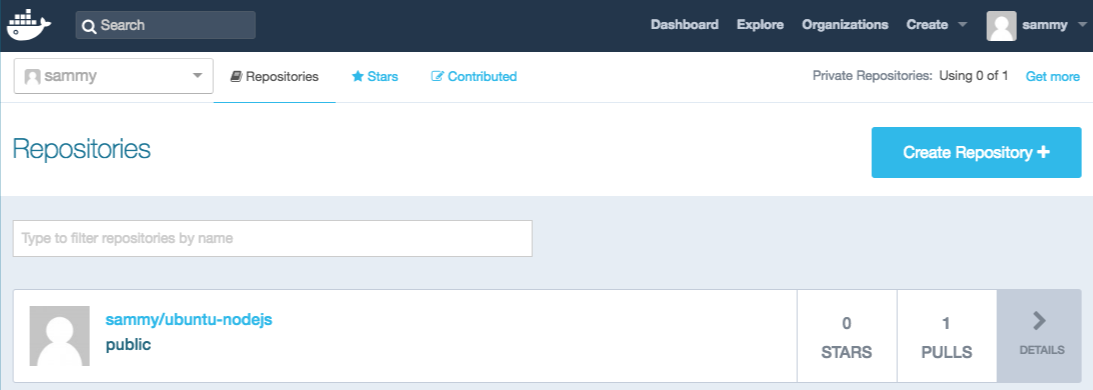
After pushing an image to a registry, it should be listed in your account dashboard, like the one shown in the image below.
If the push attempt results in this type of error, you are probably not logged in:
Output
The push refers to a repository [docker.io/sammy/ubuntu-nodejs]
e3fbbfb44187: Preparing
5f70bf18a086: Preparing
a3b5c80a4eba: Preparing
7f18b442972b: Preparing
3ce512daaf78: Preparing
7aae4540b42d: Waiting
unauthorized: authentication required
Log in to your Docker account and try the push again. Then check that it is there on your Docker Hub repository page.
You can now use docker pull sammy/ubuntu-nodejs to pull the image to a new machine and use it to run a new container.
Result
In this tutorial, you installed Docker, worked with images and containers, and pushed a modified image to Docker Hub. Now that you know the basics, explore other Docker tutorials on the DigitalOcean community.