
Introduction
GitLab is an open source application primarily used for hosting Git repositories with additional development-related features such as issue tracking. It is designed to be hosted using its own infrastructure, providing the flexibility to deploy as an internal repository for your development team, a public way to communicate with users, or a means for contributors to host their own projects.
The GitLab project enables you to create at least one GitLab instance on your hardware with an installation mechanism. This guide will teach you how to install and configure GitLab Community Edition on an Ubuntu server.
Prerequisites
- A server running Ubuntu, with a non-root user with privileges
sudoAnd active firewall. - 4 cores for your CPU
- 4 GB RAM for memory
- A domain name pointing to your server
Step 1 – Install Dependencies
Before installing GitLab, it is important to install the software that will be used during the installation and on an ongoing basis. The required software can be installed from the default Ubuntu package repositories.
First, refresh the local package list:
sudo apt updateThen install the dependencies by entering this command:
sudo apt install ca-certificates curl openssh-server postfix tzdata perlYou probably have some of this software installed already. To install Postfix, select Internet Site when prompted. On the next page, enter your server's domain name to configure how the system sends mail.
Now that you have installed the dependencies, you are ready to install GitLab.
Step 2 – Install GitLab
Despite the dependencies, you can install GitLab. This process uses an installation script to configure your system with the GitLab repositories.
First, enter the /tmp folder:
cd /tmpThen download the installation script:
curl -LO https://packages.gitlab.com/install/repositories/gitlab/gitlab-ce/script.deb.shFeel free to review the downloaded script to make sure you are comfortable with what it does. You can also find a hosted version of the script in the GitLab installation instructions:
less /tmp/script.deb.shOnce you are satisfied that the script is safe, run the installer:
sudo bash /tmp/script.deb.shThe script will configure your server to use the GitLab maintained repositories. This will allow you to manage GitLab with the same package management tools you use for other packages on your system. Once complete, you can install the actual GitLab application with apt:
sudo apt install gitlab-ceThis will install the necessary components on your system and may take some time to complete.
Step 3 – Set up firewall rules
Before configuring GitLab, you need to make sure your firewall rules are permissive enough to allow web traffic. If you followed the guide linked in the prerequisites, you will already have the ufw firewall enabled.
View the current status of your active firewall by running the following:
sudo ufw statusOutput
Status: active
To Action From
-- ------ ----
OpenSSH ALLOW Anywhere
OpenSSH (v6) ALLOW Anywhere (v6)The current rules allow SSH traffic to pass, but access to other services is restricted. Since GitLab is a web application, you must allow HTTP access. Since you will be using GitLab's ability to request and activate a free TLS/SSL certificate from Let's Encrypt, also allow HTTPS access.
The port mapping protocol for HTTP and HTTPS is available in the /etc/services file, so you can allow that traffic by name. If you haven't already enabled OpenSSH traffic, you need to allow that traffic:
sudo ufw allow http
sudo ufw allow https
sudo ufw allow OpenSSH
You can check the ufw status again to make sure you have access to at least these two services:
sudo ufw statusOutput
Status: active
To Action From
-- ------ ----
OpenSSH ALLOW Anywhere
80/tcp ALLOW Anywhere
443/tcp ALLOW Anywhere
OpenSSH (v6) ALLOW Anywhere (v6)
80/tcp (v6) ALLOW Anywhere (v6)
443/tcp (v6) ALLOW Anywhere (v6)
This output shows that the GitLab web interface is now accessible after configuring the application.
Step 4 – Edit the GitLab configuration file
Before you can use the application, you need to update the configuration file and run a reconfiguration command. First, open the GitLab configuration file with your favorite text editor. This example uses nano:
sudo nano /etc/gitlab/gitlab.rbLook for the external_url configuration line. Update it to match your domain and make sure to change http to https to automatically redirect users to the site protected by the Let's Encrypt certificate:
...
## GitLab URL
##! URL on which GitLab will be reachable.
##! For more details on configuring external_url see:
##! https://docs.gitlab.com/omnibus/settings/configuration.html#configuring-the-external-url-for-gitlab
##!
##! Note: During installation/upgrades, the value of the environment variable
##! EXTERNAL_URL will be used to populate/replace this value.
##! On AWS EC2 instances, we also attempt to fetch the public hostname/IP
##! address from AWS. For more details, see:
##! https://docs.aws.amazon.com/AWSEC2/latest/UserGuide/instancedata-data-retrieval.html
external_url 'https://your_domain'
...
Next, find the letsencrypt['contact_emails'] setting. If you're using nano, you can enable the search query by pressing CTRL+W. Type letsencrypt['contact_emails'] in the command line, then press ENTER. This setting defines a list of email addresses that the Let's Encrypt project can use to contact you if there is a problem with your domain. It is recommended to uncomment and fill in this to be notified of any problems that may occur:
letsencrypt['contact_emails'] = ['[email protected]']
After making your changes, save and close the file. If you are using nano, you can do this by pressing CTRL+X, then Y And then ENTER Do it.
Run the following command to reconfigure GitLab:
sudo gitlab-ctl reconfigureThis will initialize GitLab using the information it can find about your server. This is a completely automated process, so you won't have to respond to any requests. This process will also configure a Let's Encrypt certificate for your domain.
Step 5 – Perform initial configuration via the web interface
With GitLab running, you can perform an initial configuration of the application via the web interface.
Log in for the first time
Visit your GitLab server domain name in your web browser:
https://your_domainOn your first visit, you will be presented with a login page:
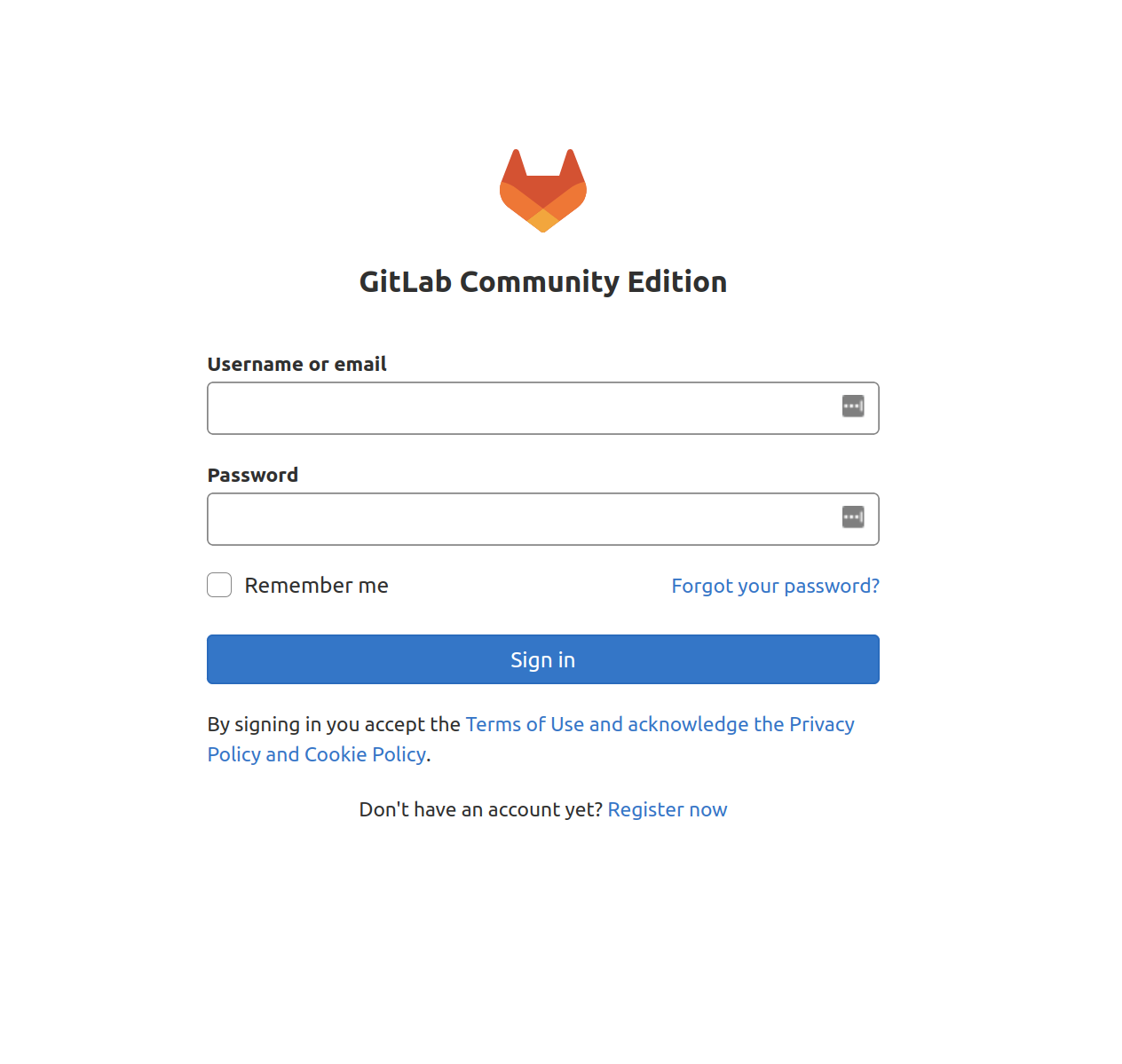
GitLab will generate a secure initial password for you. It will be stored in a folder that you can access as the administrative sudo user:
sudo nano /etc/gitlab/initial_root_password# WARNING: This value is valid only in the following conditions
# 1. If provided manually (either via `GITLAB_ROOT_PASSWORD` environment variable or via `gitlab_rails['initial_root_password']` setting in `gitlab.rb`, it was provided before database was seeded for the firs$
# 2. Password hasn't been changed manually, either via UI or via command line.
#
# If the password shown here doesn't work, you must reset the admin password following https://docs.gitlab.com/ee/security/reset_user_password.html#reset-your-root-password.
Password: YOUR_PASSWORD
# NOTE: This file will be automatically deleted in the first reconfigure run after 24 hours.On the login page, enter the following:
- Username: root
- Password: [password listed in /etc/gitlab/initial_root_password]
Enter these values in the fields and click the Sign in button. You will be logged into the app and redirected to a landing page that asks you to start adding projects:
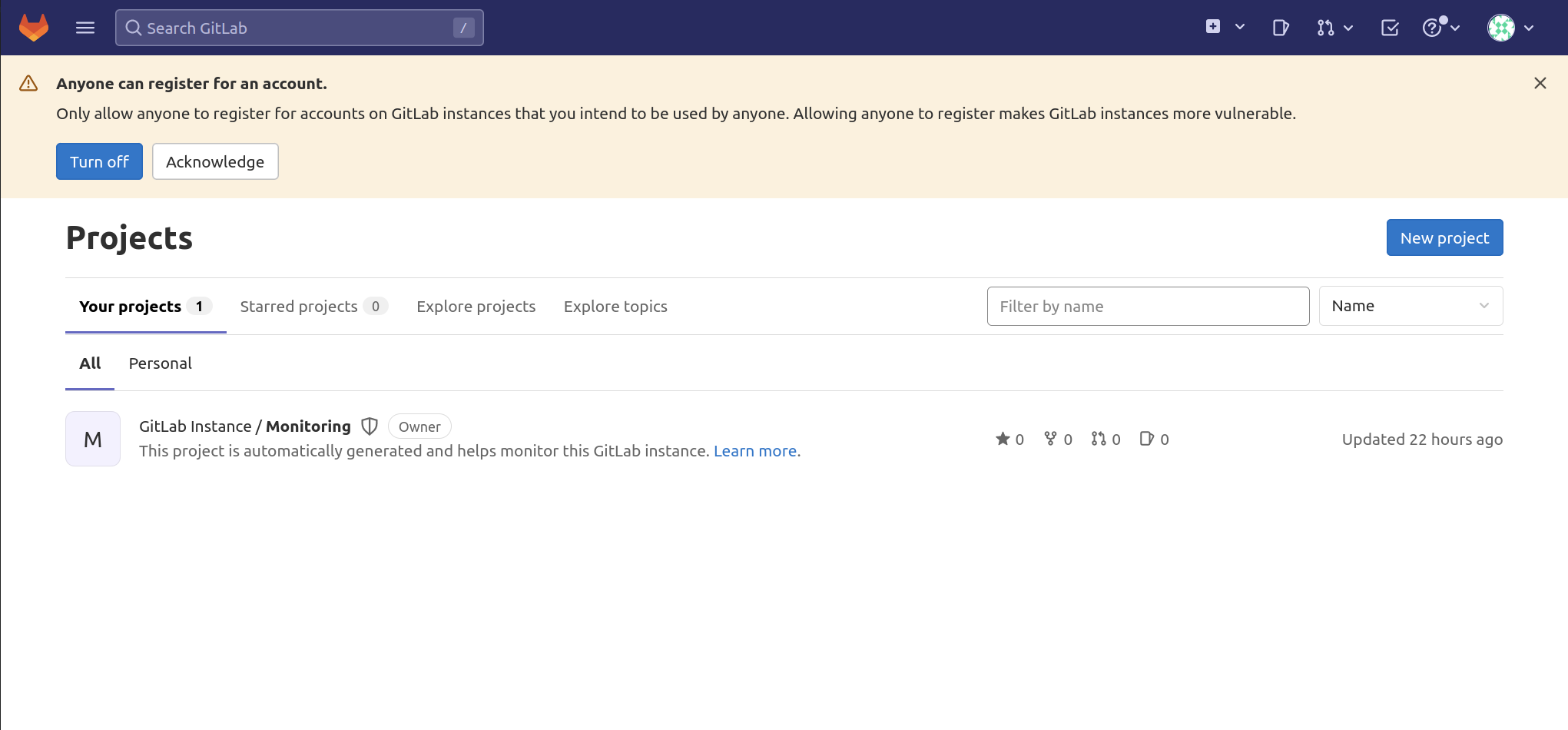
Now you can fine-tune your GitLab instance.
Update your password
One of the first things you should do after logging in is change your password. To do this, click on the icon in the top right corner of the navigation bar and select Edit Profile:
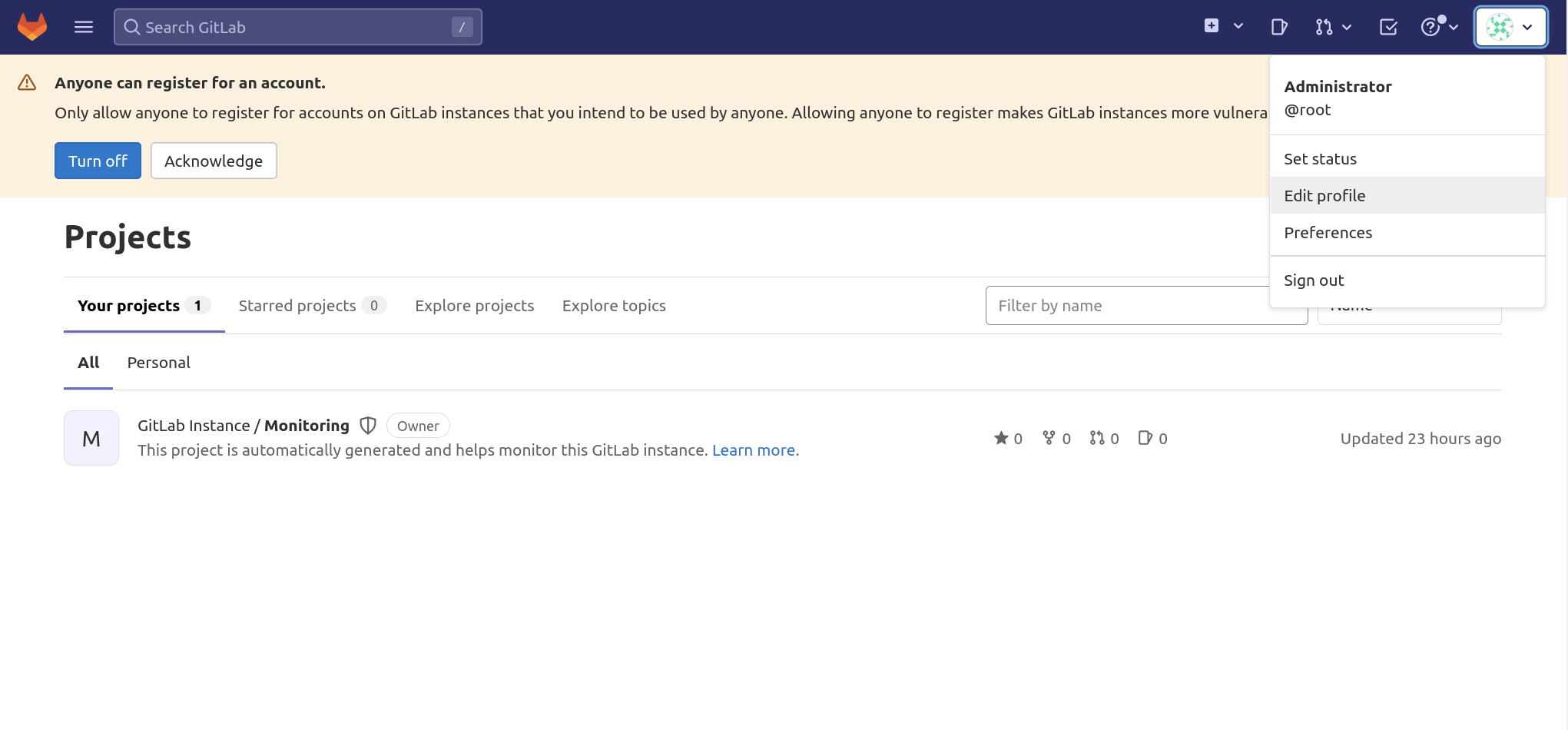
You will then be taken to the User Settings page. In the left navigation bar, select Password to change your generated GitLab password to a secure one, then click the Save Password button once the update is complete:
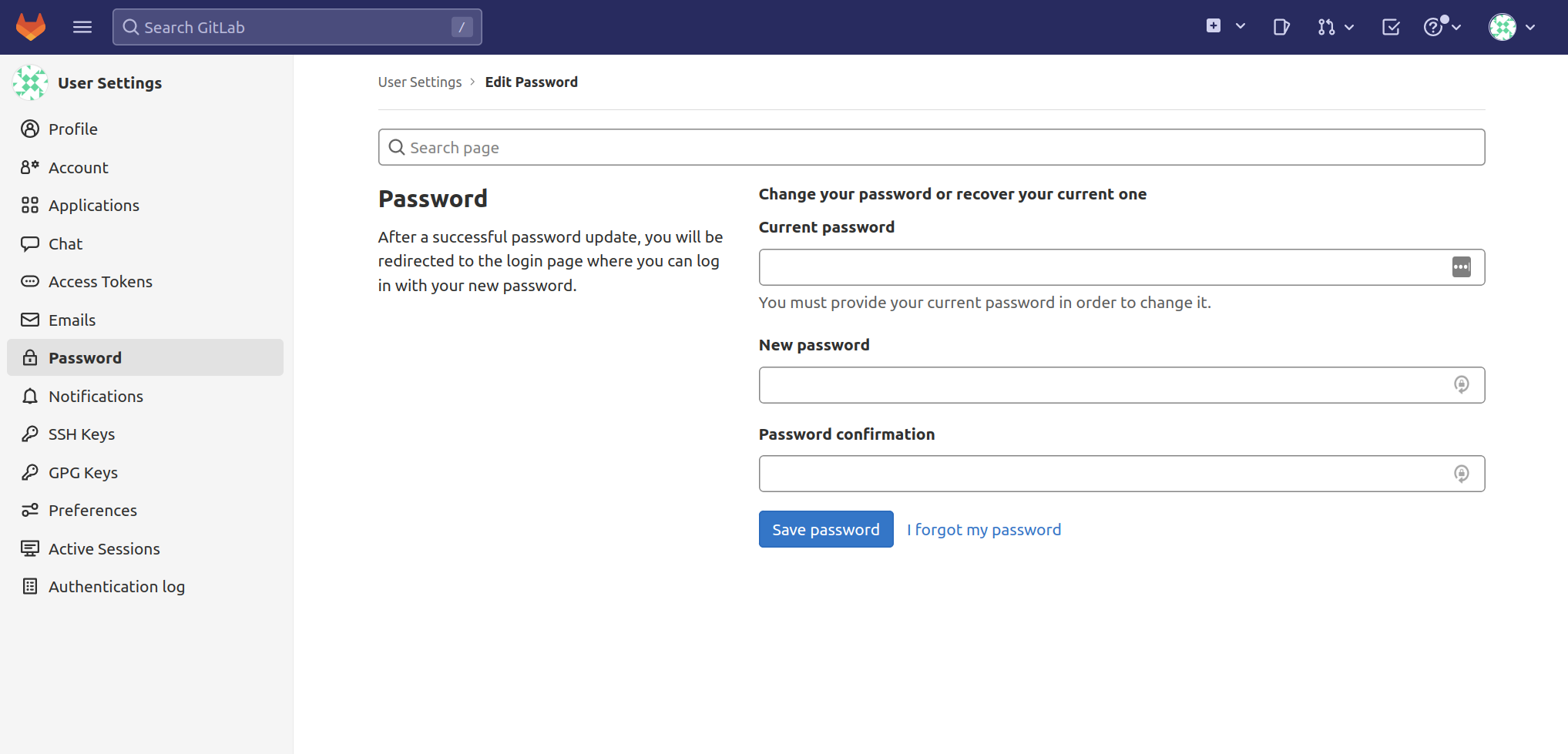
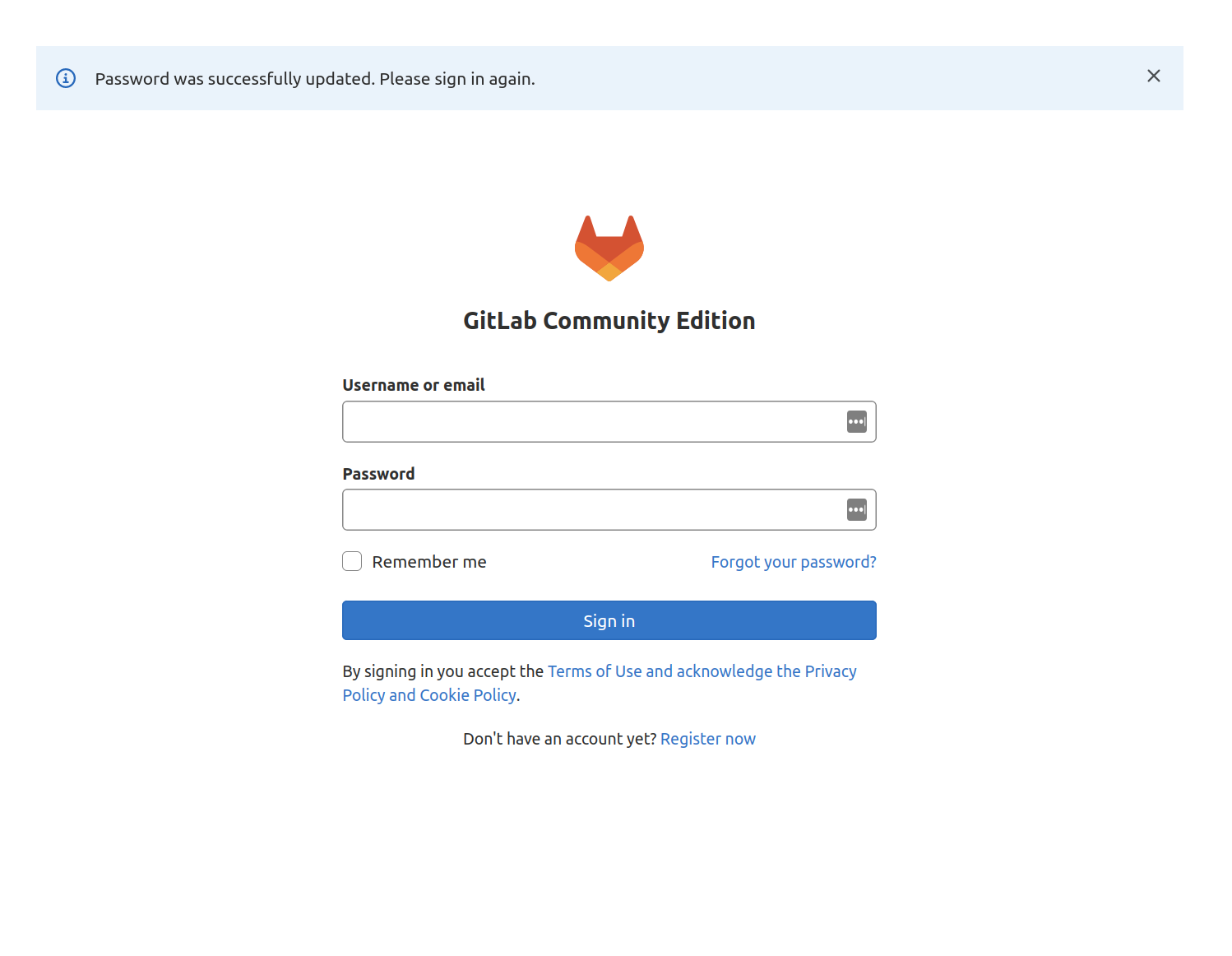
You will be returned to the login page with a notification that your password has been changed. Enter your new password to log back into your GitLab instance:

Adjust your profile settings
GitLab chooses some reasonable defaults, but these are usually not suitable once you start using the software. To make the necessary changes, click the user icon in the upper right corner of the navigation bar and select Edit Profile.
You can set the name and email address from "Administrator" and "[email protected]" to something more specific. The name you choose will be displayed to other users, while the email will be used to identify the default avatar, notifications, Git actions through the interface, and more:
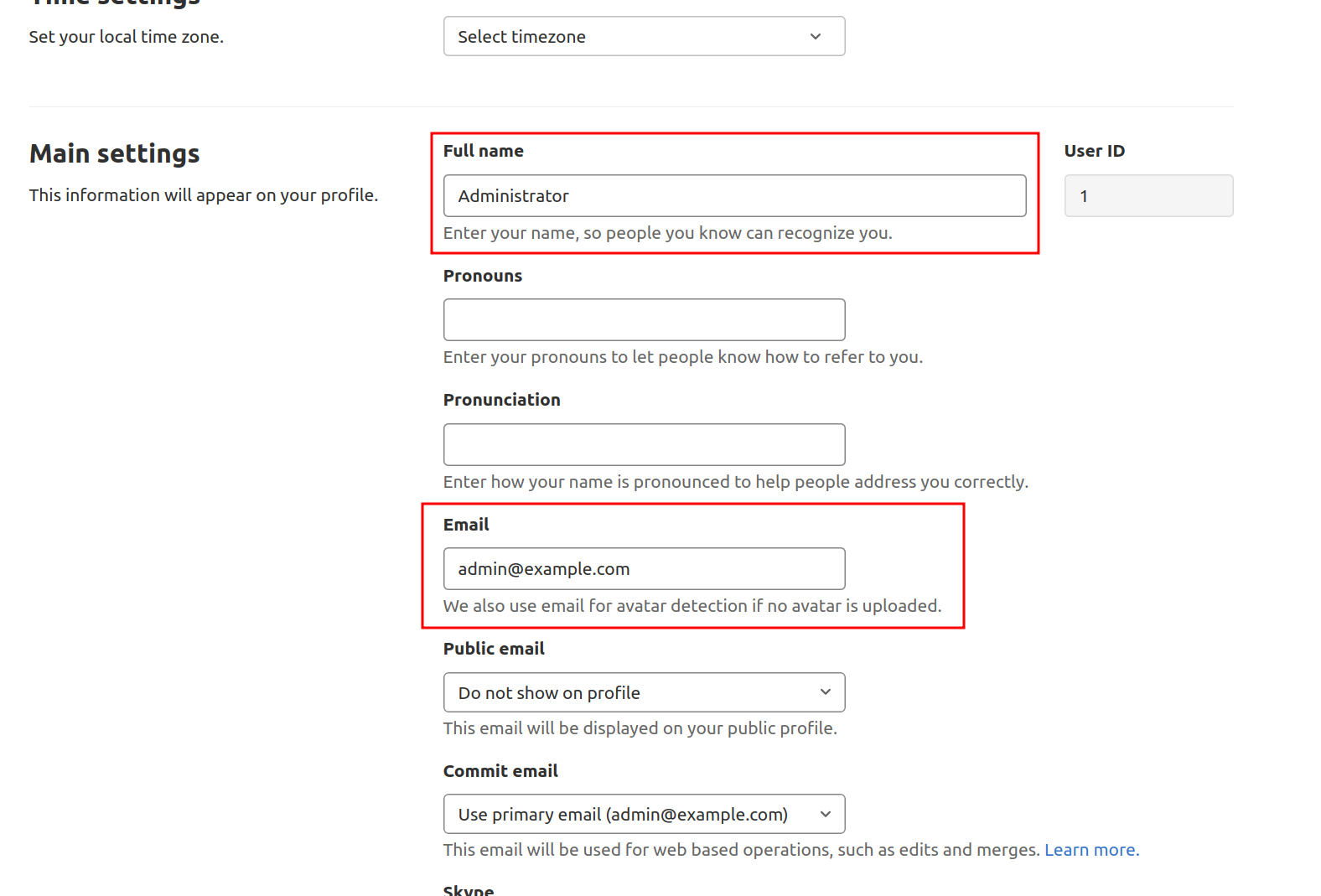
Once the updates are complete, click the Update Profile Settings button at the bottom. You will be prompted to enter your password to confirm the changes. A confirmation email will be sent to the address you provided. Follow the instructions in the email to verify your account so you can use it with GitLab.
Change account name
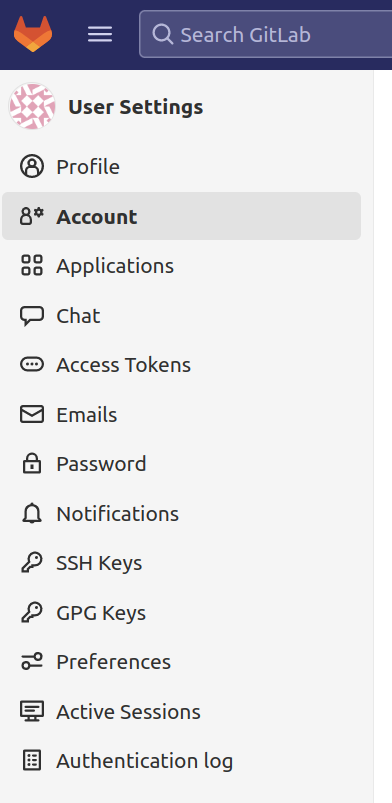
Then, select Account in the left navigation bar:
Here you can enable two-factor authentication and change your username. By default, the first administrative account is named root. Since this is a well-known account name, it is safer to change it to something else. You will still have administrative privileges. The only thing that changes is the name. Replace root with your desired username:
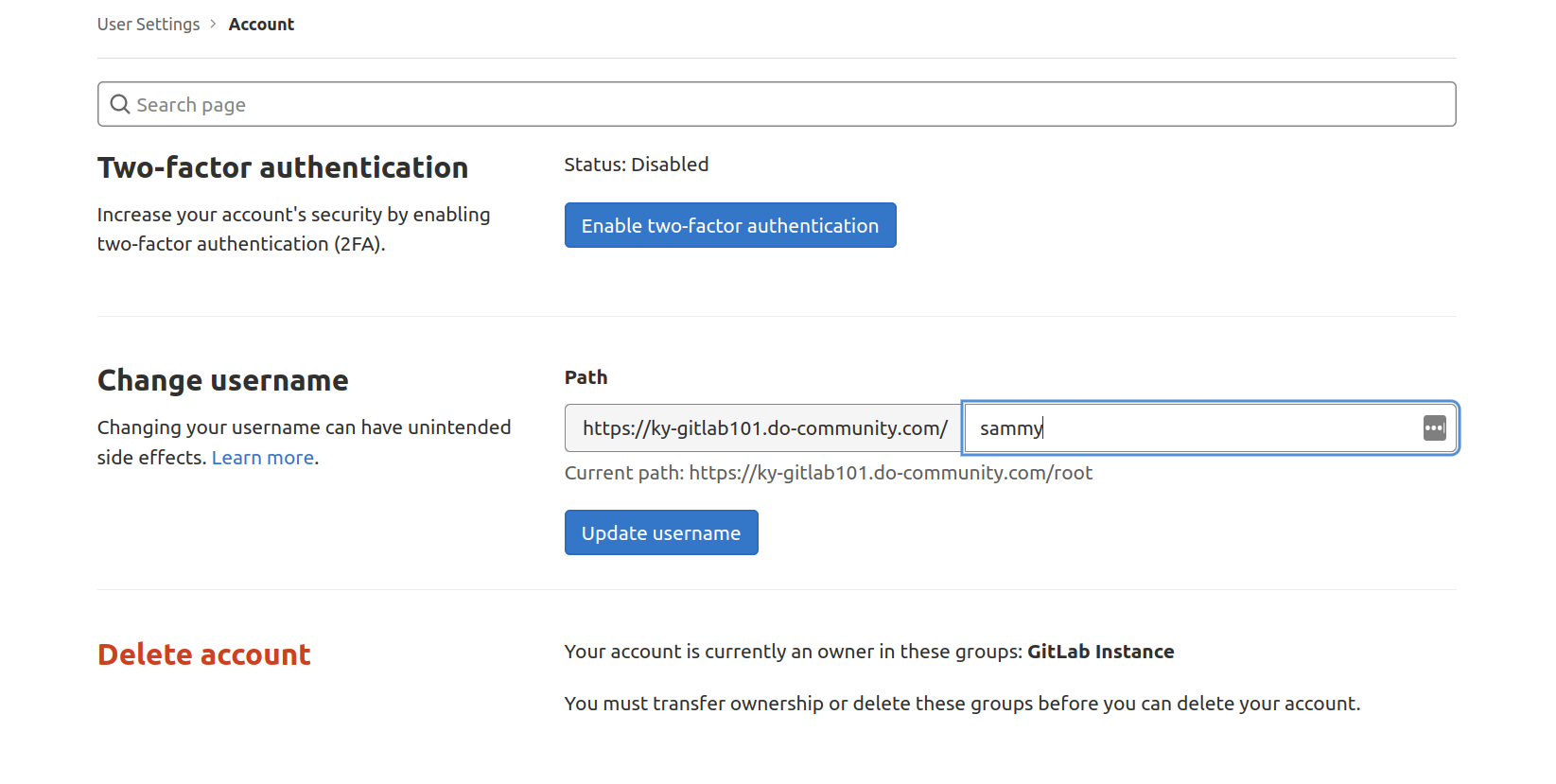
Click the Update username button to make the change. You will then be asked to confirm the change. The next time you log in to GitLab, remember to use your new username.
Adding an SSH key to your account
You can enable SSH keys with Git to interact with GitLab projects. To do this, you need to add your SSH public key to your GitLab account.
In the left navigation bar, select SSH keys:
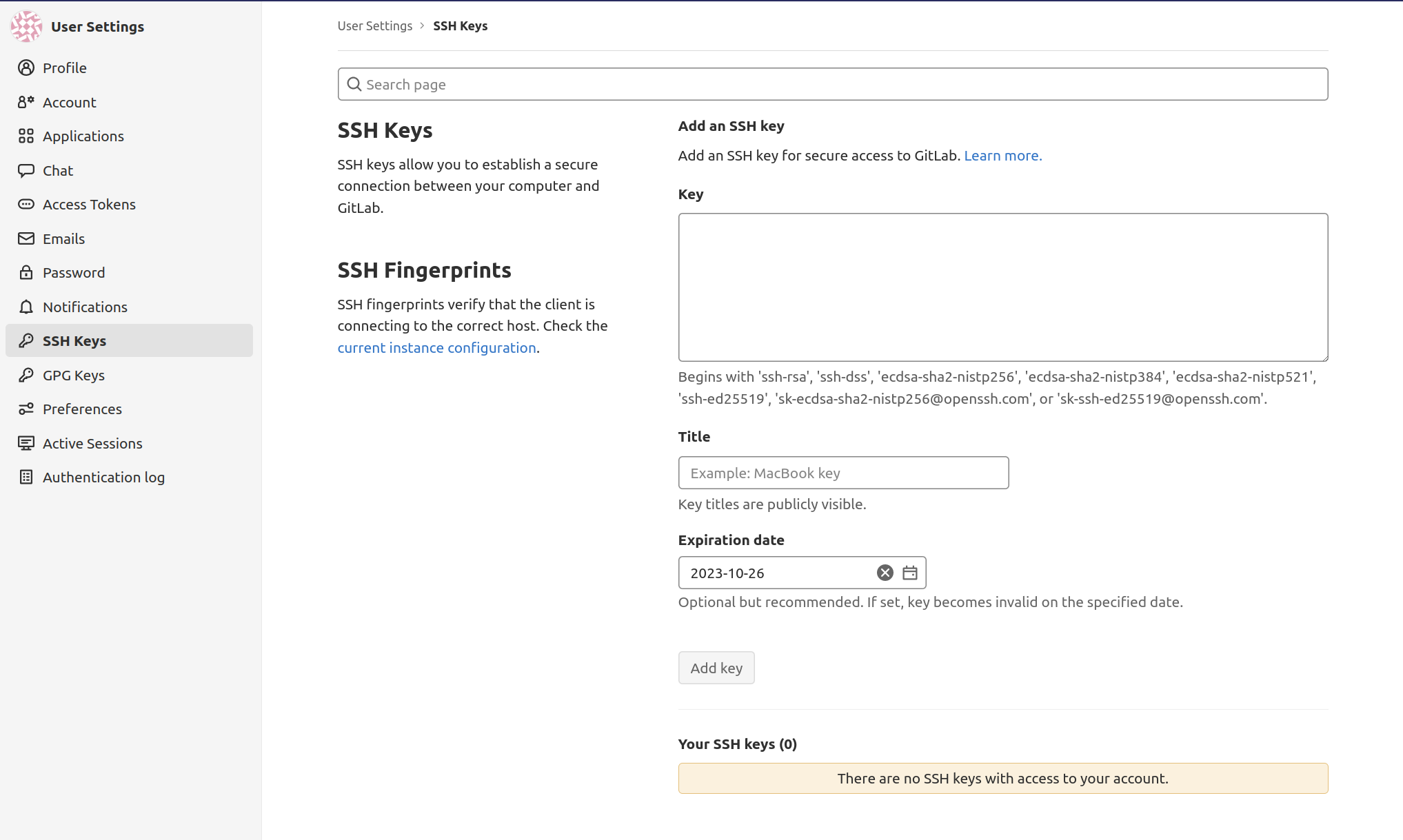
If you have already created an SSH key pair on your local computer, you can view the public key by typing the following:
cat ~/.ssh/id_rsa.pubOutput
ssh-rsa AAAAB3NzaC1yc2EAAAADAQABAAABAQDMuyMtMl6aWwqBCvQx7YXvZd7bCFVDsyln3yh5/8Pu23LW88VXfJgsBvhZZ9W0rPBGYyzE/TDzwwITvVQcKrwQrvQlYxTVbqZQDlmsC41HnwDfGFXg+QouZemQ2YgMeHfBzy+w26/gg480nC2PPNd0OG79+e7gFVrTL79JA/MyePBugvYqOAbl30h7M1a7EHP3IV5DQUQg4YUq49v4d3AvM0aia4EUowJs0P/j83nsZt8yiE2JEYR03kDgT/qziPK7LnVFqpFDSPC3MR3b8B354E9Af4C/JHgvglv2tsxOyvKupyZonbyr68CqSorO2rAwY/jWFEiArIaVuDiR9YM5 sammy@mydesktopCopy this text and enter it into the Key text box inside your GitLab instance. If you get another message instead, you haven't configured an SSH key pair on your machine yet:
Output
cat: /home/sammy/.ssh/id_rsa.pub: No such file or directory
If so, you can generate an SSH key pair by entering the following command:
[environment local]
ssh-keygen
Accept the defaults and optionally provide a password to secure the key locally:
Output
[environment local]
Generating public/private rsa key pair.
Enter file in which to save the key (/home/sammy/.ssh/id_rsa):
Enter passphrase (empty for no passphrase):
Enter same passphrase again:
Your identification has been saved in /home/sammy/.ssh/id_rsa.
Your public key has been saved in /home/sammy/.ssh/id_rsa.pub.
The key fingerprint is:
SHA256:I8v5/M5xOicZRZq/XRcSBNxTQV2BZszjlWaIHi5chc0 [email protected]
The key's randomart image is:
+---[RSA 2048]----+
| ..%o==B|
| *.E =.|
| . ++= B |
| ooo.o . |
| . S .o . .|
| . + .. . o|
| + .o.o ..|
| o .++o . |
| oo=+ |
+----[SHA256]-----+
Once you have this, you can display your public key as in the previous example by entering this command:
cat ~/.ssh/id_rsa.pubOutput
ssh-rsa AAAAB3NzaC1yc2EAAAADAQABAAABAQDMuyMtMl6aWwqBCvQx7YXvZd7bCFVDsyln3yh5/8Pu23LW88VXfJgsBvhZZ9W0rPBGYyzE/TDzwwITvVQcKrwQrvQlYxTVbqZQDlmsC41HnwDfGFXg+QouZemQ2YgMeHfBzy+w26/gg480nC2PPNd0OG79+e7gFVrTL79JA/MyePBugvYqOAbl30h7M1a7EHP3IV5DQUQg4YUq49v4d3AvM0aia4EUowJs0P/j83nsZt8yiE2JEYR03kDgT/qziPK7LnVFqpFDSPC3MR3b8B354E9Af4C/JHgvglv2tsxOyvKupyZonbyr68CqSorO2rAwY/jWFEiArIaVuDiR9YM5 sammy@mydesktopTake this block of text and paste it into the Key text box in your GitLab instance. Give it a descriptive title and click the Add Key button.
You can now manage your GitLab projects and repositories from your local machine without having to provide your GitLab account credentials.
Step 6 – Restrict or Disable Public Registrations
With your current setup, it's possible for anyone to sign up for an account when they visit your GitLab sample landing page. If you're looking to host a public project, this might be what you want. However, many times, a more limited setup is desirable.
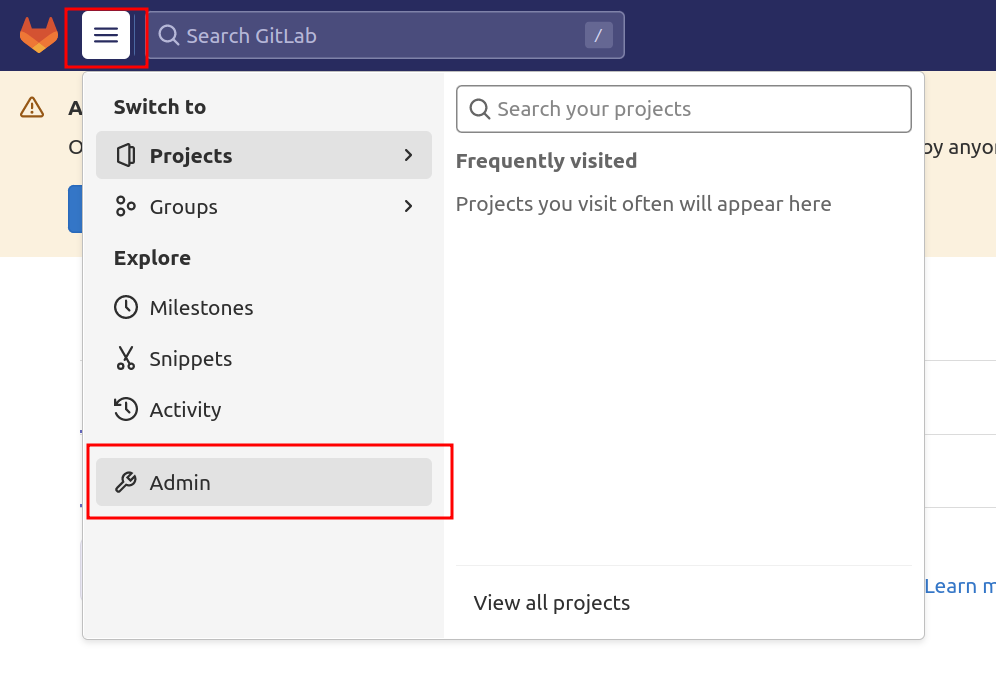
To get started, go to the admin section by clicking on the hamburger menu in the top navigation bar and select Admin from the drop-down menu:
Select Settings from the left navigation bar:
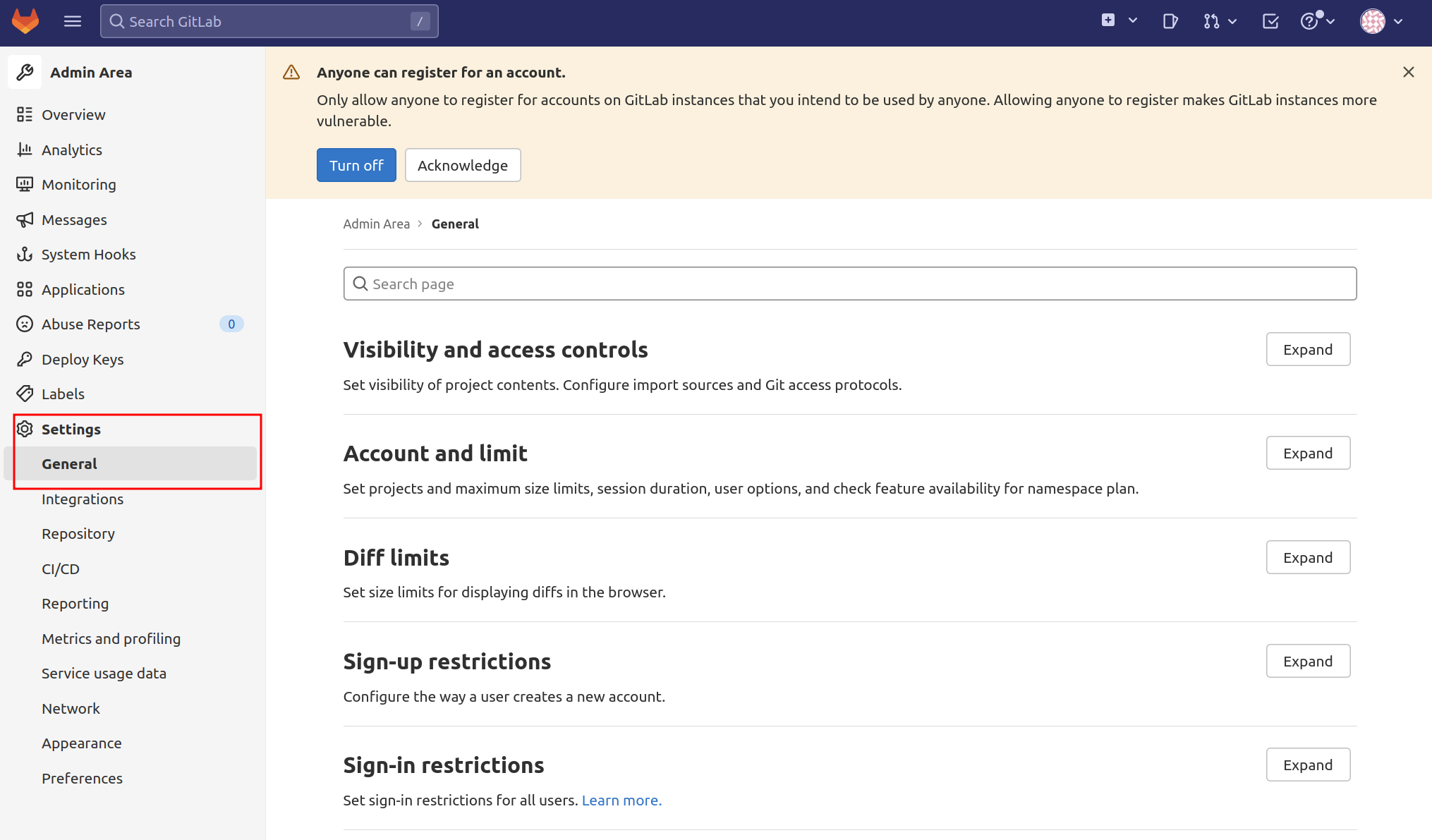
You will be taken to the global settings for the GitLab instance. Here, you can configure a number of settings that affect how new users sign up and their access levels.
Disable registrations
If you want to disable registrations completely, go to the Registration Restrictions section and press Expand to view the options.
Then uncheck the Sign-up enabled option:

Remember to click the Save Changes button after making your changes. The sign up section is now removed from the GitLab landing page.
Restrict registration by domain
If you use GitLab as part of an organization that provides email addresses associated with a domain, you can restrict signups by domain instead of disabling it completely. In the Signup Restrictions section, select the Send confirmation email on signup check box, which allows users to log in only after verifying their email.
Next, add your domain or domains to the whitelist domains for registration, one domain per line. You can use the asterisk “*” to specify wildcard domains:
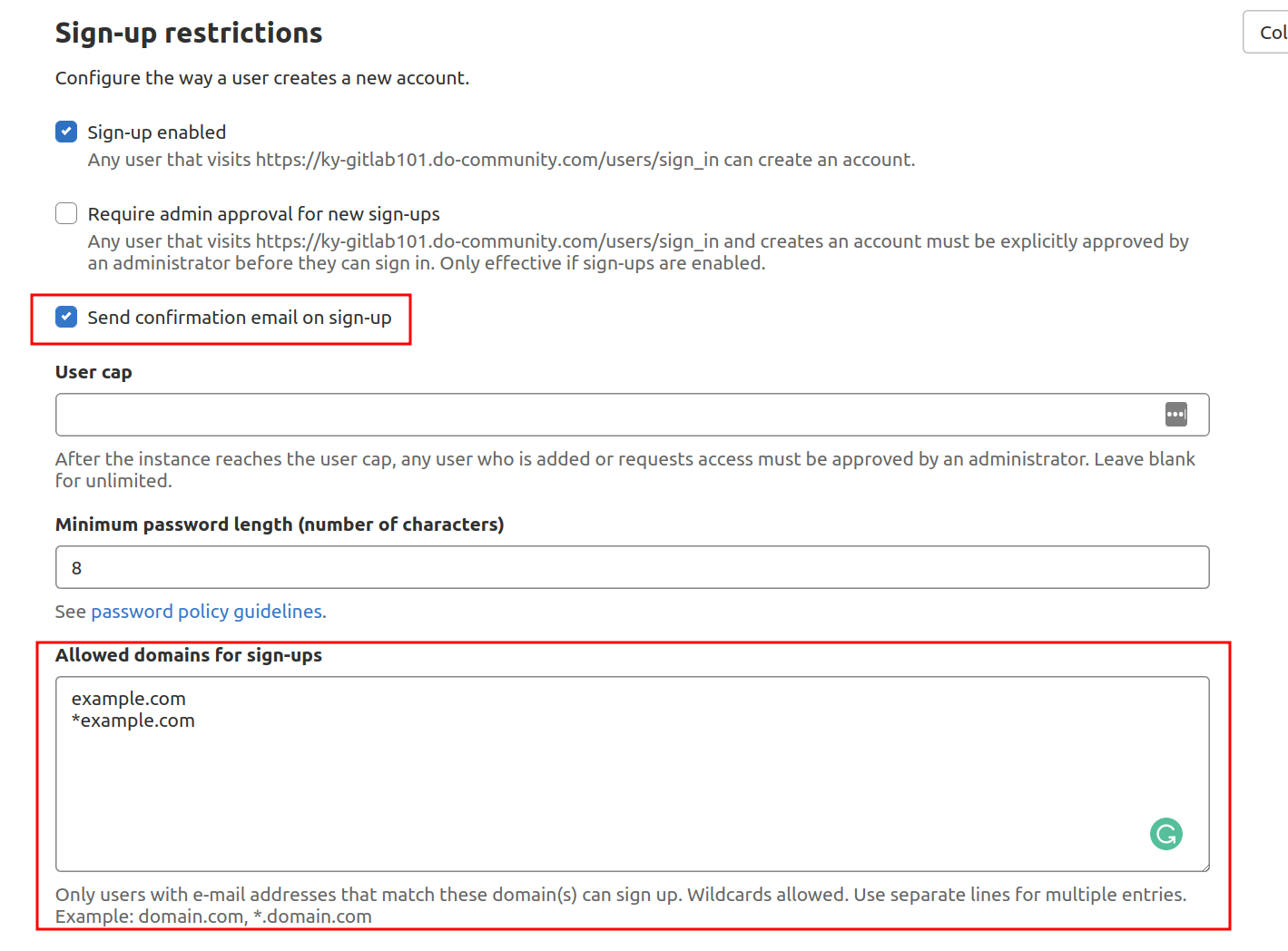
When you are done, click the Save Changes button. The sign-up section is now removed from the GitLab landing page.
Restrict project creation
By default, new users can create up to 10 projects. If you want to allow new users from outside to view and contribute, but want to limit their access to creating new projects, you can do this in the Account Settings and Restrictions section.
Inside, you can change the default project limit to 0 to completely disable new users from creating projects:
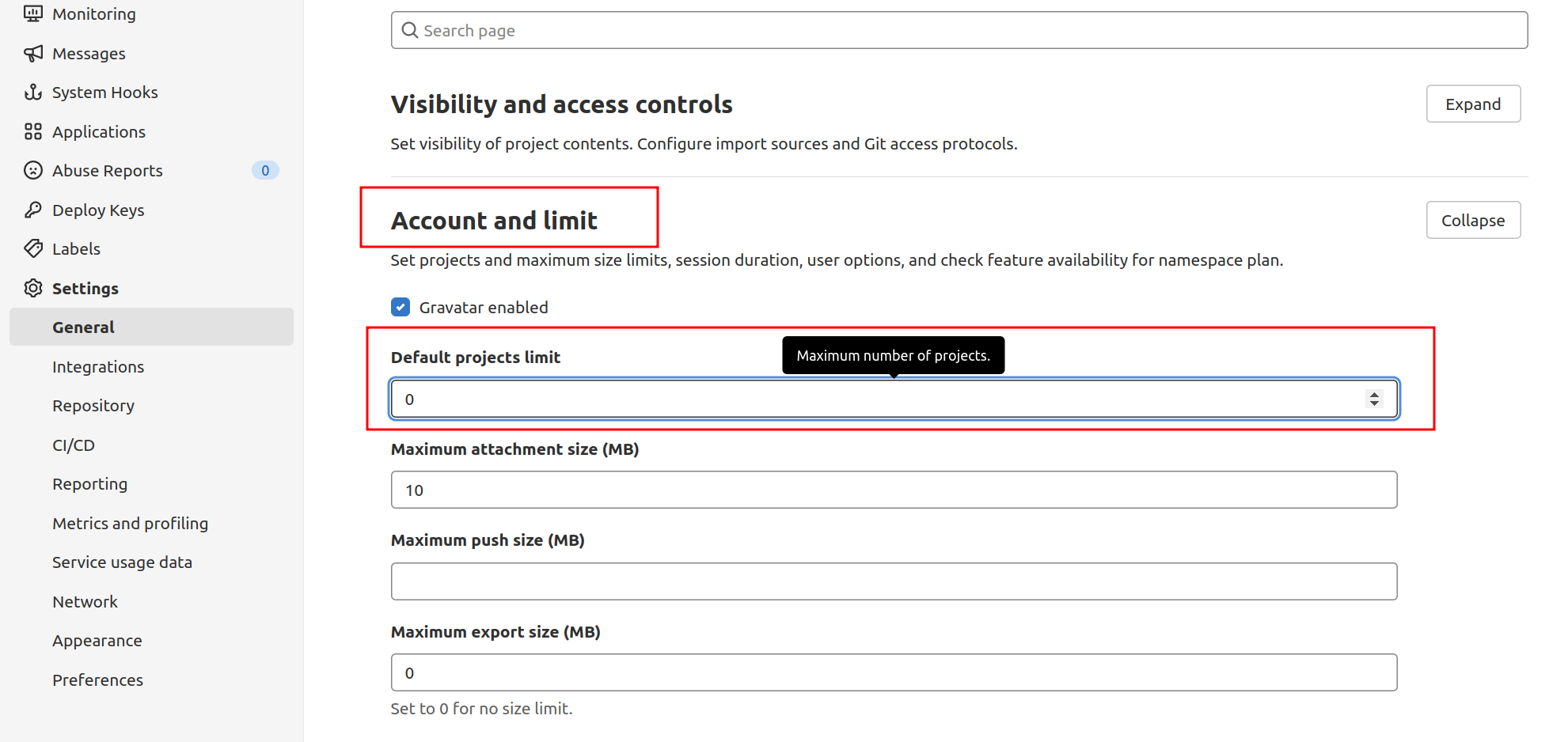
New users can still be added to projects manually and access internal or public projects created by other users. After updating, remember to click the Save Changes button. New users can now create accounts, but will not be able to create projects.
Renewing Let's Encrypt certificates
By default, GitLab has a scheduled task set up to renew Let's Encrypt certificates after midnight every fourth day, at the exact minute based on your external_url. You can change this setting in the /etc/gitlab/gitlab.rb file.
For example, if you want to renew every seventh day at 12:30, you can configure it to do so. First, go to the configuration file:
sudo nano /etc/gitlab/gitlab.rbThen find the following lines in the file and delete # and update with the following:
...
################################################################################
# Let's Encrypt integration
################################################################################
# letsencrypt['enable'] = nil
letsencrypt['contact_emails'] = ['sammy@digitalocean'] # This should be an array of email addresses to add as contacts
# letsencrypt['group'] = 'root'
# letsencrypt['key_size'] = 2048
# letsencrypt['owner'] = 'root'
# letsencrypt['wwwroot'] = '/var/opt/gitlab/nginx/www'
# See http://docs.gitlab.com/omnibus/settings/ssl.html#automatic-renewal for more on these settings
letsencrypt['auto_renew'] = true
letsencrypt['auto_renew_hour'] = "12"
letsencrypt['auto_renew_minute'] = "30"
letsencrypt['auto_renew_day_of_month'] = "*/7"
...
You can also disable auto-renewal by setting letsencrypt['auto_renew'] to false:
...
letsencrypt['auto_renew'] = false
...
With automatic renewal, you don't have to worry about service interruption.
Result
You now have a GitLab instance hosted on your server. You can start importing or creating new projects and configuring the appropriate access levels for a team. GitLab is constantly adding features and updates to its platform, so be sure to check the project homepage to stay up to date on any important developments or announcements.