
Introduction
Formatting code is always a challenge, but modern developer tools make it possible to automatically maintain consistency across your team's codebase. In this article, you'll set up Prettier to automatically format your code in Visual Studio Code, also known as VS Code.
For demonstration purposes, here is an example of the code you are formatting:
const name = "James";
const person ={first: name
}
console.log(person);
const sayHelloLinting = (fName) => {
console.log(`Hello linting, ${fName}`)
}
sayHelloLinting('James');
If you are familiar with code formatting, you may notice some steps that are wrong:
- A combination of single and double quotes.
- The first Property of the Person object should be on its line.
- The Console statement inside the function must be indented.
- You may or may not like the optional parentheses around the arrow function parameter.
Prerequisites
- Download and install Visual Studio Code.
- To use Prettier in Visual Studio Code, you need to install the plugin. To do this, search for Prettier – Code Formatter in the VS Code plugins panel. If this is your first time installing it, you will see an Install button instead of the Uninstall button shown here:

Step 1 – Using the Format Document command
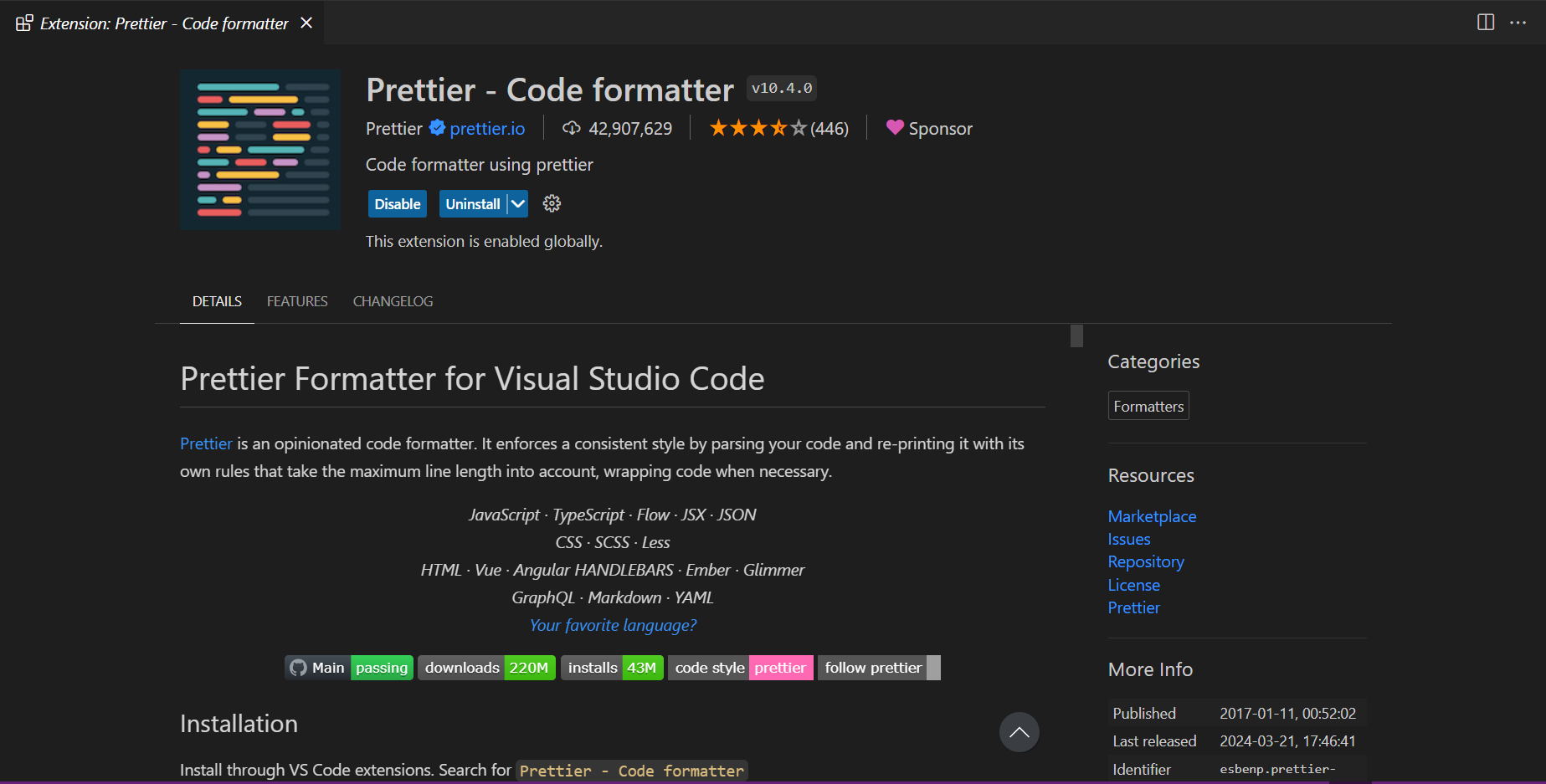
With the Prettier plugin installed, you can now use it to format your code. To get started, let's explore using the Format Document command. This command makes your code more consistent with formatted spacing, line wrapping, and quotes.
To open the command palette, you can use COMMAND + SHIFT + P On macOS or CTRL + SHIFT + P Use on Windows.
In the command palette, search for Format, and then Document Format Select.

You may then be asked to select the format to use. To do this, click the Configure button:

Then select Prettier – Code Formatter.
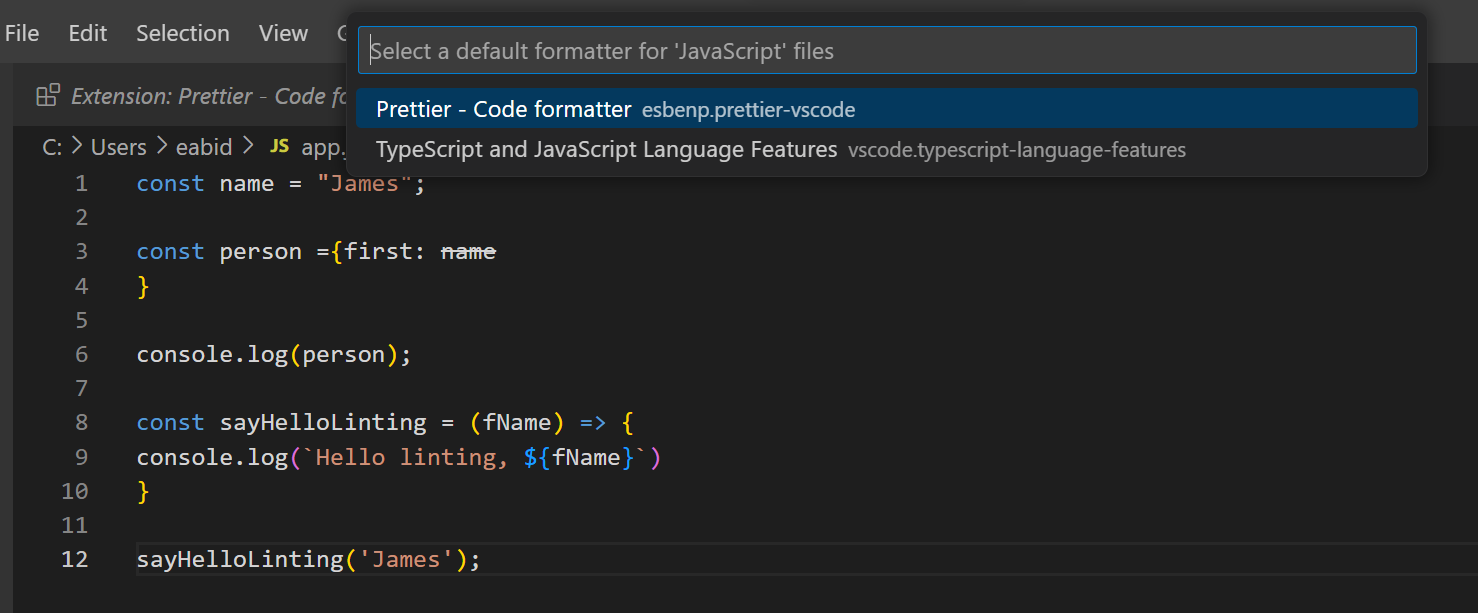
Your code is now formatted with spacing, line wrapping, and fixed quotes:
const name = "James";
const person = { first: name };
console.log(person);
const sayHelloLinting = (fName) => {
console.log(`Hello linting, ${fName}`);
};
sayHelloLinting("James");
This also works on CSS files. You can convert something with inconsistent indentations, parentheses, newlines, and semicolons into properly formatted code. For example:
body {color: red;
}
h1 {
color: purple;
font-size: 24px
}
It is formatted as follows:
body {
color: red;
}
h1 {
color: purple;
font-size: 24px;
}
Now that we've reviewed this command, let's see how we can make it run automatically.
Step 2 – Formatting the code in the save
Until now, you've had to manually run a command to format your code. To automate this process, you can choose a setting in VS Code to automatically format your files when you save. This also ensures that code isn't checked into version control that isn't formatted.
To change this setting, COMMAND + on macOS or CTRL + Press in Windows to open the Settings menu. Once the menu opens, Editor: Format On Save Search for and make sure that option is checked:
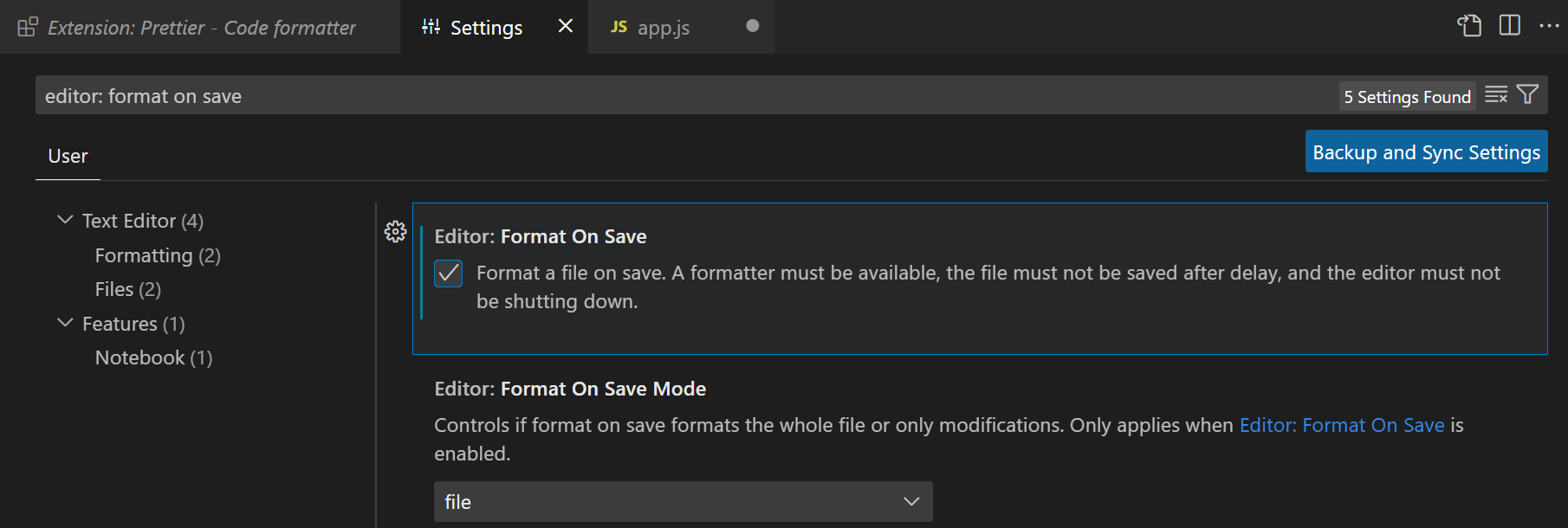
Once set up, you can write your code as usual and it will be automatically formatted when you save the file.
Step 3 – Change the prettier configuration settings
Prettier does a lot of the work for you by default, but you can also customize the settings.
Open the Settings menu. Then, search for Prettier. This will bring up all the settings you can change:
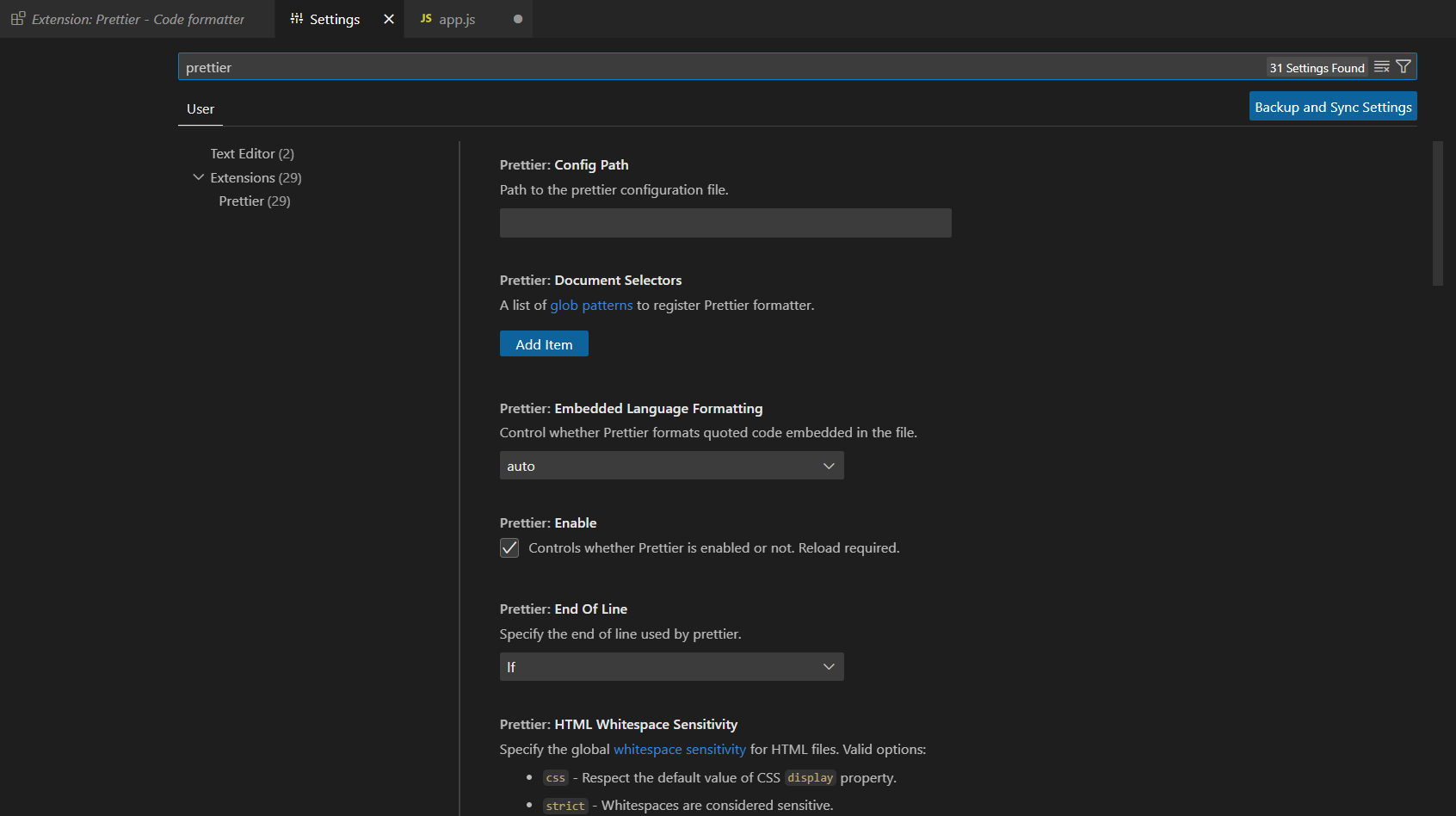
Here are some of the most common settings:
- Single Quote – Choose between single and double quotes.
- Semi – Choose whether there are semicolons at the end of lines.
- Tab Width – Specify how many spaces you want a tab to be inserted.
The downside of using the built-in settings menu in VS Code is that it doesn't ensure consistency between developers on your team.
Step 4 – Create a nicer configuration file
If you change the settings in your VS Code, someone else could have a completely different configuration on their machine. You can create consistent formatting across your team by creating a configuration file for your project.
A new file called prettierrc.extension Create with one of the following extensions:
ymlyamljsonjstoml
Here is an example of a simple configuration file using JSON:
{
"trailingComma": "es5",
"tabWidth": 4,
"semi": false,
"singleQuote": true
}
For more details on configuration files, check out the more beautiful Docs. Once you create one of these and check it out in your project, you can make sure everyone on the team is following the same formatting rules.
Introduction
Having consistent code is a good practice. It is especially useful when working on a project with multiple collaborators. Agreeing on a set of settings helps with readability and understanding of the code. More time can be spent solving challenging technical problems, rather than struggling with solved issues like code indentation.