Introduction
The Docker platform allows developers to package and run applications as containers. A container is a single process running on a shared operating system and is a lighter-weight alternative to virtual machines. Although containers are not new, they offer benefits—including process isolation and environment standardization—that will become increasingly important as more developers adopt distributed application architectures.
When building and scaling an application with Docker, the starting point is usually to create an image for your application, which you can then run in a container. This image contains the application code, libraries, configuration files, environment variables, and runtime. Using an image ensures that your container environment is standardized and contains only what is necessary to build and run your application.
In this tutorial, you'll create an application image for a static website that uses the Express and Bootstrap frameworks. Then, you'll build a container using that image and push it to Docker Hub for future use. Finally, you'll pull the saved image from your Docker Hub repository and build it into another container, demonstrating how you can refactor and scale your application.
Prerequisites
- A server running Ubuntu, with a non-root user with sudo privileges and an enabled firewall. For instructions on how to set this up, please select your distribution from this list and follow our initial server installation guide.
- Docker is installed on your server.
- Node.js and npm installed.
- A Docker Hub account.
Step 1 – Install your application dependencies
To create your image, you first need to build your application files, then you can copy them into your container. These files contain the static content, code, and dependencies of your application.
First, create a directory for your project in your non-root user's home directory. We'll call our project node_project , but you should feel free to replace it with something else:
mkdir node_projectGo to this directory:
cd node_projectThis will be the main directory of the project.
Next, create a package.json file with your project dependencies and other identifying information. Open the file with nano or your favorite editor:
nano package.jsonAdd the following information about the project, including its name, author, license, entry point, and dependencies. Be sure to replace the author information with your name and contact information:
{
"name": "nodejs-image-demo",
"version": "1.0.0",
"description": "nodejs image demo",
"author": "Sammy the Shark <[email protected]>",
"license": "MIT",
"main": "app.js",
"keywords": [
"nodejs",
"bootstrap",
"express"
],
"dependencies": {
"express": "^4.16.4"
}
}
This file contains the project name, author, and the license under which it is distributed. Npm recommends keeping your project name short and descriptive, and avoiding duplication in the npm registry. We list the MIT license in the license section, which allows free use and distribution of the program code. In addition, the file specifies:
- “main”: The entry point of the application, app.js. You will create this file later.
- “Dependencies”: Project dependencies – in this case, Express 4.16.4 or higher.
Although this file does not list a repository, you can add one by following these instructions to add a repository to your package.json file. This is a nice addition if you are editing your application. Save and close the file when you are finished making changes.
To install your project dependencies, run the following command:
npm installThis will install the packages you listed in your package.json file into your project directory. Now we can build the application files.
Step 2 – Create the program files
We will create a website that provides users with information about sharks. Our application will have a main entry, app.js, and a views directory that contains the project's fixed assets. The landing page, index.html, will provide users with basic information and a link to a page with more detailed shark information, sharks.html. In the views directory, we will create both the landing page and sharks.html.
First, open app.js in the main project directory to define the project paths:
nano app.jsThe first part of the file creates the Express and Router application objects and defines the base directory and port as constants:
const express = require('express');
const app = express();
const router = express.Router();

const path = __dirname + '/views/';
const port = 8080;
The require function loads the Express module, which we then use to create the application and router objects. The router object performs the routing function of the application, and as we define HTTP method routes, we add them to this object to specify how our application handles requests.
This section of the file also contains several constants, Path and Port Sets:
- path: Defines the base directory that will be under the views directory in the current project directory.
- Port: Tells the program to listen to and connect to port 8080.
Next, set the application routes using the router object:
...
router.use(function (req,res,next) {
console.log('/' + req.method);
next();
});
router.get('/', function(req,res){
res.sendFile(path + 'index.html');
});
router.get('/sharks', function(req,res){
res.sendFile(path + 'sharks.html');
});
The router.use function loads a middleware function that logs router requests and forwards them to the application routes. These are defined in the following functions, which specify that a GET request to the base project URL should return the index.html page, while a GET request to the /sharks route should return sharks.html.
Finally, mount the router middleware and the application's static assets and tell the application to listen on port 8080:
...
app.use(express.static(path));
app.use('/', router);
app.listen(port, function () {
console.log('Example app listening on port 8080!')
})
The finished app.js file will look like this:
const express = require('express');
const app = express();
const router = express.Router();
const path = __dirname + '/views/';
const port = 8080;
router.use(function (req,res,next) {
console.log('/' + req.method);
next();
});
router.get('/', function(req,res){
res.sendFile(path + 'index.html');
});
router.get('/sharks', function(req,res){
res.sendFile(path + 'sharks.html');
});
app.use(express.static(path));
app.use('/', router);
app.listen(port, function () {
console.log('Example app listening on port 8080!')
})
Save and close the file when you are finished.
Next, let's add some static content to the application. Start by creating the views directory:
mkdir viewsOpen the landing page file, index.html:
nano views/index.htmlAdd the following code to the file, which imports Bootstrap and creates a jumbotron component with a link to the detailed information page sharks.html:
<!DOCTYPE html>
<html lang="en">
<head>
<title>About Sharks</title>
<meta charset="utf-8">
<meta name="viewport" content="width=device-width, initial-scale=1">
<link rel="stylesheet" href="https://stackpath.bootstrapcdn.com/bootstrap/4.1.3/css/bootstrap.min.css" integrity="sha384-MCw98/SFnGE8fJT3GXwEOngsV7Zt27NXFoaoApmYm81iuXoPkFOJwJ8ERdknLPMO" crossorigin="anonymous">
<link href="css/styles.css" rel="stylesheet">
<link href="https://fonts.googleapis.com/css?family=Merriweather:400,700" rel="stylesheet" type="text/css">
</head>
<body>
<nav class="navbar navbar-dark bg-dark navbar-static-top navbar-expand-md">
<div class="container">
<button type="button" class="navbar-toggler collapsed" data-toggle="collapse" data-target="#bs-example-navbar-collapse-1" aria-expanded="false"> <span class="sr-only">Toggle navigation</span>
</button> <a class="navbar-brand" href="#">Everything Sharks</a>
<div class="collapse navbar-collapse" id="bs-example-navbar-collapse-1">
<ul class="nav navbar-nav mr-auto">
<li class="active nav-item"><a href="/" class="nav-link">Home</a>
</li>
<li class="nav-item"><a href="/sharks" class="nav-link">Sharks</a>
</li>
</ul>
</div>
</div>
</nav>
<div class="jumbotron">
<div class="container">
<h1>Want to Learn About Sharks?</h1>
<p>Are you ready to learn about sharks?</p>
<br>
<p><a class="btn btn-primary btn-lg" href="/sharks" role="button">Get Shark Info</a>
</p>
</div>
</div>
<div class="container">
<div class="row">
<div class="col-lg-6">
<h3>Not all sharks are alike</h3>
<p>Though some are dangerous, sharks generally do not attack humans. Out of the 500 species known to researchers, only 30 have been known to attack humans.
</p>
</div>
<div class="col-lg-6">
<h3>Sharks are ancient</h3>
<p>There is evidence to suggest that sharks lived up to 400 million years ago.
</p>
</div>
</div>
</div>
</body>
</html>
The top-level navigation bar here allows users to navigate between the Home and Sharks pages. Under the navbar-nav component, we use Bootstrap's active class to show the user the current page. We've also specified routes for our static pages that match the routes we defined in app.js:
...
<div class="collapse navbar-collapse" id="bs-example-navbar-collapse-1">
<ul class="nav navbar-nav mr-auto">
<li class="active nav-item"><a href="/" class="nav-link">Home</a>
</li>
<li class="nav-item"><a href="/sharks" class="nav-link">Sharks</a>
</li>
</ul>
</div>
...
Additionally, we have created a link to our shark information page on the jumbotrons button:
...
<div class="jumbotron">
<div class="container">
<h1>Want to Learn About Sharks?</h1>
<p>Are you ready to learn about sharks?</p>
<br>
<p><a class="btn btn-primary btn-lg" href="/sharks" role="button">Get Shark Info</a>
</p>
</div>
</div>
...
There is also a link to a custom stylesheet in the header:
...
<link href="css/styles.css" rel="stylesheet">
...
At the end of this step, we will create this stylesheet. Save and close the file when you are done. By placing the app landing page, we can create our shark information page called sharks.html, which will provide interested users with more information about sharks.
Open the file:
nano views/sharks.htmlAdd the following code, which imports Bootstrap and a custom stylesheet and provides users with detailed information about specific sharks:
<!DOCTYPE html>
<html lang="en">
<head>
<title>About Sharks</title>
<meta charset="utf-8">
<meta name="viewport" content="width=device-width, initial-scale=1">
<link rel="stylesheet" href="https://stackpath.bootstrapcdn.com/bootstrap/4.1.3/css/bootstrap.min.css" integrity="sha384-MCw98/SFnGE8fJT3GXwEOngsV7Zt27NXFoaoApmYm81iuXoPkFOJwJ8ERdknLPMO" crossorigin="anonymous">
<link href="css/styles.css" rel="stylesheet">
<link href="https://fonts.googleapis.com/css?family=Merriweather:400,700" rel="stylesheet" type="text/css">
</head>
<nav class="navbar navbar-dark bg-dark navbar-static-top navbar-expand-md">
<div class="container">
<button type="button" class="navbar-toggler collapsed" data-toggle="collapse" data-target="#bs-example-navbar-collapse-1" aria-expanded="false"> <span class="sr-only">Toggle navigation</span>
</button> <a class="navbar-brand" href="/">Everything Sharks</a>
<div class="collapse navbar-collapse" id="bs-example-navbar-collapse-1">
<ul class="nav navbar-nav mr-auto">
<li class="nav-item"><a href="/" class="nav-link">Home</a>
</li>
<li class="active nav-item"><a href="/sharks" class="nav-link">Sharks</a>
</li>
</ul>
</div>
</div>
</nav>
<div class="jumbotron text-center">
<h1>Shark Info</h1>
</div>
<div class="container">
<div class="row">
<div class="col-lg-6">
<p>
<div class="caption">Some sharks are known to be dangerous to humans, though many more are not. The sawshark, for example, is not considered a threat to humans.
</div>
<img src="https://assets.digitalocean.com/articles/docker_node_image/sawshark.jpg" alt="Sawshark">
</p>
</div>
<div class="col-lg-6">
<p>
<div class="caption">Other sharks are known to be friendly and welcoming!</div>
<img src="https://assets.digitalocean.com/articles/docker_node_image/sammy.png" alt="Sammy the Shark">
</p>
</div>
</div>
</div>
</html>
Note that in this file we are again using the active class to display the current page. Save and close the file when you are done.
Finally, create the custom CSS stylesheet that you linked to in index.html and sharks.html by first creating a css folder in the views directory:
mkdir views/cssOpen the style sheet:
nano views/css/styles.cssAdd the following code that sets the desired color and font for our pages:
.navbar {
margin-bottom: 0;
}
body {
background: #020A1B;
color: #ffffff;
font-family: 'Merriweather', sans-serif;
}
h1,
h2 {
font-weight: bold;
}
p {
font-size: 16px;
color: #ffffff;
}
.jumbotron {
background: #0048CD;
color: white;
text-align: center;
}
.jumbotron p {
color: white;
font-size: 26px;
}
.btn-primary {
color: #fff;
text-color: #000000;
border-color: white;
margin-bottom: 5px;
}
img,
video,
audio {
margin-top: 20px;
max-width: 80%;
}
div.caption: {
float: left;
clear: both;
}
In addition to setting the font and color, this file also limits the size of the images by setting a maximum width of 80%. This ensures that they do not take up more space on the page than we want. Save and close the file when you are finished.
With the program files installed and the project dependencies installed, you are ready to start the program.
If you followed the initial server setup tutorial in the prerequisites, you will have an active firewall that only allows SSH traffic. To allow traffic to port 8080:
sudo ufw allow 8080To start the program, make sure you are in the root directory of your project:
cd ~/node_projectStart the application with node app.js:
node app.jsPoint your browser to http://your_server_ip:8080. You will load the following landing page:
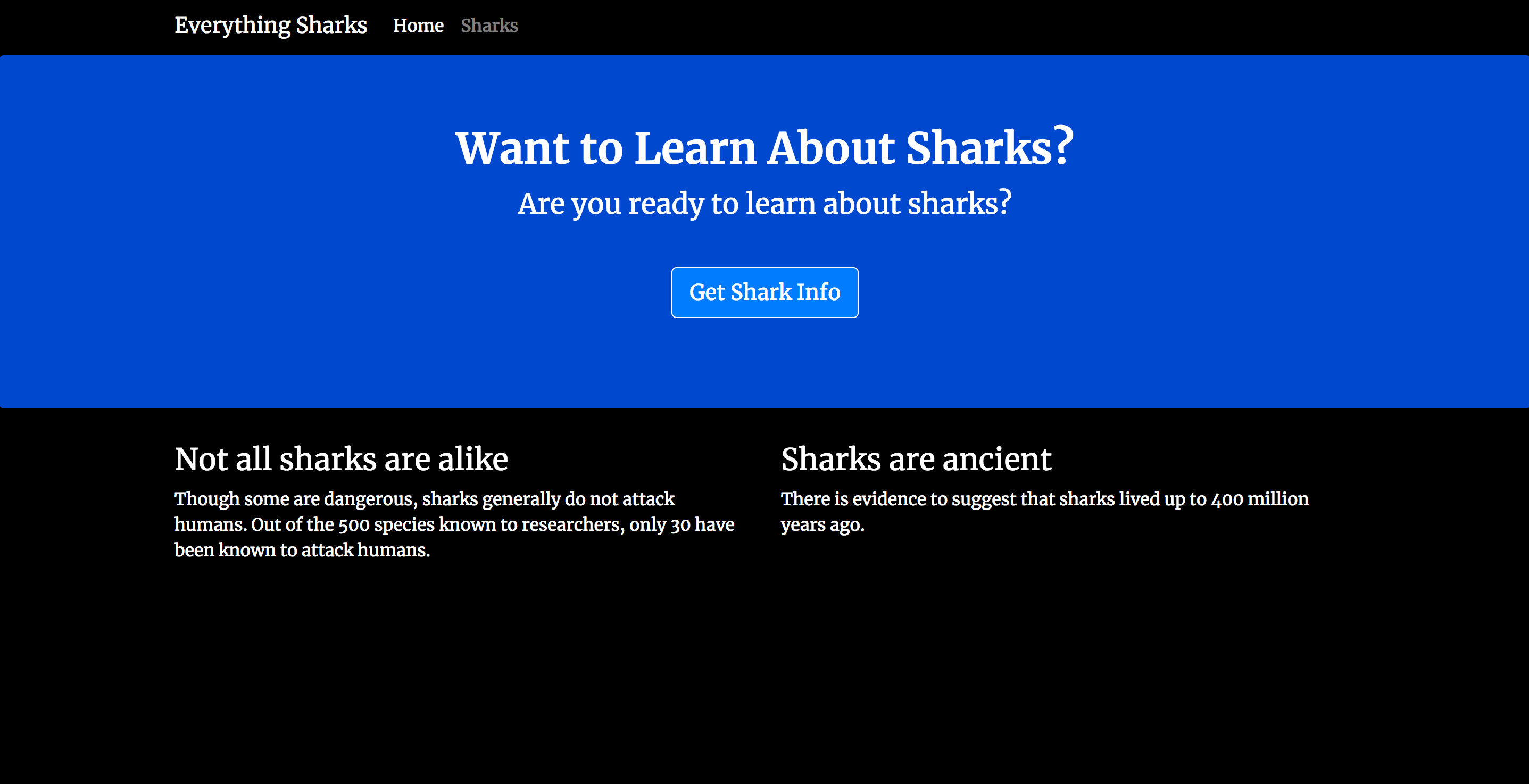
Click the Get Shark Info button. The following information page will load:
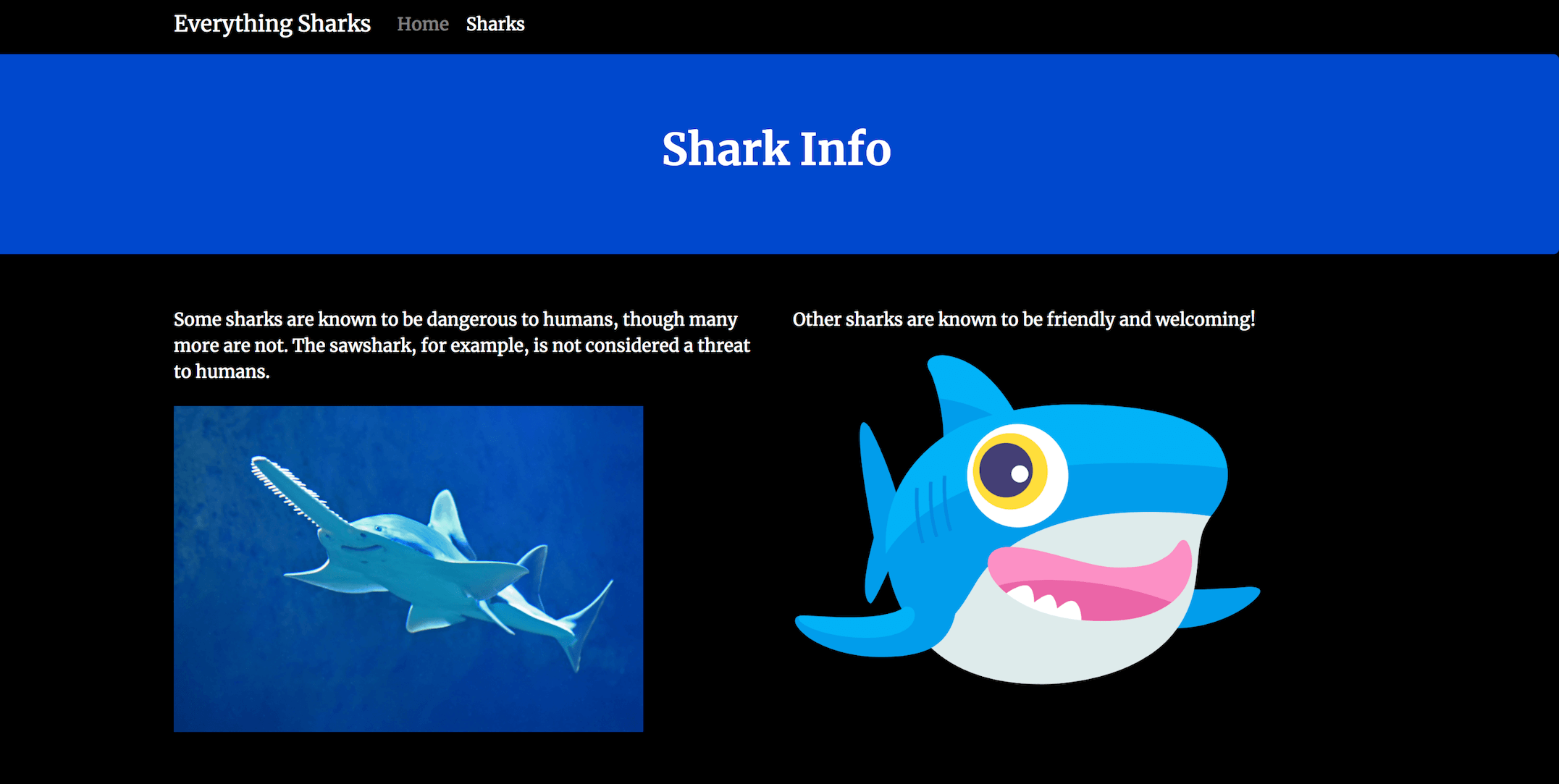
You now have an application up and running. When you're ready, exit the server by typing CTRL+C. Now we can move on to creating a Dockerfile that will allow us to rebuild and scale this application as desired.
Step 3 – Writing the Dockerfile
Your Dockerfile specifies what will be included in your application container when it runs. Using a Dockerfile allows you to define your container environment and avoid conflicts with dependencies or runtime versions.
By following these guidelines for building optimal containers, we make our image as efficient as possible by minimizing the number of image layers and limiting the image's functionality to a single purpose – recreating application files and static content.
In the root directory of your project, create a Dockerfile:
nano DockerfileDocker images are created using successive layered images that are built on top of each other. Our first step will be to add the base image for our application, which will be the starting point for building the application.
Let's use the node:10-alpine image, as it is the recommended LTS version of Node.js at the time of writing. The Alpine image is taken from the Alpine Linux project and helps us keep our image size down. For more information on whether the Alpine image is a good choice for your project, please review the full discussion in the Image Variants section of the Docker Hub Node image page.
Add the following FROM directive to set the base image of the application:
FROM node:10-alpineThis image includes Node.js and npm. Every Dockerfile must start with a FROM directive.
By default, the Docker Node image includes a non-root node user, which you can use to prevent your application container from running as root. Avoiding running containers as root and limiting the capabilities within the container to only those required to run its processes is a recommended security measure. So we use the node user's home directory as the working directory for our application and set them up as our user inside the container. For more information on best practices when working with the Docker Node image, check out this best practices guide.
To fine-tune the permissions of our application code in the container, let's create a node_modules subdirectory in /home/node along with the application directory. Creating these directories ensures that they have the permissions we want, which will be important when we create local node modules in the container with npm install. In addition to creating these directories, we set their ownership to our node user:
...
RUN mkdir -p /home/node/app/node_modules && chown -R node:node /home/node/app
For more information on the use of integrating RUN instructions, read this discussion on how to manage container layers.
Next, set the application's working directory to /home/node/app:
...
WORKDIR /home/node/app
If WORKDIR is not set, Docker will create one by default, so it's a good idea to set it explicitly.
Then copy the package.json and package-lock.json (for npm 5+) files:
...
COPY package*.json ./
Adding this COPY directive before running npm install or copying the application code allows us to take advantage of Docker's caching mechanism. At each stage of the build, Docker checks to see if a layer has been cached for that particular directive. If we change the package.json, this layer will be rebuilt, but if we don't, this directive allows Docker to use the existing image layer and skip reinstalling our node modules.
To ensure that all application files are owned by the non-root node user, including the contents of the node_modules directory, change the user to node before running npm install:
...
USER node
After copying the project dependencies and switching users, we can run npm install:
...
RUN npm install
Next, copy your application code with the appropriate permissions into the application directory on the container:
...
COPY --chown=node:node . .
This ensures that the application files are owned by the non-root user.
Finally, set port 8080 on the container and start the application:
...
EXPOSE 8080
CMD [ "node", "app.js" ]
EXPOSE does not expose the port, but instead acts as a way to document the ports available to the container at runtime. CMD executes the command to start the application – in this case, node app.js. Note that there should only be one CMD command per Dockerfile. If you include more than one, only the last one will be applied.
There are many things you can do with a Dockerfile. For a complete list of instructions, please refer to Docker's Dockerfile reference documentation.
The complete Dockerfile looks like this:
FROM node:10-alpine
RUN mkdir -p /home/node/app/node_modules && chown -R node:node /home/node/app
WORKDIR /home/node/app
COPY package*.json ./
USER node
RUN npm install
COPY --chown=node:node . .
EXPOSE 8080
CMD [ "node", "app.js" ]
Save and close the file when you are finished editing.
Before building the application image, let's add a .dockerignore file. Working in a similar way to a .gitignore file, .dockerignore specifies which files and directories in your project directory should not be copied into your container.
Open the .dockerignore file:
nano .dockerignoreInside the file, add the local node modules, npm logs, Dockerfile, and .dockerignore file:
node_modules
npm-debug.log
Dockerfile
.dockerignore
If you're working with Git, you'll also want to add your .git directory and .gitignore file.
Save and close the file when you are finished.
You are now ready to build your application image using the docker build command. Using the -t flag with docker build allows you to tag the image with a memorable name. Since we are going to push the image to Docker Hub, let's include our Docker Hub username in the tag. We will tag the image as nodejs-image-demo , but feel free to replace it with a name of your own choosing. Also remember to replace your_dockerhub_username with your Docker Hub username:
sudo docker build -t your_dockerhub_username/nodejs-image-demo .. Specifies that the context for building is the current directory.
It will take a minute or two to create the image. Once complete, check your images:
sudo docker imagesYou will get the following output:
Output
REPOSITORY TAG IMAGE ID CREATED SIZE
your_dockerhub_username/nodejs-image-demo latest 1c723fb2ef12 8 seconds ago 73MB
node 10-alpine f09e7c96b6de 3 weeks ago 70.7MB
Now we can create a container with this image using docker run. We add three commands with this command:
- -p: This will publish the port on the container and map it to a port on our host. We will use port 80 on the host, but if another process is running on that port, you should change it if necessary. For more information on how this works, review this discussion in the Docker Docs about port binding.
- -d: Runs this container in the background.
- --name: This allows us to give the container a memorable name.
To create the container, run the following command:
sudo docker run --name nodejs-image-demo -p 80:8080 -d your_dockerhub_username/nodejs-image-demoOnce your container is up and running, you can check a list of your running containers with docker ps:
sudo docker psYou will get the following output:
Output
CONTAINER ID IMAGE COMMAND CREATED STATUS PORTS NAMES
e50ad27074a7 your_dockerhub_username/nodejs-image-demo "node app.js" 8 seconds ago Up 7 seconds 0.0.0.0:80->8080/tcp nodejs-image-demo
While your container is running, you can now visit your application by navigating your browser to your server IP without the port:
http://your_server_ip
Your app's landing page will load once again.
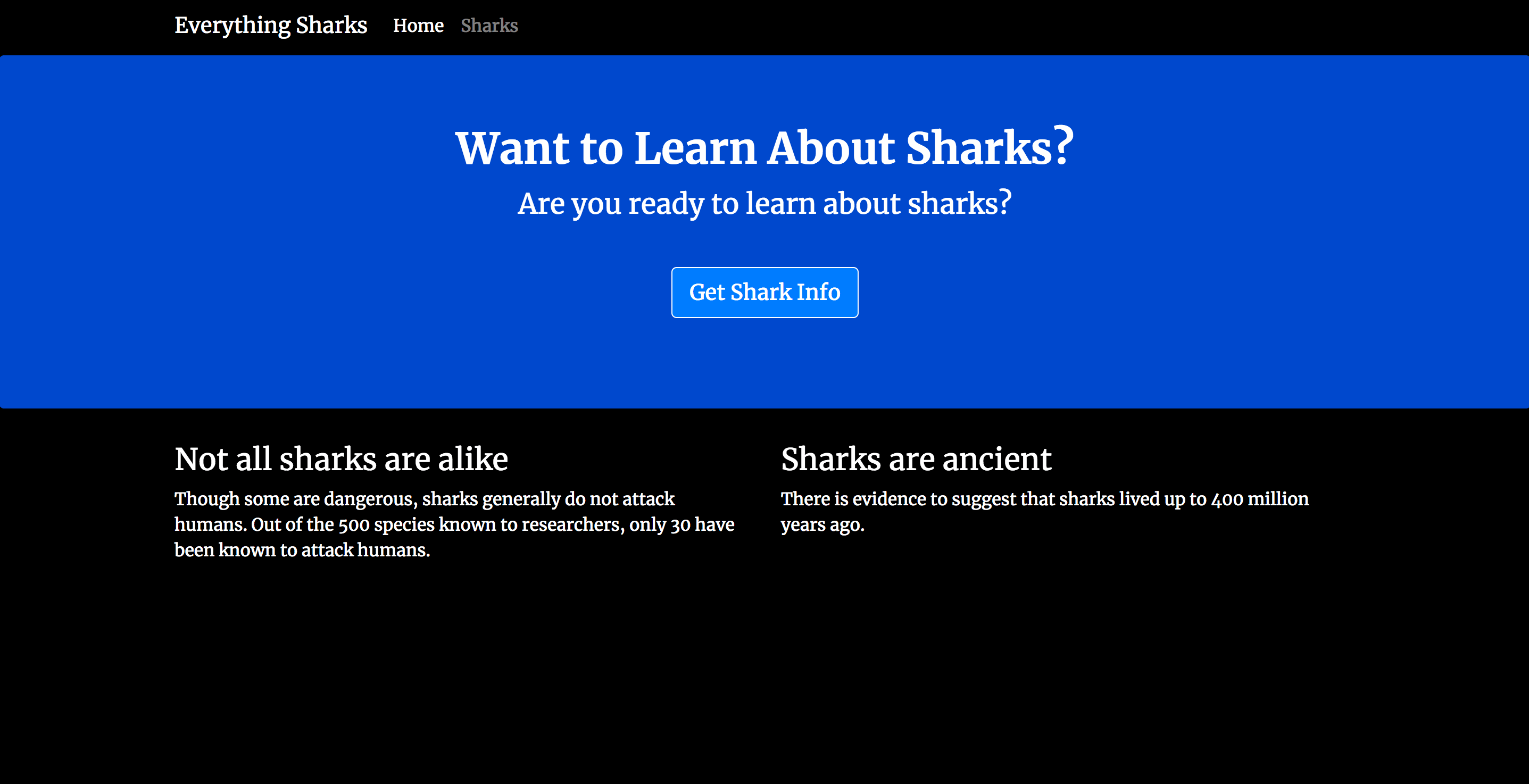
Now that you have created an image for your application, you can push it to Docker Hub for future use.
Step 4 – Using a repository to work with images
By pushing your application image to a registry like Docker Hub, you make it available for later use as you build and scale containers. We'll show you how to do this by pushing your application image to a repository and then using the image to recreate your container.
The first step to pushing the image is to log in to the Docker Hub account you created in the prerequisites:
sudo docker login -u your_dockerhub_usernameWhen prompted, enter your Docker Hub account password. Logging in this way will create a ~/.docker/config.json file in your user home directory with your Docker Hub credentials.
You can now push the application image to Docker Hub using the tag you created earlier, your_dockerhub_username/nodejs-image-demo:
sudo docker push your_dockerhub_username/nodejs-image-demoLet's test the image registry tool by destroying our current application container and image and rebuilding them with the image in our repository.
First, list your running containers:
sudo docker psYou will get the following output:
Output
CONTAINER ID IMAGE COMMAND CREATED STATUS PORTS NAMES
e50ad27074a7 your_dockerhub_username/nodejs-image-demo "node app.js" 3 minutes ago Up 3 minutes 0.0.0.0:80->8080/tcp nodejs-image-demo
Stop the running application container using the CONTAINER ID listed in the output. Be sure to replace the highlighted ID below with your own CONTAINER ID:
sudo docker stop e50ad27074a7List all your images with -a:
docker images -aYou will get the following output with your image name, your_dockerhub_username/nodejs-image-demo, along with the node image and other images from your build:
Output
REPOSITORY TAG IMAGE ID CREATED SIZE
your_dockerhub_username/nodejs-image-demo latest 1c723fb2ef12 7 minutes ago 73MB
<none> <none> 2e3267d9ac02 4 minutes ago 72.9MB
<none> <none> 8352b41730b9 4 minutes ago 73MB
<none> <none> 5d58b92823cb 4 minutes ago 73MB
<none> <none> 3f1e35d7062a 4 minutes ago 73MB
<none> <none> 02176311e4d0 4 minutes ago 73MB
<none> <none> 8e84b33edcda 4 minutes ago 70.7MB
<none> <none> 6a5ed70f86f2 4 minutes ago 70.7MB
<none> <none> 776b2637d3c1 4 minutes ago 70.7MB
node 10-alpine f09e7c96b6de 3 weeks ago 70.7MB
Stop the container and remove all images, including unused or hanging images, with the following command:
docker system prune -aWhen prompted at the exit to confirm that you want to remove the container and stopped images, type Y. Note that this will also delete your build cache.
You have now deleted both the container running your application image and the image itself. For more information on deleting Docker containers, images, and volumes, please review How to delete Docker images, containers, and volumes.
With all your images and containers removed, you can now pull the application image from Docker Hub:
docker pull your_dockerhub_username/nodejs-image-demoList your images once again:
docker imagesYour output will have an image of your application:
Output
REPOSITORY TAG IMAGE ID CREATED SIZE
your_dockerhub_username/nodejs-image-demo latest 1c723fb2ef12 11 minutes ago 73MB
You can now rebuild your container using the command from step 3:
docker run --name nodejs-image-demo -p 80:8080 -d your_dockerhub_username/nodejs-image-demoList your running containers:
docker ps
Output
CONTAINER ID IMAGE COMMAND CREATED STATUS PORTS NAMES
f6bc2f50dff6 your_dockerhub_username/nodejs-image-demo "node app.js" 4 seconds ago Up 3 seconds 0.0.0.0:80->8080/tcp nodejs-image-demo
Visit http://your_server_ip once again to view your running application.
Result
In this tutorial, you created a static web application with Express and Bootstrap, as well as a Docker image for the application. You used this image to create a container and pushed the image to Docker Hub. From there, you were able to destroy your image and container and recreate them using your Docker Hub repository.