
Introduction
The htaccess file contains several directives (instructions) that instruct the server how to behave in certain scenarios and directly control the functions of your website. There are some common directives such as redirection and URL rewriting that can be found in the .htaccess file. There are many scripts and content management systems such as WordPress, Joomla, and Magento that add directives to .htaccess to make all the functions run smoothly. You may need to edit the .htaccess file for various purposes.
Today we will show you how to create or edit the .htaccess file in your cPanel file manager.
Step 1: Log in to your cPanel control panel.
Step 2: In the FILES section, click on the File Manager option.

Step 3: Go to the public_html folder.

Step 4: Show hidden files from settings.
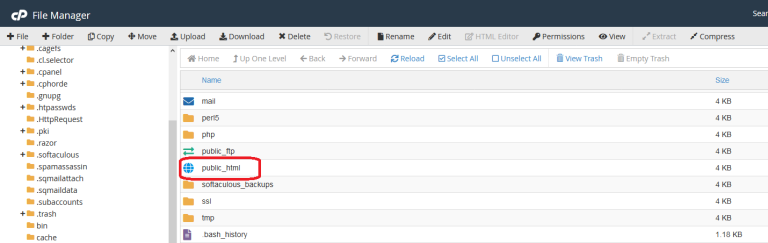
Edit the htaccess file
Step 5: If you have an existing .htaccess file, you will see it in the public_html folder.
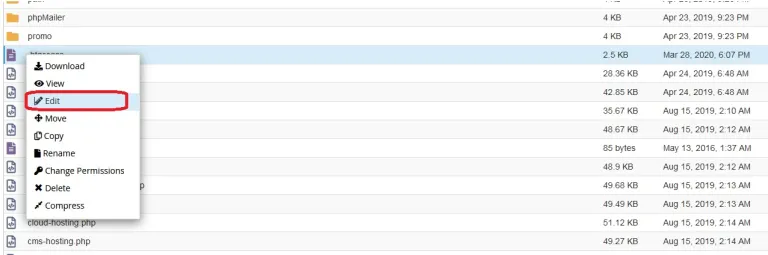
Step 6: Right-click on the .htaccess file and click on the Edit menu.
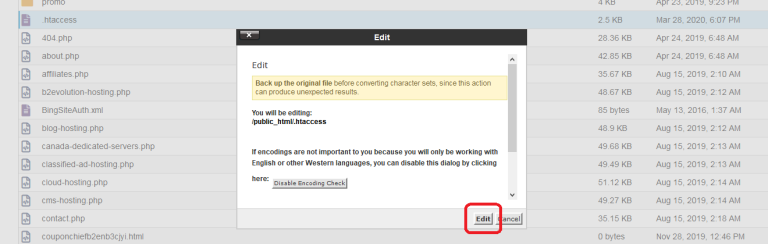
Step 7: Open the file by clicking the Edit button.
Now you can write whatever you need in the htaccess file. Don't forget to click the save button in the top right corner.
Create a new htaccess file
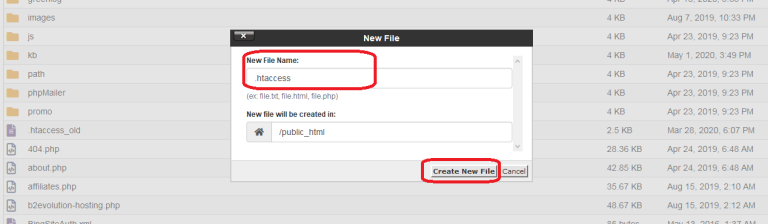
Step 8: Click on the New File option in the top left corner.
Step 9: Type the file name as .htaccess in the New File Name: field and click the Create New File button.
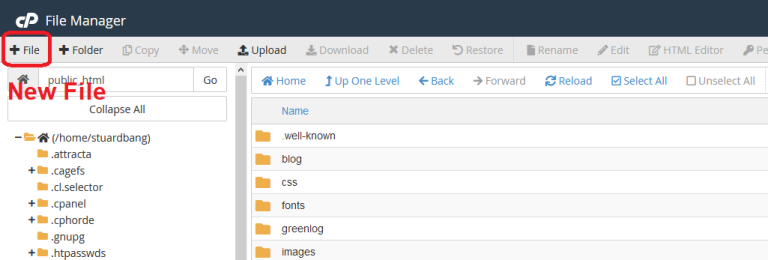
Step 10: Now you can write or edit the .htaccess file.
You can also create your own .htaccess file on your local computer and upload it to the file manager.