Locking out a user account after failed Remote Desktop attempts
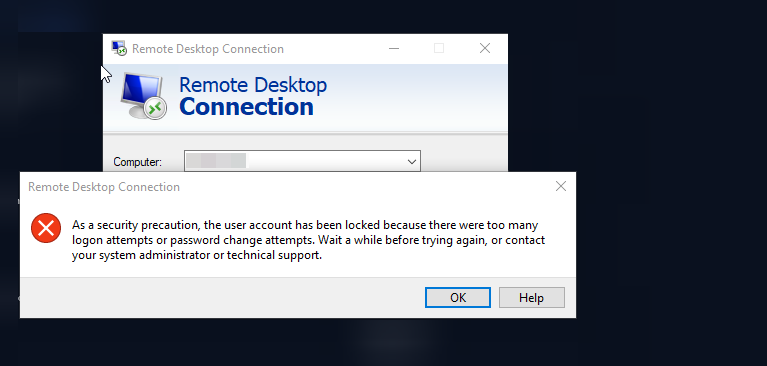
Remotely connect to Windows via Remote Desktop Protocol (RDP) It is one of the most widely used methods for managing servers and corporate computers. But this same feature can be a gateway for Brute Force attacks; that is, the attacker tries to log in to the system by trying thousands of different passwords. One of the important solutions to combat this threat is Locking the account after a certain number of failed attempts It is.
In this article, we will examine the account lock settings in Windows and explain its limitations.
Can the lock setting be enabled for RDP only?
The common question is:
«"I want the user account to be locked after, say, 5 failed RDP attempts, but not restrict local login. Is that possible?"»
Short answer: No.
In Windows, the account lock mechanism Common to all login methods. In other words, if the account lockout policy is enabled, both local and RDP logins are affected.
Suggested solution
Because it is not possible to differentiate between RDP and local login, it is recommended to take the following actions:
Create a second administrator account (Backup Admin):
Keep this account for emergencies only. Do not give it RDP access (i.e. do not put it in the “Remote Desktop Users” group).
This way, if the main account gets locked out, you can log in with the second account and fix the problem.Set account lockout policies carefully:
Too low a value (e.g. 1 or 2 incorrect attempts) can cause real users to be locked out unintentionally. Too high a value (e.g. 20 attempts) also reduces security. Usually 3 to 5 unsuccessful attempts Recommended.
Steps to set up account lock in Windows
To set this feature in Windows Pro Or Enterprise Follow the steps below:
Keys
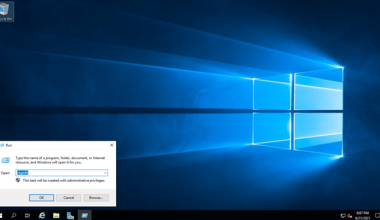
Win + RPress and the phrasesecpol.mscRun.
(This tool is the same Local Security Policy is.)In the window that opens, go to the following path:
Account Policies → Account Lockout Policy3. سه گزینه مهم در این بخش وجود دارد:
Account lockout threshold
تعیین میکند بعد از چند تلاش ناموفق حساب قفل شود.
مقدار پیشنهادی: ۳ تا ۵.Account lockout duration
مشخص میکند حساب بعد از قفل شدن چند دقیقه غیرفعال بماند.
مقدار پیشنهادی: ۱۵ تا ۳۰ دقیقه.Reset account lockout counter after
تعیین میکند اگر کاربر به صورت موقت تلاش نادرست داشت، پس از چند دقیقه شمارنده ریست شود.
مقدار پیشنهادی: ۱۰ تا ۱۵ دقیقه.
نکته: اگر مقدار Account lockout threshold برابر صفر باشد، در واقع این قابلیت غیرفعال خواهد بود.
نکات امنیتی تکمیلی
- رمز عبور قوی: قفل حساب به تنهایی کافی نیست. حتماً از رمزهای عبور پیچیده و غیرقابل حدس استفاده کنید.
- فعال کردن فایروال و محدودیت IP: در صورت امکان دسترسی RDP را فقط از آیپیهای مشخص مجاز کنید.
- تغییر پورت پیشفرض RDP: تغییر پورت از ۳۳۸۹ به عدد دیگر میتواند حملات خودکار را کاهش دهد.
- استفاده از VPN: بهترین روش این است که RDP فقط از طریق VPN قابل دسترس باشد
جمعبندی
قفل حساب پس از چند تلاش ناموفق یکی از موثرترین راهکارهای جلوگیری از حملات Brute Force روی RDP است. هرچند ویندوز امکان تفکیک این تنظیم بین ورود محلی و از راه دور را نمیدهد، اما با ایجاد یک حساب مدیر پشتیبان و تنظیم دقیق سیاستها میتوان امنیت سیستم را بالا برد.
این کار در کنار سایر اقدامات امنیتی مثل رمز عبور قوی، محدود کردن IP و استفاده از VPN، لایهای مطمئن در برابر نفوذگران ایجاد میکند.