
Introduction
Convergence between Windows and Linux environments is more accessible than ever before, thanks to the Windows Subsystem for Linux (WSL).
Prerequisites
Make sure you have Windows 10 (version 2004 or later) or 11 installed.
What is WSL?
WSL is used to run Linux commands on the Windows operating system. It is a compelling choice for users who want to bring Linux functionality to their Windows environment. WSL supports various Linux distributions such as Ubuntu, Fedora, Kali, and others. In this tutorial, you will install and run Ubuntu.
How to install WSL
Open your PowerShell or command prompt window in administrator mode and add the following command to install WSL.
wsl --install
Confirm the installation using the following command:
wsl -v
How to set up Ubuntu
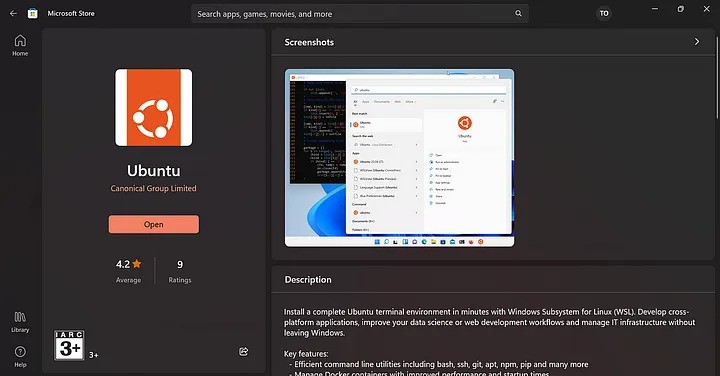
After installing WSL, open the Microsoft Store and search for Ubuntu to install.
Run Linux commands
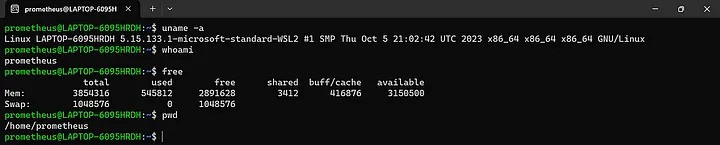
Once you have your Ubuntu installed, you can run Linux commands. Search for and launch the newly installed Ubuntu.
When you first start Ubuntu, the system will ask you to set a username and password. After providing them, you can try out some basic Linux commands.
To display system information including the kernel version, use the following command:
uname -a
To display the current username, copy the following command into the terminal:
whoami
Display the amount of free and used memory in the system.
free
Print the current working directory:
pwd
How to connect WSL to VS Code
By installing the WSL plugin, you can easily run Linux commands in VS Code. To install the WSL plugin, open Visual Studio Code, search for WSL, and install it. This will allow you to communicate between VS Code and the Ubuntu installation you have on your system.
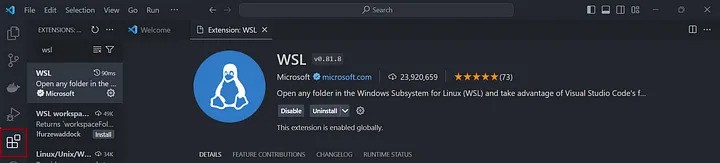
Once installed, click on the icon marked in the bottom left. Then select “Connect to WSL using Distro” and select Ubuntu.
Result
In this tutorial, you learned how to install and run Linux commands on Windows using WSL. You also learned how to connect WSL to VS Code.
At this point, you now have Ubuntu Linux running on top of your Windows operating system. You can now enjoy the flexibility of having both operating systems in one integrated environment.