Introduction
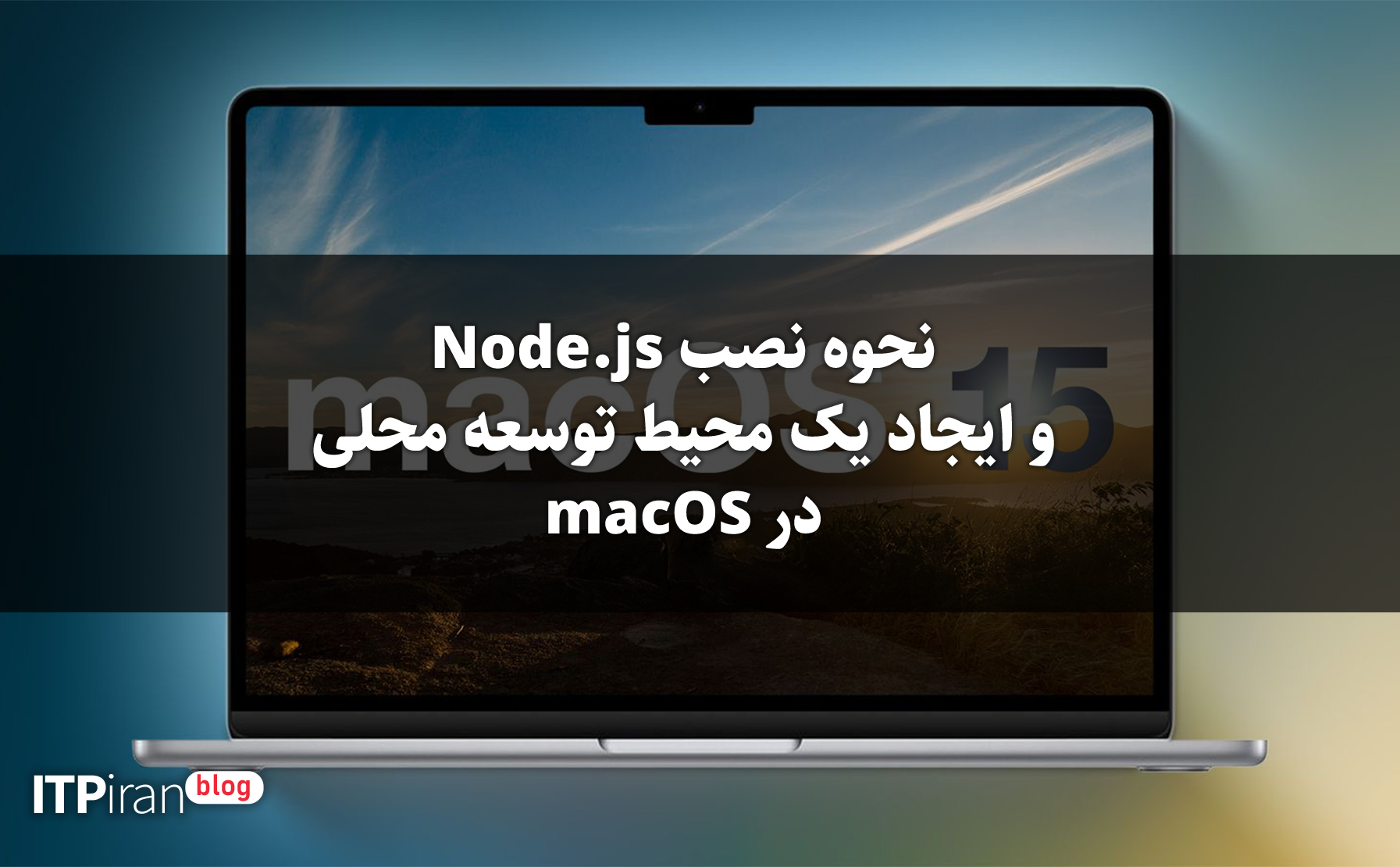
Node.js is an open source JavaScript runtime environment for easily building server-side applications. It is also the runtime that powers many client-side development tools for modern JavaScript frameworks.
In this tutorial, you will set up a Node.js development environment on your local macOS machine using Homebrew and test your environment by writing a simple Node.js application.
Prerequisites
You need a macOS computer with High Sierra or higher with administrative access and an internet connection.
Step 1 – Using the macOS Terminal
You will use the command line to install Node.js and run various commands related to developing Node.js applications. The command line is a non-graphical way to interact with your computer. Instead of clicking buttons with a mouse, you type commands as text and receive text-based feedback. The command line, also known as a shell, allows you to automate many of the tasks you perform on your computer every day and is an essential tool for software developers.
To access the command line interface, you'll use the Terminal app provided by macOS. Like any other app, you can find it by going to the Finder, navigating to the Applications folder, and then to the Utilities folder. From here, double-click the Terminal app to open it. You can also use Spotlight by holding down the COMMAND key and pressing SPACE to find Terminal by typing it into the box that appears.
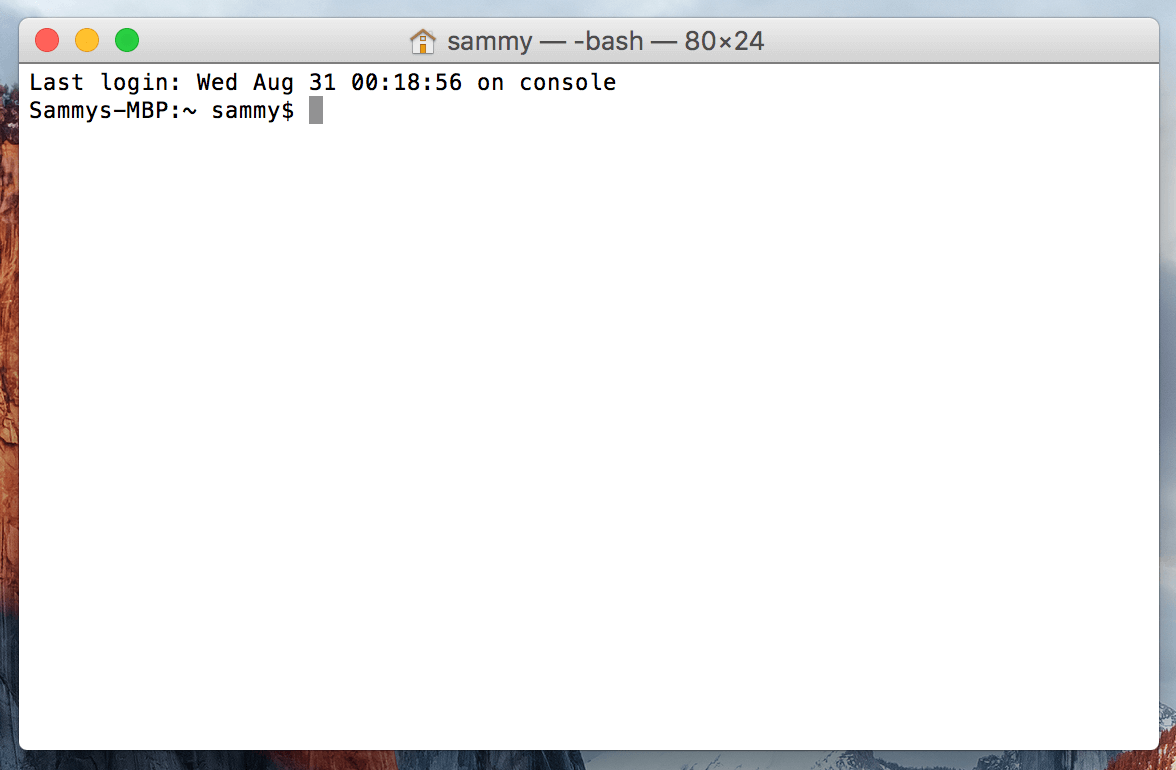
Now that the terminal is running, let's install some of the prerequisites needed for Node.js.
Step 2 – Install Xcode Command Line Tools
Xcode is an integrated development environment (IDE) that consists of software development tools for macOS. You don't need Xcode to write Node.js applications, but Node.js and some of its components rely on the Xcode Command Line Tools package.
To download and install these components, run this command in the terminal:
xcode-select --installYou will be prompted to start the installation and then again asked to accept the software license. The tools will then be downloaded and installed automatically.
We are now ready to install the Homebrew package manager, which will allow us to install the latest version of Node.js.
Step 3 – Installing and Setting Up Homebrew
While the command line interface on macOS has many of the same features you'll find on Linux and other Unix-like systems, it doesn't come with a good package manager. A package manager is a collection of software tools that work to automate the installation, configuration, and upgrade of software. They keep the software you install in a central location and can maintain all the software packages on your system in commonly used formats. Homebrew is a free and open source package management system that simplifies installing software on macOS. We'll use Homebrew to install the latest version of Node.js.
To install Homebrew, type this command in your terminal window:
/usr/bin/ruby -e "$(curl -fsSL https://raw.githubusercontent.com/Homebrew/install/master/install)"This command uses curl to download the Homebrew installation script from Homebrew's Git repository on GitHub.
Let's go through the flags associated with the curl command:
- The -f or –fail flag tells the terminal window not to provide any HTML document output on server errors.
- The -s or --silent flag silences curl so that it does not show the progress meter, and combined with the -S or --show-error flag ensures that curl displays an error message if it fails.
- The -L or --location flag tells curl to handle redirects. If the server reports that the requested page has moved to a different location, it will automatically re-execute the request using the new location.
Once curl downloads the script, it is then executed by the Ruby interpreter that ships with macOS, starting the Homebrew installation process.
The installation script will explain what it will do and ask you to confirm that you want to do it. This will give you a chance to see exactly what Homebrew is going to do to your system before you allow it to do it. It will also ensure that you have the necessary prerequisites before you proceed.
You will be prompted to enter your password during the process. However, your keystrokes will not be displayed in the Terminal window when you type your password. This is a security measure and is something you will often see when prompted for a password on the command line. Even though you don't see them, your keystrokes are being recorded by the system, so press the RETURN key after you enter your password.
Whenever you are asked to confirm the installation, press the letter y for “yes.”.
Now let's check that Homebrew is set up correctly. Run this command:
brew doctorIf no update is needed at this time, you will see this in your terminal:
Output
Your system is ready to brew.
Otherwise, you may receive a warning to run another command, such as brew update, to ensure your Homebrew installation is up to date.
Now that Homebrew is installed, you can install Node.js.
Step 4 – Install Node.js
By installing Homebrew, you can install a wide range of software and developer tools. We will use it to install Node.js and its dependencies.
You can use Homebrew to search for everything you can install with the brew search command, but to give us a shorter list, let's search for Node.js-related packages instead:
brew search nodejsYou will see a list of packages you can install, like this:
Output
==> Formulae
node.js
nodejs
Both of these packages install Node.js on your system. Both of them are there just in case you can't remember whether you need to use nodejs or node.js.
To install the nodejs package, run this command:
brew install nodejsYou will see output similar to the following in your terminal. Homebrew will install many dependencies, but will ultimately download and install Node.js itself:
Output
==> Installing dependencies for node: icu4c
==> Installing node dependency: icu4c
==> Installing node
==> Downloading https://homebrew.bintray.com/bottles/node-11.0.0.sierra.bottle.tar.gz
######################################################################## 100.0%
==> Pouring node-11.0.0.sierra.bottle.tar.gz
...
==> Summary
🍺 /usr/local/Cellar/node/11.0.0: 3,936 files, 50.1MB
In addition to Node.js itself, Homebrew installs a few related tools, including npm, which makes it easy to install and update Node.js libraries and packages that you might use in your projects.
To check the version of Node.js you have installed, type
node -vThis will output the specific version of Node.js that is currently installed, which by default is the most up-to-date stable version of Node.js available.
Output
v11.0.0
Check the npm version:
npm -vYou will see the displayed version:
Output
6.4.1
You will use npm to install additional components, libraries, and frameworks.
To update your Node.js version, you can first update Homebrew to get the latest package list and then upgrade Node.js itself:
brew update
brew upgrade nodejs
Now that Node.js is installed, let's write a program to make sure everything works.
Step 5 – Create a simple app
Let's create a simple "Hello, World" application. This will ensure that our environment is working and get you comfortable with creating and running a Node.js application.
To do this, create a new file called hello.js using nano:
nano hello.jsType the following code into the file:
let message = "Hello, World!";
console.log(message);
Exit the editor by pressing CTRL+X. Then press y when prompted to save the file. You will be returned to your request.
Now run the program with the following command:
node hello.jsThe program runs and displays its output on the screen:
Output
Hello, World!
This simple program proves that you have a working development environment. You can use this environment to continue exploring Node.js and building bigger and more interesting projects.
Result
You have successfully installed Node.js, npm and tested your setup by creating and running a simple application. You can now use this to develop client-side applications or server-side applications.