Introduction
Using a NAT gateway to provide a single egress IP for all your deployments on DigitalOcean eliminates the need to list multiple IP addresses for end users. This detailed tutorial will teach you how to configure a Mikrotik cloud-hosted router as a NAT gateway on DigitalOcean. You can use these settings to configure an IPSec tunnel between DigitalOcean and other clouds.
Prerequisites
- A DigitalOcean account.
- Accessing the Mikrotik Cloud Host Router Image (Tested on version 7.14.3. For other versions, the exact steps may vary depending on the version)
Step 1 – Download and prepare the CHR image
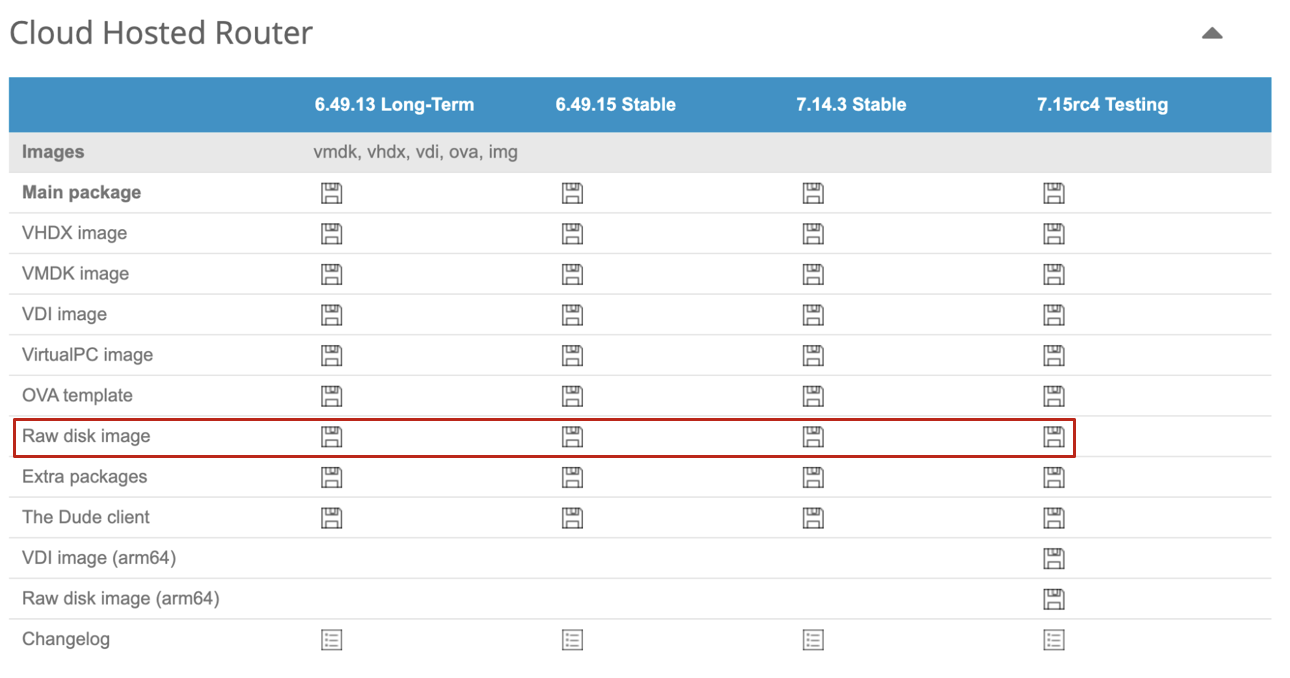
Download Cloud Hosted Router (CHR) from https://mikrotik.com/download. Select “Raw Disk Image” for the latest Stable version and unzip the image to a local folder on your system. You should have a file with the extension .img, for example-chr-7.14.3.img
Step 2 – Upload the CHR image to DigitalOcean
Log in to your DigitalOcean control panel
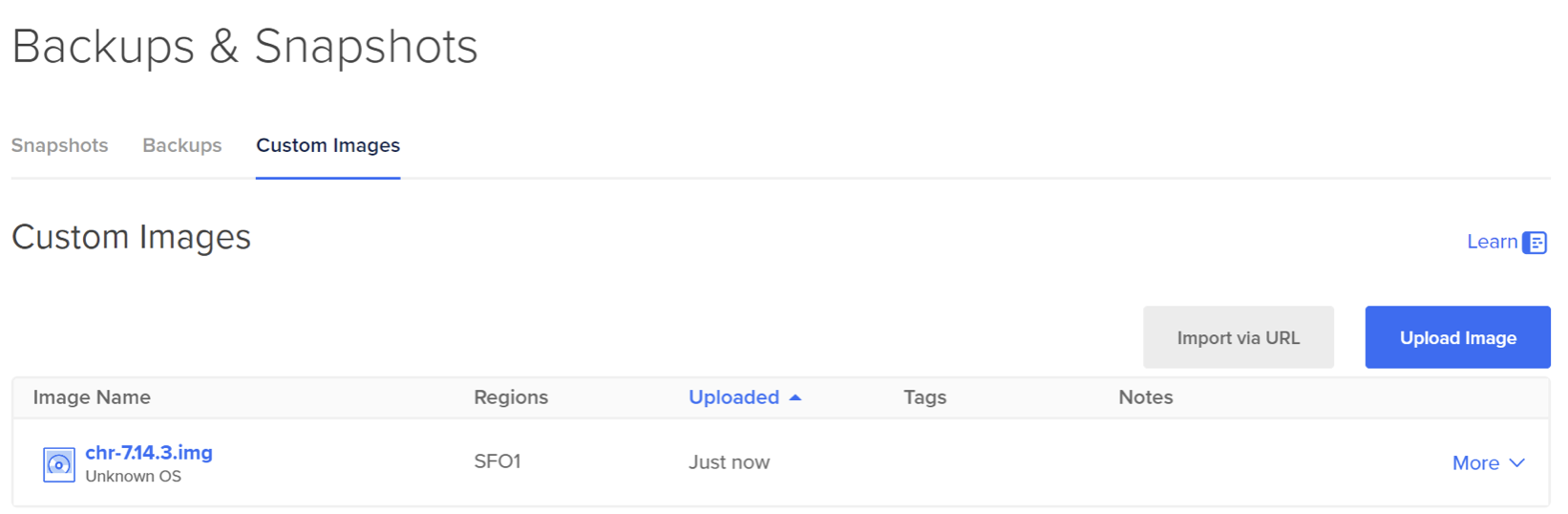
Go to Backups & Snapshots -> Custom Images.
Upload the CHR image as a custom image. For the distribution type, select "Unknown" and select the region where you want to deploy the droplet.
The image importer does not display a progress bar during this process. Please allow at least 20 minutes for the CHR image to be imported, verified, and made available on the platform for the selected region.
Step 3 – Create a droplet from the uploaded custom image
Mikrotik recommends at least 1GB of RAM. For this example, you can use the $6 droplet (s-1vcpu-1gb).
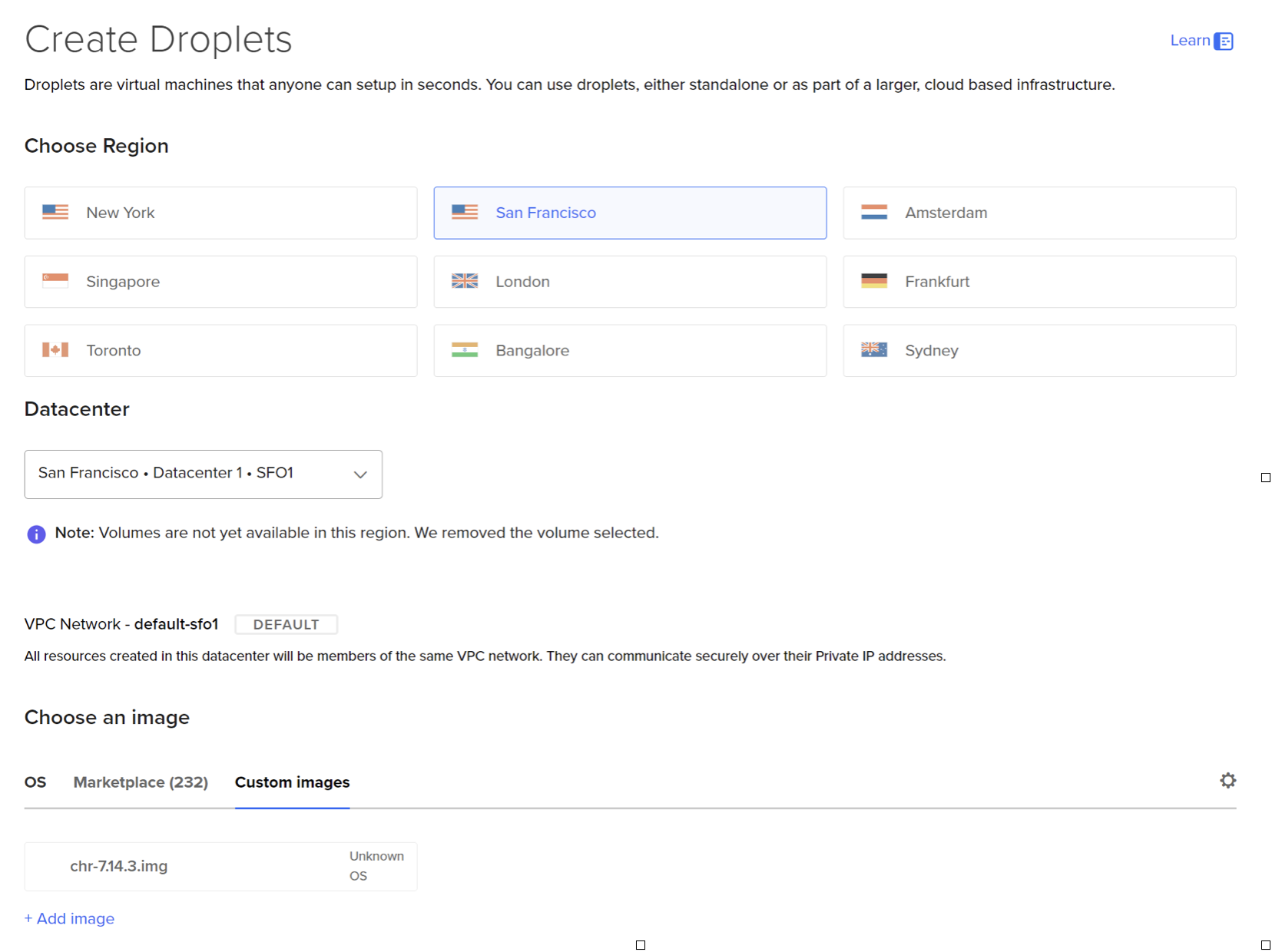
When creating the droplet, select an SSH key to create the client image. This SSH key will not be added to the Mikrotik configuration, but is required to create the droplet.
Step 4 – Secure the image
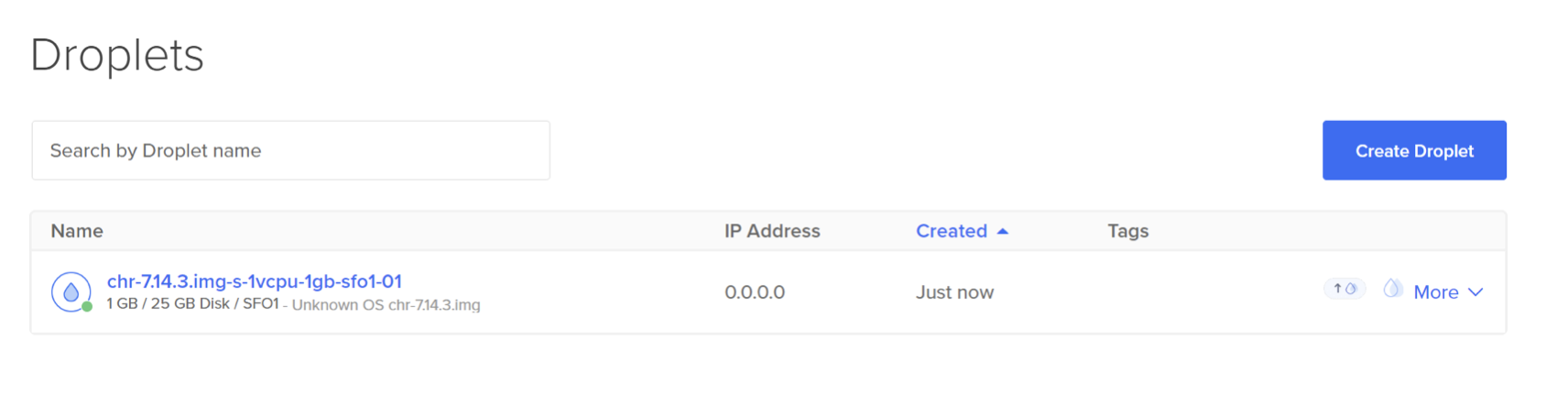
Once the CHR Droplet is created, it will enable a fully insecure firewall instance for easy access. You will need to secure this image by logging into the newly created droplet and configuring a password and initial security settings. Use SSH to configure the initial settings. There are several ways to log into the initial settings (SSH, Web UI, Winbox [desktop app]).
For this tutorial, you will use SSH to configure the initial settings.
a. For example, using openssh, log in with your favorite SSH client as the username “admin”:
ssh admin@<droplet_ip_address>b. Accept the Mikrotik authorization from SSH and configure a secure password to access the firewall.
outputDo you want to see the software license? [Y/n]: n
Press F1 for help
Change your password
new password> **********
repeat new password> **********
C. After configuring the password, you will see a “Password change” confirmation and you will have access to the Mikrotik command line:
outputPassword changed
[admin@MikroTik] >
d. Let's configure a secure account and disable the default administrator account. After logging in to the new account and ensuring it has full access, disable the default administrator account:
/user
add name=<user> password=<pass> group=full
disable admin
e. Let's configure the interface name:
/interface ethernet
set [ find default-name=ether2 ] disable-running-check=no name=vpc
set [ find default-name=ether1 ] disable-running-check=no name=wan
/interface list
add name=WAN
add name=VPC
/interface list member
add interface=wan list=WAN
add interface=vpc list=VPC
f. By default, CHR images are provided without firewall rules. To secure the firewall, you need to add some basic rules and for ease of use, rename the interfaces and add the public IP address of the droplet to the firewall whitelist.
/ip firewall address-list
add address=<Your_IP_Address> list=allowed_to_router
/ip firewall filter
add action=accept chain=input comment="default configuration" connection-state=established,related
add action=accept chain=input src-address-list=allowed_to_router
add action=accept chain=input comment="Allow ICMP" protocol=icmp
add action=drop chain=input
add action=accept chain=forward comment="Established, Related" connection-state=established,related
add action=drop chain=forward comment="Drop invalid" connection-state=invalid log=yes log-prefix=invalid
add action=accept chain=forward in-interface=vpc
add action=drop chain=forward
g. Let's configure the DNS firewall to use DigitalOcean DNS resolvers:
/ip dns
set servers=67.207.67.3,67.207.67.2
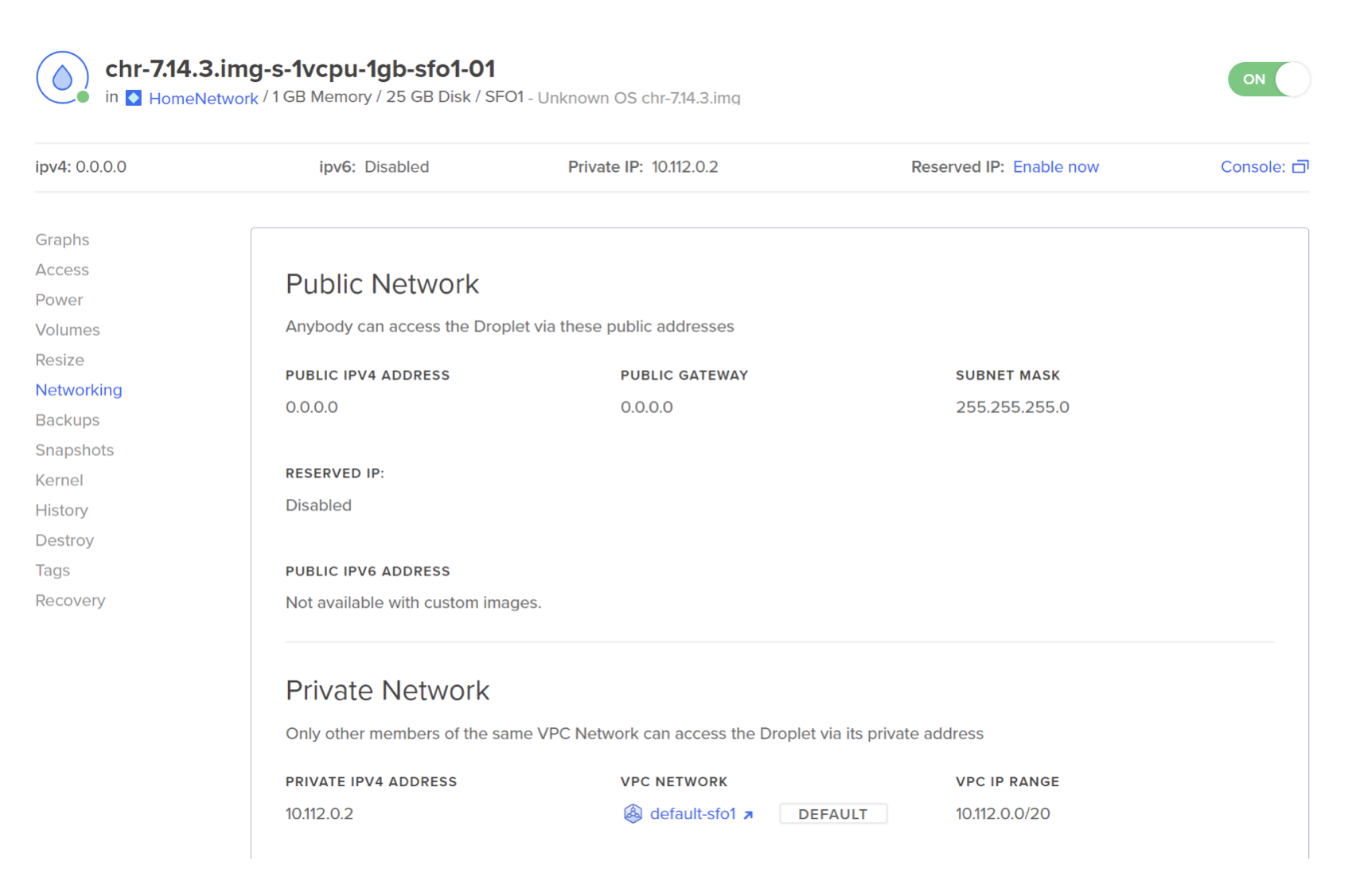
h.hour You also need to configure the IP address of the droplet VPC in the firewall. This can be retrieved from the droplet network panel. To do this, you can use the following commands from the firewall console.
/ip address
add address=<DROPLET_VPC_IP/Subnet> interface=vpc
/ip firewall address-list
add address=<VPC_SUBNET/Subnet> list=allowed_to_router
i. Enable NAT to allow VPC traffic to access the internet:
/ip firewall nat
add action=masquerade chain=srcnat out-interface-list=WAN
j. To make the installation more secure, let's disable some services that are not normally needed in the cloud to have a more secure droplet:
/ip service
set telnet disabled=yes
set ftp disabled=yes
set www disabled=yes
set api disabled=yes
set api-ssl disabled=yes
k. By default, the CHR router comes with a free trial license. Once you have fully activated your gateway to activate the purchased license, you will need to log in with your MikroTik portal credentials to activate it:
/system license
renew account=<loginname> password=<pass> level=p1
Step 5 – Configure Backend Droplets to Set Fixed Route
Once you have configured the Droplet as a NAT gateway using Mikrotik's CHR, configure the backup Droplet to set a static route that points to the NAT gateway and verify the NAT gateway settings as described in the How to Configure a Droplet as a VPC Gateway guide.
Result
In this tutorial, you learned how to use Mikrotik's Cloud Hosted Router image to configure a DigitalOcean Droplet as a NAT gateway. With this setup, you can use a single outbound NAT gateway for all your resources on DigitalOcean, thus avoiding the need to list multiple outbound IPs. As explained here, this setup can be extended to create IPsec tunnels between clouds, providing secure connectivity for inter-cloud communications.