Introduction
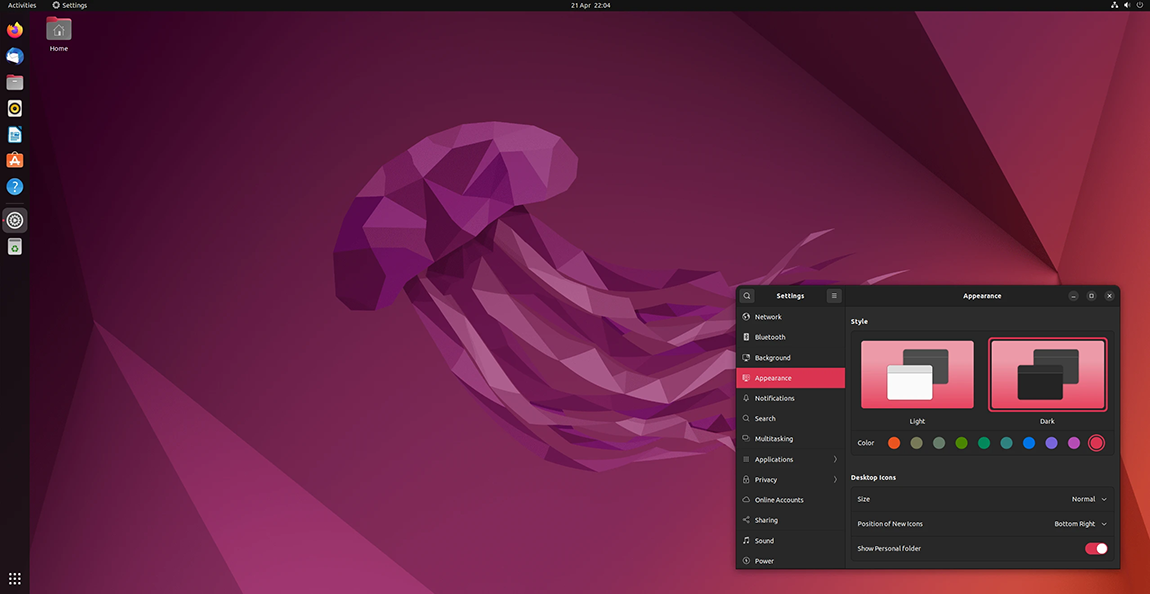
DigitalOcean Droplets do not come with a graphical user interface (GUI) installed when created, and are instead typically accessed and managed using the command line. However, you can install Ubuntu Desktop on a Droplet and use a remote desktop client to log in to the Droplet and interact with it as if it were a desktop computer. This allows you to more easily manage certain tools and provides a more familiar environment for interacting with your server.
In this tutorial, you will set up a display manager on a Droplet, install the Ubuntu desktop, and log in to the Droplet GUI using Microsoft's Remote Desktop.
Prerequisites
- Droplet with at least a 2GHz dual-core processor, 4GB of RAM, and 25GB of storage. The Droplet must be running Ubuntu 20.04 or higher. These are the minimum requirements to run the Ubuntu desktop on your Droplet.
- To install Microsoft Remote Desktop on your local machine. Microsoft Remote Desktop is available for both Windows and macOS.
Step 1: Install and launch xrdp
In order for your local machine to interact with the Droplet GUI, you need to install a display server on the Droplet. This server allows remote desktop clients to capture mouse clicks and keyboard strokes from your local machine and send them to the Droplet GUI. You can do this by installing xrdp, a free and open source display server based on Microsoft's RDP (Remote Desktop Protocol).
To install xrdp, log in to your Droplet using SSH and then update and upgrade the packages on the Droplet:
sudo apt-get updateFollow the instructions until all packages are upgraded.
After upgrading the packages, install xrdp on your machine:
sudo apt-get install xrdpOnce installed, enable xrdp to start at boot by running:
sudo systemctl enable xrdp
This command adds xrdp to the list of programs that Ubuntu automatically starts upon boot.
Finally, make sure your UFW Droplet firewall rules are set to accept TCP connections on port 3389:
sudo ufw allow 3389/tcp
This is the port that your remote desktop client will try to connect to on the Droplet.
Step 2: Install Ubuntu Desktop
Once you have xrdp set up as a Droplet display server, you can install the Ubuntu Desktop GUI on your Droplet. Ubuntu has many GUI options available, all with varying degrees of advantages and disadvantages, such as GNOME, KDE Plasma Desktop, and MATE Desktop. The Ubuntu Desktop is the official GUI for Ubuntu and is based on the popular GNOME desktop environment for Linux.
To install Ubuntu desktop on your Droplet, run the following command and follow the prompts:
sudo apt-get install ubuntu-desktopIt may take a few minutes to download and complete the installation.
Step 3: Create a user
After installing the Ubuntu desktop, you need to create a user in Droplet that is not the root user. You can use this username and password to log in to the Droplet GUI.
To create a new user, use the useradd tool and follow the instructions, replacing your_new_username with your desired username:
adduser your_new_usernameThis tool will guide you through creating a password for the new user and adding any additional information to the user profile.
After creating the new user, restart your Droplet for all changes to take effect:
rebootStep 4: Log in to Droplet
Once your Droplet has restarted, you can log in to your Droplet using Microsoft Remote Desktop.
To do this, open Microsoft Remote Desktop on your local machine and then click the “+” or Add PC button to add a new remote connection. In the Add PC window, enter the Droplet’s public IPv4 address in the Computer name field.
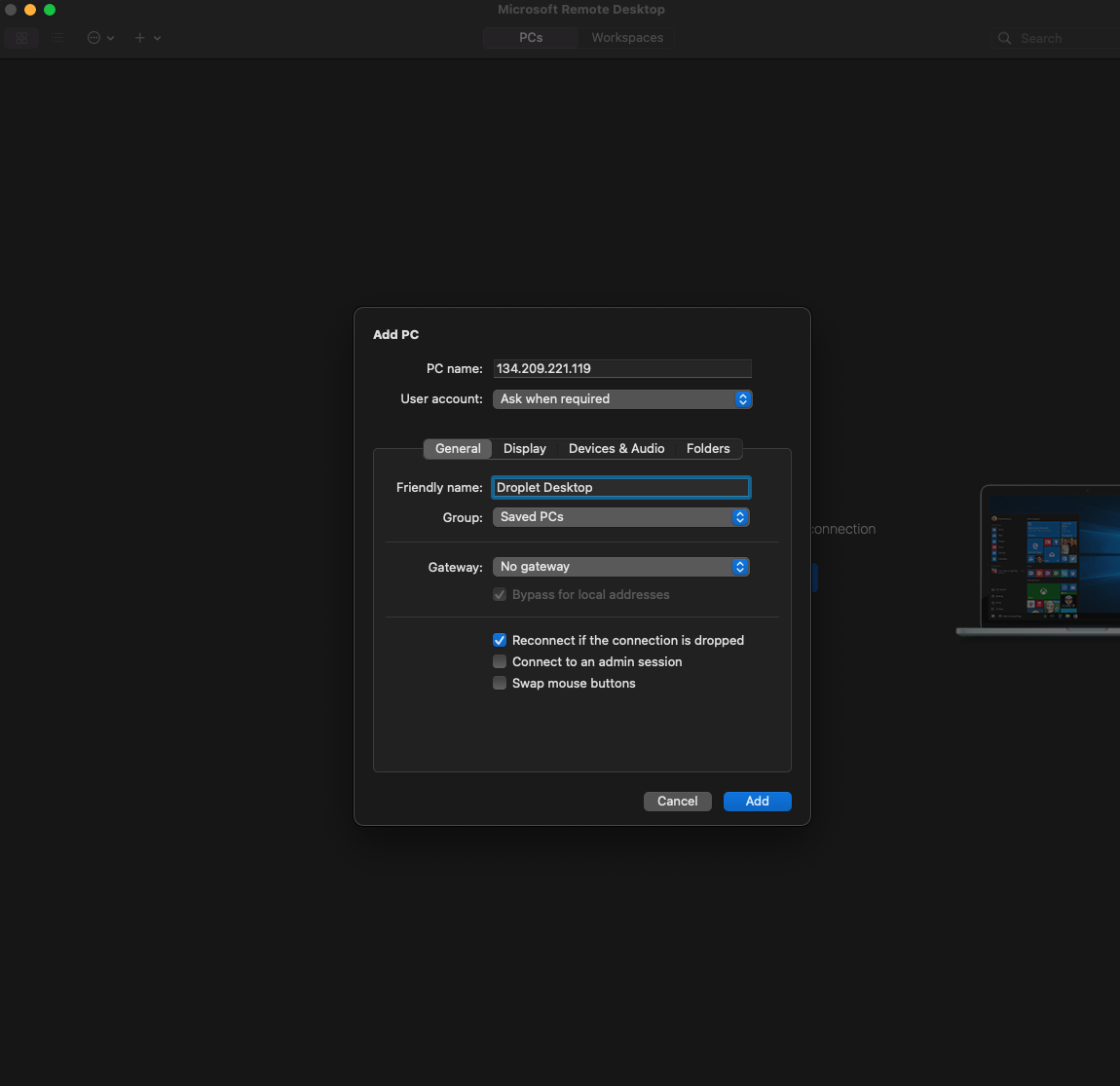
For a more comfortable user experience, we recommend clicking the Display tab, unchecking the Start session in full screen option, and selecting the appropriate resolution for your screen workspace.
After you set the connection options, click Add. Microsoft Remote Desktop will add the connection as a PC.
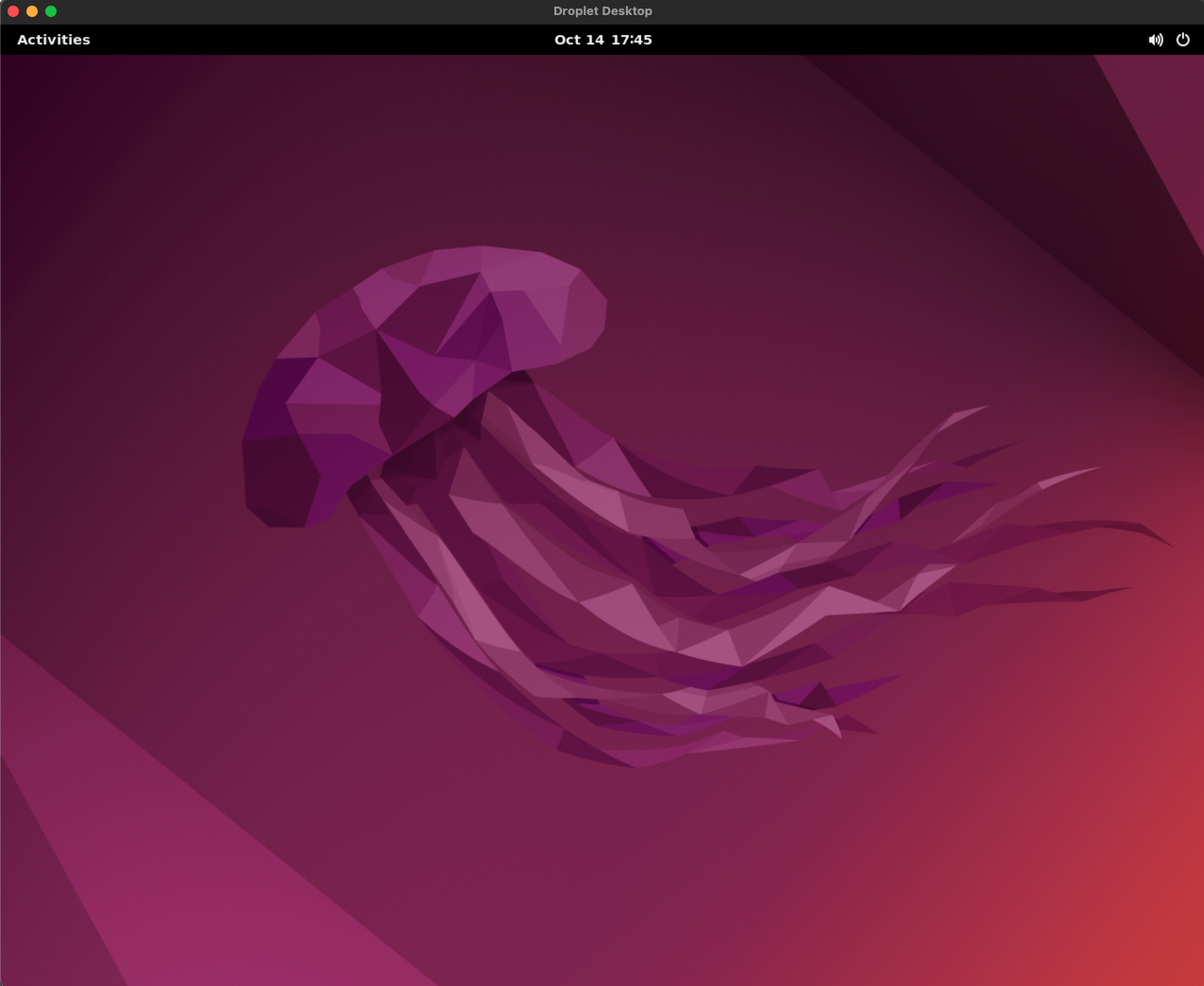
To log in to the Droplet, hover your mouse over the new computer, click the three-dot menu (…), and then click Connect. When prompted, enter the username and password for the new user. The client will log you into the Droplet desktop, and your window should look like this.
Step 5: Install Google Chrome (optional)
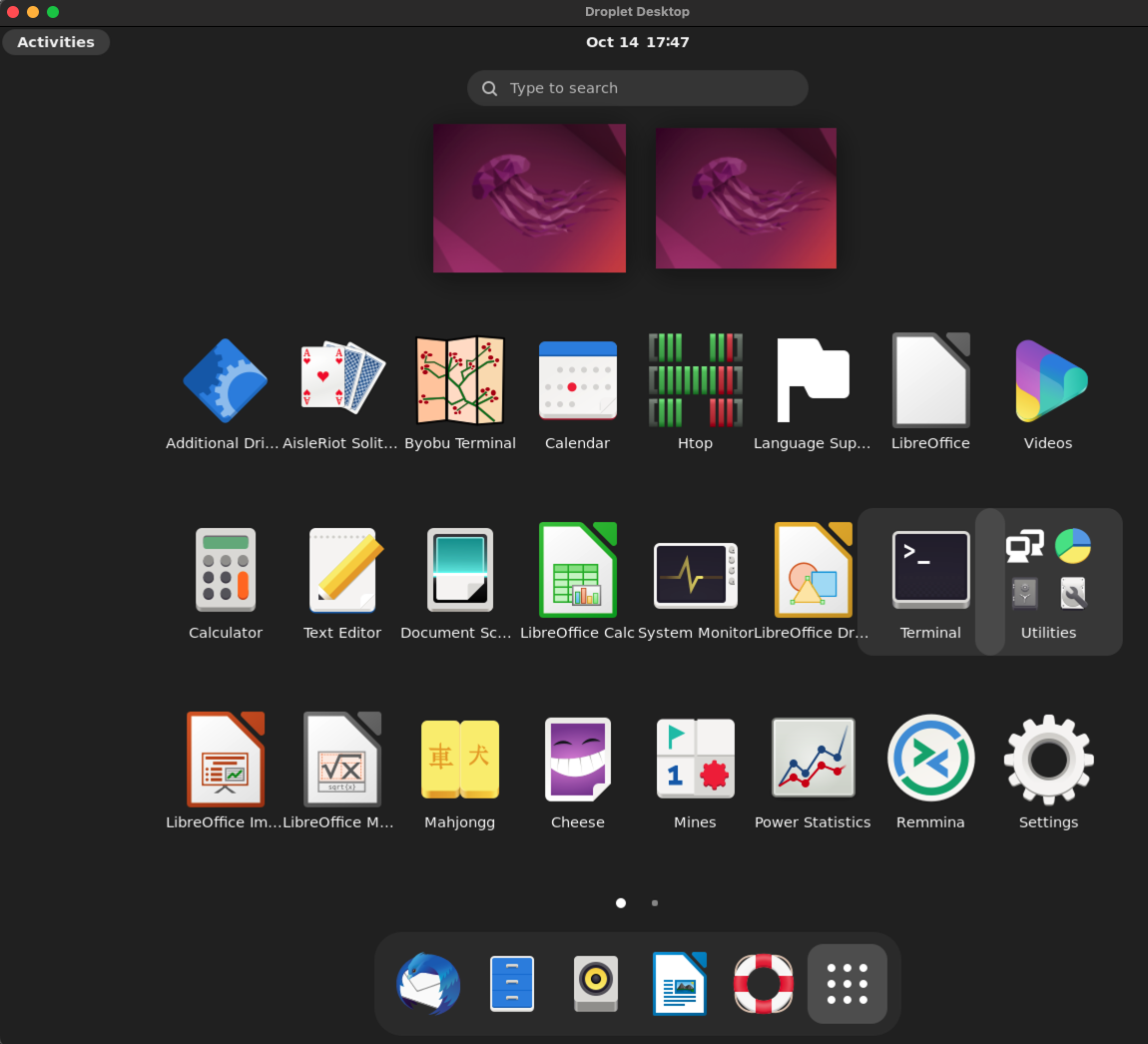
The Ubuntu desktop doesn't come with a web browser installed. To download Google Chrome to your new desktop, open a terminal in Droplet and use the wget tool to download Chrome:
wget https://dl.google.com/linux/direct/google-chrome-stable_current_amd64.debYou can find the Terminal app in the Activities menu on the desktop.
After downloading Chrome, install it using apt install:
sudo apt install ./google-chrome-stable_current_amd64.debOnce you install Chrome, you can open it from the Activities menu in the top left corner of the screen.
In this tutorial you will:
- Installed xrdp on Droplet.
- Installed the Ubuntu desktop GUI on the Droplet.
- Created a new user to access the GUI.
- Log in to the new Droplet desktop GUI using Microsoft Remote Desktop.
- (Optional) Install Google Chrome on the Droplet.
Once you have Ubuntu Remote Desktop set up, you can explore all the features it offers and proceed to install the programs you need, just like you would on any PC.