Introduction
If you are a front-end developer who has worked with a CSS preprocessor, you have probably encountered or used the nesting feature. It has been a popular feature and for me, it was one of the features that made me use a CSS preprocessor.
This year, native CSS nesting was supported in all major browsers: Chrome, Firefox, and Safari. It's a core CSS feature that makes writing CSS easier. In this article, I'll document what I've learned about CSS nesting so far and share my findings with you, along with use cases and examples.
There are no prerequisites to follow except your excitement and focus.
Nesting in CSS has been a long-awaited feature for many developers. We used to rely on CSS preprocessors like Sass or Less. Let me give you a quick overview:
Consider the following example. We have an icon that is in the .nav__item selector.
.nav__item {
.icon {
display: flex;
padding: 1rem;
}
}
The above code is valid Sass code. When compiled, it will look like this for the browser:
.nav__item .icon {
display: flex;
padding: 1rem;
}
With native CSS nesting, the same CSS will work as is. Here is a figure showing a comparison between native CSS nesting and the browser's DevTools.
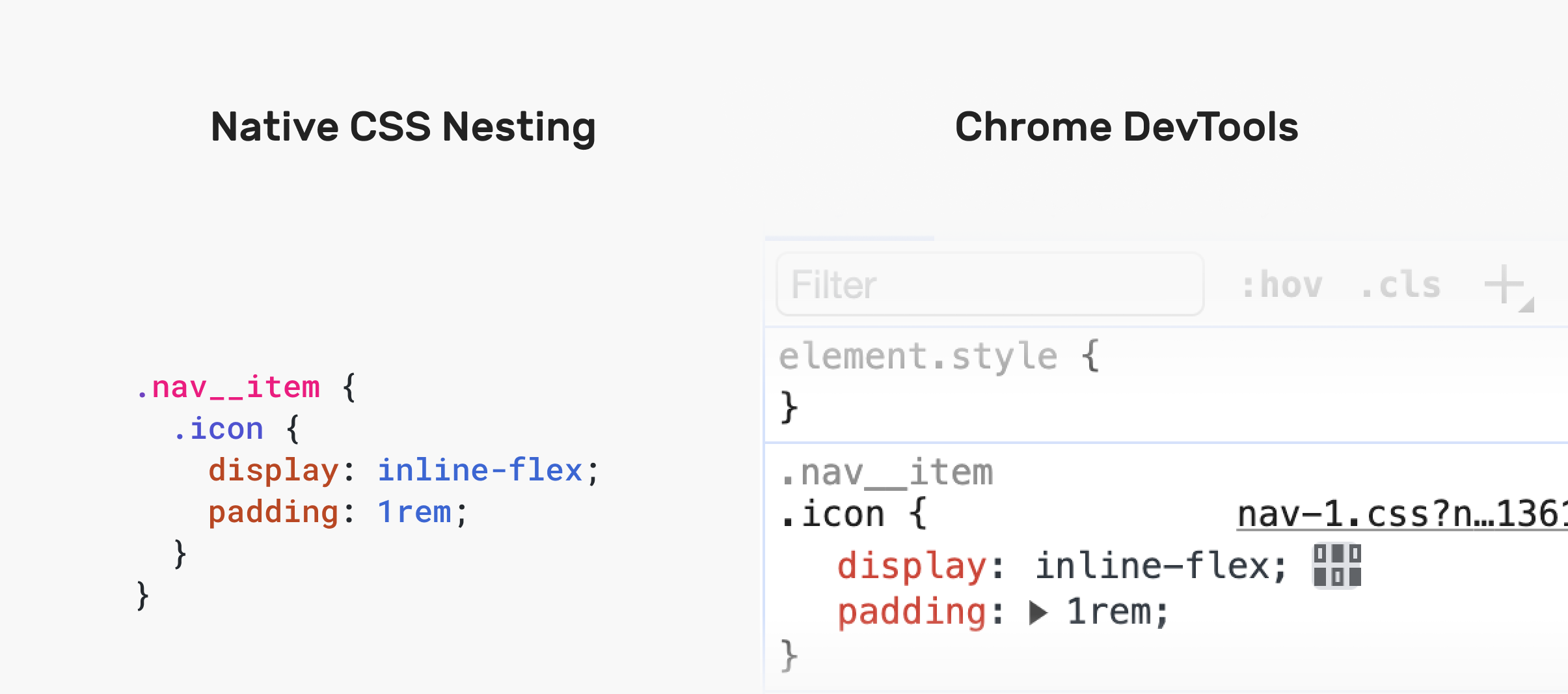
Notice how the browser displays the CSS similar (almost) to how it is displayed in CSS.
If this CSS was compiled into Sass, the browser would display it as follows:
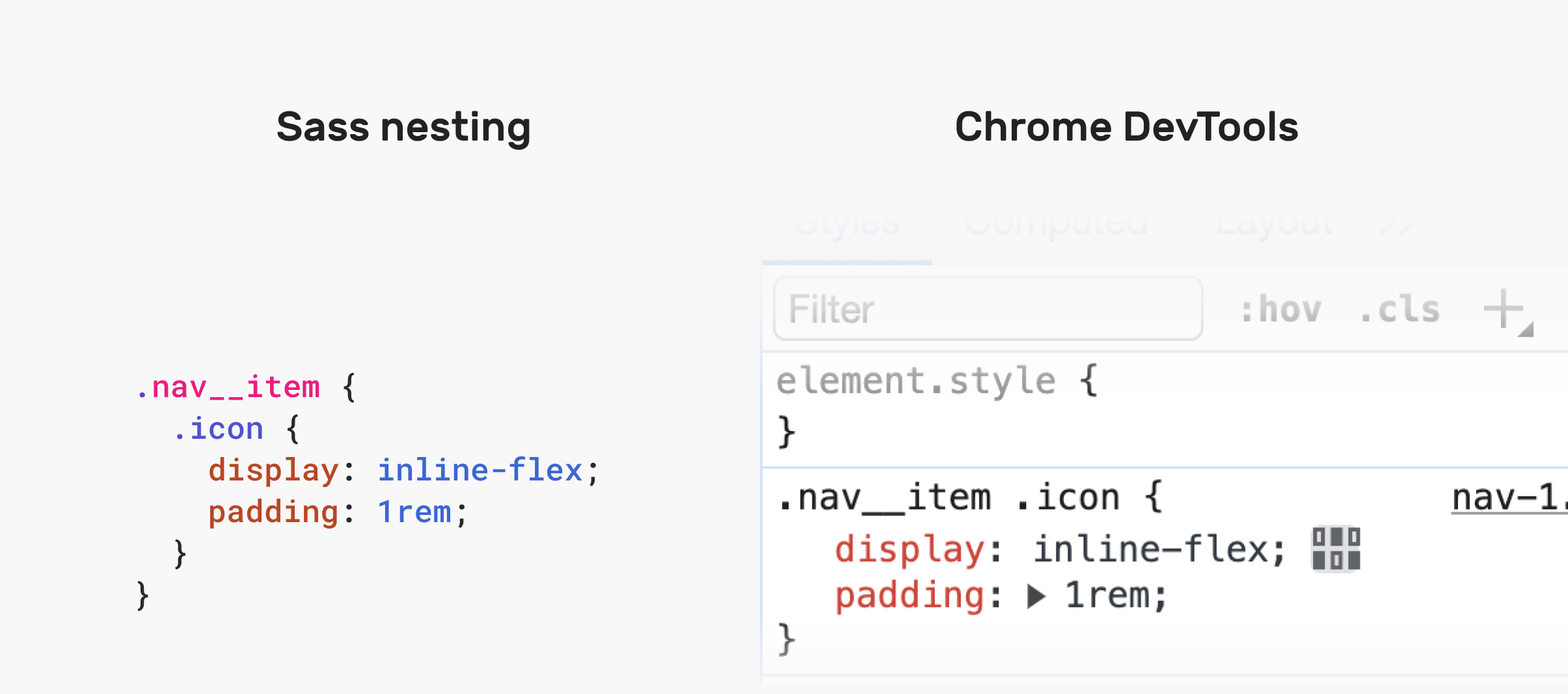
Benefits of CSS Nesting
In my opinion, there are valid reasons that make nested CSS useful:
- CSS is easier to read.
- Grouping style together
- Limiting specific styles
- Styling HTML elements that don't have classes or IDs.
CSS NESTING rules
To educate you on CSS nesting, I will try to provide visual examples of various CSS problems and how nesting can help solve them.
First of all, you need to learn about the ampersand symbol &. There are several situations where this symbol is essential.
Nesting an element without a class or ID
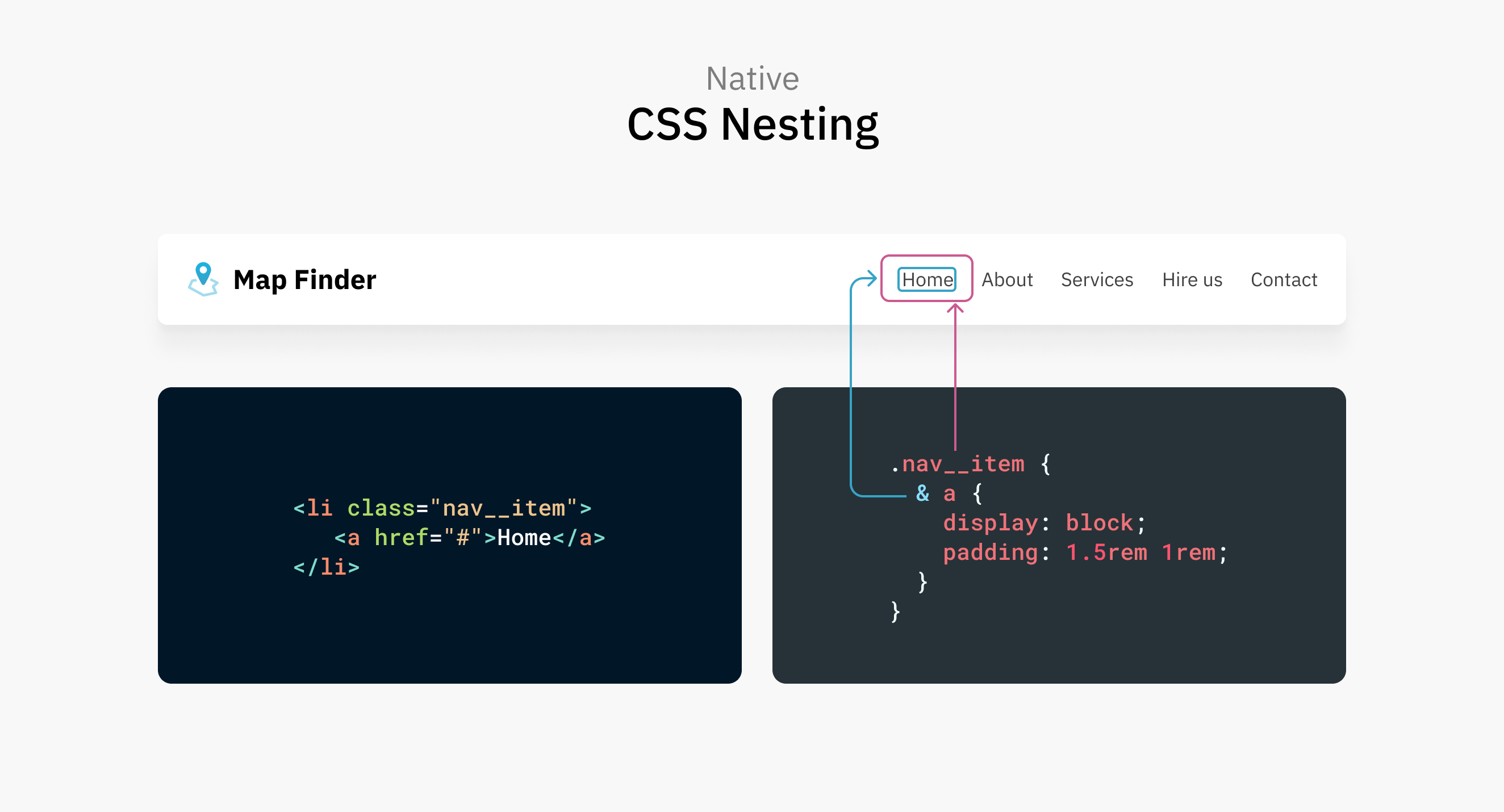
In this example, the element <a> Styled via .nav__item. The use of the <head> mark is optional for CSS to be valid.
.nav__item {
  & a {
    display: block;
    padding: 1.5rem 1rem;
  }
}

/* Same as: */
.nav__item a {
}
You can also opt out of the checkmark:
.nav__item {
a {
display: block;
padding: 1.5rem 1rem;
}
}
/* Same as: */
.nav__item a {
}
Note that this is a recent update and is called Relaxed CSS nesting. It works in the latest Chrome Canary and Safari Technology Preview. Check out this post on Relaxed Nesting by Adam Argyle.
Nesting an element with a class

Consider the same example as before, but suppose the element <a> It has an HTML class.
.nav__item {
.link {
display: block;
padding: 1.5rem 1rem;
}
}
/* Same as: */
.nav__item .link {
}
There is no need to use a symbol here. The class name will work just fine.
Nesting CSS combiners
One of the benefits of CSS Native Nesting is the use of combinators. Let's take a look at some examples.
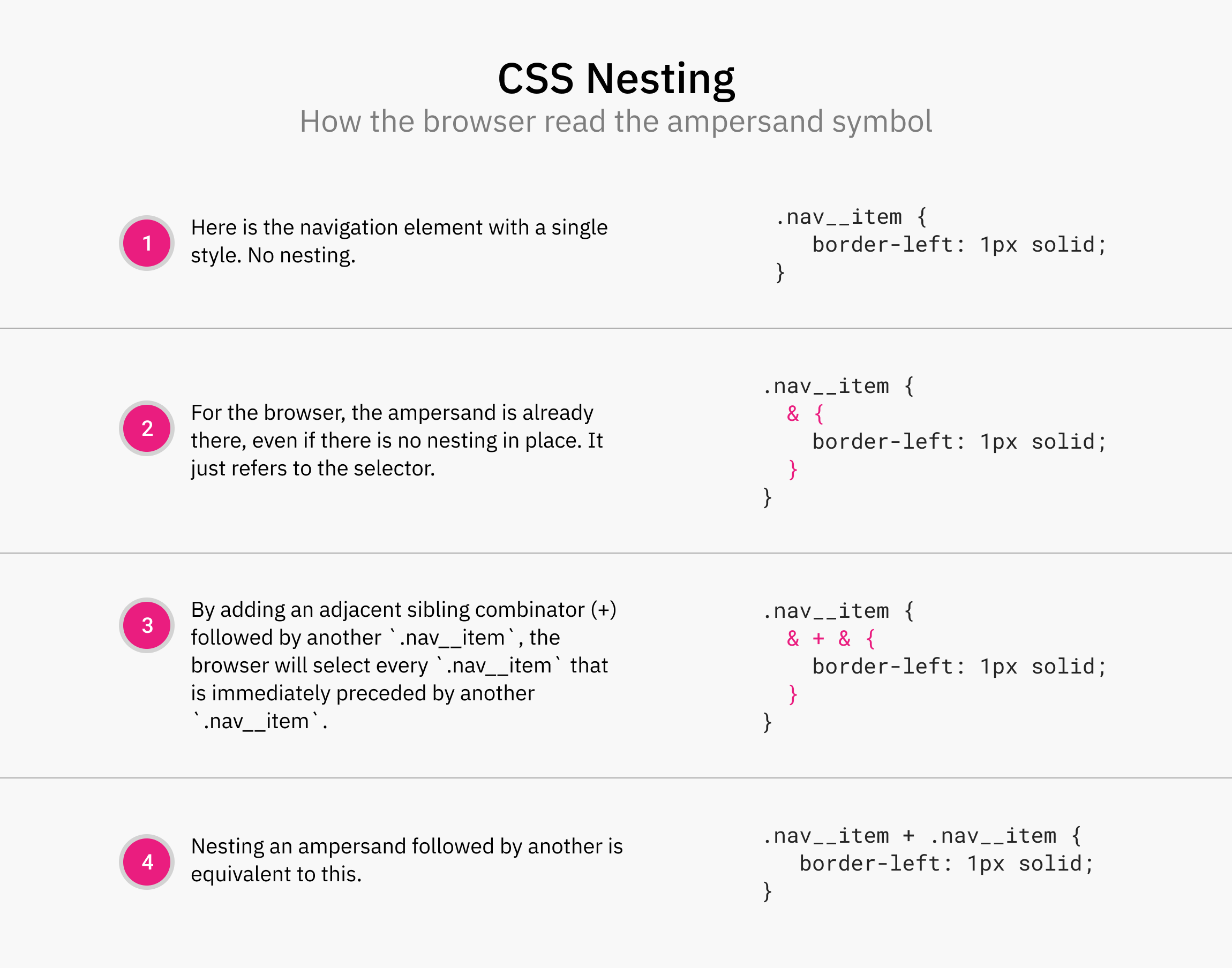
In the example below, I want to select any element with the class .nav__item that is preceded by another element with the same class. I used the adjacent sibling selector for this purpose.
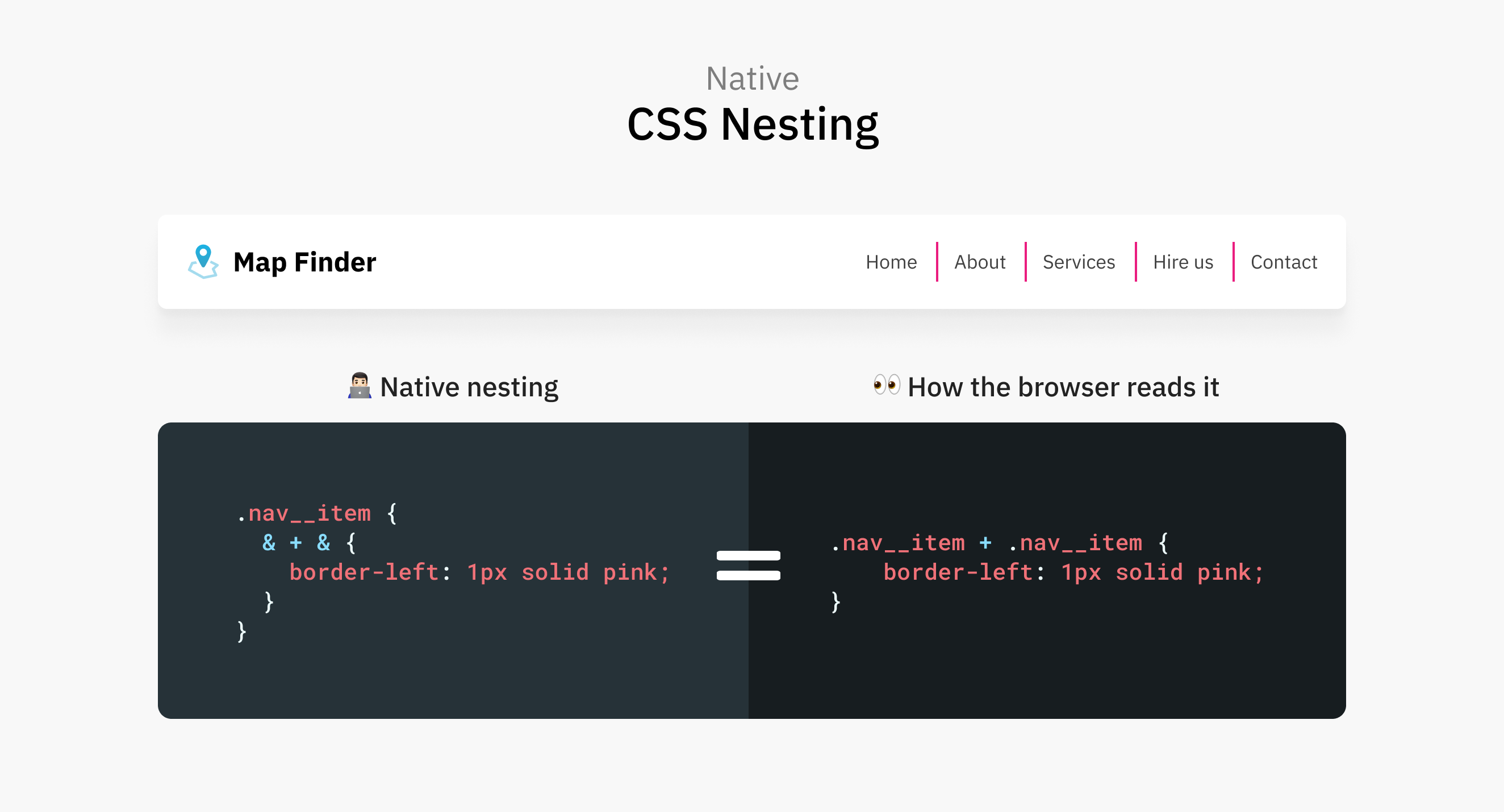
In native CSS nesting, we can use the ampersand symbol to mimic that. Notice that I repeated it twice.
.nav__item {
& + & {
border-left: 2px solid;
}
}
The magic happens in the second iteration of the ampersand. Here, the browser realizes that I want to use the adjacent sibling selector. Let me show you a figure that demonstrates this:
Another example of nesting is the child combinator. It can select the direct child of an element.
.nav__item {
> a {
padding: 1rem;
}
}
Ampersand symbol
.nav__item {
& a {
color: blue;
}
}
This was required in the original CSS nesting specification. In Safari TP 179+ and Chrome Canary 120, the ampersand is no longer required for nested elements.
As a result, the following works:
.nav__item {
a {
color: blue;
}
}
The only problem is that you have to revert to the previous version of the specification, which must include the markup and the markup.
Nesting with example: Active, Focus, Hover
:active, :focus, and :hover are CSS pseudo-classes that are activated by user action.
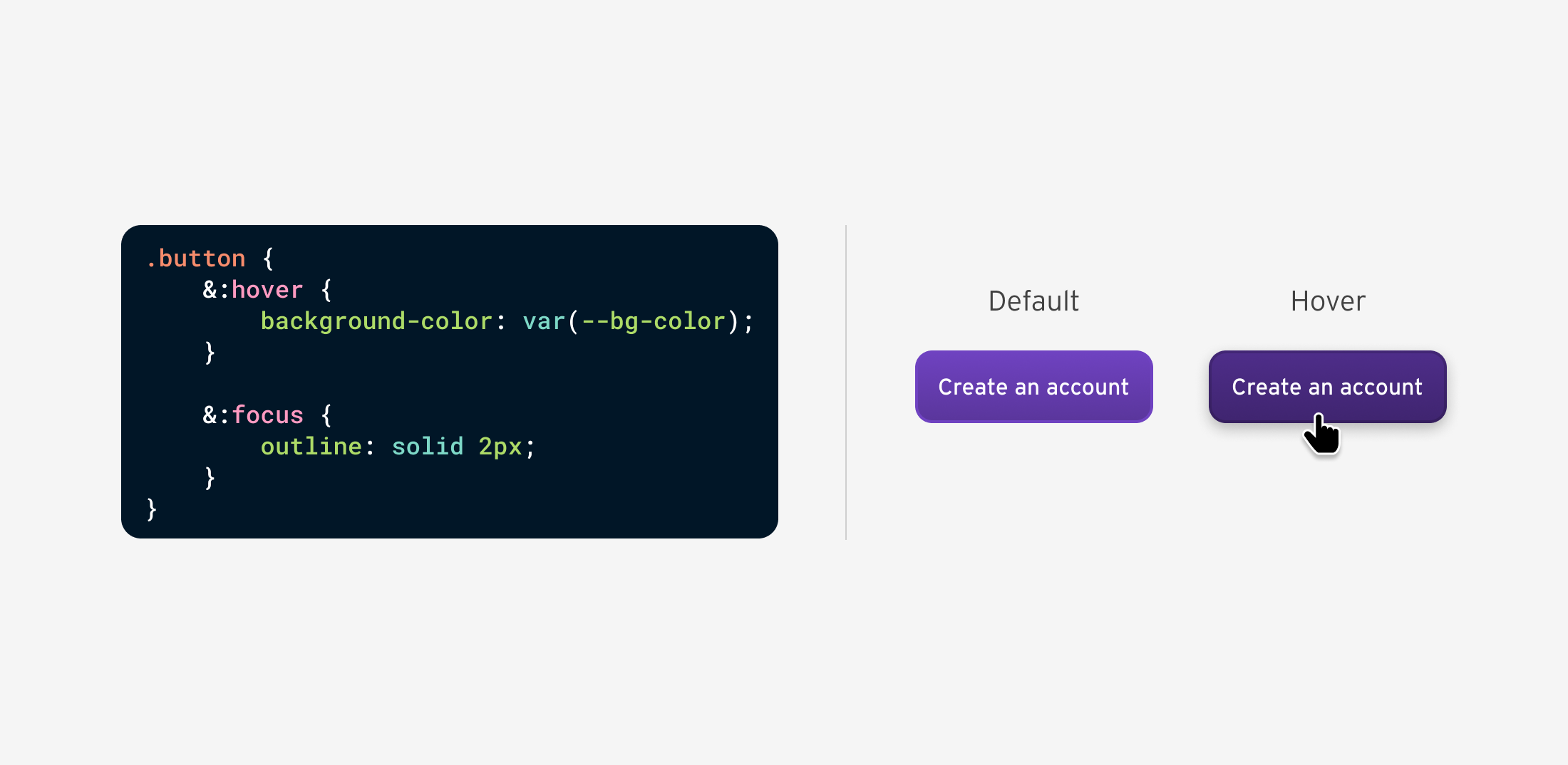
With CSS nesting, we can nest them all at once to avoid code duplication. Let's take :hover as an example:
button {
&:hover {
background-color: var(--bg-color);
}
&:focus {
outline: solid 2px;
}
}
The difference when using a preprocessor for nesting is that the browser renders it as follows:
button:hover {
background-color: var(--bg-color);
}
button:focus {
outline: solid 2px;
}
Let's take a look at how CSS nesting is displayed in Chrome, Safari, and Firefox.
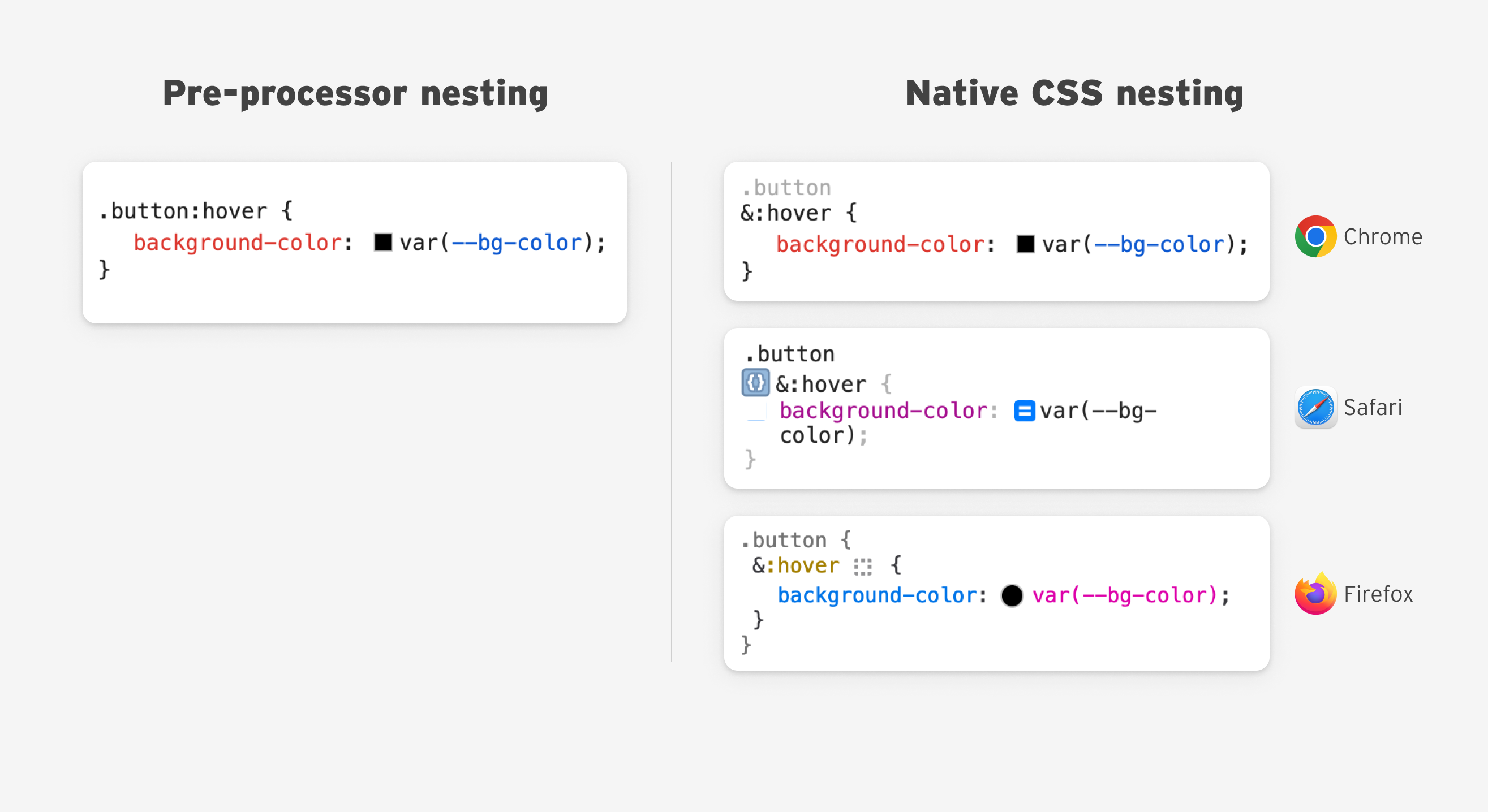
I have some thoughts about DevTools UX for CSS nesting and I will address them later in the article.
Nesting with Example: Posting Content
One of the first examples of testing nested CSS is styling the body content of a post. Imagine an article with headings, text, images, quotes, and more.
Headlines
We tend to style titles like the following:
.post-content h1,
.post-content h2,
.post-content h3,
.post-content h4 {
/* styles here */
}
With nested CSS, it's easier:
.post-content {
h1,
h2,
h3,
h4 {
color: var(--heading-color);
font-weight: var(--heading-font-bold);
margin-bottom: var(--size-2);
}
}
We can also do the same thing using the :is() selector.
.post-content {
:is(h1, h2, h3, h4) {
color: var(--heading-color);
font-weight: var(--heading-font-bold);
margin-bottom: var(--size-2);
}
}
Paragraph element
A common case is styling a link that is inside a paragraph. In such a case, CSS nesting works great.
.post-content {
& p {
color: var(--color-black);
& a {
font-weight: bold;
text-decoration: underline;
}
}
}
The link may also require a hover or focus effect.
.post-content {
& p {
color: var(--color-black);
& a {
font-weight: bold;
text-decoration: underline;
&:hover {
/* hover styles */
}
}
}
}
We can also nest media queries.
.post-content {
& p {
/* base styles */
@media (min-width: 400px) {
/* do something */
}
}
}
In some cases, a CMS may be an element <p> wrap it in another element, and for style purposes, it should only be used for direct elements <p> Style it.
.post-content {
/* Select the direct <p> elements */
> p {
/* base styles */
}
}
Block quote
In this example, the quote gets its own custom style and the element <p> Inside the quote, select to reset the bottom margin to zero.
.post-content {
& blockquote {
/* custom quote styling */
& p {
margin-bottom: 0;
}
}
}
Post shape
The post form contains an image and a
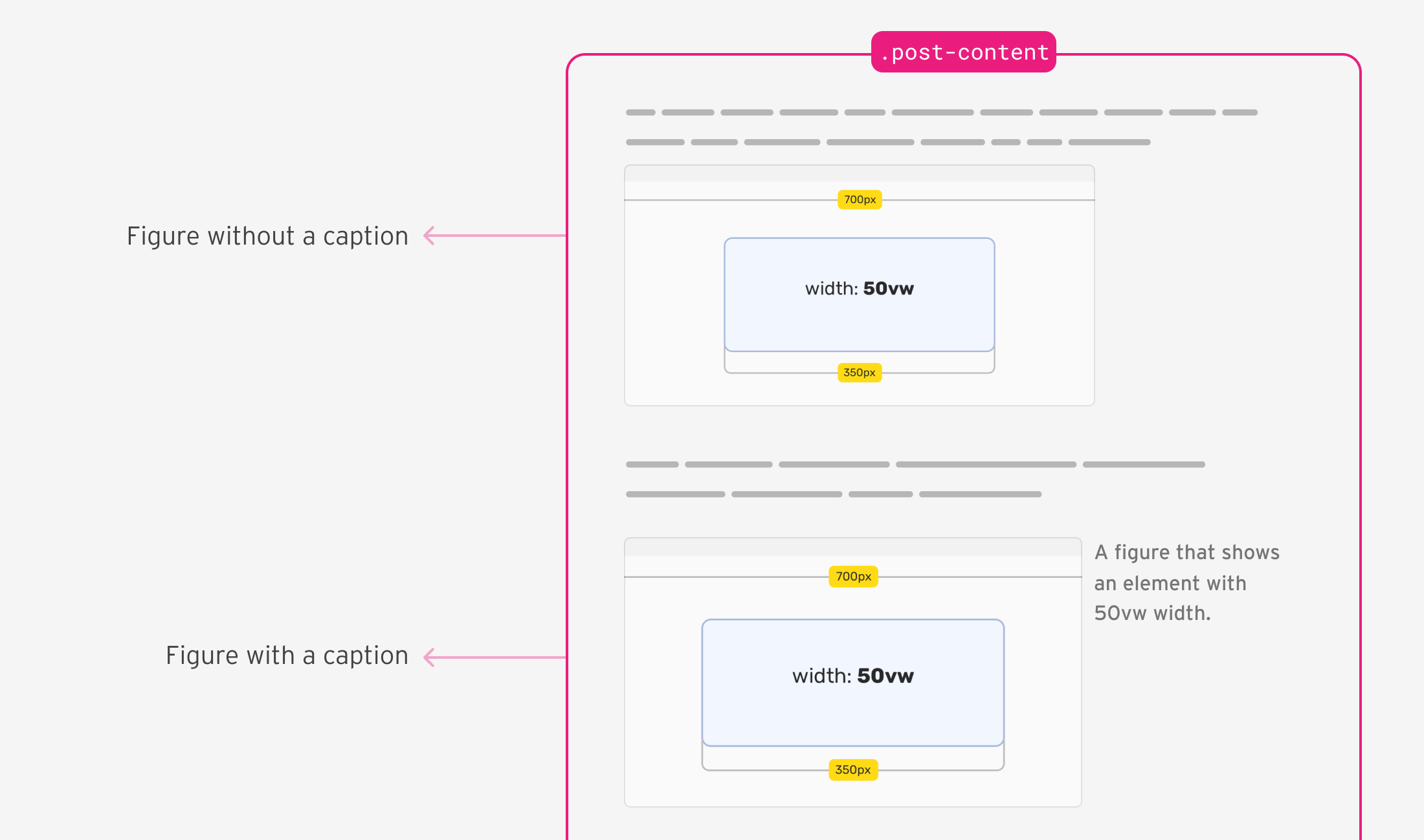
In my example, if
.post-content {
& figure {
& img {
/* the figure's image styles */
}
/* changes to the <figure> container, if it has a figcaption element */
&:has(figcaption) {
display: flex;
align-items: start;
}
& figcaption {
/* caption styling */
}
}
}
List of posts
I need to add a border to all list items except the last one. For this purpose I used the :not() selector.
.post-content {
li {
&:not(:last-child) {
border-bottom: 1px solid;
}
}
}
To use :not(), we need to add an ampersand before it.
Custom spacing for headings
The following distance should be <h3> and <h4> I will reduce if one of them is followed by a code snippet.
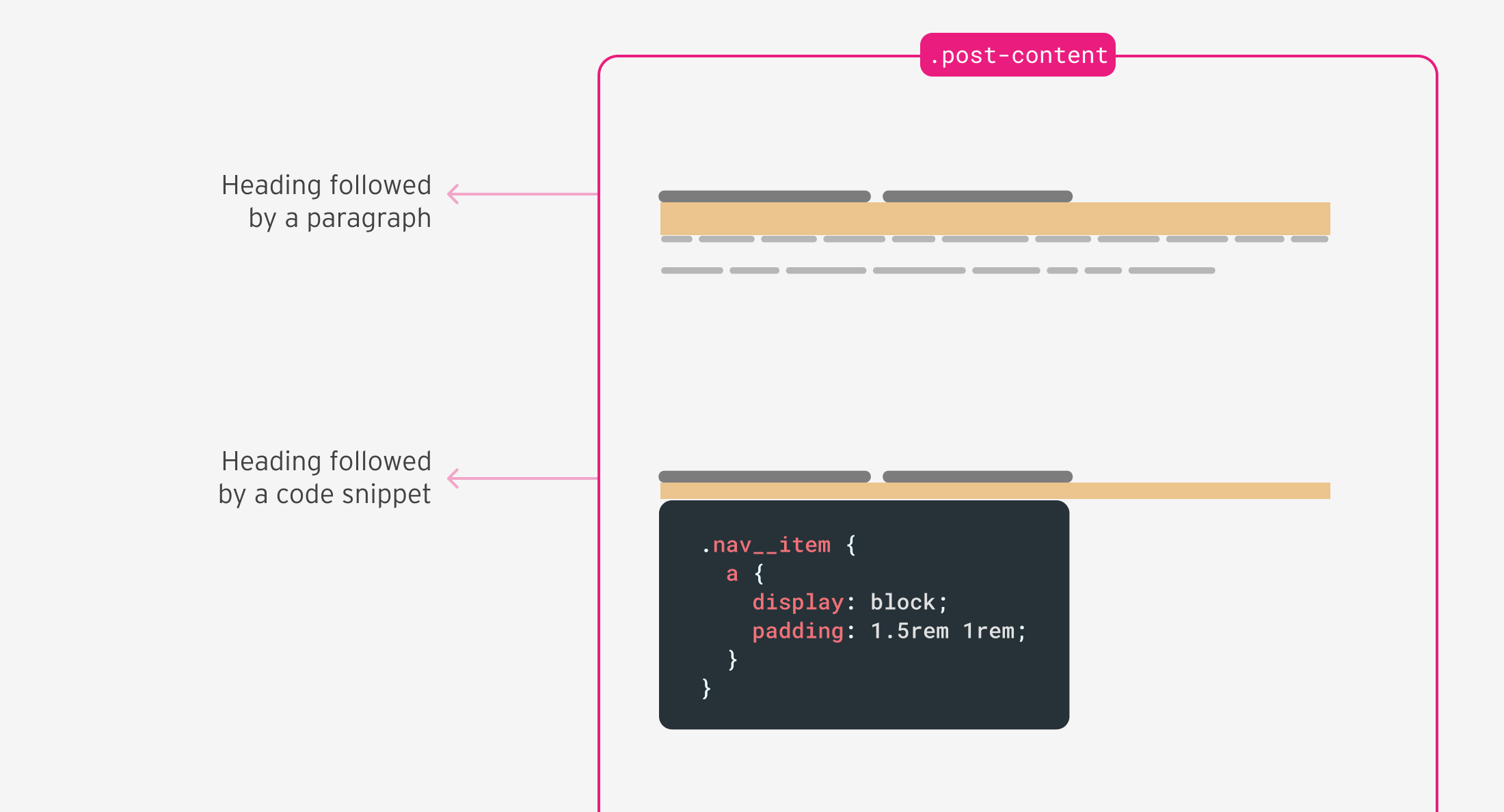
.post-content {
& h3 + [class*="language-"],
& h4 + [class*="language-"] {
margin-top: 0.5rem;
}
}
As you saw in this practical example, using CSS nesting is simple, especially if you come from a CSS preprocessor background.
Nesting with example: Card component
I will show a simple card component that uses CSS nesting to achieve the desired styles.
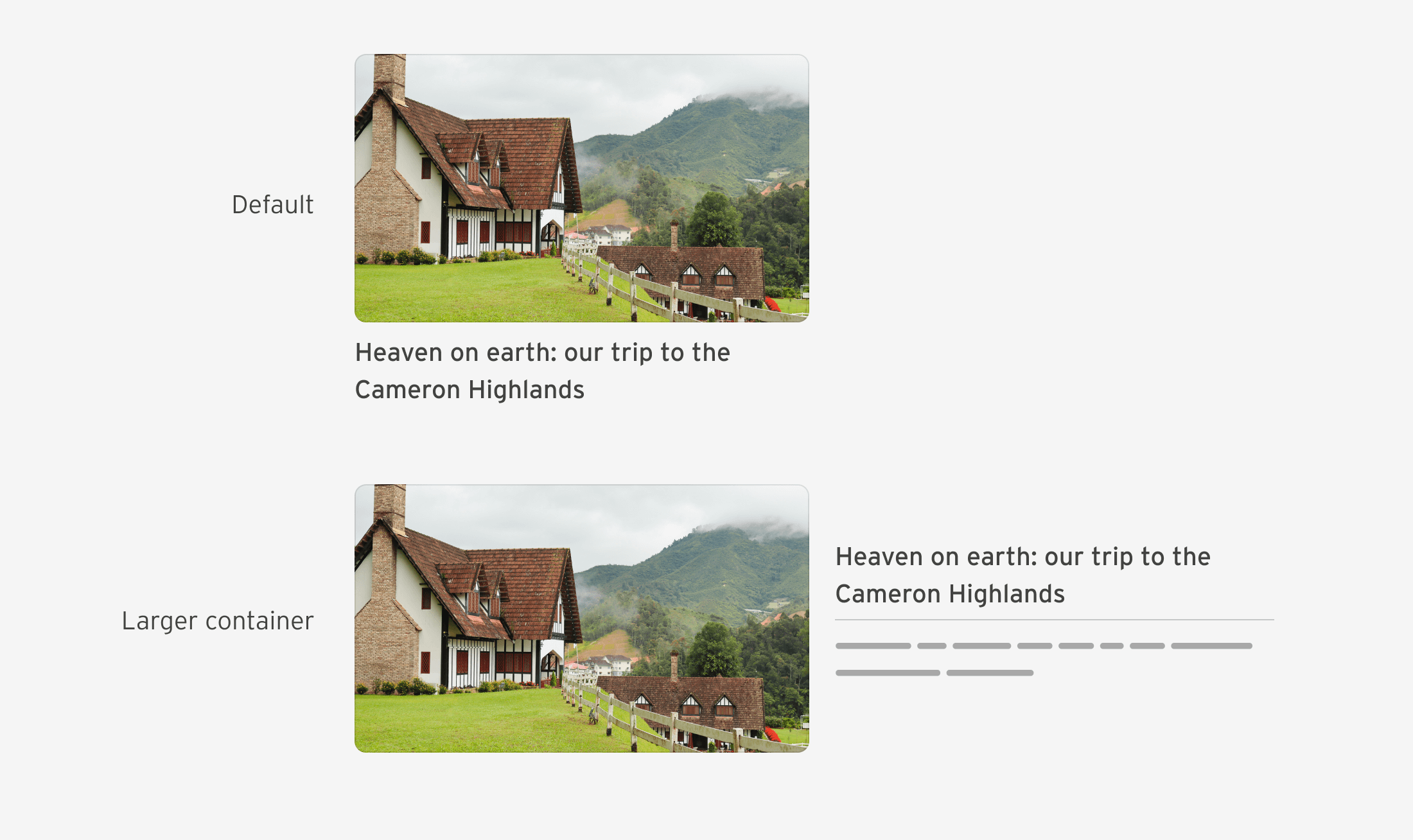
Assuming there is a .card element with default or base styles, I will demonstrate the use of nested CSS.
.card {
/* default card styles */
}
NESTING CONTAINER QUERIES
If the container width is greater than 400px, I want the card to transform into a flexible container.
.card {
/* default card styles */
/* if the container width is 400px or bigger */
@container card (min-width: 400px) {
display: flex;
}
}
Styling a paragraph element
I want to use the paragraph element via <h3> This way, I can apply margins and padding to the element. <p> I'll add. If it's not there, the UI won't have the extra spacing.
.card__content {
& h3 + p {
border-top: 1px solid #000;
padding-top: 0.5rem;
margin-top: 0.5rem;
}
}
When the container width is 400 pixels or more, the .card__content element should also be converted to a flexible container.
.card__content {
& h3 + p {
border-top: 1px solid #000;
padding-top: 0.5rem;
margin-top: 0.5rem;
}
@container card (min-width: 400px) {
display: flex;
flex-direction: column;
justify-content: center;
}
}
NESTING with example: Form input
A common case is styling the input placeholder. The problem is that each browser vendor has their own prefix (oh, it's 2023).

Since prefix styles require a colon, we must use the & symbol, otherwise the styles will break.
input {
--placeholder-color: #969696;
/* other styles */
&::-webkit-input-placeholder {
color: var(--placeholder-color);
}
&::-moz-placeholder {
color: var(--placeholder-color);
opacity: 1;
}
&:-moz-placeholder {
color: var(--placeholder-color);
}
}
You might be wondering what the difference is between using nested CSS or writing a prefix style directly without it.
/********** Option 1: native nesting **********/
input {
&::-webkit-input-placeholder {
color: var(--placeholder-color);
}
}
/********** Option 2: without nesting **********/
input::-webkit-input-placeholder {
color: var(--placeholder-color);
}
There is no difference between the two. Both have the same properties (0, 1, 1).
NESTING with Example: Style an Element Through Its Parent
We can use CSS nesting to change the styles of a child based on where it lives. For example, if a .button element lives in a .box parent, it should take up the full width.
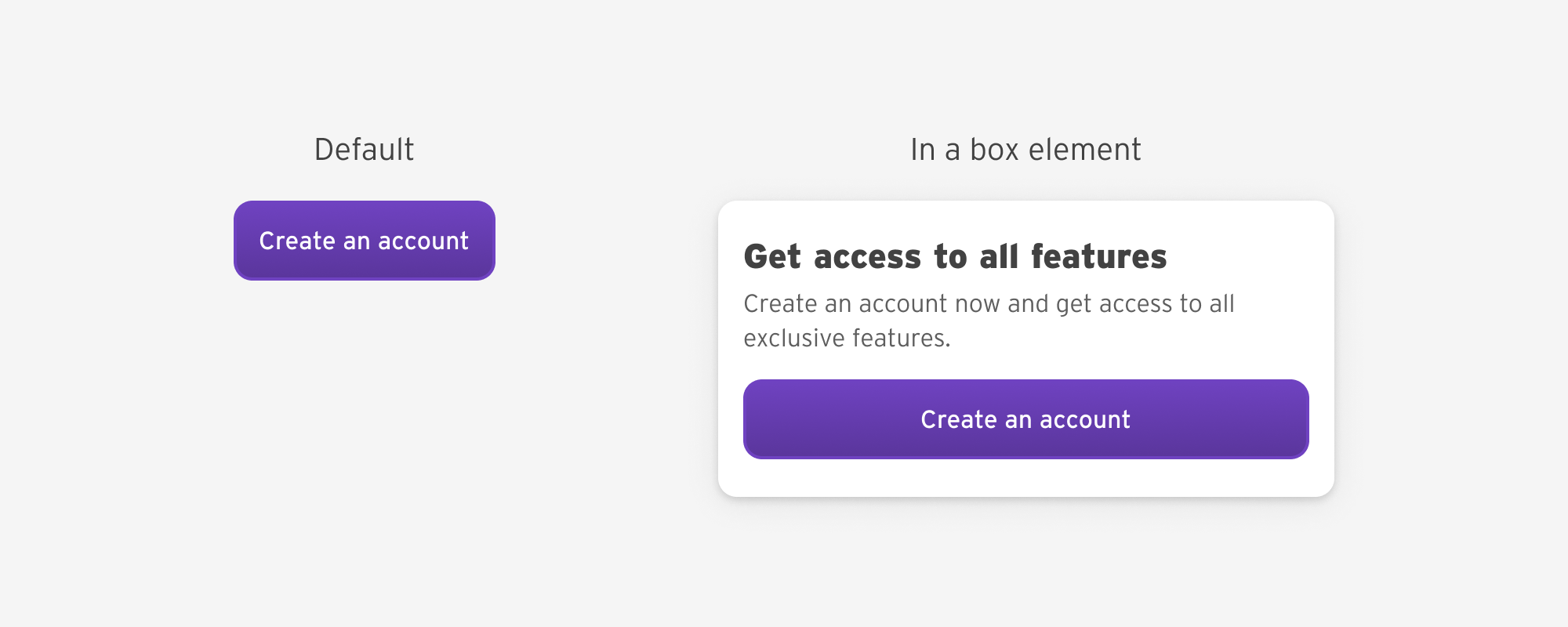
<div class="box">
<h2>Get access to all features</h2>
<p>Create an account now and get access to all exclusive features.</p>
<a href="/offer" class="button">Create an account</a>
</div>
.button {
.box & {
width: 100%;
}
}
/* equivalent to */
.box .button {
}Bugs I Saw While Exploring CSS Nesting
Using the unsigned global selector
Say we have a card and we want to select all the elements inside it. With CSS Native Nesting, this should work:
.card {
* {
/* styles here */
}
}
I noticed that this doesn't work in Chrome Stable, but it works fine in Chrome Canary 121, Safari 17.1, and Firefox 119.
The solution is to add the punctuation mark.
.card {
& * {
/* styles here */
}
}
Using unsigned data attributes
In this issue, selecting a data attribute without a tick mark does not provide the expected result.
.card {
[data-type="featured"] {
/* styles here */
}
}
I noticed that it doesn't work in Chrome Stable, but it works fine in Chrome Canary 121, Safari 17.1, and Firefox 119.
To fix it, we need to add a comma:
.card {
&[data-type="featured"] {
/* styles here */
}
}
Both of these bugs were fixed in the release for relaxed CSS nesting in Chrome Canary.
Identifying CSS nesting support
@supports can be used to check for support for CSS nesting. In our case, we want to check if the browser recognizes the ampersand.
@supports selector(&) {
.post-content {
& h2 {
/* styles here. */
}
}
}
You can explore other options for identifying support in this Codepen by Bramus.
For me, today I will use the PostCSS nesting plugin, which compiles nested CSS to regular CSS. I will remove the plugin when it is safe to use.
DevTools UX for CSS Nesting
I'm not a big fan of the current UX for CSS nesting in the browser DevTools.
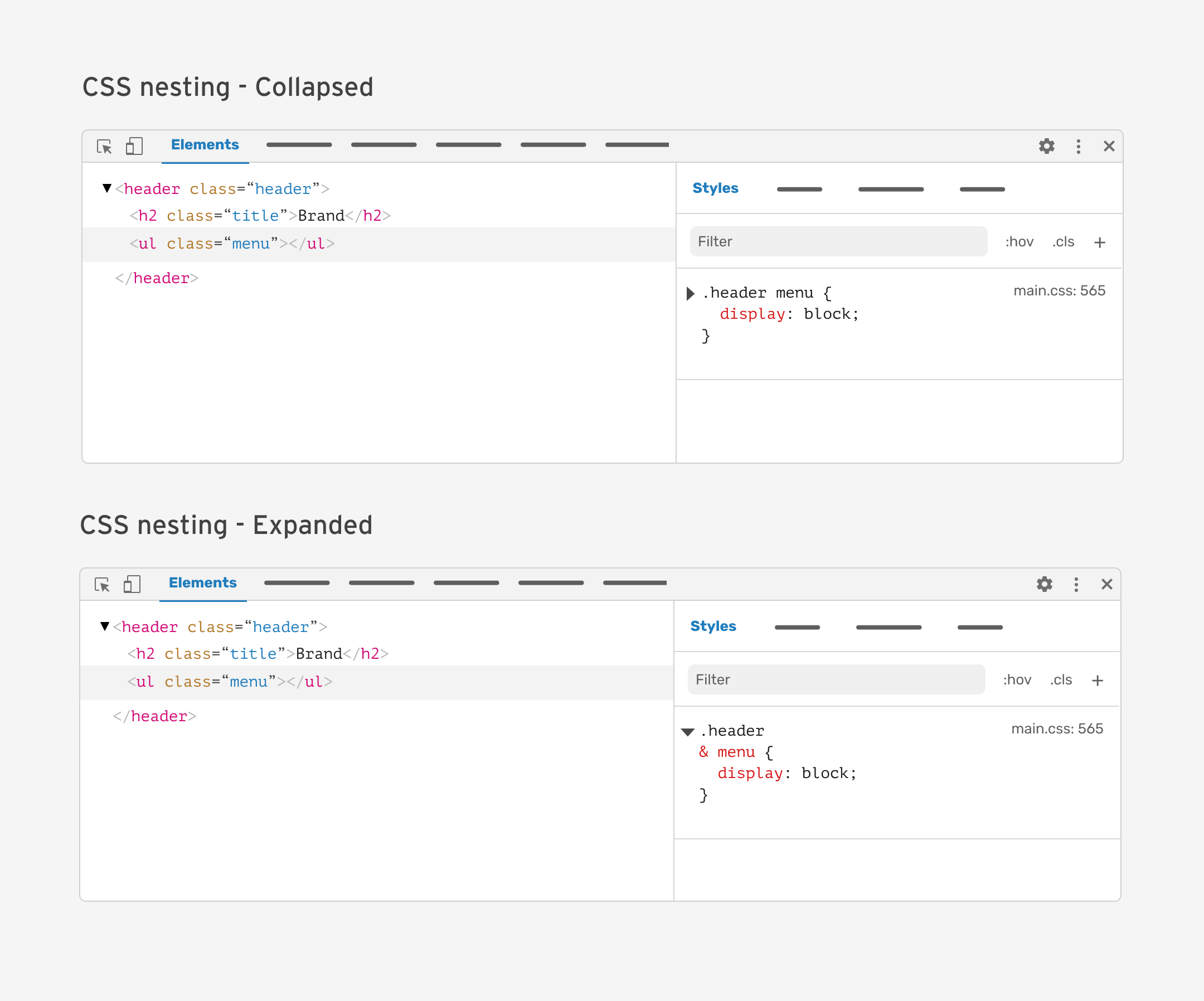
I worked on a separate article where I explored a few suggestions for how I would like CSS nesting to be in DevTools.
Result
CSS Nesting is a major feature that improves the way CSS is written. Currently, it is possible to use Nesting, but you need to be careful with your audience, as support is still new.