Introduction
Okteto is a development platform used to simplify the process of developing Kubernetes applications. It allows developers to build and test their applications directly on Kubernetes clusters without setting up complex local development environments. Okteto enables live updates of applications running on Kubernetes clusters, allowing developers to see changes to their code in real time without having to rebuild or redeploy their applications.
In this tutorial, you will create a Python application and deploy it to Kubernetes using Okteto.
Prerequisites
- A Kubernetes 1.28 cluster
- kubectl is installed and configured to communicate with your cluster.
- A Docker Hub account
- Docker is running on your local machine.
- A license is required to use Okteto. To receive a license key, sign up for a 30-day free trial of Okteto.
- The Helm package manager is installed on your local machine.
- A fully registered domain name that points to the Load Balancer used by Nginx Ingress. You need to create an A record with the name * and the Load Balancer IP.
Step 1 – Create a Python program
First, you need to make sure that Python is installed on your Ubuntu system. You can check this by opening a terminal and typing:
python3 --versionIf Python is installed, this command will display the Python version. If not, you can install it using the following command:
sudo apt install python3 python3-venv python3-pip -yThen create a directory to store the application code and other settings.
mkdir my-appNext, go to your application directory and create a virtual environment to isolate your project's dependencies.
cd my-app
python3 -m venv python-env
Then activate the virtual environment using the following command.
source python-env/bin/activateNext, create a new Python file for your application. For example, create a simple app.py file:
nano app.pyAdd the following code:
from flask import Flask
app = Flask(__name__)
@app.route('/')
def hello():
return "Hello, This is a simple Python App!"
if __name__ == '__main__':
app.run(debug=True, host='0.0.0.0')
Then install the Flask web framework.
pip install flaskNow run your Python program using the following command.
python3 app.py
You will see the following output.
Output * Running on all addresses (0.0.0.0)
* Running on http://127.0.0.1:5000
* Running on http://172.20.10.2:5000
Press CTRL+C to quit
* Restarting with stat
* Debugger is active!
* Debugger PIN: 311-959-468
Now that the Flask application is running locally, you can verify it using curl:
curl -X GET -H "Content-Type: application/json" http://localhost:5000You should get the following response from the Flask application.
OutputHello, This is a simple Python App!Once you are finished working on your project, you can deactivate the virtual environment by running the following:
deactivateAt this point, you have created a Python program and tested it locally.
Step 2 – Dockerize the Python application
Dockerizing a Python application involves creating a Docker image that contains the Python environment and dependencies needed to run the application.
First, create a file called Dockerfile in the root directory of your Python application.
nano DockerfileAdd the following content:
# Use an official Python runtime as a parent image
FROM python:3.8-slim
# Set the working directory in the container
WORKDIR /app
# Copy the current directory contents into the container at /app
ADD . /app
# Install any needed dependencies specified in requirements.txt
RUN pip install flask
# Make port 5000 available to the world outside this container
EXPOSE 5000
# Define environment variable
ENV NAME DockerizedPythonApp
# Run app.py when the container launches
CMD ["python3", "./app.py"]
In this Dockerfile:
- FROM python:3.8-slim: Specifies the base image to use. You are using an official Python image with Python 3.8 installed.
- WORKDIR /app: Sets the working directory inside the container to /app.
- Add . /app: Copies the contents of the current directory to the container's /app folder.
- RUN pip install flask: Installs the Flask framework.
- EXPOSE 5000: Exposes port 5000 to allow incoming connections.
- CMD [“python3″, “app.py”]: Specifies a command to run when the container starts. In this case, it runs the app.py application.
Now run the following command to build the image based on the instructions in your Dockerfile.
docker build -t my-app .After building the Docker image, you can run your application in a container using the built image:
docker run -dit -p 5000:5000 my-app:latestThis command runs a container from the my-app image and maps the container port to host port 5000.
You can verify your running application container using the docker ps command.
docker psThe output will be:
Output
CONTAINER ID IMAGE COMMAND CREATED STATUS PORTS NAMES
761c54c77411 my-app:latest "python3 ./app.py" 3 seconds ago Up 3 seconds 0.0.0.0:5000->5000/tcp, :::5000->5000/tcp pedantic_wescoff
Open a web browser or use curl to access the application using the URL http://your-server-ip:5000. You should see the message Hello, This is a simple Python App! indicating that your Python application is running inside a Docker container.
You have now successfully Dockerized your Python application.
Step 3 – Push the Python Docker image to the DockerHub registry
First, you need to have a DockerHub account. If you don't have one, you can create one on the DockerHub website.
To log in to Docker Hub, use the docker login command. You will be prompted to enter your Docker Hub username and password.
docker loginThe output of this command will be as follows:
OutputLogin with your Docker ID to push and pull images from Docker Hub. If you don't have a Docker ID, head over to https://hub.docker.com to create one.
Username: [email protected]
Password:
WARNING! Your password will be stored unencrypted in /root/.docker/config.json.
Configure a credential helper to remove this warning. See
https://docs.docker.com/engine/reference/commandline/login/#credentials-store
Login Succeeded
Before pushing the image to Docker Hub, you also need to tag it with your Docker Hub username and the name of the desired repository.
docker tag my-app yourusername/my-app:latestYou can now push your Docker image to Docker Hub using the docker push command.
docker push yourusername/my-app:latestAfter you push the image, you can verify that it is available on Docker Hub by searching for it using the Docker Hub CLI.
docker search yourusername/my-appYour Python application Docker image is now available on Docker Hub and can be pulled by others or deployed to different environments.
Step 4 – Create Kubernetes manifests to deploy the Python application
Now you need to create a Kubernetes manifest file using Okteto to define the deployment, service, and input resources for an application called my-app.
nano k8s.yamlAdd the following settings to the file.
apiVersion: apps/v1
kind: Deployment
metadata:
name: my-app
spec:
selector:
matchLabels:
app: my-app
template:
metadata:
labels:
app: my-app
spec:
containers:
- image: yourusername/my-app
name: my-app
---
apiVersion: v1
kind: Service
metadata:
name: my-app
spec:
type: ClusterIP
ports:
- name: "my-app"
port: 5000
selector:
app: my-app
---
apiVersion: networking.k8s.io/v1
kind: Ingress
metadata:
name: my-app
annotations:
dev.okteto.com/generate-host: my-app
spec:
rules:
- http:
paths:
- backend:
service:
name: my-app
port:
number: 5000
path: /
pathType: ImplementationSpecific
The above file implements an application called my-app using Okteto, exposes it internally through a ClusterIP service on port 5000, and sets up an Ingress resource to direct HTTP traffic to the application. Okteto-specific annotations are used to enable some features provided by Okteto, such as automatic hostname generation.
Step 5 – Install Okteto using Helm
First, you need to add the Okteto Helm repository to your Helm client.
helm repo add okteto https://charts.okteto.comOnce you have added the Okteto Helm repository, you need to update your Helm repositories to ensure you have the latest information about the available charts:
helm repo updateThen create a config.yaml for Okteto.
nano config.yamlAdd the Okteto license key, subdomain, and other settings as shown below:
license: FT7YCAYBAEDUY2LDMVXHGZIB76BAAAIDAECEIYLUMEAQUAABAFJAD74EAAAQCUYB76CAAAAABL7YGBIBAL7YMAAAAD77N74CAH7YU6ZCOZSXE43JN5XCEORSFQRGK3LBNFWCEORCNBUXIZLTNBVGK5DIOZQUA3DJNZ2XQYTVPIXGG33NEIWCEY3PNVYGC3TZEI5CE3DJNZ2XQYTVPIRCYITTMVQXI4ZCHIZTALBCORUWK4RCHIRHGY3BNRSSELBCORZGSYLMEI5HI4TVMUWCEZLOMQRDUIRSGAZDILJQGQWTCMCUGA2TUMJUHI2DQWRCPUATCAWDZA5DGNLGYAT25X6NRCJVJNWBQMG2LD7DWY36ZYXOZ7X5B37HZOBHXYV7OSCZ5HKH4G4EOIHJ7XOACMICRENEMSP5CHENLAE2XHXY44AMKKMHR5LB6IEWXNF56KJE6RGDVSGM2JW63F7DNP5ZS6REKK55RYIBMAA=
subdomain: okteto.example.com
buildkit:
persistence:
enabled: true
registry:
storage:
filesystem:
persistence:
enabled: true
Now, install the latest version of Okteto using the config.yaml configuration file.
helm install okteto okteto/okteto -f config.yaml --namespace okteto --create-namespaceAfter installing Okteto, you will get the following output.
OutputNAME: okteto
LAST DEPLOYED: Tue Mar 12 20:27:21 2024
NAMESPACE: okteto
STATUS: deployed
REVISION: 1
TEST SUITE: None
NOTES:
Congratulations! Okteto is successfully installed!
Follow these steps to complete your domain configuration:
1. Create a wildcard A record "*.okteto.example.com", pointing it to the Okteto NGINX ingress controller External-IP:
$ kubectl get service -l=app.kubernetes.io/name=ingress-nginx,app.kubernetes.io/component=controller --namespace=okteto
2. Access your Okteto instance at `https://okteto.okteto.example.com/login#token=88f8cc11`
Wait a while and then assign the IP address that DigitalOcean dynamically assigned to the NGINX Ingress that you just installed and configured as part of Okteto:
kubectl get service -l=app.kubernetes.io/name=ingress-nginx,app.kubernetes.io/component=controller --namespace=oktetoYou will see the following output.
OutputNAME TYPE CLUSTER-IP EXTERNAL-IP PORT(S) AGE
okteto-ingress-nginx-controller LoadBalancer 10.101.31.239 45.76.14.191 80:31150/TCP,443:31793/TCP 3m21s
You need to take the EXTERNAL-IP address and add it to your DNS for the domain you have chosen. This is done by creating an A record named *.
Now, open your web browser and access your Okteto instance at https://okteto.okteto.example.com/login#token=88f8cc11.

Step 6 – Install and Configure Okteto CLI
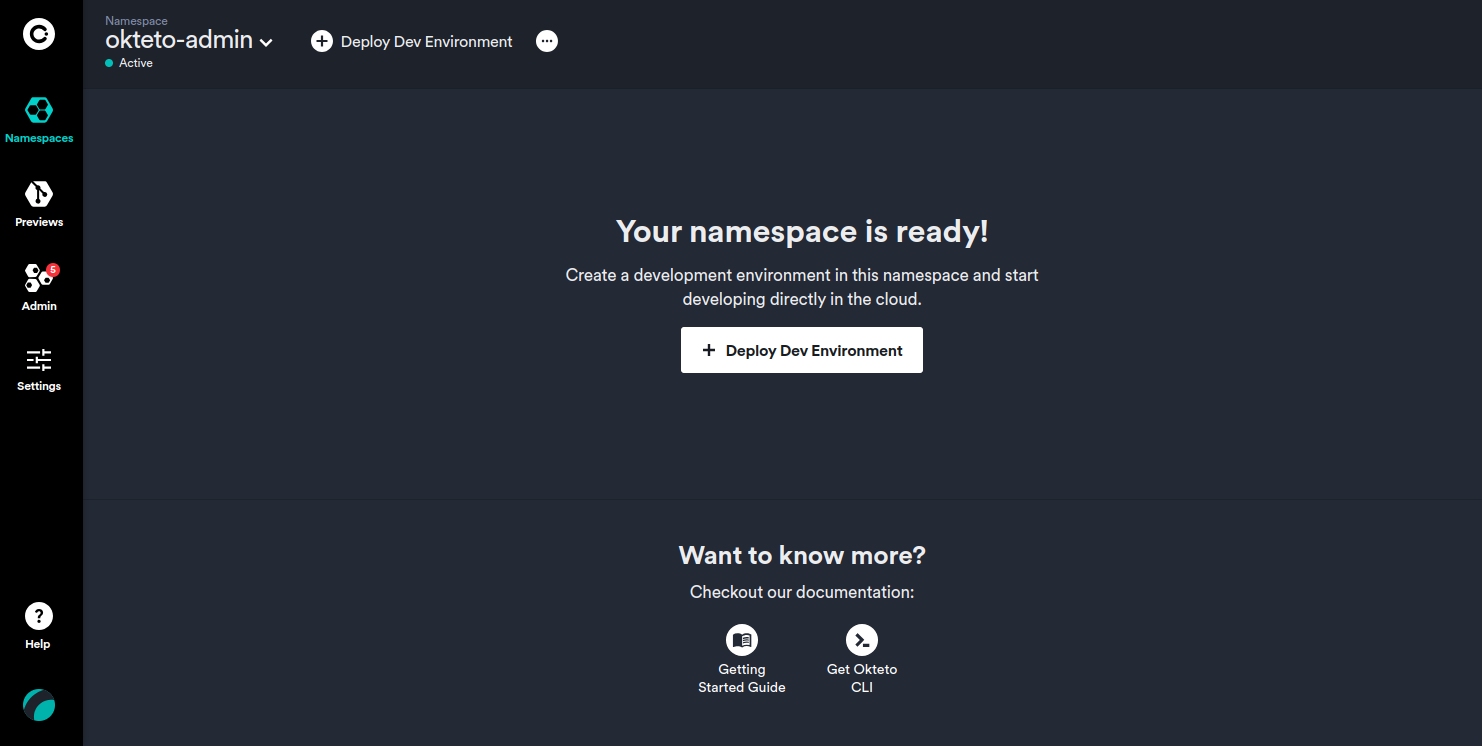
Okteto CLI is an open source command line tool that allows you to develop your applications directly on Kubernetes.
You can install Okteto CLI on Linux and macOS using curl. Open your terminal and run the following command:
sudo curl https://get.okteto.com -sSfL | shOnce the installation is complete, you can verify that Okteto CLI is installed correctly by running the following command:
okteto versionThis command displays the version of Okteto CLI installed on your system.
Outputokteto version 2.25.2Next, you need to use your personal access codes to authenticate with the Okteto CLI.
/* okteto context use https://okteto.okteto.example.com --token 88f8cc11 --insecure-skip-tls-verifycode... */Its output will be:
Output ✓ Using okteto-admin @ okteto.okteto.example.comThen run the following command to make sure your Okteto CLI is configured.
okteto context listThis gives the following output:
OutputName Namespace Builder Registry
https://okteto.okteto.example.com * okteto-admin tcp://buildkit.okteto.example.com:443 registry.okteto.example.com
vke-4b7aaaa6-78fa-4a19-9fb3-cf7b8c1ec678 default docker -
Step 7 – Create your Okteto Manifest
To start developing a Python application, you need to create an Okteto manifest file and define the configuration for your development environment.
Let's create an okteto.yaml file for a simple Python application.
nano okteto.yamlAdd the following configuration.
deploy:
- kubectl apply -f k8s.yaml
dev:
my-app:
command: bash
environment:
- FLASK_ENV=development
sync:
- .:/app
reverse:
- 9000:9000
volumes:
- /root/.cache/pip
In the above file:
- deploy: This section defines the deployment configuration. When you run okteto up or okteto deploy, Okteto runs the kubectl application -f k8s.yaml command to deploy the Kubernetes resources defined in the k8s.yaml file. This allows you to specify your deployment configuration separately from your development environment configuration.
- command: bash: Specifies a command to be executed when the development environment starts.
- Environment: Specifies the environment variables to set in the development environment. In this case, it sets FLASK_ENV to development.
- SYNC: Specifies folders to synchronize between your local machine and the development environment. Synchronizes the current directory (.) with /app inside the development environment.
- Reverse: Specifies port forwarding rules to expose ports from the development environment to your local machine. In this case, it forwards port 9000 from the development environment to port 9000 on your local machine.
- volumes: Specifies additional volumes to install in the development environment. In this case, it installs the /root/.cache/pip directory, which may be used to cache pip packages, in the development environment.
Now deploy your Python application to the Kubernetes cluster using the following command.
okteto deployAfter successful deployment, you will see the following output.
Outputdeployment.apps/my-app created
service/my-app created
ingress.networking.k8s.io/my-app created
i There are no available endpoints for 'Okteto'.
Follow this link to know more about how to create public endpoints for your application:
https://www.okteto.com/docs/cloud/ssl/
✓ Development environment 'Okteto' successfully deployed
i Run 'okteto up' to activate your development container
Then, go back to your web browser and refresh the Okteto dashboard. You will see your deployed application:
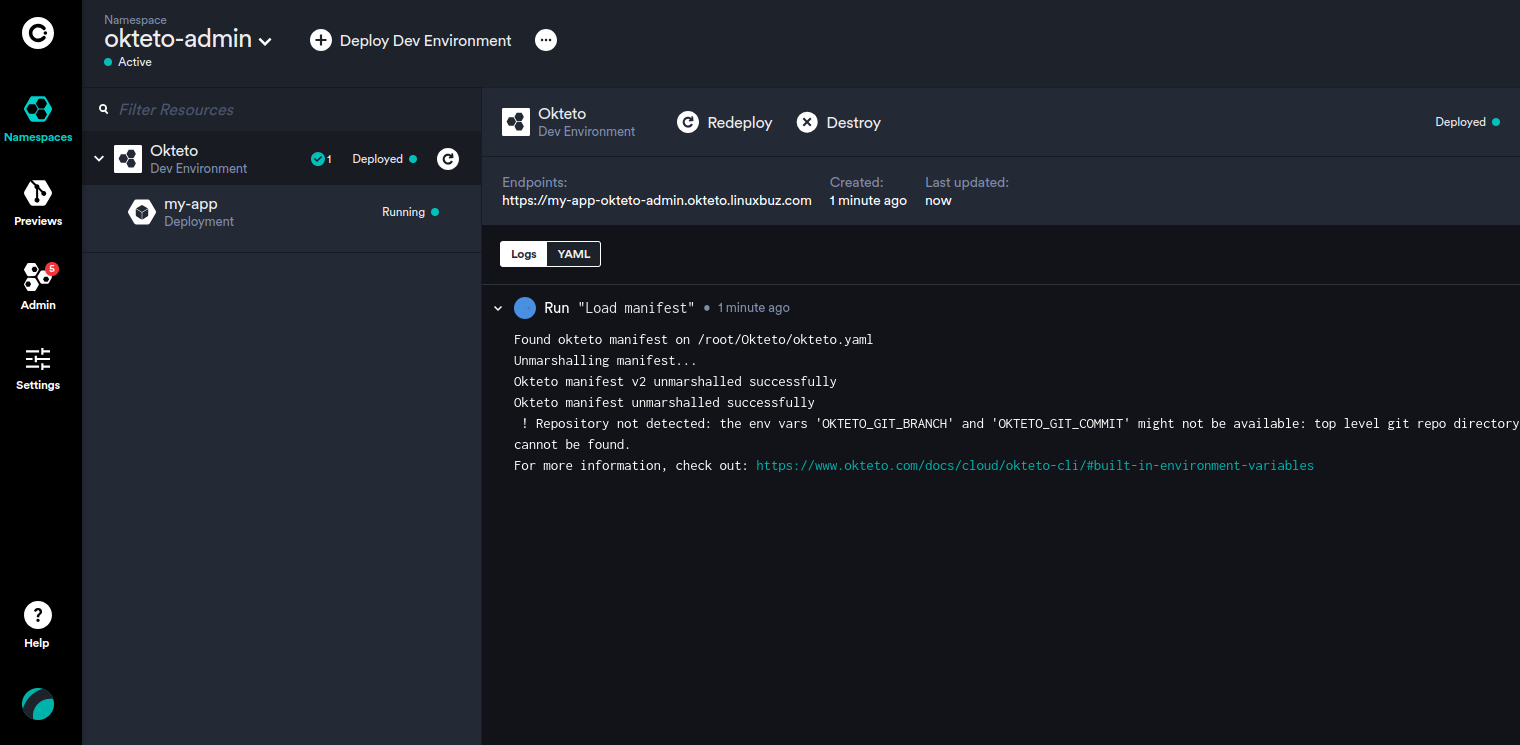
You can also access your Python application using the URL https://my-app-okteto-admin.okteto.example.com.
Step 8 – Develop Python application directly in Kubernetes
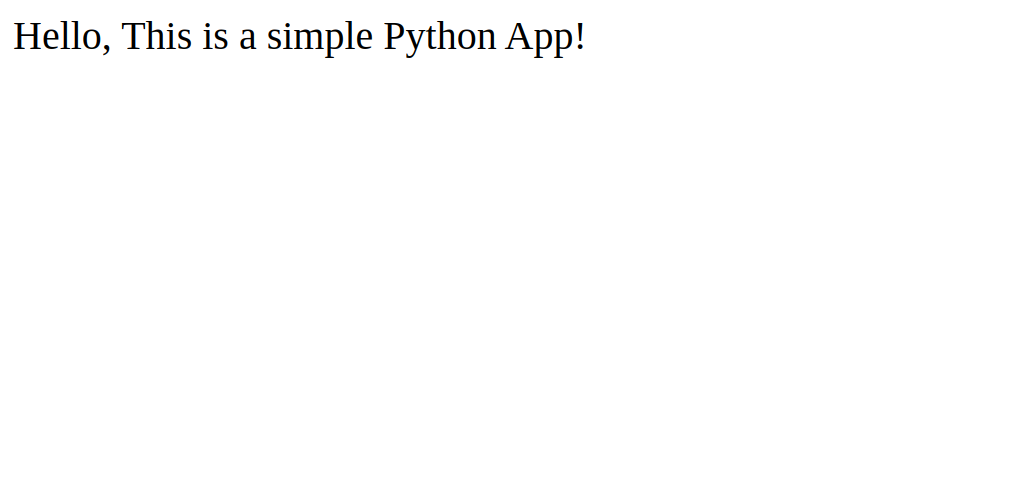
In this section, you will use the okteto up command to deploy a Python application directly to Kubernetes. This command will sync your local code with the development environment. You can modify the code using your favorite IDE or text editor on your local machine, and the changes will automatically sync to the development environment in Kubernetes.
Let's start the development environment using Okteto:
okteto upThis command creates a development environment based on the settings specified in the okteto.yaml file.
Output i Using okteto-admin @ okteto.okteto.example.com as context
i 'Okteto' was already deployed. To redeploy run 'okteto deploy' or 'okteto up --deploy'
i Build section is not defined in your okteto manifest
✓ Persistent volume successfully attached
✓ Images successfully pulled
✓ Files synchronized
Context: okteto.okteto.example.com
Namespace: okteto-admin
Name: my-app
Reverse: 9000 <- 9000
root@my-app-okteto-7767588c8d-ndzj7:/app#
Next, run your Python program:
python3 app.pyYou will see the following output.
Output * Serving Flask app 'app'
* Debug mode: on
WARNING: This is a development server. Do not use it in a production deployment. Use a production WSGI server instead.
* Running on all addresses (0.0.0.0)
* Running on http://127.0.0.1:5000
* Running on http://10.244.97.92:5000
Press CTRL+C to quit
* Restarting with stat
* Debugger is active!
* Debugger PIN: 126-620-675
Now, edit your app.py application file:
nano app.pyModify the following line:
return "Hello, This is a simple Python App Deployed on Kubernetes"Save and close the file. Okteto will automatically detect code changes and apply them to Kubernetes immediately.
Go back to your web browser and reload the page for your Python program. You will see your modified program on the page below.
Result
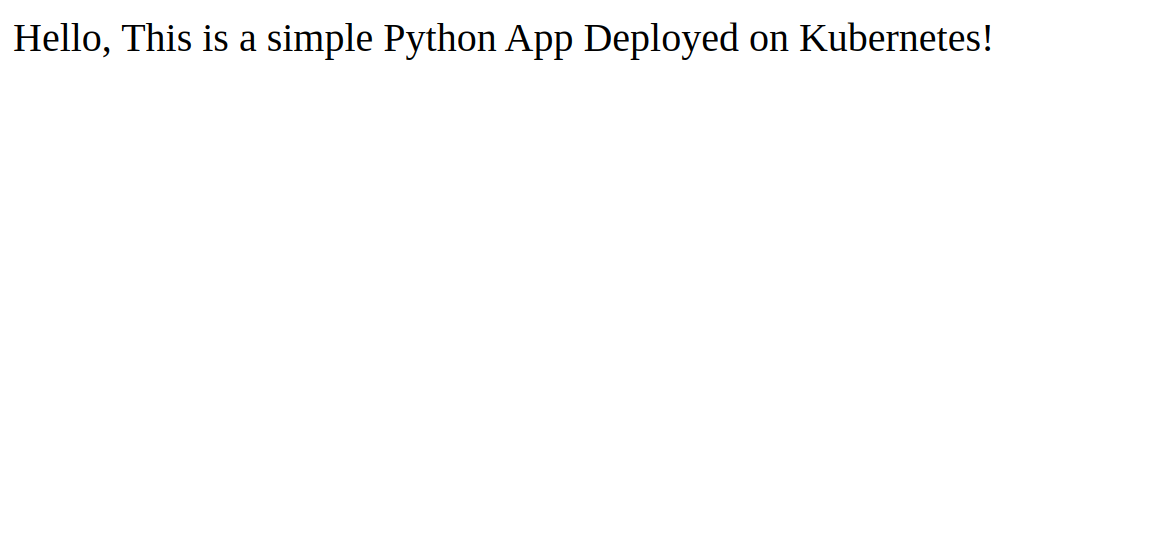
In this tutorial, you created a basic Python application and deployed it to a Kubernetes cluster using Okteto. Okteto's ability to synchronize local code changes with the development environment in real time enables rapid development iterations and immediate feedback on code changes. Overall, Okteto allows developers to focus on building high-quality Python applications without worrying about the complexities of the Kubernetes infrastructure.