Introduction
In this tutorial, you will learn how to configure an AWS security solution using Terraform. You will use Amazon GuardDuty, Amazon SNS, AWS Lambda, and Amazon EvenBridge services.
Threat Detection and Incident Response (TDIR) can be a time-consuming and manual process for many organizations. This leads to inconsistent response processes, inconsistent security outcomes, and increased risk. In this tutorial, you will learn how to automate threat detection findings and automate your incident response process, reducing threat response time. Since many organizations prefer to use standard infrastructure-as-code (IaC) tools for consistent configurations across vendors, this tutorial shows how to configure this solution using Terraform.
Prerequisites
- AWS account
About Amazon GuardDuty
Before we dive into the tutorial, it's helpful to understand the basic functionality of some of the tools we'll use. Amazon GuardDuty provides threat detection that allows you to continuously monitor and protect AWS accounts, workloads, and data stored in Amazon Simple Storage Service (S3). GuardDuty analyzes continuous metadata streams generated from your account and network activity found in AWS CloudTrail events, Amazon Virtual Private Cloud (VPC) flow logs, and Domain Name System (DNS) logs. GuardDuty also uses integrated threat intelligence such as known malicious IP addresses, anomaly detection, and machine learning (ML) to more accurately identify threats.
GuardDuty operates completely independently of your resources, so there is no risk of performance or availability impact to your workloads. The service is fully managed with integrated threat intelligence, anomaly detection, and ML. Amazon GuardDuty delivers accurate, actionable alerts that easily integrate with existing event management systems and workflows. There are no upfront costs, and you only pay for events analyzed, with no additional software to deploy or threat intelligence feed subscriptions required.
About Terraform and Cloud9
Terraform is an Infrastructure-as-Code (IaC) tool created by Hashicorp that allows you to manage infrastructure with configuration files instead of a user interface. With Terraform, you can build, modify, and destroy your infrastructure using human-readable, declarative configuration files. Yes, you can also build, modify, and destroy AWS infrastructure using Terraform – using a Terraform plugin called Provider. The AWS Provider allows Terraform to interact with the AWS Application Programming Interface (API).
This tutorial uses AWS Cloud9 to perform Terraform configuration. AWS Cloud9 is a cloud-based integrated development environment (IDE) that lets you write, run, and debug your code using just a browser. It includes a code editor, debugger, and terminal. Cloud9 comes pre-packaged with essential tools for popular programming languages including JavaScript, Python, PHP, and Terraform, so you don't need to install any files or configure your development machine to get started with this workshop. Cloud9 runs on an EC2 instance that is created for you when you start this workshop.
What you will do
- A “contact” host interacts with an “at-risk” host, causing GuardDuty to report a finding.
- This finding is matched in an EventBridge rule that you will create using Terraform. The EventBridge rule does two things:
- Creates an SNS rule that you will create using Terraform. This SNS rule sends an email to a defined administrator with human-readable text explaining the findings.
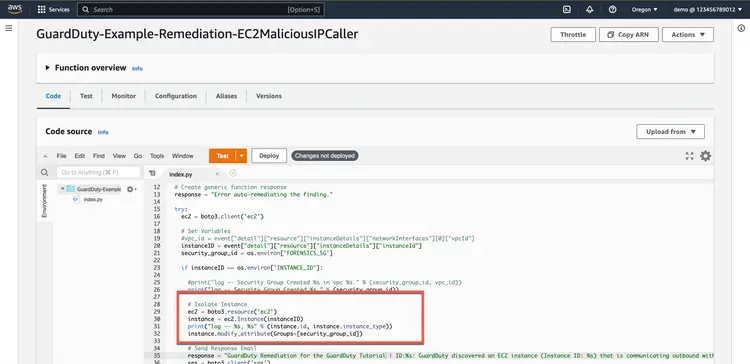
- It triggers a Lambda function that you will create using Terraform. The Lambda function passes the compromised host to a forensic security group where it is isolated for further investigation.
Step 1. Download the initial settings
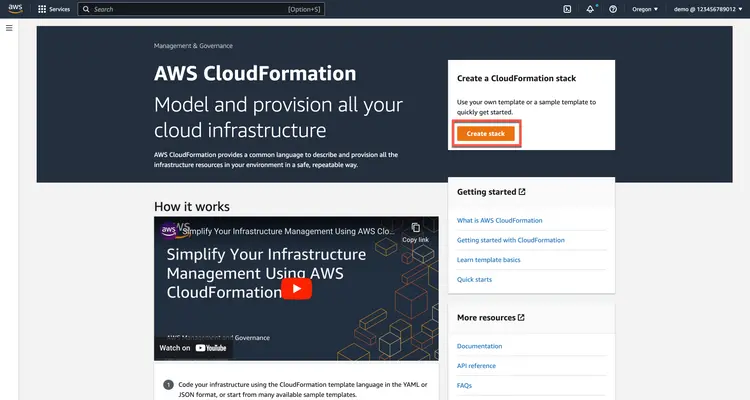
This tutorial uses an AWS CloudFormation template to provision the initial resources. This is done so that you can focus only on the ground-level configuration of your security solution. The CloudFormation template creates a stack. The stack consists of an AWS Cloud9 IDE instance. We use this Cloud9 instance so that everyone who runs this tutorial has the same editing and deployment experience. Additionally, when you deploy the stack in US-WEST-2, you ensure that a t3.small instance exists. If the template is deployed in other regions, you may need to modify the template to use a different instance type if t3.small is not available.
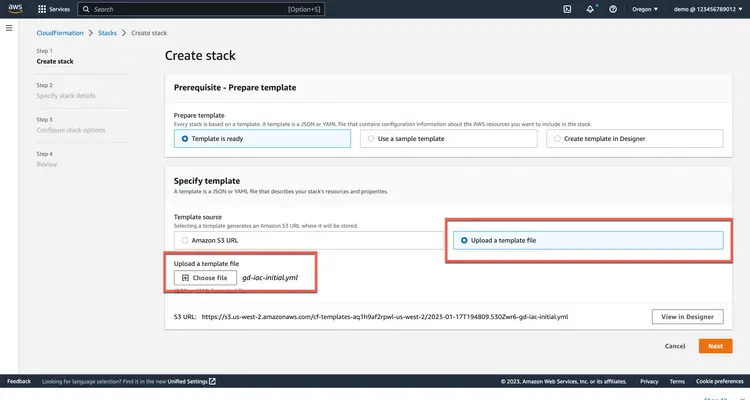
1.1. Go to AWS CloudFormation in the AWS Management Console and create a stack by clicking the Create Stack button.

1.2. Select Upload Template File and upload the gd-iac-initial.yml file from the sample code repository provided above. Then click Next.
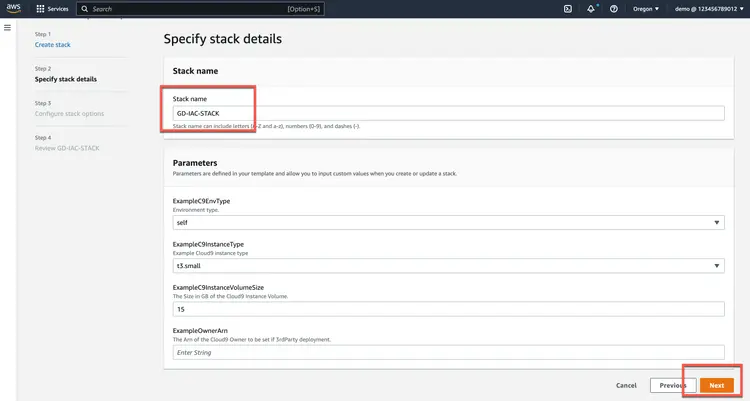
1.3. Enter a stack name and click Next.
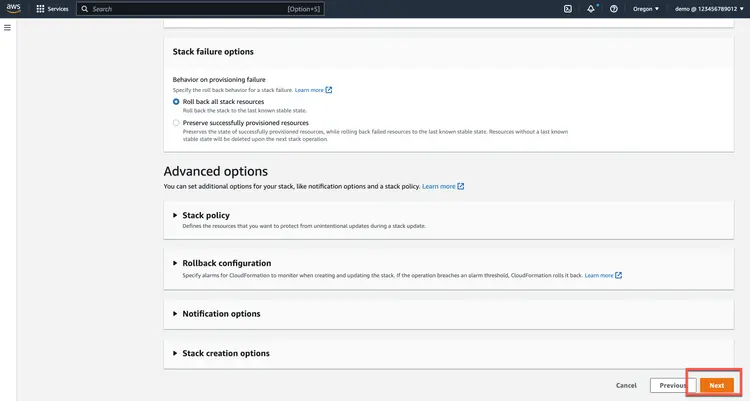
1.4. On the Configure stack options page, click Next.
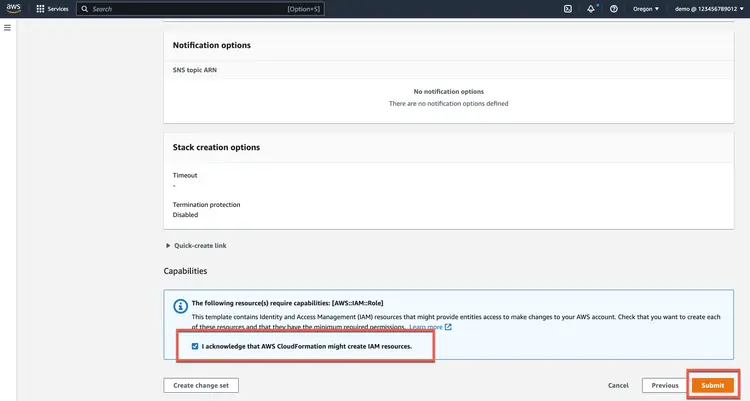
1.5. On the review page, scroll down and click the check box to confirm that AWS CloudFormation may create IAM resources, then click Next.
1.6. Make sure the stack is in a fully created state.
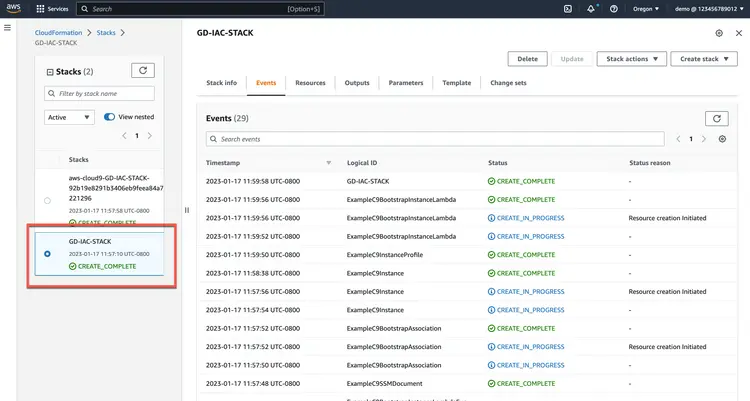
At this point you have deployed the initial resources you will use to follow this tutorial on your own. In the next step you will access the Cloud9 instance that created the stack and initialize Terraform.
Step 2. Access Cloud9 and launch Terraform
2.1. Open AWS Cloud9 in the AWS Management Console and open the environment in the Cloud9 IDE.
2.2. In Cloud9 preferences, disable the use of AWS managed temporary credentials.
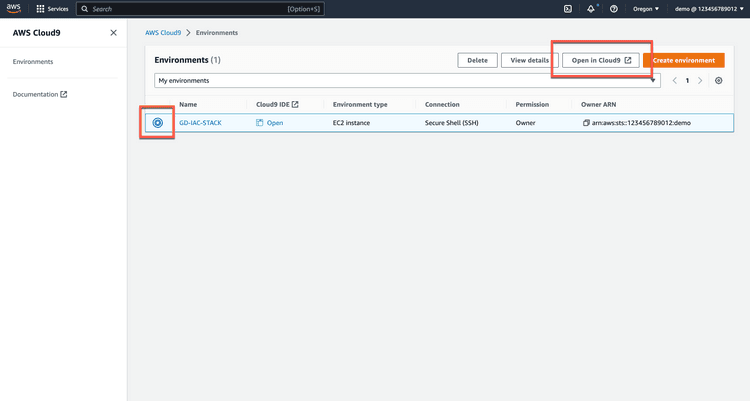
2.3. From the terminal on the Cloud9 instance, simulate the source code repository.
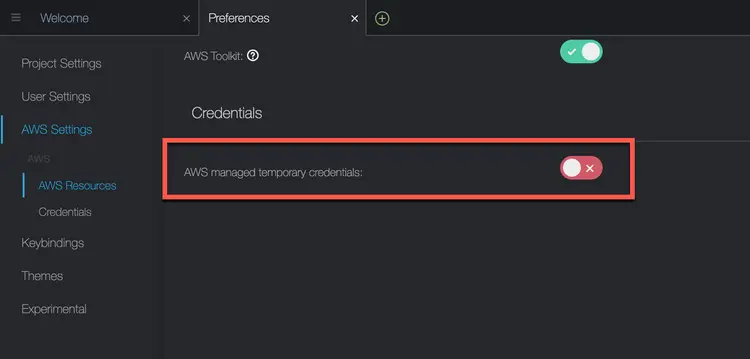
git clone https://github.com/build-on-aws/automating-amazon-guardduty-with-iac.git
2.4. Change to the automating-amazon-guardduty-with-iac directory and run a terraform init, terraform plan, and terraform apply.
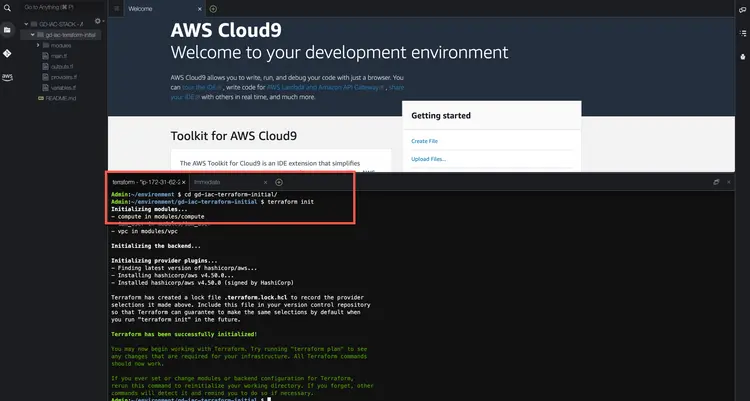
A successful request will look like the following:
2.5. Verify that there are two new EC2 instances, one named IAC Tutorial: Compromised Instance and the other named IAC Tutorial: Malicious Instance.

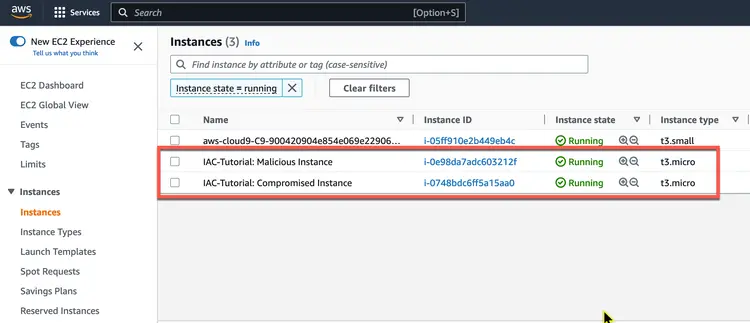
At this point, you have deployed a VPC and two EC2 instances. The two EC2 instances talk to each other, and later when you add an IP address from one of the EC2 Elastic instances to the threat list, it triggers GuardDuty to create a finding. From this point on, you will create each of the resources that are part of the actual security solution.
Step 3: Create an S3 bucket to store the threat list
GuardDuty can refer to two types of lists: a trusted IP list and a threat IP list. GuardDuty does not create findings for IP addresses that are included in trusted IP lists, but it does create findings for IP addresses that are included in threat IP lists. Since we want to force a finding in this tutorial, we will use a threat IP list.
3.1. Start by creating a variable in modules/s3/variables.tf for vpc_id.
variable "vpc_id" {
}
3.2. Next, in the modules/s3/main.tf file, get the current AWS account number and create an S3 bucket resource.
# GET CURRENT AWS ACCOUNT NUMBER
data "aws_caller_identity" "current" {}
# CREATE TWO S3 BUCKETS
resource "aws_s3_bucket" "bucket" {
bucket = "guardduty-example-${data.aws_caller_identity.current.account_id}-us-east-1"
force_destroy = true
}
resource "aws_s3_bucket" "flow-log-bucket" {
bucket = "vpc-flow-logs-${data.aws_caller_identity.current.account_id}-us-east-1"
force_destroy = true
}
3.3. Then enable VPC Flow logs in the S3 bucket. This is not required, but it allows us to see the logs that GuardDuty sees.
# VPC FLOW LOGS
resource "aws_flow_log" "flow_log_example" {
log_destination = aws_s3_bucket.flow-log-bucket.arn
log_destination_type = "s3"
traffic_type = "ALL"
vpc_id = var.vpc_id
}
3.4. Finally, output the bucket_id and bucket_arn values in the modules/s3/outputs.tf file.
# S3 Bucket id
output "bucket_id" {
value = aws_s3_bucket.bucket.id
description = "Output of s3 bucket id."
}
# S3 Bucket arn
output "bucket_arn" {
value = aws_s3_bucket.bucket.arn
description = "Output of s3 bucket arn."
}
3.5. Now go back to the root/main.tf file and add the S3 bucket.
# CREATES S3 BUCKET
module "s3_bucket" {
source = "./modules/s3"
vpc_id = module.iac_vpc.vpc_attributes.id
}
At this point you have created two S3 buckets. If you want to check them out yourself, one bucket is for VPC flow logs. The other bucket contains the threat list that you will create in the next step.
Step 4: Create GuardDuty Terraform modules
4.1. The GuardDuty Module files have been created for you, but they are empty like the S3 files. Start with the modules/guardduty/variables.tf file. Here you need to create two variables. The first is a variable called bucket which we will use to define the details of the S3 bucket threat list. The second is the malicious IP that we have added to the bucket.
variable "bucket" {
}
variable "malicious_ip" {
}
4.2. Then go to the file modules/guardduty/main.tf.
In this file, you will add three sources. The first source is the GuardDuty detector. You will note in the provider documentation that the options are all optional – nothing else is required other than declaring the source. However, we will set the enabled value to true in our example and also change the finding_publishing_frequency to 15 minutes. The default is one hour.
# ENABLE THE DETECTOR
resource "aws_guardduty_detector" "gd-tutorial" {
enable = true
finding_publishing_frequency = "FIFTEEN_MINUTES"
}
4.3. Next, we upload a file to the S3 bucket we created in the previous step. This is not required, but for demonstration purposes we want to use the IP address of one of the EC2 instances to ensure that the findings in this tutorial are generated. In the code below, we upload a text file to our S3 bucket, which we will call MyThreatIntelSet, and the contents of the file will be the IP address contained in the variable var.malicious_ip.
# ADD THE EIP/MALICIOUS IP TO THE BUCKET AS A TEXT FILE.
resource "aws_s3_object" "MyThreatIntelSet" {
content = var.malicious_ip
bucket = var.bucket
key = "MyThreatIntelSet"
}
4.4. Finally, we will create a resource called aws_guardduty_threatintelset which tells GuardDuty to use the file located in the defined location (this is what activate = true does).
# HAVE GUARDDUTY LOOK AT THE TEXT FILE IN S3
resource "aws_guardduty_threatintelset" "Example-Threat-List" {
activate = true
detector_id = aws_guardduty_detector.gd-tutorial.id
format = "TXT"
location = "https://s3.amazonaws.com/${aws_s3_object.MyThreatIntelSet.bucket}/${aws_s3_object.MyThreatIntelSet.key}"
name = "MyThreatIntelSet"
}
4.5. Then go to the root/main.tf file and call the GuardDuty module. We need to provide the bucket ID and the malicious IP. You can see that these come from the S3 module and the compute module.
# Enable GuardDuty
module "guardduty" {
source = "./modules/guardduty"
bucket = module.s3_bucket.bucket_id
malicious_ip = module.compute.malicious_ip
}
In this section, you enabled GuardDuty, created the threat list, and added the Elastic IP address of the malicious EC2 instance to that list. Next, we create an SNS rule.
Step 5: Create the SNS Terraform module
In this section, we will use Terraform to create an SNS rule. SNS is a simple notification service that allows you to send notifications when certain criteria are met. SNS itself does not correspond to an action to send a message. We will use EventBridge for that. However, since EventBridge requires a rule to send notifications, we need to create the SNS rule first.
5.1. First, in the modules/sns/variables.tf file, you need to create two variables:
- sns_name to name the SNS topic we will create.
- Email to hold the email address we use to subscribe to our notifications.
Below is an example of our variables for SNS.
variable "sns_name" {
description = "Name of the SNS Topic to be created"
default = "GuardDuty-Example"
}
variable "email" {
description = "Email address for SNS"
}
5.2. Then we create the SNS topic and subscription in the modules/sns/main.tf file.
Start by creating a topic resource.
# Create the SNS topic
resource "aws_sns_topic" "gd_sns_topic" {
name = var.sns_name
}
In the code above, you are creating a resource called gd_sns_topic by Terraform. In the AWS console, it is called “GuardDuty-Example”. This is because we are calling the variable var.sns_name and it has a default setting of “GuardDuty-Example”.
5.3. Next, create an SNS policy resource. The arn and Policy values are required. The policy created here is an AWS IAM policy document. This policy document allows the service principal events.amazonaws.com to publish to the topic in question.
resource "aws_sns_topic_policy" "gd_sns_topic_policy" {
arn = aws_sns_topic.gd_sns_topic.arn
policy = jsonencode(
{
Id = "ID-GD-Topic-Policy"
Statement = [
{
Action = "sns:Publish"
Effect = "Allow"
Principal = {
Service = "events.amazonaws.com"
}
Resource = aws_sns_topic.gd_sns_topic.arn
Sid = "SID-GD-Example"
},
]
Version = "2012-10-17"
}
)
}
5.4. Next you create the topic subscription. The topic subscription calls the ARN, sets the protocol to use – in this case email – and the email address to which the notification will be sent. The email address is hardcoded in this case, but you can configure it to prompt for the email address when Terraform is applied. Also, setting endpoint_auto_confirm to false means that the email owner will receive an email with a link that they need to click to subscribe to notifications.
# Create the topic subscription
resource "aws_sns_topic_subscription" "user_updates_sqs_target" {
topic_arn = aws_sns_topic.gd_sns_topic.arn
protocol = "email"
endpoint = var.email
endpoint_auto_confirms = false
}
5.5. Next, in the modules/sns/outputs.tf file, we want to output the topic ARN so we can reference it in the EventBridge configuration we will do later.
output "sns_topic_arn" {
value = aws_sns_topic.gd_sns_topic.arn
description = "Output of ARN to call in the eventbridge rule."
}
5.6. Finally, go back to the root/main.tf file and add the SNS topic. This is where you specify the email address for the subscription.
# Creates an SNS Topic
module "guardduty_sns_topic" {
source = "./modules/sns"
email = "[email protected]"
}
In this section, you created SNS topics so that an email would be sent to you if a specific finding was generated.
Step 6: Create the EventBridge Terraform module
In this section, you will use Terraform to create an EventBridge rule. The EventBridge rule ties together the two elements of this solution.
How does EventBridge work? Essentially, EventBridge receives an event—an indicator of a change in the environment—and applies a rule to route the event to a target. Rules match events to targets based on the structure of the event, called an event pattern, or based on a schedule. In this case, GuardDuty generates an event to Amazon EventBridge whenever a change in the findings occurs. The event is matched, and Amazon EventBridge routes the rule to a target. In this case, the target of the rule is anSNS. The SNS rule takes the data found and generates an email notification to the subscriber.
6.1. The EventBridge rule requires information about GuardDuty and SNS. Start by creating a variable that can be used for the SNS subject ARN. Do this in the modules/eventbridge/variables.tf file.
variable "sns_topic_arn" {
}
6.2. Next, create an event rule source in the modules/eventbridge/main.tf file. You need to define the source and type of event we want.
 # EVENT RULE RESOURCE
resource "aws_cloudwatch_event_rule" "GuardDuty-Event-EC2-MaliciousIPCaller" {
name = "GuardDuty-Event-EC2-MaliciousIPCaller"
description = "GuardDuty Event: UnauthorizedAccess:EC2/MaliciousIPCaller.Custom"
event_pattern = <<EOF
{
"source": ["aws.guardduty"],
"detail": {
"type": ["UnauthorizedAccess:EC2/MaliciousIPCaller.Custom"]
}
}
EOF
}
6.3. Next, define the event target source. When creating this source, you can add a little extra readability to the email notification by defining an input transformer. This customizes what EventBridge sends to the event target. Below we get the GuardDuty ID, region, and EC2 instance ID – and we’re creating an input template that explains a little about the message. Below you can see that we’ve created an input template that uses the detailed information from the GuardDuty finding in the email message that was sent.
# EVENT TARGET RESOURCE FOR SNS NOTIFICATIONS
resource "aws_cloudwatch_event_target" "sns" {
rule = aws_cloudwatch_event_rule.GuardDuty-Event-EC2-MaliciousIPCaller.name
target_id = "GuardDuty-Example"
arn = var.sns_topic_arn
input_transformer {
input_paths = {
gdid = "$.detail.id",
region = "$.detail.region",
instanceid = "$.detail.resource.instanceDetails.instanceId"
}
input_template = "\"First GuardDuty Finding for the GuardDuty-IAC tutorial. | ID:<gdid> | The EC2 instance: <instanceid>, may be compromised and should be investigated. Go to https://console.aws.amazon.com/guardduty/home?region=<region>#/findings?macros=current&fId=<gdid>\""
}
}
6.4. In the first Event rule we created, we look for the GuardDuty-Event-EC2-MaliciousIPCaller event. Create a second Event rule to look for GuardDuty-Event-IAMUser-MaliciousIPCaller and send an email notification for that as well.
# EVENT RULE RESOURCE
resource "aws_cloudwatch_event_rule" "GuardDuty-Event-IAMUser-MaliciousIPCaller" {
name = "GuardDuty-Event-IAMUser-MaliciousIPCaller"
description = "GuardDuty Event: UnauthorizedAccess:IAMUser/MaliciousIPCaller.Custom"
event_pattern = <<EOF
{
"source": ["aws.guardduty"],
"detail": {
"type": ["UnauthorizedAccess:IAMUser/MaliciousIPCaller.Custom", "Discovery:S3/MaliciousIPCaller.Custom"]
}
}
EOF
}
#EVENT TARGET RESOURCE FOR SNS NOTIFICATIONS
resource "aws_cloudwatch_event_target" "iam-sns" {
rule = aws_cloudwatch_event_rule.GuardDuty-Event-IAMUser-MaliciousIPCaller.name
target_id = "GuardDuty-Example"
arn = var.sns_topic_arn
input_transformer {
input_paths = {
gdid = "$.detail.id",
region = "$.detail.region",
userName = "$.detail.resource.accessKeyDetails.userName"
}
input_template = "\"Second GuardDuty Finding for the GuardDuty-IAC tutorial. | ID:<gdid> | AWS Region:<region>. An AWS API operation was invoked (userName: <userName>) from an IP address that is included on your threat list and should be investigated.Go to https://console.aws.amazon.com/guardduty/home?region=<region>#/findings?macros=current&fId=<gdid>\""
}
}
6.5. Once you have the resources created in the module, go back to the root/main.tf file and add the EventBridge rule.
# Create the EventBridge rule
module "guardduty_eventbridge_rule" {
source = "./modules/eventbridge"
sns_topic_arn = module.guardduty_sns_topic.sns_topic_arn
}
In this section, you created an EventBridge rule that uses the SNS topic you created to send an email when GuardDuty findings match. In the next section, you will extend this functionality using Lambda.
Step 7: Create the Lambda Terraform module
In this section, we will use Terraform to create a Lambda function that performs a remediation function for our environment. What we want to do with this tutorial is to move our compromised host to a new security group. Similar to how EventBridge used SNS to generate emails, EventBridge will encapsulate the Lambda function.
One thing to keep in mind is that there are many possible approaches here. For more information, please see the documentation on Creating Custom Responses to GuardDuty Findings with Amazon CloudWatch Events and Automatically Blocking Suspicious Traffic with AWS Network Firewall and Amazon GuardDuty.
Before we begin, let's see what needs to happen to make this happen.
Currently, our GuardDuty findings are matched to an EventBridge rule with a target – currently an SNS rule that sends an email. To enhance this capability, EventBridge uses AWS Lambda as the target.
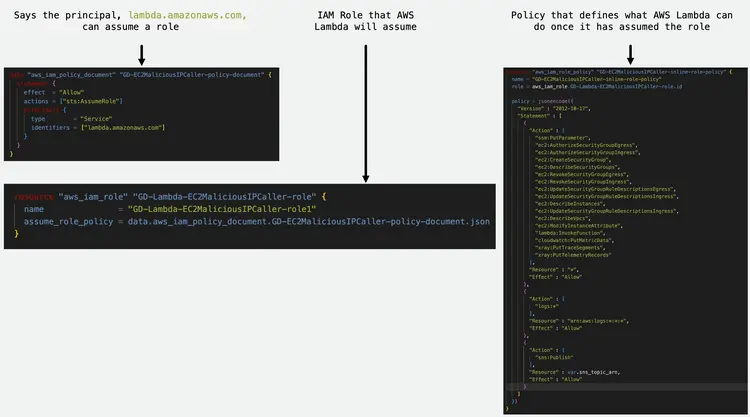
Since we plan to access other resources on behalf of AWS Lambda itself, we need to create an IAM role to grant permissions to the service. This role is called a service, and AWS Lambda will assume this role when we change the security group of our EC2 instance.
The image below shows how the first three code blocks come together to allow the AWS Lambda service to assume a role that can make changes to the security groups assigned to EC2 instances.
7.1. Start by creating the IAM policy document in modules/lambda/main.tf. This is the trust relationship for the policy.
data "aws_iam_policy_document" "GD-EC2MaliciousIPCaller-policy-document" {
statement {
effect = "Allow"
actions = ["sts:AssumeRole"]
principals {
type = "Service"
identifiers = ["lambda.amazonaws.com"]
}
}
}
7.2. Next, create an inline policy that applies to the role that AWS Lambda will assume.
resource "aws_iam_role_policy" "GD-EC2MaliciousIPCaller-inline-role-policy" {
name = "GD-EC2MaliciousIPCaller-inline-role-policy"
role = aws_iam_role.GD-Lambda-EC2MaliciousIPCaller-role.id
policy = jsonencode({
"Version" : "2012-10-17",
"Statement" : [
{
"Action" : [
"ssm:PutParameter",
"ec2:AuthorizeSecurityGroupEgress",
"ec2:AuthorizeSecurityGroupIngress",
"ec2:CreateSecurityGroup",
"ec2:DescribeSecurityGroups",
"ec2:RevokeSecurityGroupEgress",
"ec2:RevokeSecurityGroupIngress",
"ec2:UpdateSecurityGroupRuleDescriptionsEgress",
"ec2:UpdateSecurityGroupRuleDescriptionsIngress",
"ec2:DescribeInstances",
"ec2:UpdateSecurityGroupRuleDescriptionsIngress",
"ec2:DescribeVpcs",
"ec2:ModifyInstanceAttribute",
"lambda:InvokeFunction",
"cloudwatch:PutMetricData",
"xray:PutTraceSegments",
"xray:PutTelemetryRecords"
],
"Resource" : "*",
"Effect" : "Allow"
},
{
"Action" : [
"logs:*"
],
"Resource" : "arn:aws:logs:*:*:*",
"Effect" : "Allow"
},
{
"Action" : [
"sns:Publish"
],
"Resource" : var.sns_topic_arn,
"Effect" : "Allow"
}
]
})
}
7.3. And now create the IAM role that AWS Lambda will assume.
resource "aws_iam_role" "GD-Lambda-EC2MaliciousIPCaller-role" {
name = "GD-Lambda-EC2MaliciousIPCaller-role1"
assume_role_policy = data.aws_iam_policy_document.GD-EC2MaliciousIPCaller-policy-document.json
}
7.4. Create a data source pointing to the code.
data "archive_file" "python_lambda_package" {
type = "zip"
source_file = "${path.module}/code/index.py"
output_path = "index.zip"
}
7.5. Next, we need to grant EventBridge access to Lambda.
resource "aws_lambda_permission" "GuardDuty-Hands-On-RemediationLambda" {
statement_id = "GuardDutyTerraformRemediationLambdaEC2InvokePermissions"
action = "lambda:InvokeFunction"
function_name = aws_lambda_function.GuardDuty-Example-Remediation-EC2MaliciousIPCaller.function_name
principal = "events.amazonaws.com"
}
The above block allows EventBridge to call the Lambda function.
7.6. Finally, we create the source of the Lambda function. To do this, we need to create a few variables that will allow us to pass information. Edit the modules/lambda/variables.tf file with the following variables:
variable "sns_topic_arn" {
}
variable "compromised_instance_id" {
}
variable "forensic_sg_id" {
}
7.7. Then go back to the modules/lambda/main.tf file and create the Lambda function source. Note that in the following code block we are using Python 3.9. We also reference the Python code that we zipped in index.zip. And finally we set a few environment variables in the source: INSTANCE_ID, FORENSICS_SG, and TOPIC_ARN. These will be passed from the variables we created to our Lambda function environment.
# Create the Lambda function Resource
resource "aws_lambda_function" "GuardDuty-Example-Remediation-EC2MaliciousIPCaller" {
function_name = "GuardDuty-Example-Remediation-EC2MaliciousIPCaller"
filename = "index.zip"
source_code_hash = data.archive_file.python_lambda_package.output_base64sha256
role = aws_iam_role.GD-Lambda-EC2MaliciousIPCaller-role.arn
runtime = "python3.9"
handler = "index.handler"
timeout = 10
environment {
variables = {
INSTANCE_ID = var.compromised_instance_id
FORENSICS_SG = var.forensic_sg_id
TOPIC_ARN = var.sns_topic_arn
}
}
}
7.8. In the root/main.tf file, call the Lambda module, set the SNS subject ARN, the compromised instance ID, and the Forensic Security group. Note that these values come from the GuardDuty module, the Compute module, and the VPC module.
# CREATE THE LAMBDA FUNCTION
module "lambda" {
source = "./modules/lambda"
sns_topic_arn = module.guardduty_sns_topic.sns_topic_arn
compromised_instance_id = module.compute.compromised_instance_id
forensic_sg_id = module.forensic-security-group.security_group_id
}
7.9. Legal security group has not been created yet. Add a security group to use in.
# CREATES THE FORENSICS_SG SECURITY GROUP
module "forensic-security-group" {
source = "terraform-aws-modules/security-group/aws"
version = "4.17.1"
name = "FORENSIC_SG"
description = "Forensic Security group "
vpc_id = module.iac_vpc.vpc_attributes.id
}
7.10. To access the security-legal group, we need to output it. In the root/outputs.tf file and output the security group ID.
output "forensic_sg_id" {
value = module.forensic-security-group.security_group_id
description = "Output of forensic sg id created - to place the EC2 instance(s)."
}
7.11. Now we need to configure the EventBridge rule to send the found data to Lambda. We will do this in the next section. Go back to the modules/eventbridge/main.tf file. Add an event target source for the Lambda function that looks at the rule aws_cloudwatch_event_rule.GuardDuty-Event-EC2-MaliciousIPCaller.name and set the target ID to GuardDuty-Example-Remediation. Here you need the ARN of the Lambda function. This can be output from the Lambda module.
#EVENT TARGET RESOURCE FOR LAMBDA REMEDIATION FUNCTION
resource "aws_cloudwatch_event_target" "lambda_function" {
rule = aws_cloudwatch_event_rule.GuardDuty-Event-EC2-MaliciousIPCaller.name
target_id = "GuardDuty-Example-Remediation"
arn = var.lambda_remediation_function_arn
}
7.12. If you haven't already done so, add the output to the Lambda module (modules/lambda/outputs.tf).
output "lambda_remediation_function_arn" {
value = aws_lambda_function.GuardDuty-Example-Remediation-EC2MaliciousIPCaller.arn
}
7.13. This variable should also be applied in the EventBridge module (modules/eventbridge/variables.tf).
variable "lambda_remediation_function_arn" {
}
7.14. And finally add lambda_remediation_function_arn to the root/main.tf file. This goes in the EventBridge rule that was created earlier. The output below is the entire block of code, some of which already exists. Make sure to only add the code lambda_remediation_function_arn = module.lambda.lambda_remediation_function_arn to the existing block.
module "guardduty_eventbridge_rule" {
source = "./modules/eventbridge"
sns_topic_arn = module.guardduty_sns_topic.sns_topic_arn
lambda_remediation_function_arn = module.lambda.lambda_remediation_function_arn
}
In this section, you created a Lambda function that isolates an at-risk host into a different security group. This Lambda function is called by EventBridge when a GuardDuty finding matches an EventBridge rule. In the next section, you will apply the entire configuration.
Step 8: Apply the settings to your AWS account
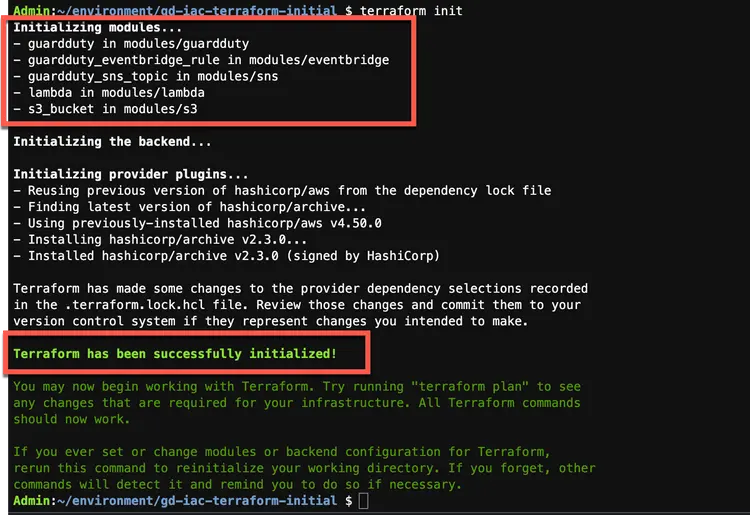
8.1. Run a terraform init. This will initialize all the modules you added in this code tutorial. The output should look like the following.
8.2. Make a floor plan.
8.3. To apply the changes to AWS, run a terraform application. After applying, your output should look like the following:

In this section, you applied the Terraform configuration to your AWS account. At this point, you have two EC2 instances communicating with each other. One is malicious and its IP address has been added to our threat IP list. When GuardDuty sees that this IP is talking to our compromised instance, it creates a finding. We have an EventBridge rule that matches that finding and does two things: first, it sends us an email letting us know what happened, and second, it calls a Lambda function to change the security group of the compromised host. In the next section, we will verify the configuration in our AWS console.
Step 9: Verify the solution in the AWS Management Console
In this section, we will review the entire solution in the AWS console and verify that the security group has been migrated when the findings appear in GuardDuty and EventBridge triggers the Lambda function.
You should also have received an email confirming your subscription. Remember, you must subscribe to receive the notifications you have configured.
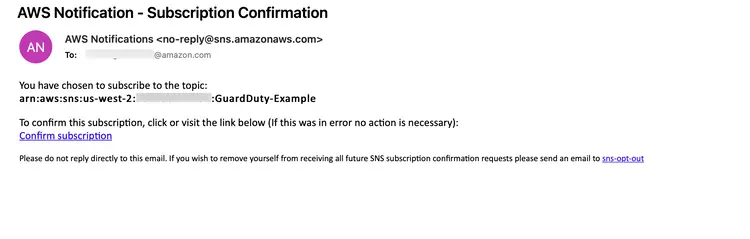
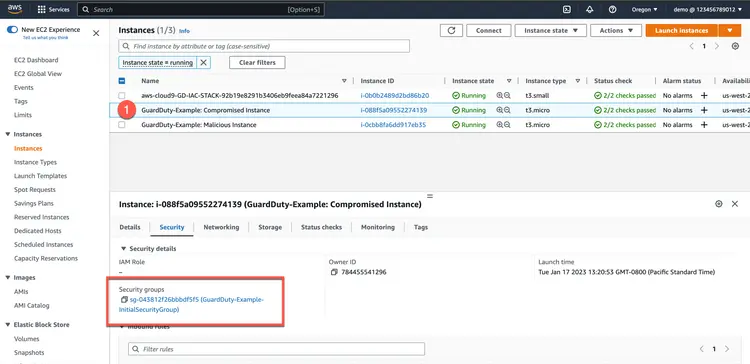
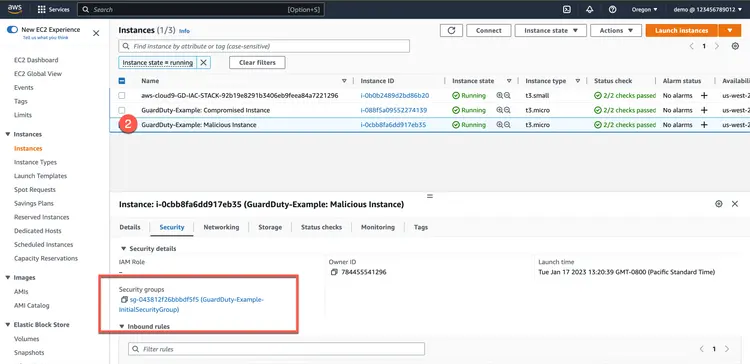
After subscribing, go to the AWS Management Console to verify that there are two EC2 instances and that both are in the primary security group.
First, check for compromised hosts.
Then check for malicious hosts.
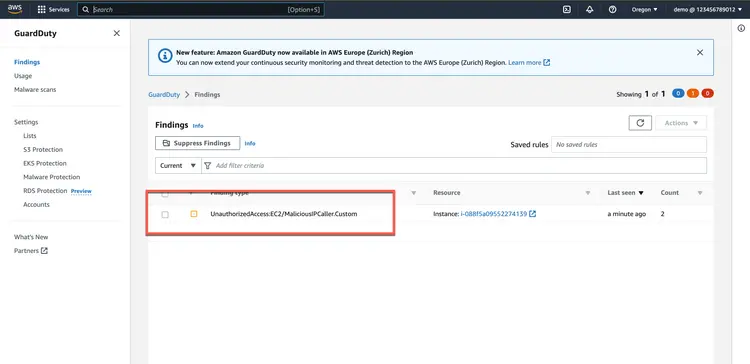
Then make sure GuardDuty reports findings.
Now check what the EventBridge rule found.
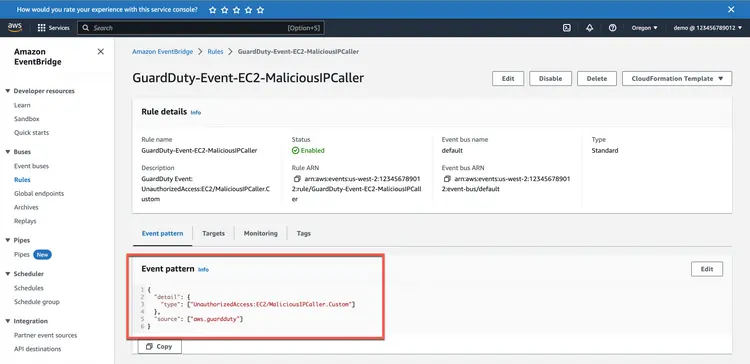
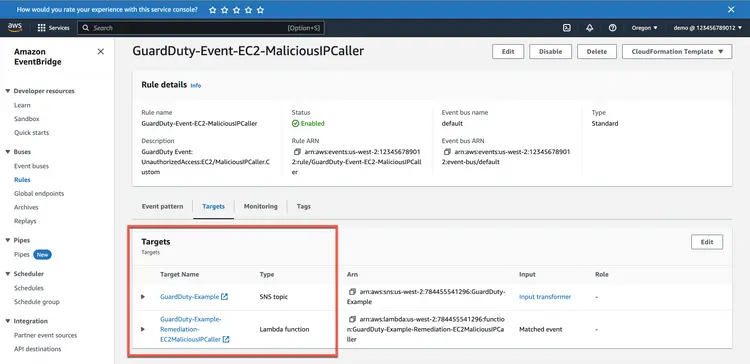
Then check the EventBridge rule target. You should see an SNS target and a Lambda target.
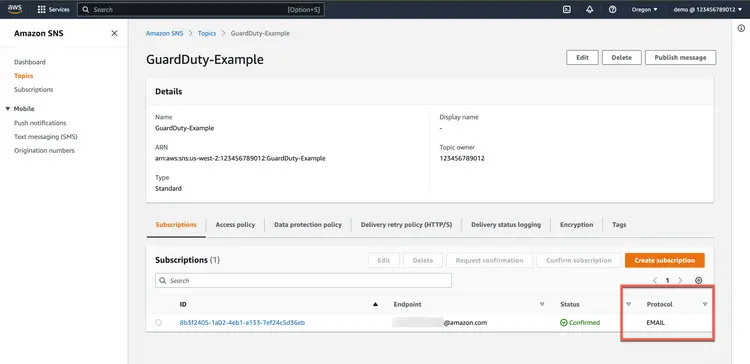
Check the SNS rule to see what it does. It should send an email to the address you specified.
Then check the Lambda function. You can go there from the EventBridge rule or by navigating directly.
Finally, verify that the Lambda function has moved the compromised host to a new security group.
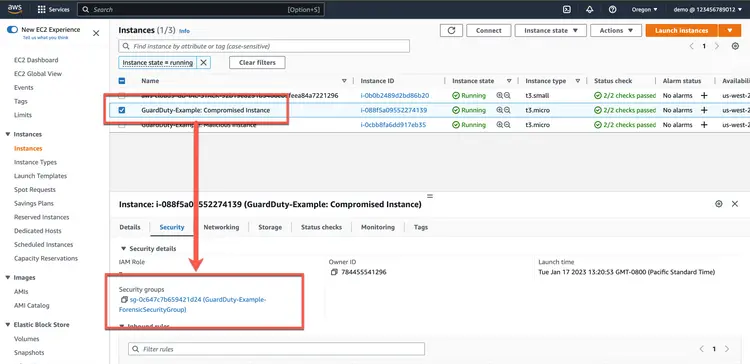
Depending on how long you've been waiting, if your configuration matches the screenshots above, you've successfully created a complete AWS security solution using Terraform.