Introduction
Windows Shadow Copies allow you to back up your files and keep a history so you can restore them if they are accidentally deleted or modified. You can keep a history of up to 512 revisions of all files on a particular drive.
Step 1
It is recommended that you first add a new hard drive to your Cloud PC (e.g. D: drive). The added drive will act as the data drive and you will enable Shadow Copy on it. See How to add a new disk to your Cloud PC.
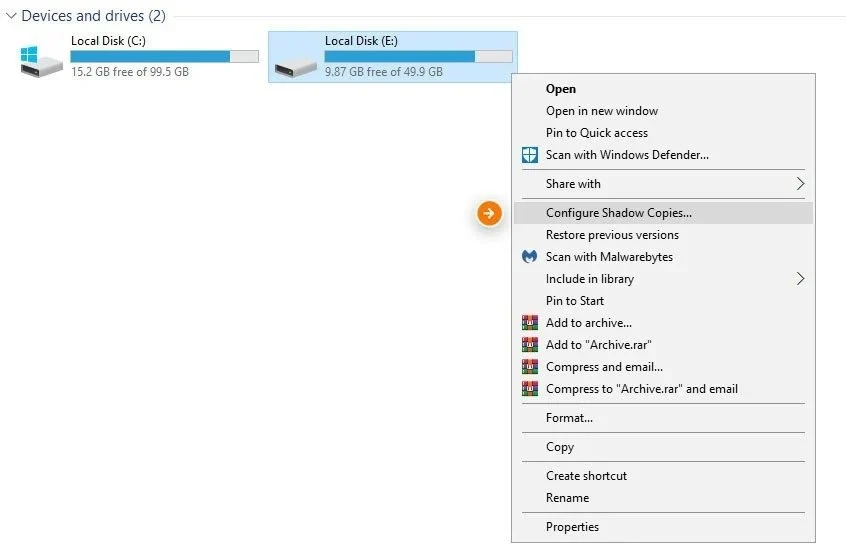
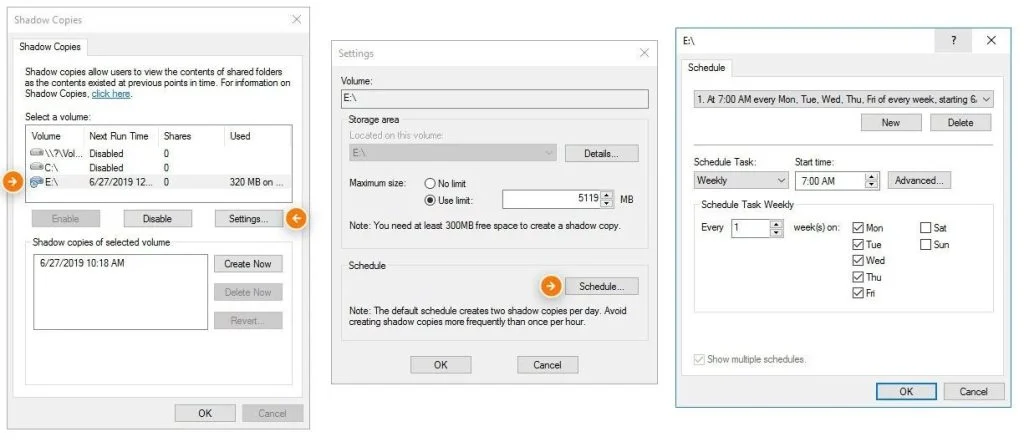
Right-click the drive where you want Windows Shadow Copy enabled, and then select Configure Shadow Copies…

Step 2
From the Shadow Copies menu, select the drive and click Enable and then Yes.
Step 3
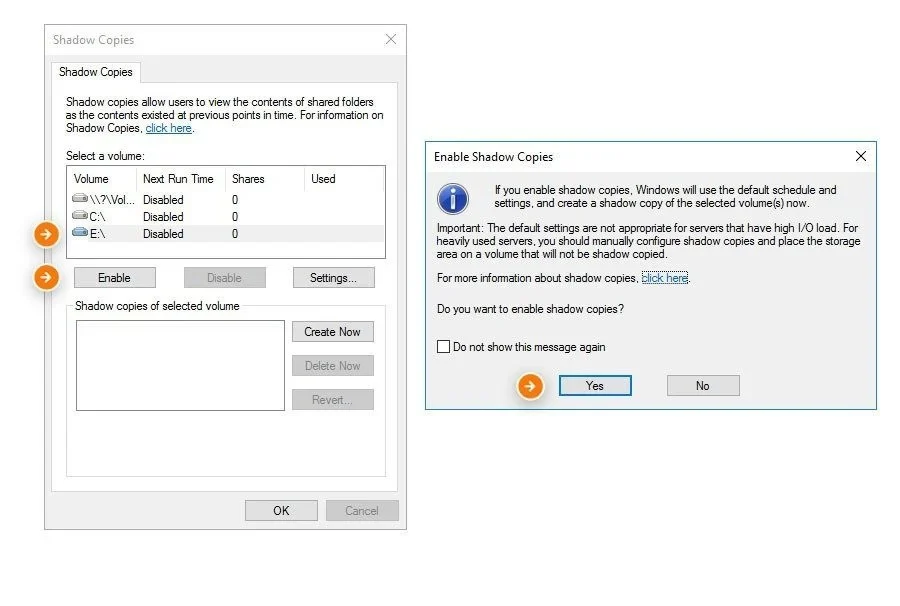
Windows will now use the default Shadow Copies setting on this drive (2 shadow copies per day). You can change the settings by selecting the drive again and clicking Settings.
Step 4
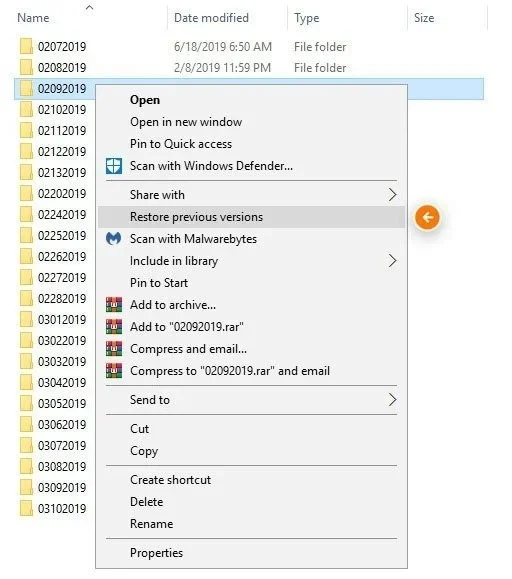
To restore a file that was accidentally modified or deleted, right-click the folder or file and click Restore Previous Versions.
Step 5
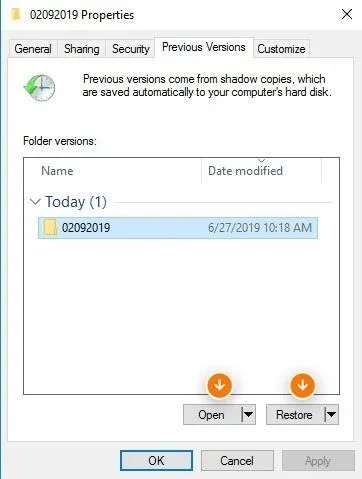
From its menu you have a list of all available previous versions of the file or folder so you can open it to view the content or directly restore an older version.
Result
It's important to understand that Windows Shadow Copies are a file-level backup system. If your entire Cloud computer is compromised (for example, from ransomware), your files will not be recoverable this way.