Introduction
Many users have been waiting for news and updates on the annual feature update for Microsoft's client operating system, as updates and rumors have been circulating around blog posts and YouTube, among other places. With the recent release of 23H2, this year, the announcement of Windows 11 version 24H2 (this year's annual feature update will be delivered in the second half of the calendar year, the release date is still unknown) brings new features, especially related to artificial intelligence improvements. These improvements focus on improving the user experience with many new features, including improvements to system performance, usability, and security. Let's take a look at the new features and see how you can get a sneak peek at 24H2 with the Windows Insiders program.
1. New installation experience
Windows 11 version 24H2 picks up the Windows Server 2025 installation experience with changes to the newly designed installation wizard that we get with the latest vNext Server Preview. This is a nice change because we already had the same Windows client OS installation pages for several versions of Windows. Take a look at some of the screenshots below.
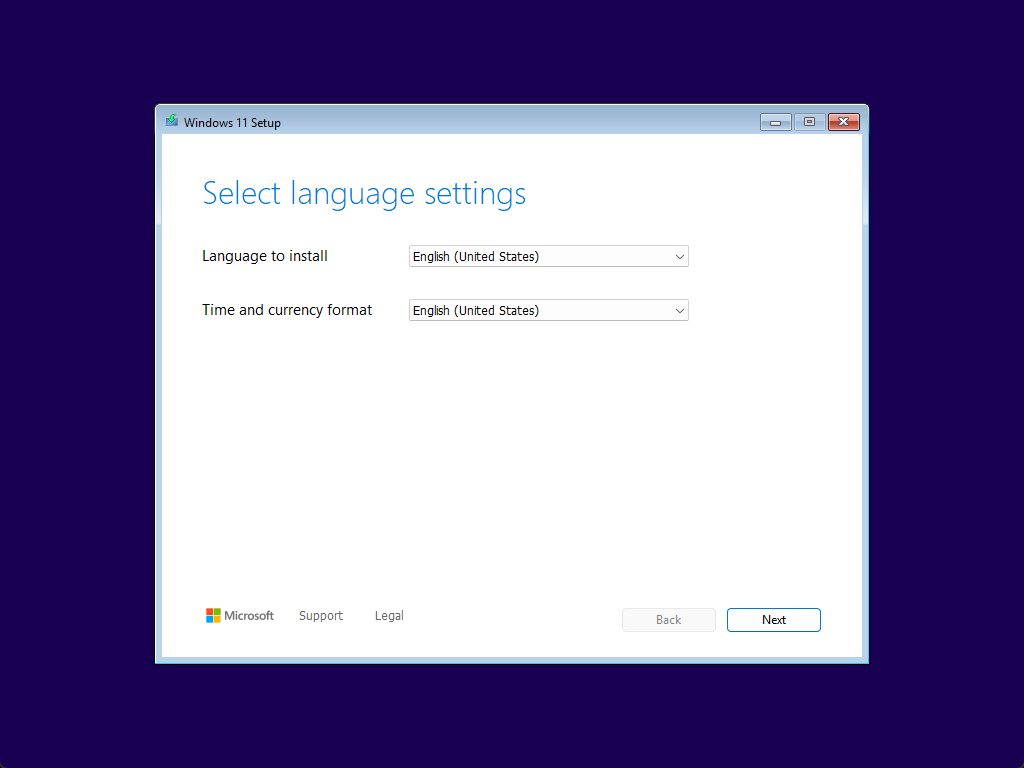
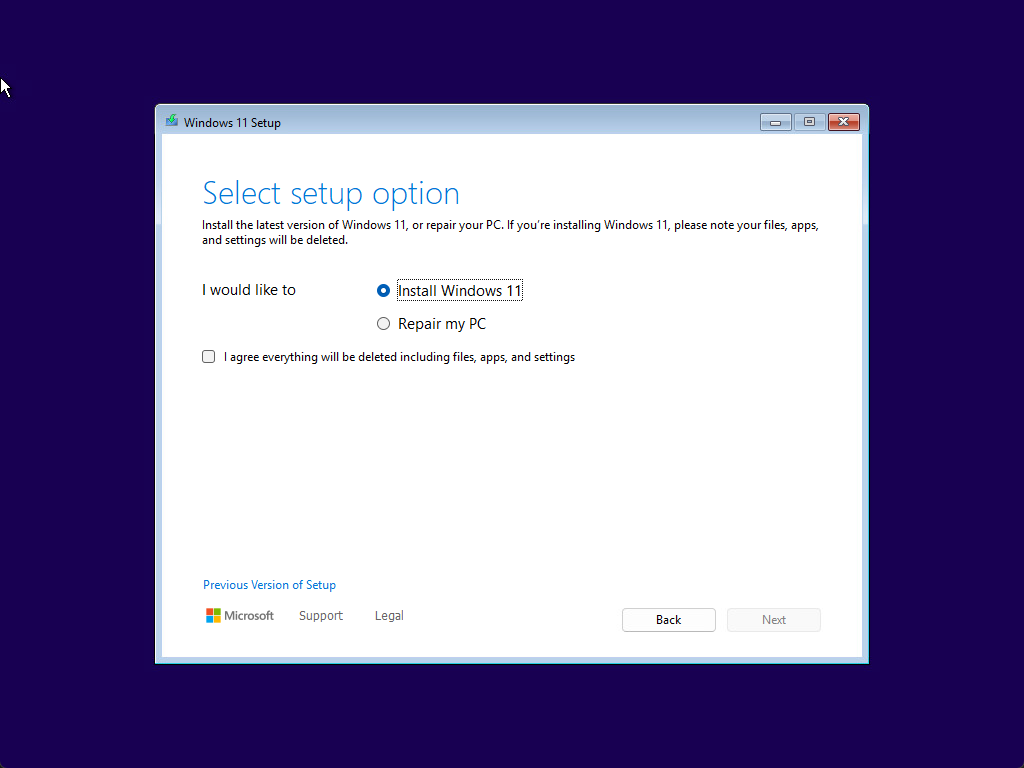
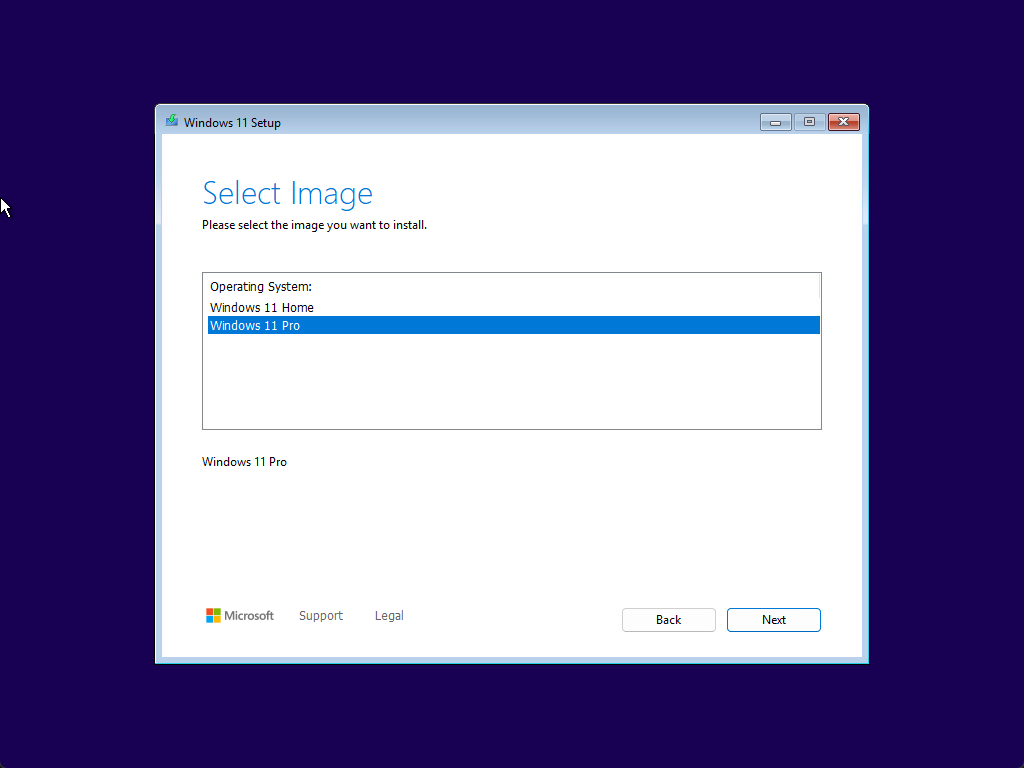
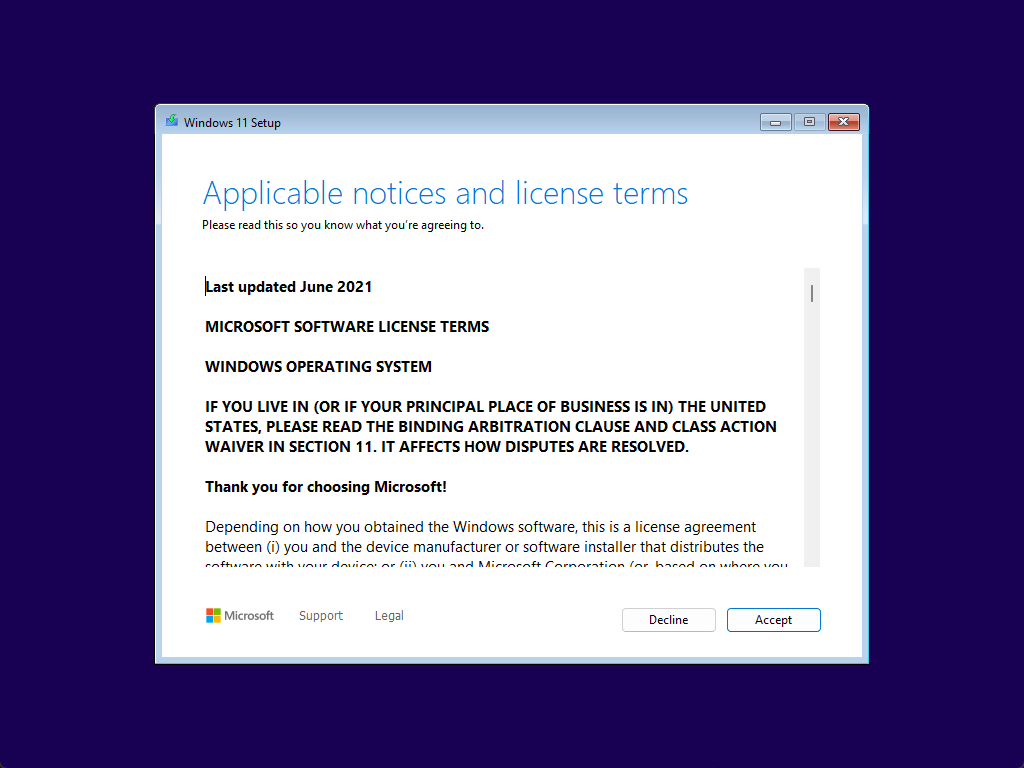
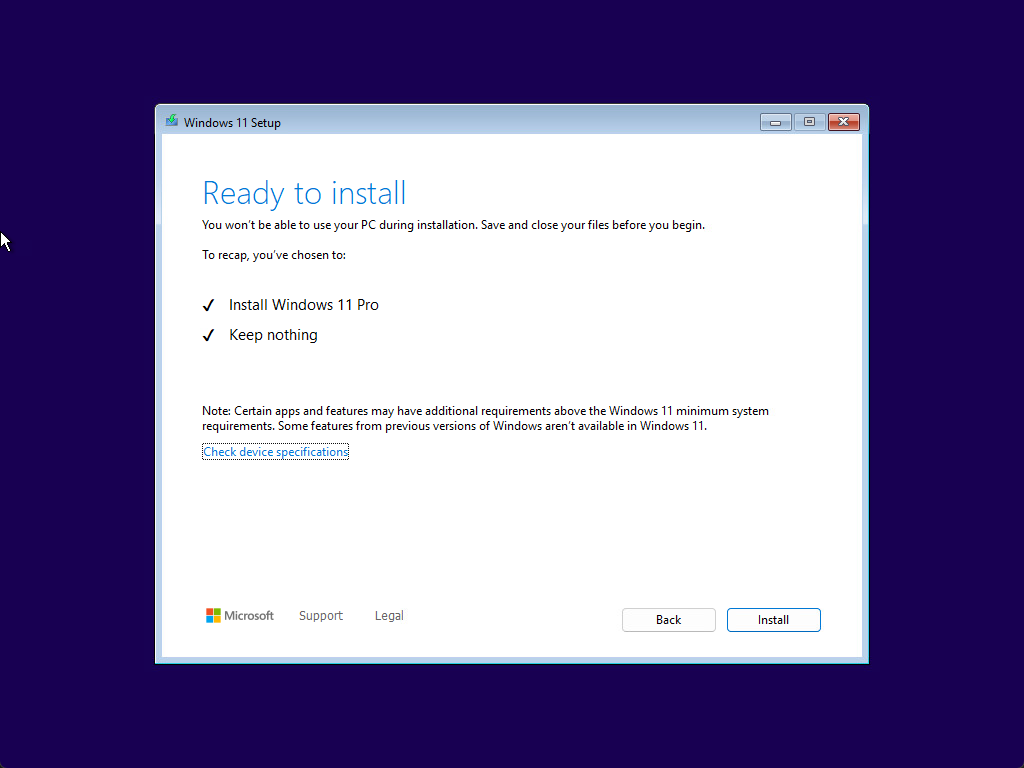
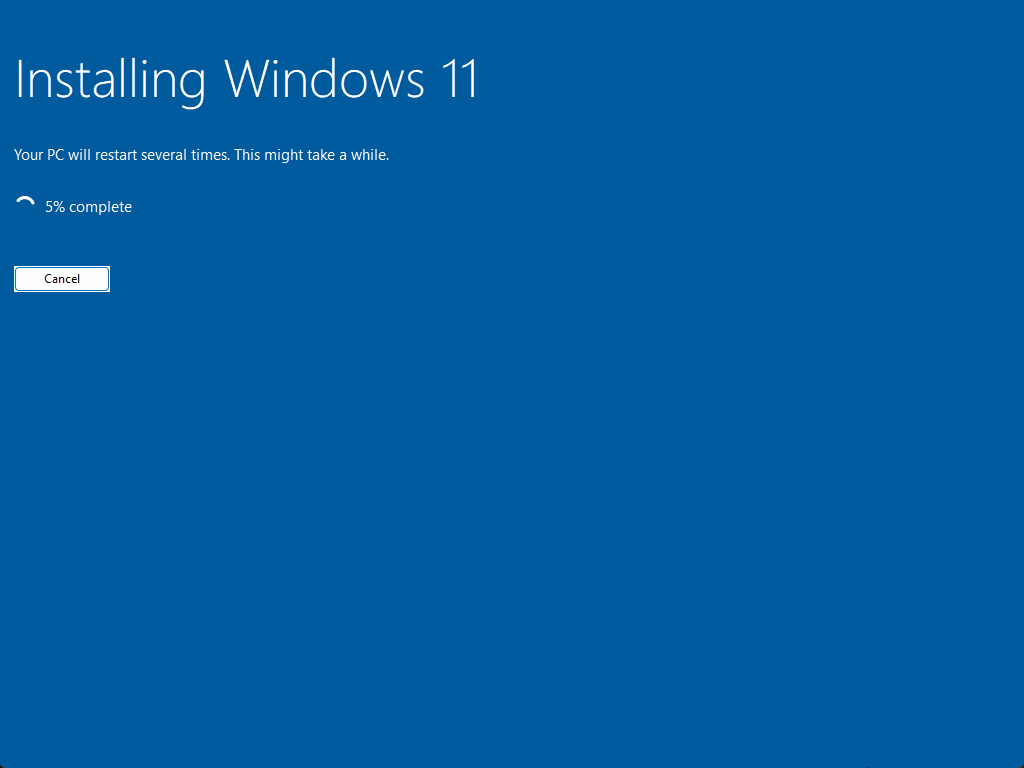
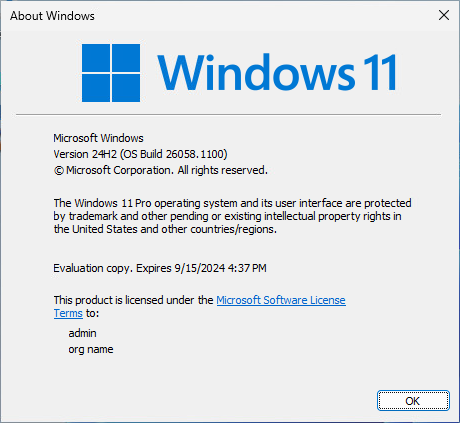
With the winver command we can see the following information:

2. Sudo command
One of the exciting new features coming to Windows 11 24H2 is the new sudo command for Windows. Using sudo will be a familiar experience for those who have used Linux before. However, this is not a port of the Linux sudo command or the Microsoft version of it. It is a completely new tool that does similar things for Windows users, but there are certainly differences between the two.
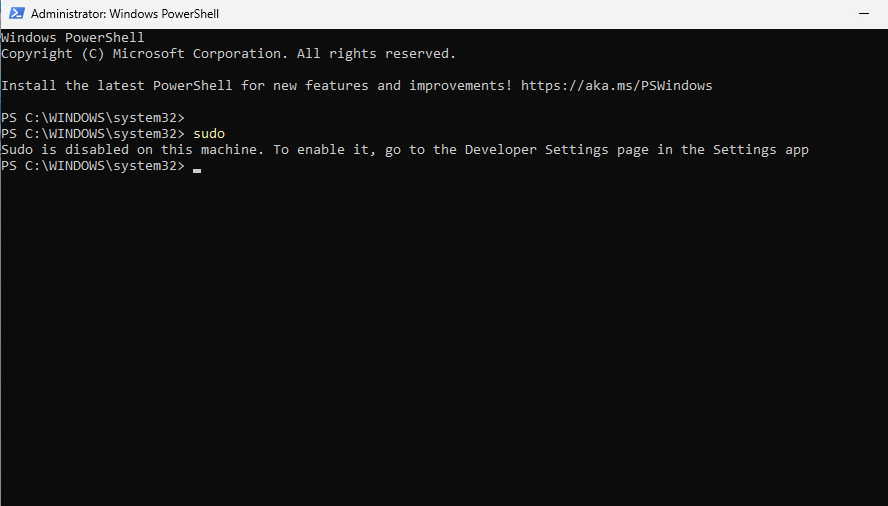
If you just try to run the sudo command from the command line, you will see this message that it needs to be enabled in the developer settings.
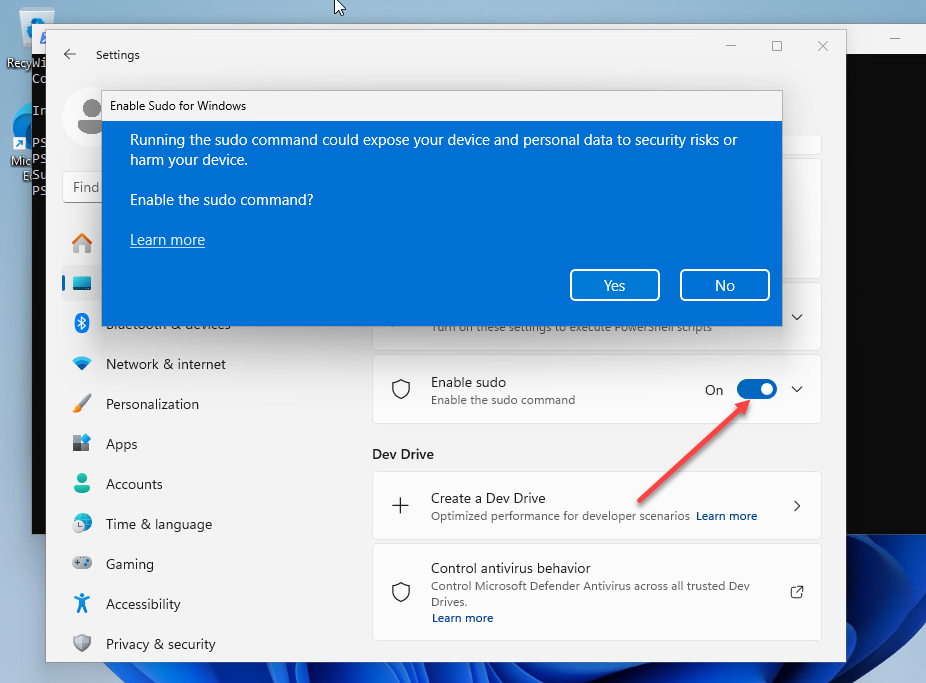
Under Settings > System > For developers, you'll see the Enable sudo option. Turn on the switch and confirm on the settings page.
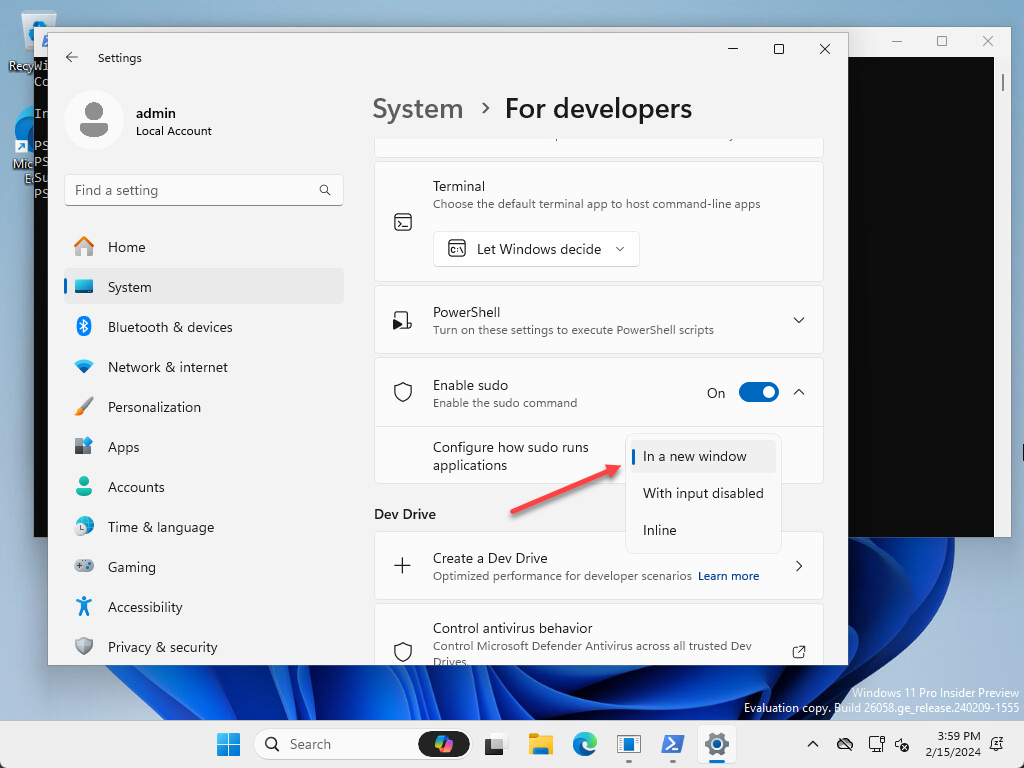
You can also configure how sudo runs programs.
3. New Copilot AI features
Microsoft is testing a Copilot feature, the Copilot button and the Copilot UI in the latest Windows 11 Insider build with the aim of improving user productivity. The feature is activated when text is copied or an image is dragged onto the Copilot icon, and offers actions like summarizing text or managing image content directly from the taskbar. The Copilot icon animates to indicate its availability for assistance.
Additionally, Microsoft is introducing automatic Copilot launch after system startup for widescreen devices to select Windows Insiders, limited to devices with a screen size of at least 27 inches and a resolution of 1920 pixels wide, limited to the primary display on multiple monitors. Availability settings for this feature are controlled via Settings > Personalization > Copilot and are gradually rolling out to users in the Canary and Dev channels.
These updates are part of Microsoft's exploratory features in the Windows Insider program, which aims to integrate innovative functionality to improve the Windows user experience.
4. Advanced power saving mode
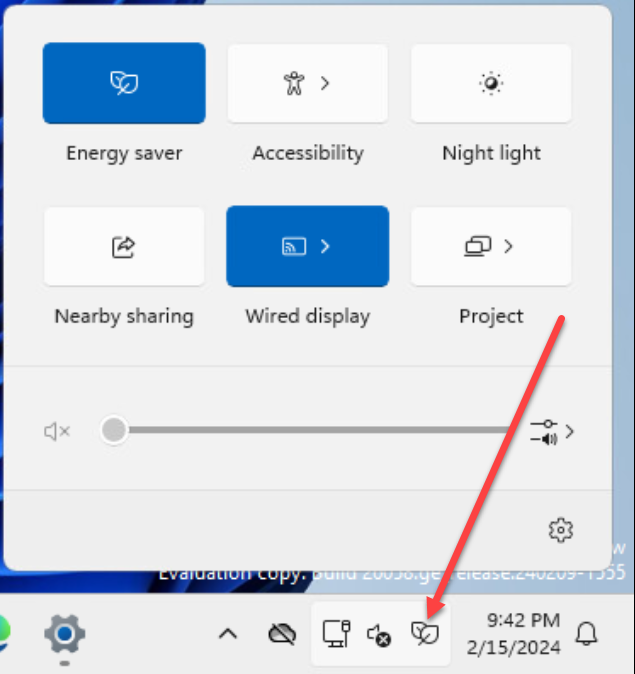
Windows 11 24H2 features a new power saving icon that helps optimize power consumption by extending battery life for laptops (Battery Optimization) and reducing energy costs for desktops. The power saving icon in the Quick Settings panel lets you easily enable power saving mode for a greener computing experience on desktops and laptops.
5. Revised Settings app
With each new release, Microsoft continues to refine the Settings app to improve the experience from the old Control Panel experience from previous generations of Windows client operating systems. The new Settings app is easier to navigate, and you can find most anything you want to configure or customize here. You can browse settings, adjust system preferences, and manage devices.
6. Improved Wi-Fi management
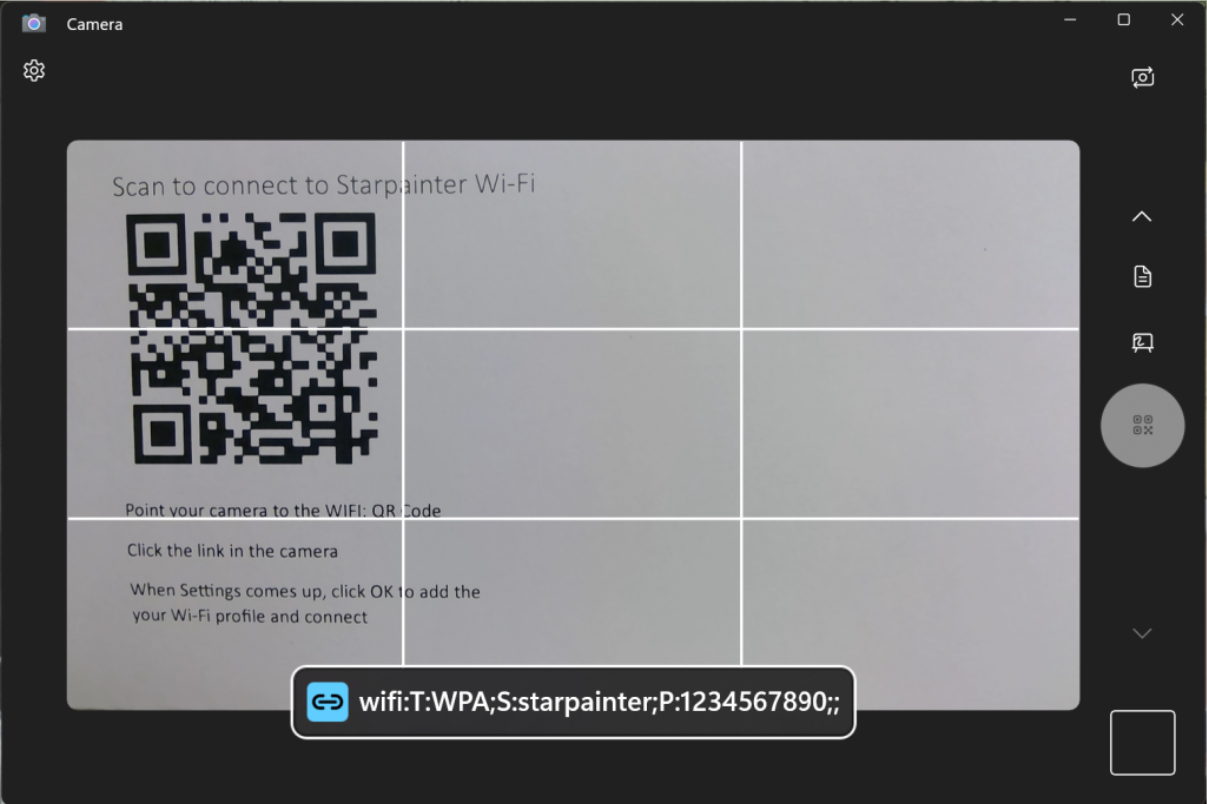
The Camera app now enables quick Wi-Fi network connections by scanning a QR code containing network details. This feature was introduced in build 25977 for the Canary channel. It makes it easier to add new Wi-Fi profiles directly from the Wi-Fi features. It supports both standard Wi-Fi networks and mobile hotspots, and users can even create their own Wi-Fi QR codes to share network access with others.
7. File Explorer improvements
The updated File Explorer introduces a more user-friendly interface and improved performance. Improvements include faster access to frequently used files, a more efficient search feature, and better integration with cloud storage services that make file management more intuitive.
8. Audio enhancements for accessibility
Windows has improved its accessibility capabilities by integrating enhanced support for Bluetooth® LE hearing aids into compatible PCs. This improvement facilitates direct pairing, audio streaming, and efficient call management. The latest update introduces the ability to fine-tune audio presets and ambient sound levels through Settings and Quick Settings.
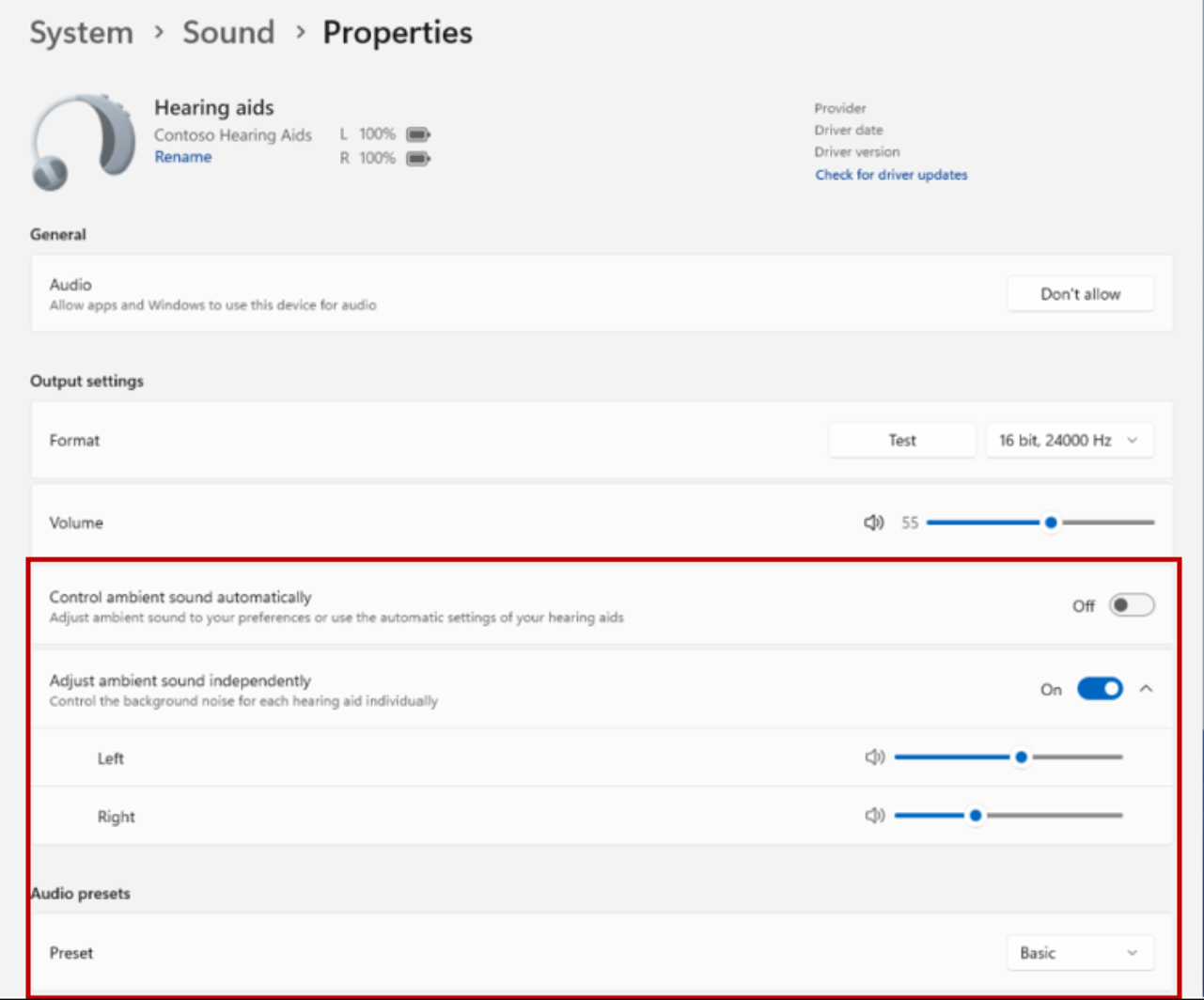
This feature allows users to change their hearing aid settings based on their environment, with the ability to personalize the listening experience and improve sound clarity. The audio presets depend on the specific hearing aid model and its configuration. You can adjust the settings to help minimize background noise.
9. Security improvements
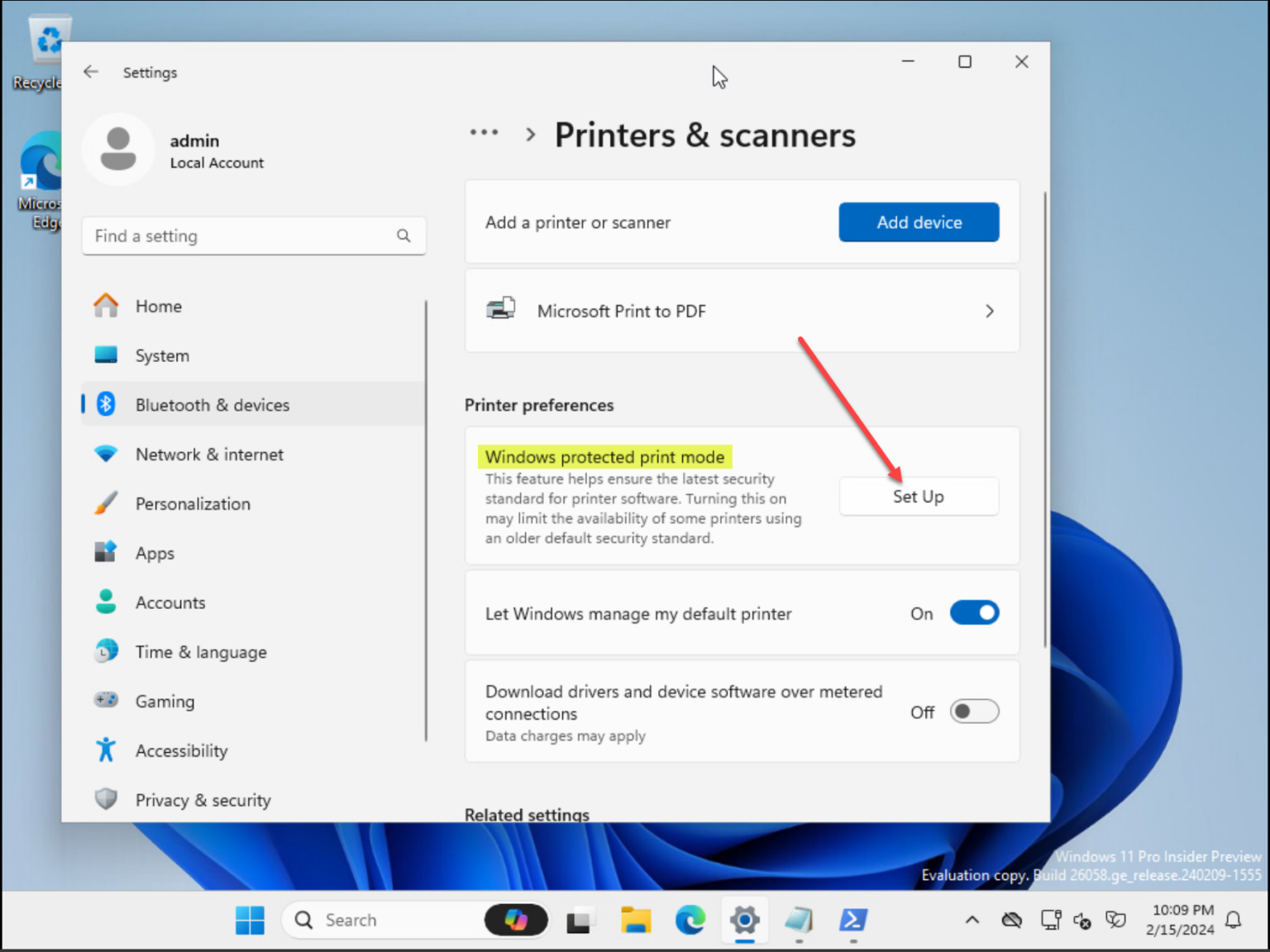
Windows 11 24H2 strengthens system security with features like Windows Protected Printing Mode and elevated process for Bluetooth commands and devices. Developers can use the Cryptography API: Next Generation (CNG) framework to help secure Windows keys with Virtualization-Based Security (VBS).
10. New registry search option
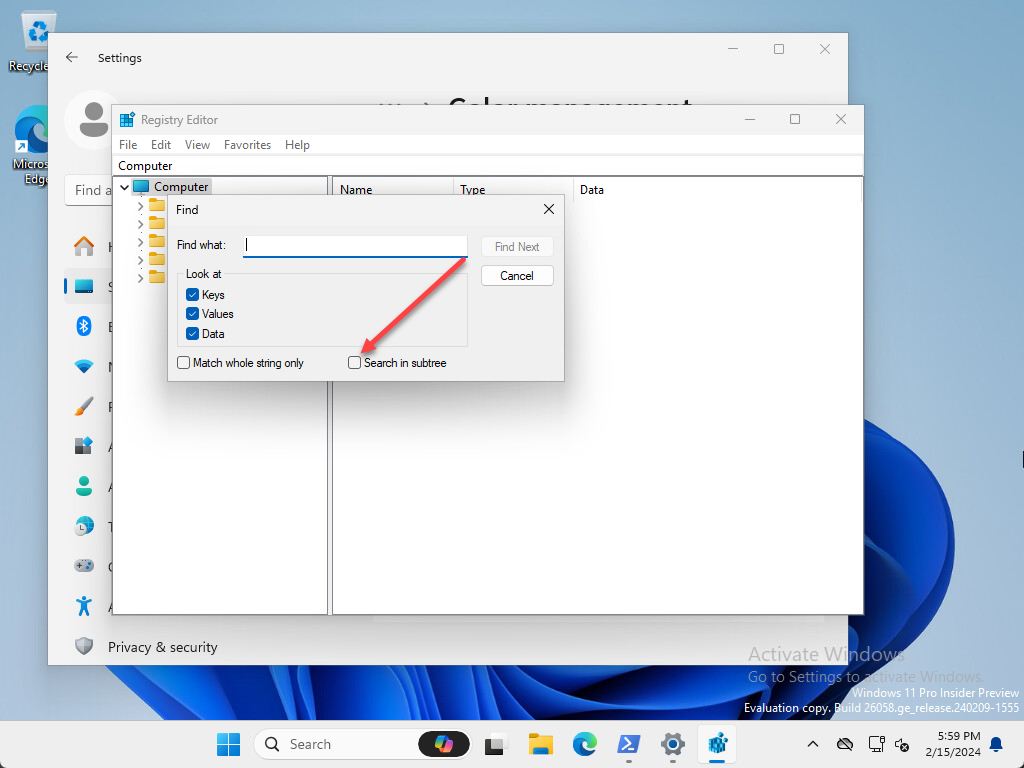
There is a new option in the Registry Editor that allows you to search within a subtree. Look at the Find box in the image below.
11. Quick Settings and System Tray Updates
The system tray and quick settings panel have been redesigned for faster access to system controls and notifications. This update allows users to easily adjust settings such as volume, connectivity, and display brightness without disrupting their workflow.
12. Taskbar thumbnails and Start menu improvements
The taskbar and Start menu in Windows 11 24H2 receive significant improvements for a more personalized and efficient interface. Enhanced taskbar thumbnails provide previews of open applications, while Start menu improvements allow for better organization of programs and files, facilitating faster access to important items.
13. New hardware requirements
With all the improvements and AI additions in the new platform, there are rumors that Microsoft is looking to increase the system requirements for Windows 11 24H2. With older versions of Windows 11, users could bypass the hardware requirements using registry keys and other tools and it would still work. However, with the new 24H2 release, it seems that Microsoft is considering adjusting the rigor of the requirement in the operating system.
If the CPU does not support POPCNT, there is speculation that Windows 11 version 24H2 will not boot. This instruction set is included in CPUs that explicitly support SSE4.2 or SSE4a. Intel and AMD have older processors without this instruction set, circa 2008 for Intel and 2011 for AMD. Many home labs, PCs, laptops, and even virtual desktops would no doubt not be able to run 24H if this requirement was implemented due to the underlying hardware they are running on.