Introduction
This tutorial is about how to install Hestia Control Panel. It is an easy to use dashboard to manage all your websites, email servers and more. It has many one-click installs like WordPress that make it easy to start a new website. You can see a demo here.
Prerequisites
- A brand new server with one of the following operating systems:
Debian 9
Debian 10
Debian 11
Ubuntu 18.04
Ubuntu 20.04 - (Optional, but recommended) Domain name
Step 1 – Start the installation
First, you need to access your server's command line by typing ssh username@hostname . If you are not already logged in as root, type sudo su and enter your password.
Then run the following commands:
wget https://raw.githubusercontent.com/hestiacp/hestiacp/release/install/hst-install.sh
bash hst-install.sh
It will install the dependencies, then you should see this page:
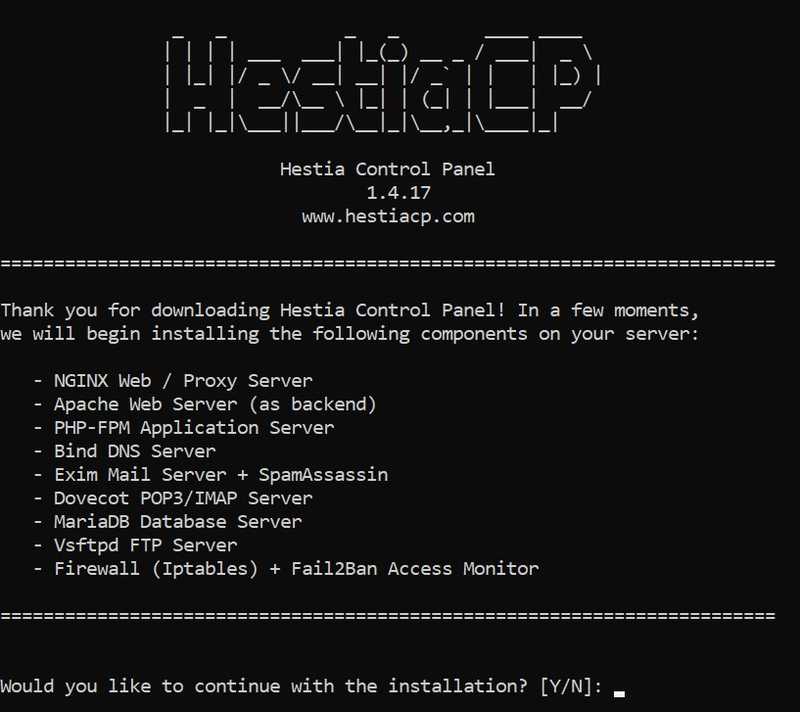
“Type ”y“ for ”yes,” then press Enter.
Step 2 – Installation Steps
Next, it will ask you for the administrator email address and fully qualified domain name (FQDN):

The admin email address is the same email you use for your admin account. It is also where you will receive other notifications, such as SSL certificate expiration notifications.
The FQDN is the domain name you use to access the panel. If you don't have a domain name, enter your server's IP address. If you do have a domain name, create an A record in your domain provider's DNS settings for your domain name and point it to your server's IP address.
Now, after entering these details, sit back and wait for the installation to finish. It is usually very quick, but sometimes it can take up to 15 minutes or more.
Step 3 – Log in to the panel
Congratulations! You have installed the panel. To log in, visit panel.example.com:8083 (replace panel.example.com with the FQDN you entered earlier, or your IP address).
Log in to the console with the printed credentials.
Result
Congratulations! You have installed Hestia and if you followed steps 4 and 4.1, you have learned how to create a website and install external applications. There are other things you can do with the panel. If you have any problems installing the panel, you can ask questions on their forum or Discord server.