In this tutorial, we will show you how to change the Administrator password in Windows Server 2008 R2 or 2012 R2.
There are many reasons why you might want to change your Windows Server administrator password, in fact it is recommended to change all your passwords at least once every 6 months. Now, we know that remembering so many new passwords every half a year, at the very least, can be cumbersome, so we recommend using a reliable password manager to make your life easier.
In this tutorial, we will show you how to change the Administrator password in Windows Server 2008 R2, 2012 R2, 2016, and 2019. However, before we get straight into it, we will first give you some general guidelines for creating strong passwords.
How to create a strong password?
There is no single rule of thumb on how to create a strong password, however, it is recommended to follow these guidelines to prevent brute-force and dictionary attacks:
Your password must be at least 8 characters long.
Include uppercase and lowercase letters as well as numbers and special characters (@, #, and etc.).
Do not include any real words in your password.
Do not include any dates in your password (birthday, anniversary, etc.).
Make sure the password you create is unique and not similar to any other existing password.
In general, if you don't share your passwords with others and don't write them down somewhere, the above guidelines will allow you to create a password that even the strongest supercomputers won't be able to crack.
How to change Windows Server 2019 password?
To change the administrator password in Windows Server 2019, follow these steps:
Step 1: Log in to your server via Remote Desktop.
Step 2: Press your Windows key and type Control Panel in the search bar.

Step 3: In the User Accounts section, click Change account type. Please note that you need to switch from the drop-down bar to the category view to see it.

Step 4: Now select the Administrator account.

Step 5: On the next page, click Change Password.
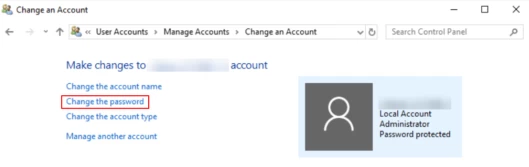
Step 6: Type the current password and then the new password and click Change password.

How to change Windows Server 2012 R2 or 2016 password?
To change your server administrator password in Windows Server 2012 R2 and Windows Server 2016, follow these steps:
Step 1: Log in to your server via Remote Desktop.
Step 2: Press your Windows key and type Administrative Tools.
Step 3: Double-click Computer Management.
Step 4: Expand Local Users and Groups.
Step 5: Click on Users.
Step 6: Right-click on Administrator. Click Set Password > Proceed.

Step 7: Type your new password in both fields then press OK.
How to change Windows Server 2008 R2 password?
To change the administrator password in Windows Server 2008 R2, follow the steps below.
Step 1: Log in to your server via Remote Desktop.
Step 2: Right-click Computer and select Manage.
Step 3: Double-click Configuration.
Step 4: Expand Local Users and Groups and then select Users.
Step 5: Right-click on Administrator and select Set Password, and then click Proceed.
Step 6: Enter the new password and select OK.
Result
And that’s it! If you have followed these simple steps for your respective Windows Server version, you have now changed the administrator password of your Windows Server. If you also have a Linux VPS/Server, you can read our detailed guide on how to change the root password. If you have any questions or suggestions, please ask them in the comments section below.