









How to log in to a Windows server via Remote Desktop
Software Remote Desktop Connection Free on all Version Windows versions (including: Windows XP, Windows Vista, Windows 7, etc.) are located.
- To connect to the server, you need to access this software through the following steps:
- Start >> Programs (All Programs) >> Accessories >> Remote Desktop Connection
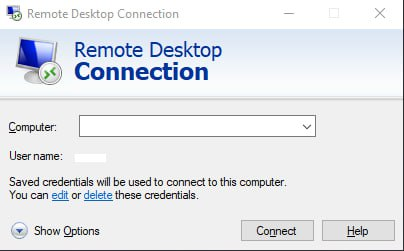
After running the relevant software, in front of the Computer You need to enter your virtual server IP and click on the option Connect Click.
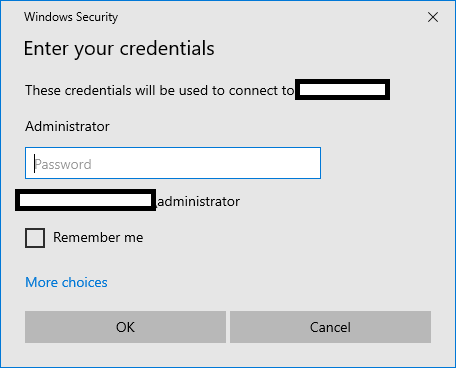
Enter the username and password as mentioned in the server details email and log in to the server.
Options menu
General option: The same home page that appears first and you will access the server by entering your details.
Display option: It shows the size, color, and related specifications of a server screen and can be changed.
Option Local Resources -> Local devices and resources : You can use this option to add peripherals or drives to your server if needed.
To purchase a Windows virtual server, you can: Here Subscribe.